The Countdown Clock is an on-screen timer you can add to any scene. It's a simple way to let viewers know when your program begins, giving them time to join before you start.
Adding a countdown to your scene
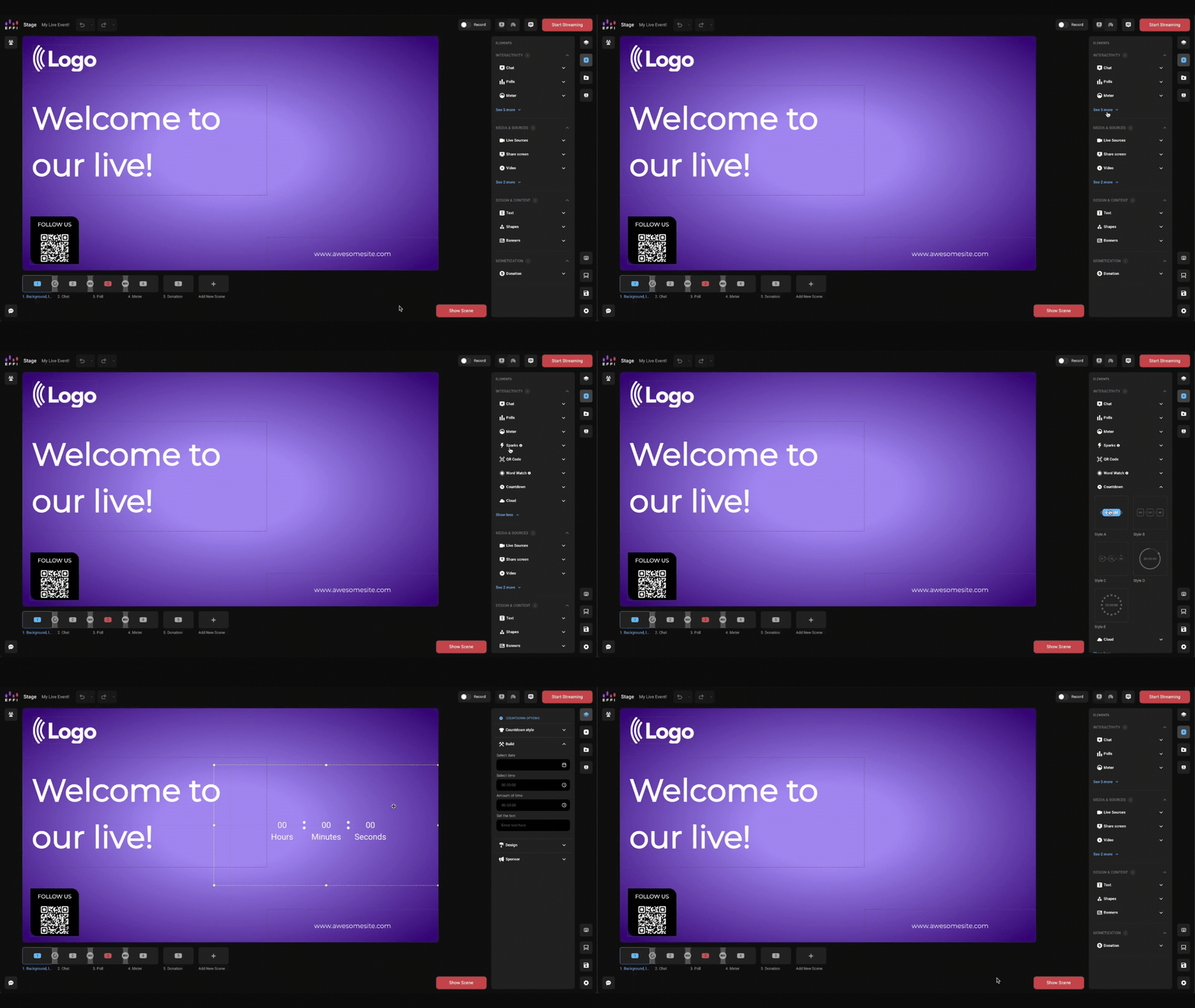
- Open your event from the Dashboard.
- In the Elements panel, under Interactivity, click See more.
- Click Countdown to see the available styles.
- Select a style to add it to your scene.
Opening the Countdown options
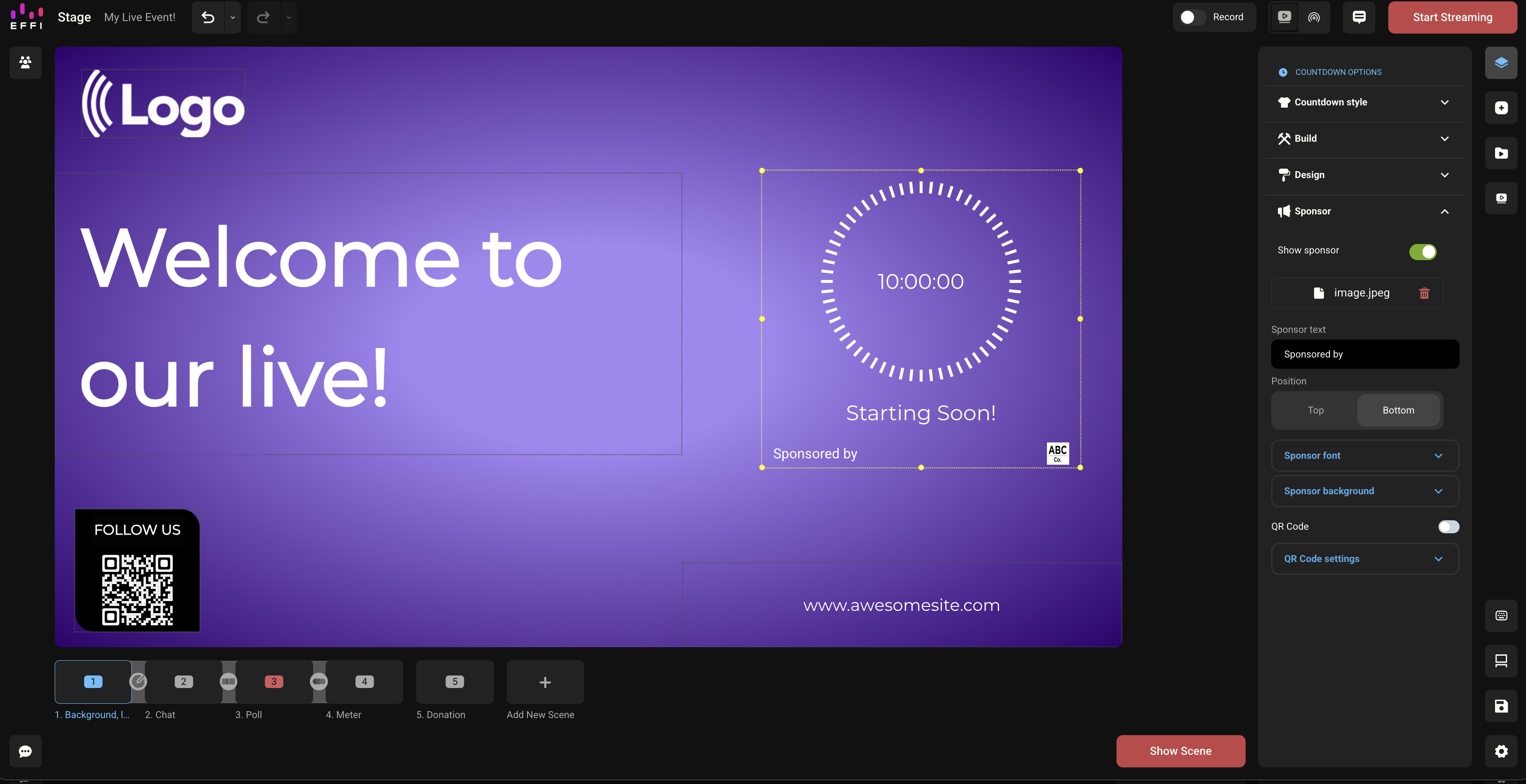
Double-click the countdown on your scene to open Countdown Options in the right-hand panel. The options are grouped into four sections: Countdown style, Build, Design, and Sponsor.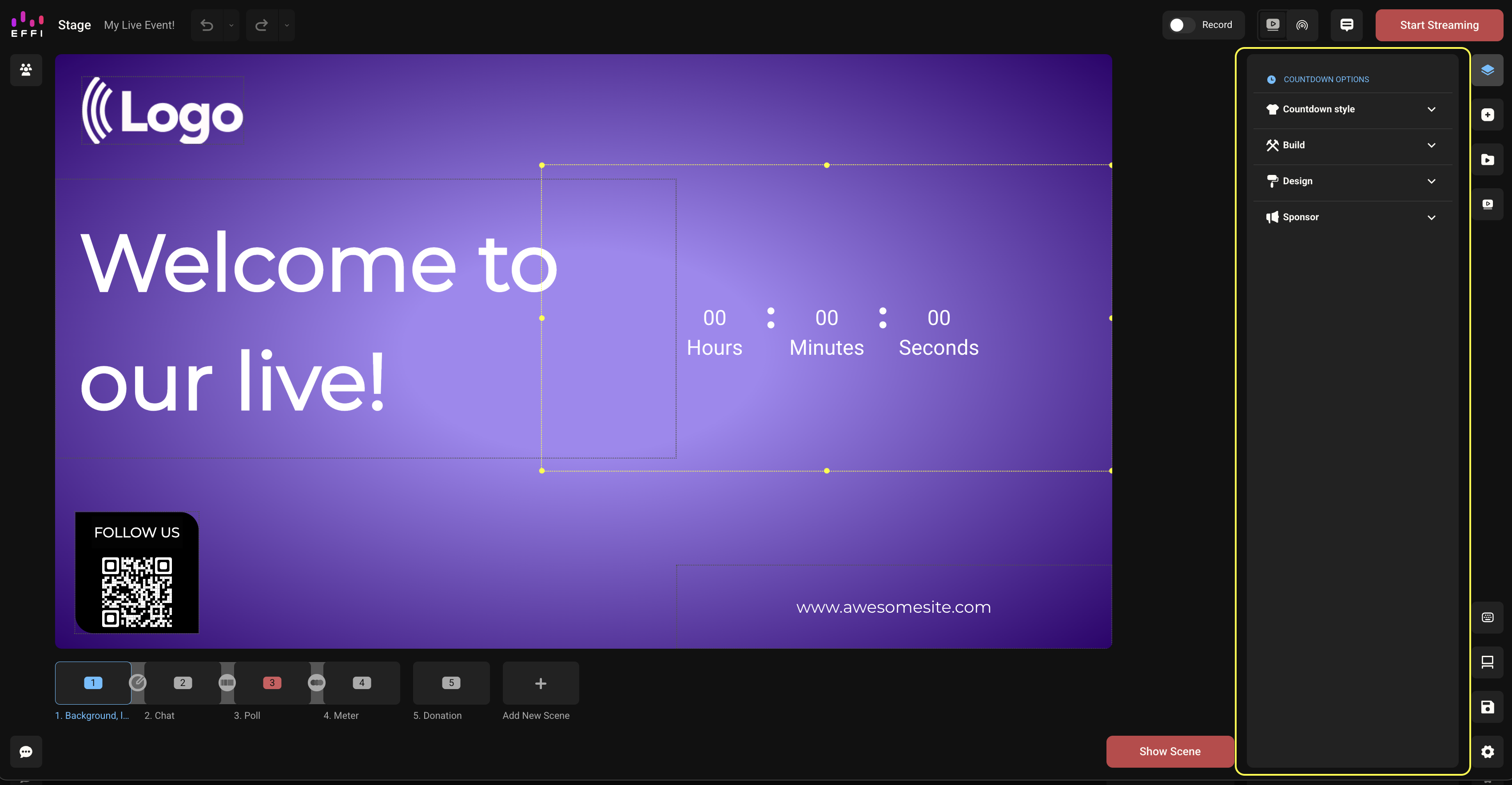
Setting the timer
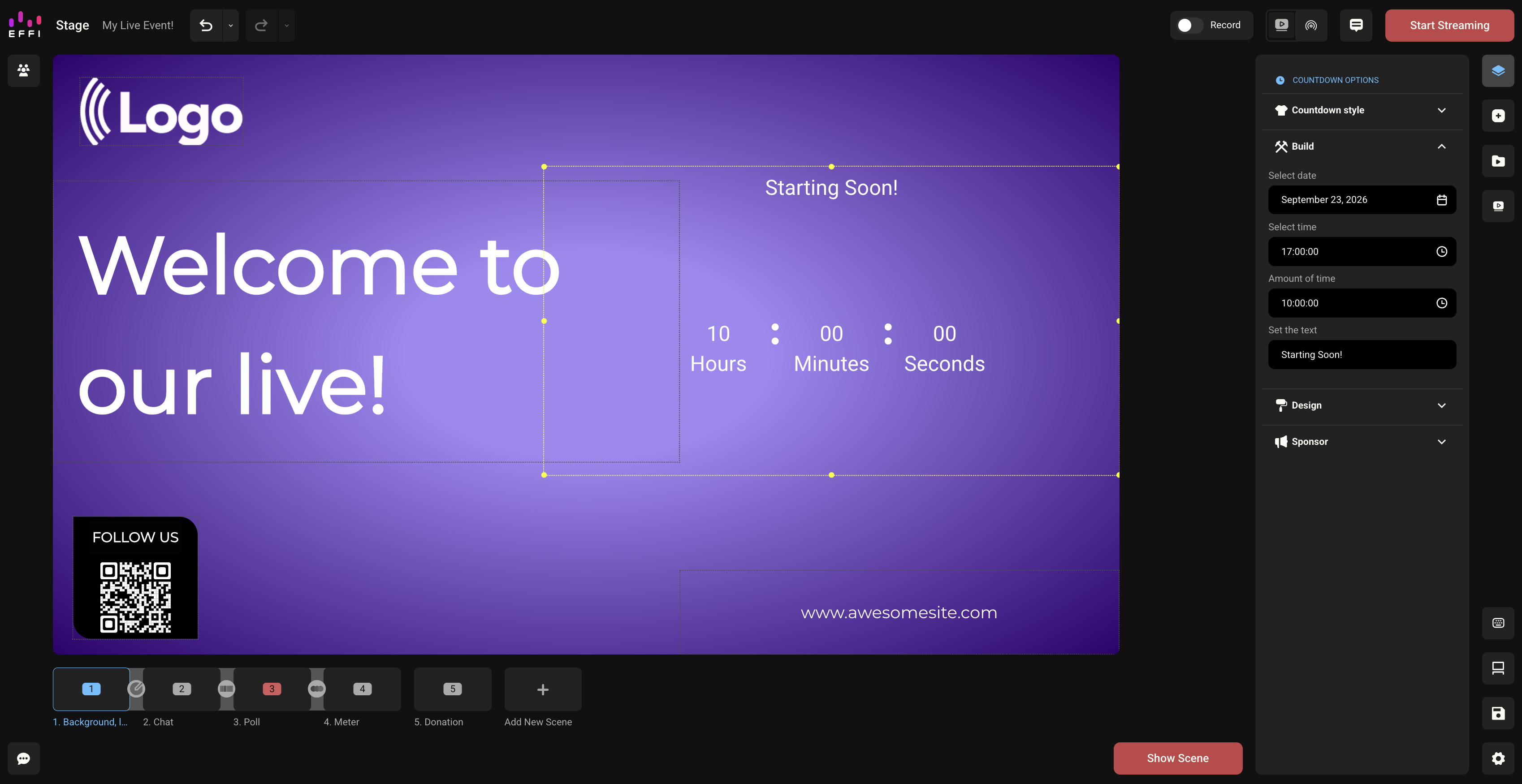
Open the Build section to set when the countdown starts and how long it runs.
| Field | What it does |
|---|---|
| Select date | The day the countdown starts. |
| Select time | The time the countdown starts. |
| Amount of time | How much time to put on the clock. |
| Set the text | The label shown under the clock, such as "Till launch" or "Starting soon." |
Customizing your countdown
Countdown style
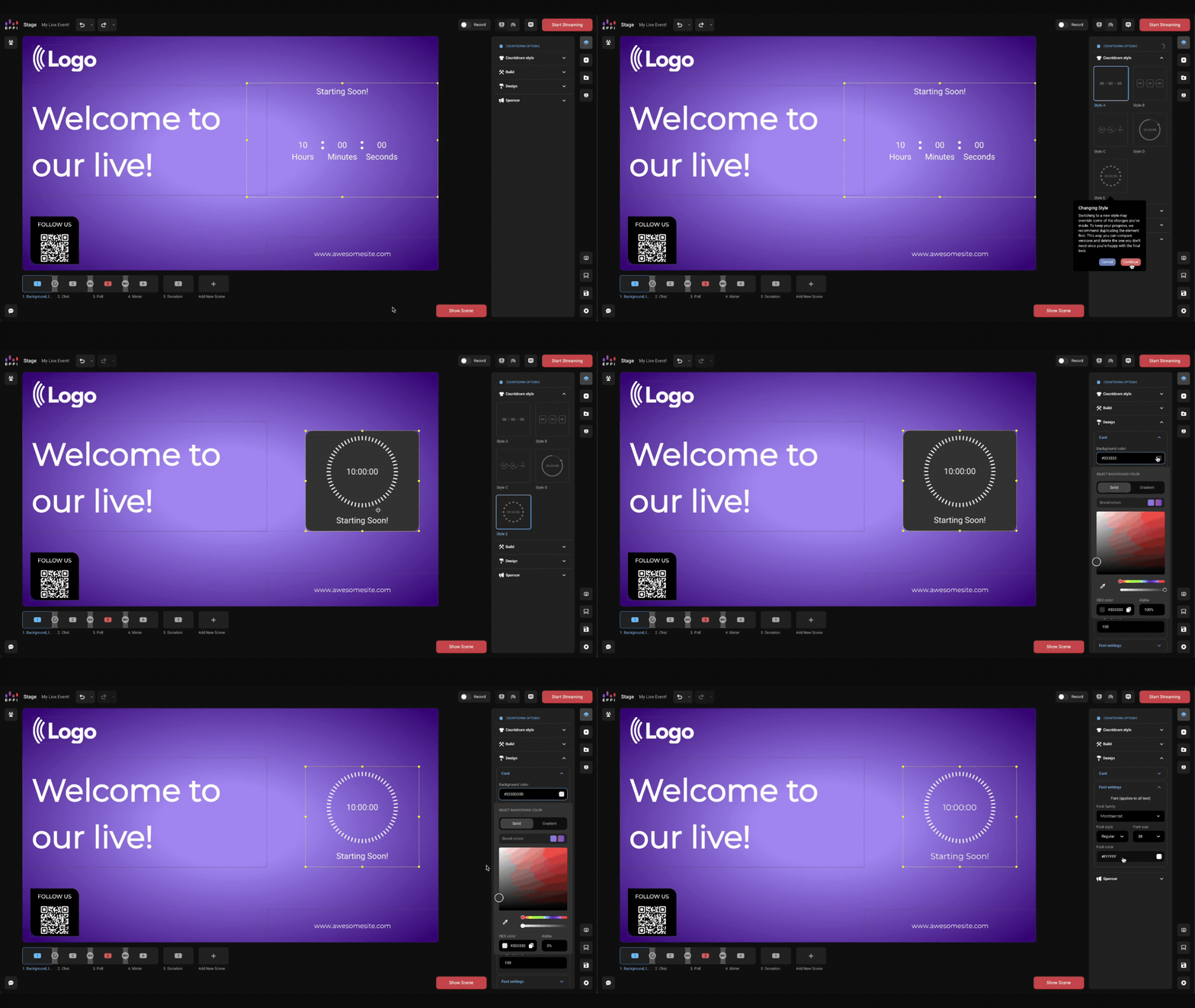
Choose from five styles, Style A through Style E.
Design
The Design section has two groups of settings.
Card
- Background color, Border color, and Progress color set the colors of the countdown card and its progress ring.
- Border thickness and Border radius control the card's outline and corners. Click Show Individual to set each corner separately.
- Width and Height set the card's size.
- Background image lets you add an image behind the countdown. Choose Cover or Contain for the size and adjust Image Opacity.
Font settings
- These apply to all text in the countdown: Font family, Font style (Regular or Bold), Font size, and Font color.
Sponsor
Turn on Show sponsor to add sponsor branding to your countdown.
- Upload Sponsor Logo: Up to 2MB, 200 x 200 px.
- Sponsor text: Text shown with the logo.
- Position: Place the sponsor at the top o
- r bottom.
- Sponsor font and Sponsor background: Style the sponsor area.
- QR Code: Turn on to add a QR code, then set it up under QR Code settings.
The Countdown Clock works anywhere a little anticipation helps. Use it as a pre-show timer so viewers know exactly when you'll begin, or bring it back mid-stream to count down a break so your audience knows when to return. It's also a natural fit for building excitement before a product launch or big reveal, or for giving viewers a deadline to vote in a poll, enter a giveaway, or grab a limited-time offer. Pair it with your own text, colors, and sponsor branding, and your countdown becomes part of the show.
Was this article helpful?
That’s Great!
Thank you for your feedback
Sorry! We couldn't be helpful
Thank you for your feedback
Feedback sent
We appreciate your effort and will try to fix the article