Effi Sparks allow you to listen to your audience to gather their group sentiment and then react to how they are feeling in a variety of fun expressions — like sound, GIFs, images, video, or a URL.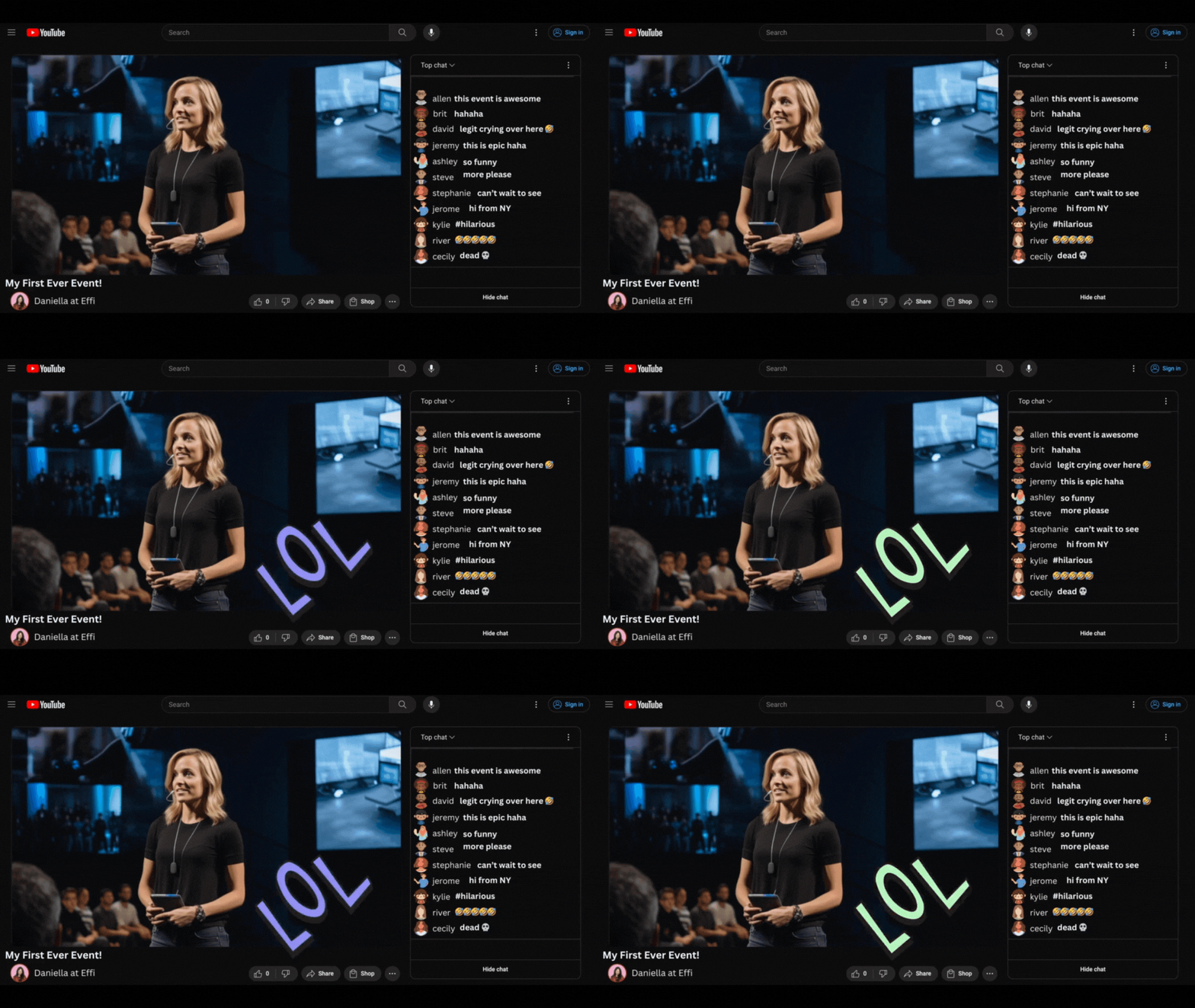
If X, Then Y
The simplest way to describe how Sparks work is in the form of an equation: If X, then Y. The X is an expression of what the audience is thinking and Y is an action like displaying a GIF, image, video, audio file, a poll, or any URL. For example, if the audience is angry, we'll show them a devil face emoji ?.
Creating a Spark isn't easy because it requires you to think ahead creatively. Using the above example, let's think through each step:
- What would the audience be saying if they were angry? What kind of words, phrases, or emojis would they be using to express their anger?
- Now that we know they're angry, what would they want to change? Sometimes the audience wants something new to happen (like moving onto the next segment) OR they just want the acknowledgment of being heard.
- What's a good way of communicating to your audience that you heard how they feel? Is it a funny GIF? An image? A soundbite or video? A poll for them to pick the next segment? How about a devil face emoji.
Now you might be thinking, well how do I know if my audience is angry? That's where Accepted Responses come in — every option you build includes a field for listing exactly the words, phrases, and emojis that count towards it. We cover Accepted Responses in detail later in this article.
Once you connect your Spark to chat, Effi will scan for everything you listed in the Accepted Responses field and will let you know if your audience is angry at any point by displaying the devil emoji ?. Then you can decide what you want to do about it.
How to Add Sparks
While thinking about how to use Sparks in your live event might take some creative thinking, once you are ready, actually adding them to your Effi event is easy. Just follow the steps below.
Adding Sparks
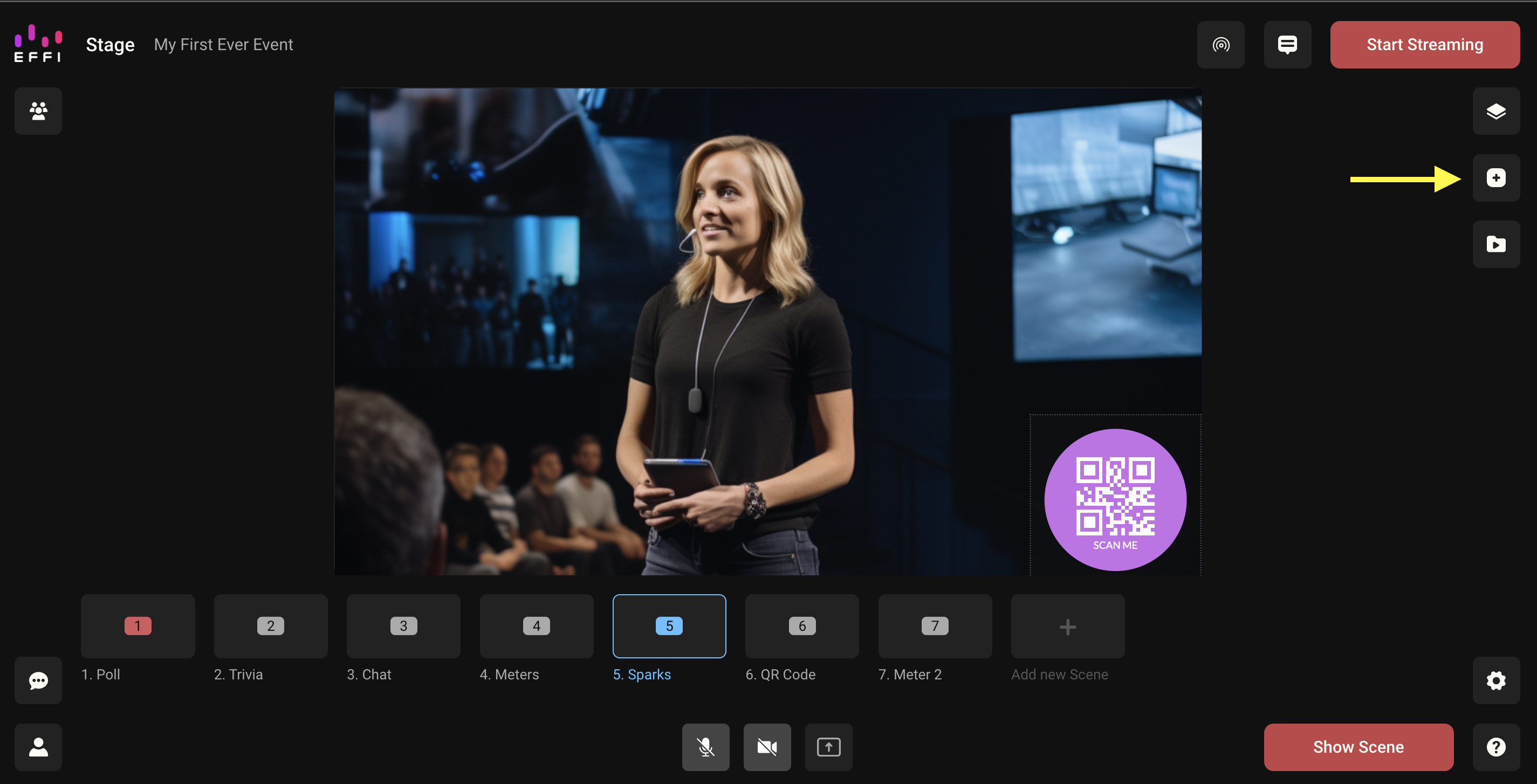
- Choose the scene you would like to add Sparks to and open the Elements panel from the right-hand side.
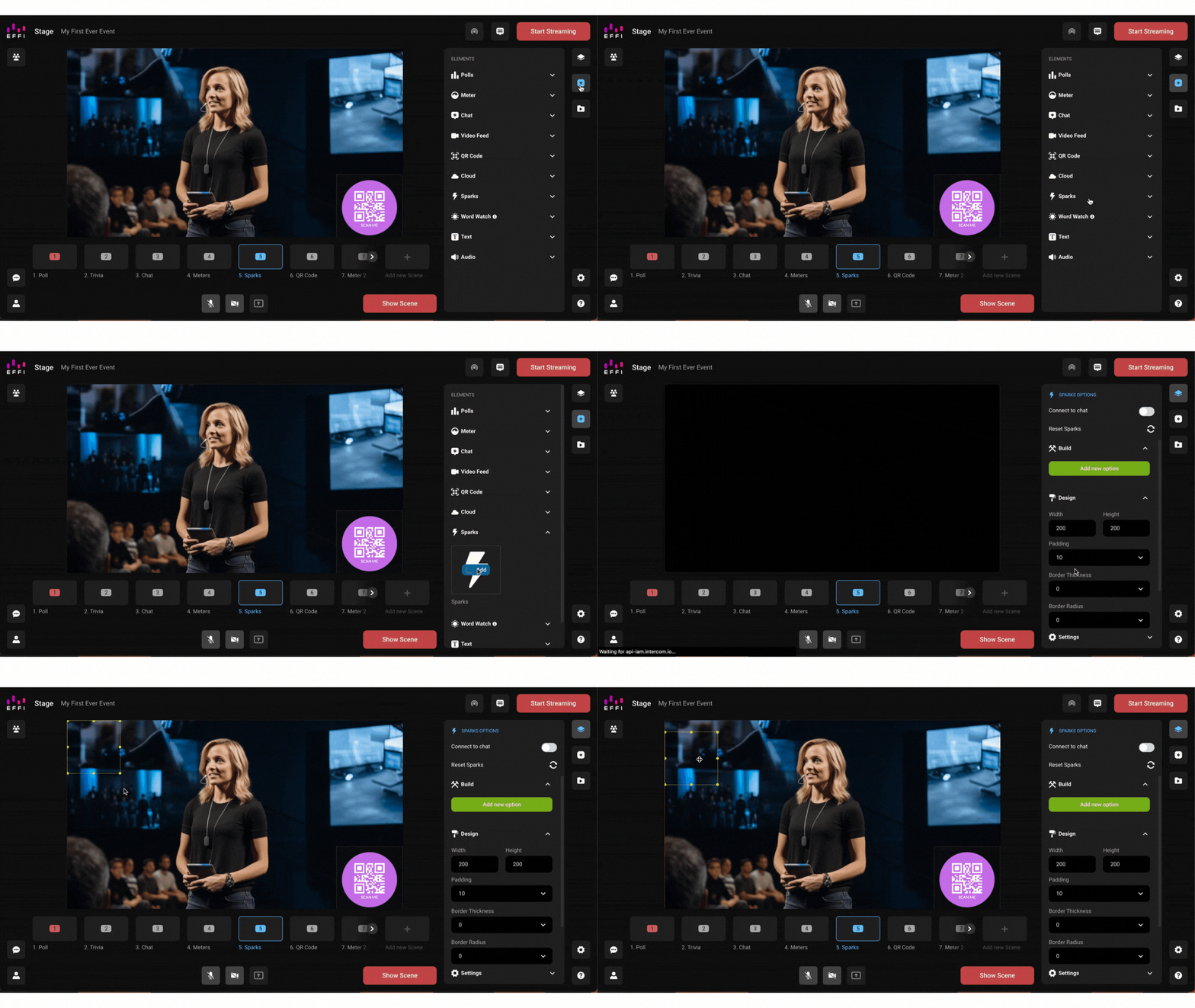
- From the list of elements, choose "Sparks" and click to add. You will notice that when you add Sparks all that appears in your scene preview window is a transparent box. This is because Sparks is always a transparent layer that won't be viewable to you or your audience until it is triggered by the audience — if it is triggered by the audience. Taking the example from above, if you add a Sparks option for when the audience is angry, but the audience is not angry, then it will never be triggered and the devil emoji will never be seen.
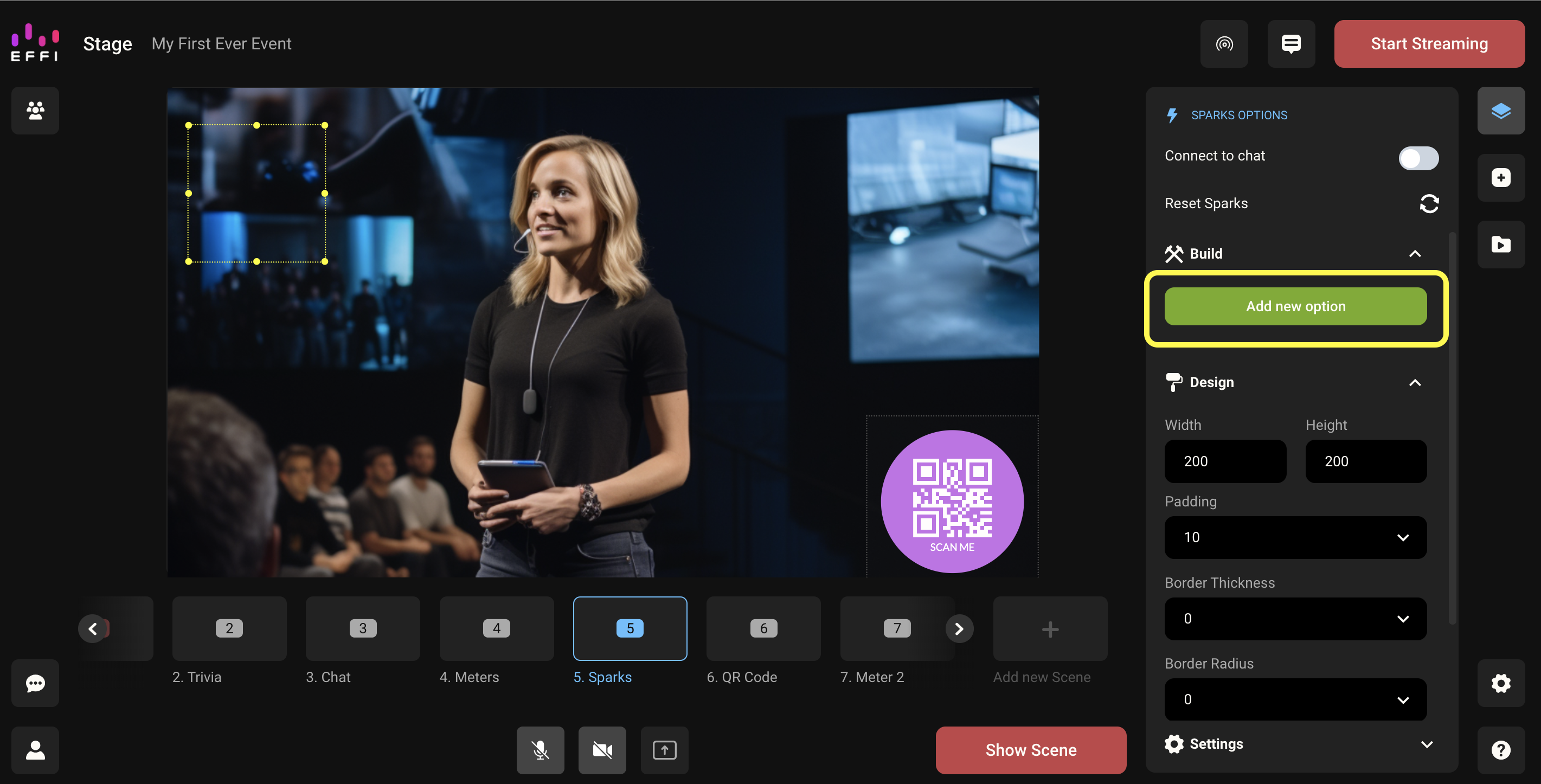
- Once you've decided what you want to know about how the audience is feeling and how you want to respond to it, it's time to add your options. Click "Add Option" to add your first option.
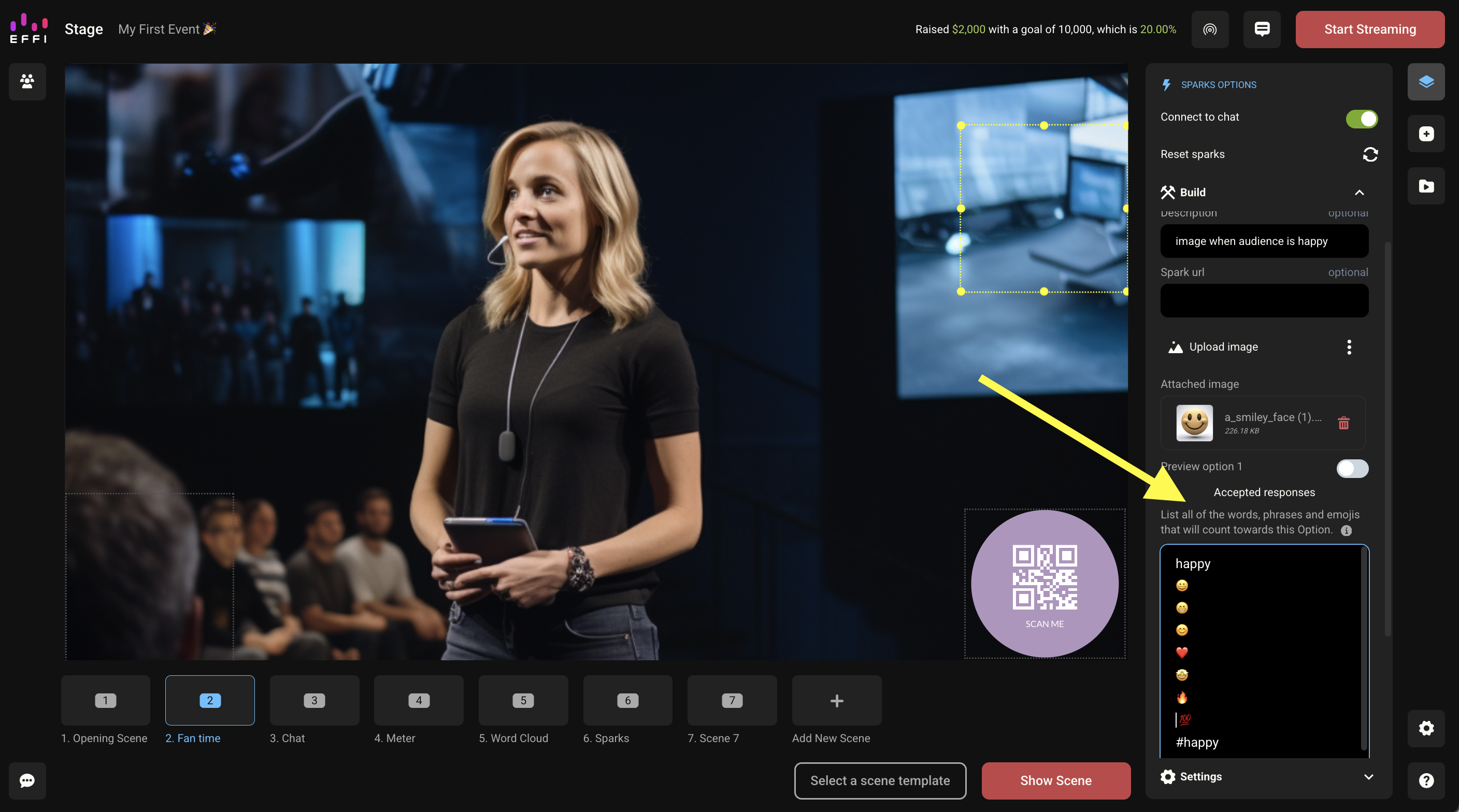
- Then it's time to fill out the details. Name your option, add a URL or some media, and list everything that will count towards the option in Accepted Responses. For example, if the option is happy, you will want to list things like #happy, love, ?, ?, ?.
Settings
Once you've added your options, it's time to choose the right settings for your Spark. This will depend a lot on what kind of broadcast you are hosting and how many chatters you expect to have. Settings can be found at the bottom of your Sparks Options menu.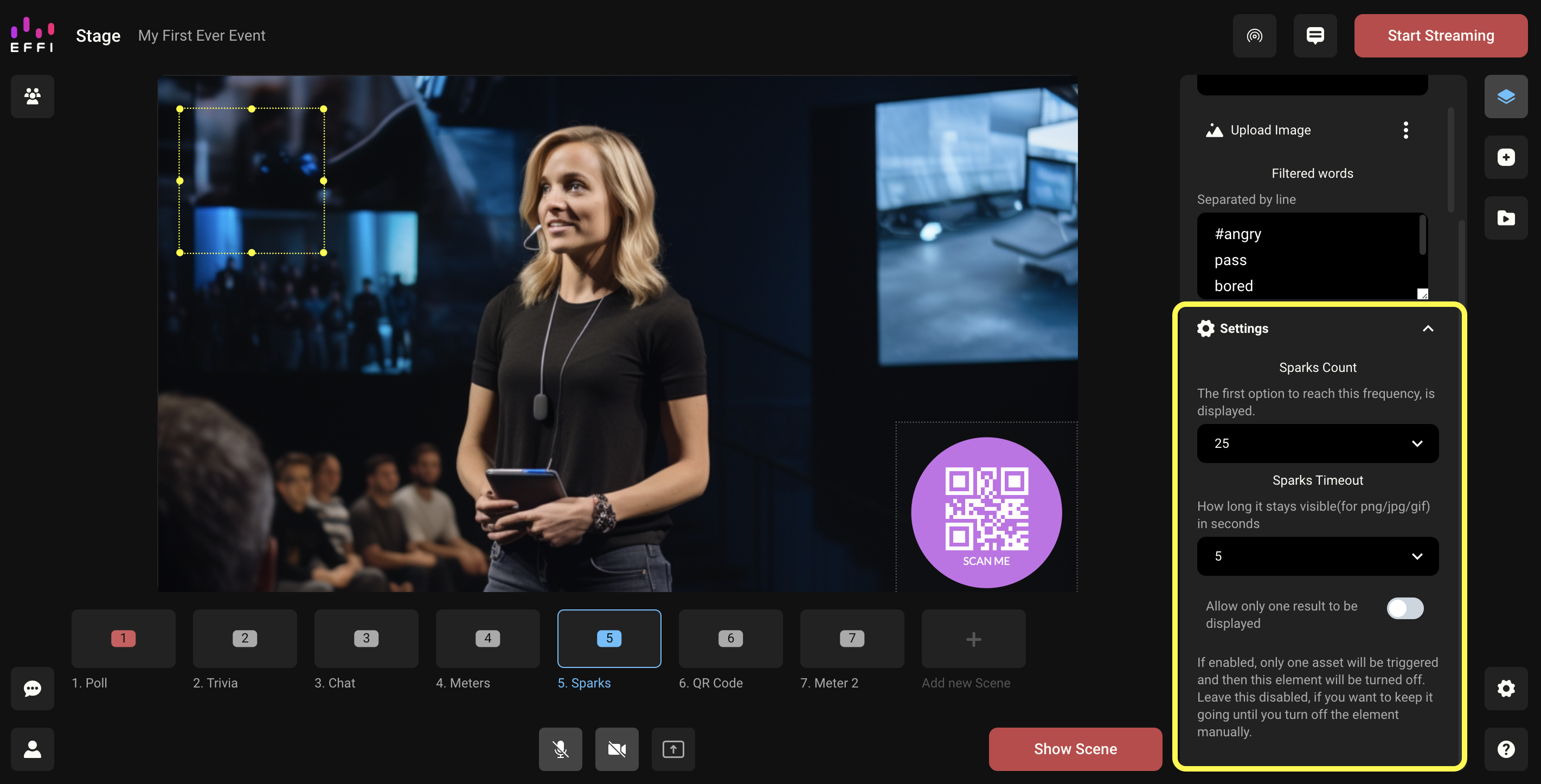
Let's take a look at the available settings:
- Sparks Count: The amount of times any combination of the listed words, phrases, and emojis has to be said in order for the Spark to be triggered. See "What Is the Sparks Count?" below for a full breakdown.
- Sparks Timeout: This setting determines how long you want the Spark to be displayed. For example, if you choose to display a devil emoji GIF and set the timeout to 5 seconds, the emoji will disappear after 5 seconds.
- Allow only one result to be displayed toggle: This depends on how you plan to use Sparks. If you want to give your audience the option of triggering the Spark throughout the broadcast, leave this untoggled. If, however, you are treating it more like a game and want to see which Spark is triggered first and have it be the only one displayed, toggle this on.
What Is the Sparks Count?
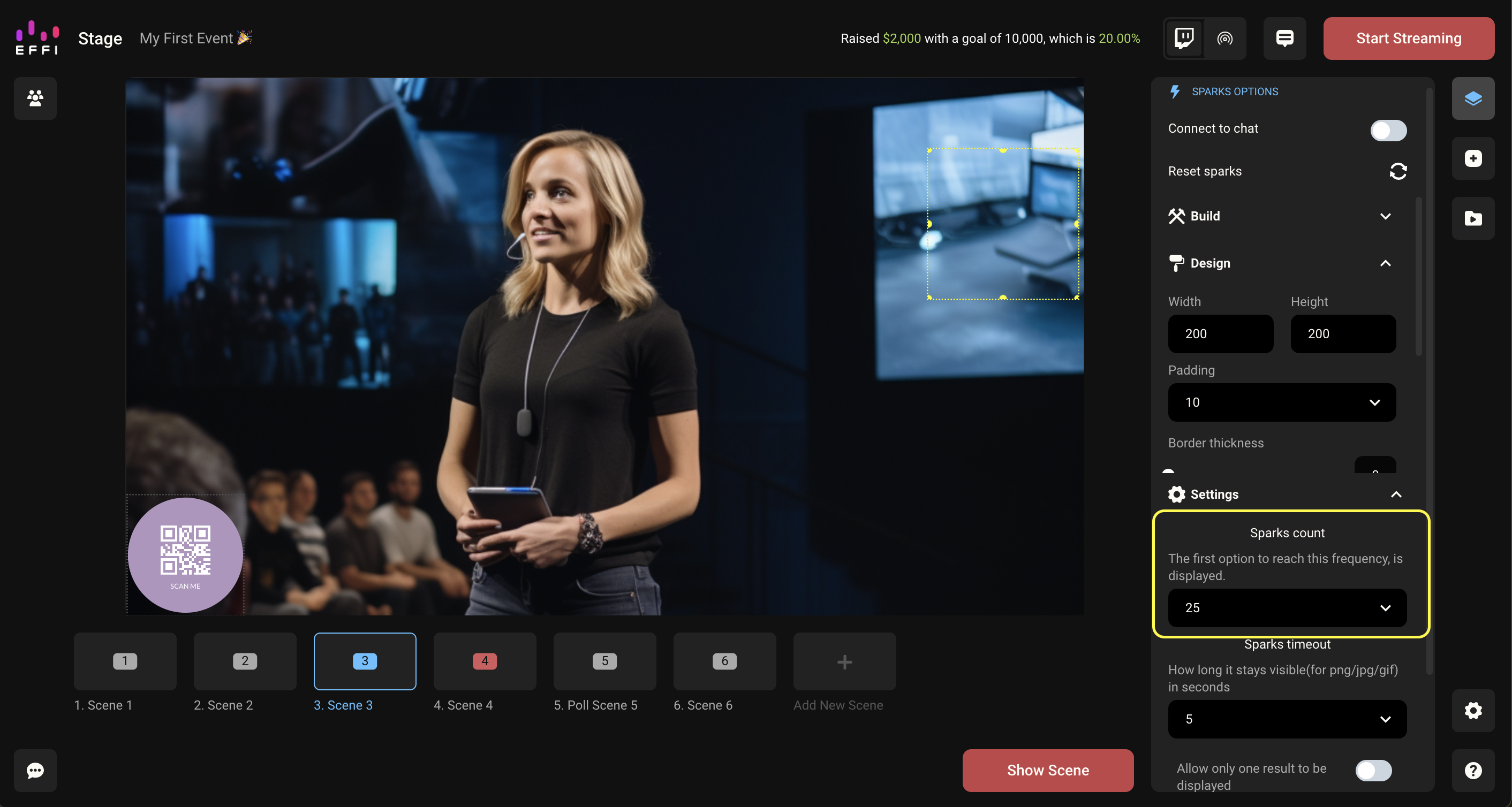
The Sparks Count is the multiplier of X. If X equals "the audience is angry" — which is a collective representation of the words that the audience is typing in chat — then the Sparks Count is the number of times that anger needs to be expressed before we consider "the audience is angry" and trigger the Spark.
Much like the Word Cloud, this number depends on how big your audience is. If you have 10 people watching your broadcast, you probably want a lower number than if you had 1,000 people watching. We don't have a hard rule for you, but our current hypothesis is 30% of the total number of viewers. Like the Word Cloud, this is probably best figured out with some trial and error.
Important: The Sparks Count will depend on the number of viewers you have. If you expect over 1,000 viewers, you'll likely have a lot of chatters, so you'll want to set that number higher so it takes longer to trigger. If you have a smaller audience with only a few chatters, keep that number low to ensure it triggers during the broadcast. It all depends on what you aim to achieve with your Spark.
You can change your Sparks Count at any time, even while the broadcast is live. So if you notice changes in the audience number, or you really want to set off a Spark and it's taking a while, simply raise or lower the count to get the results you need.
What Are Accepted Responses for Sparks?
Similar to Meters, Sparks have Accepted Responses. You have the ability to enter multiple response variations that will count towards each option. You can include hashtags, spelling variations, obvious typos, emojis?, and whatever makes sense for you.
For example, if your option is "Love," in Accepted Responses you'll list words and phrases someone would use if they love something, including emojis?. Things like heart, amazing, yas, ?, ?, and more.
Tip: When adding emojis to Accepted Responses, get creative. Think about all the different emojis your viewers might use to express themselves. For example, if they like something, they'll probably use ❤️?? but they might also use ???.
Here are some examples of Accepted Response lists. If you see one that works for your stream, simply copy and paste it into your Accepted Responses field!
Option: Funny
Accepted Answers:
| #funny | fun | ha | ? |
| #funnyy | fnny | lol | ? |
| funnyy | haha | loll | ? |
| lolz | rofl | laughs | ? |
| hilarious | dead | ? | ? |
Option: Love
Accepted Answers:
| #love | yass | ? | ? |
| luv | yaas | ❤️ | ? |
| #luv | slaps | ? | ? |
| hearts | yes | ? | ? |
| #loveit | loveee | ? | ? |
Option: Boring
Accepted Answers:
| #boring | snooze | #nxt | ? |
| boringg | nope | nxt | ? |
| bored | nah | yawn | ? |
| #bored | next | asleep | ? |
There are so many ways to use Sparks with Accepted Responses, can't wait to see what you do.
Was this article helpful?
That’s Great!
Thank you for your feedback
Sorry! We couldn't be helpful
Thank you for your feedback
Feedback sent
We appreciate your effort and will try to fix the article