Scene transitions control how your stream moves from one scene to the next. Instead of an instant cut, you can fade, slide, wipe, or chop between scenes, and set the speed and style of each one.
Opening the transition editor
- Open your event on the Stage.
- In the right-hand rail, click the transitions icon (second from the bottom, just above Save).
- The transition editor opens, with your scenes shown in a strip along the bottom.
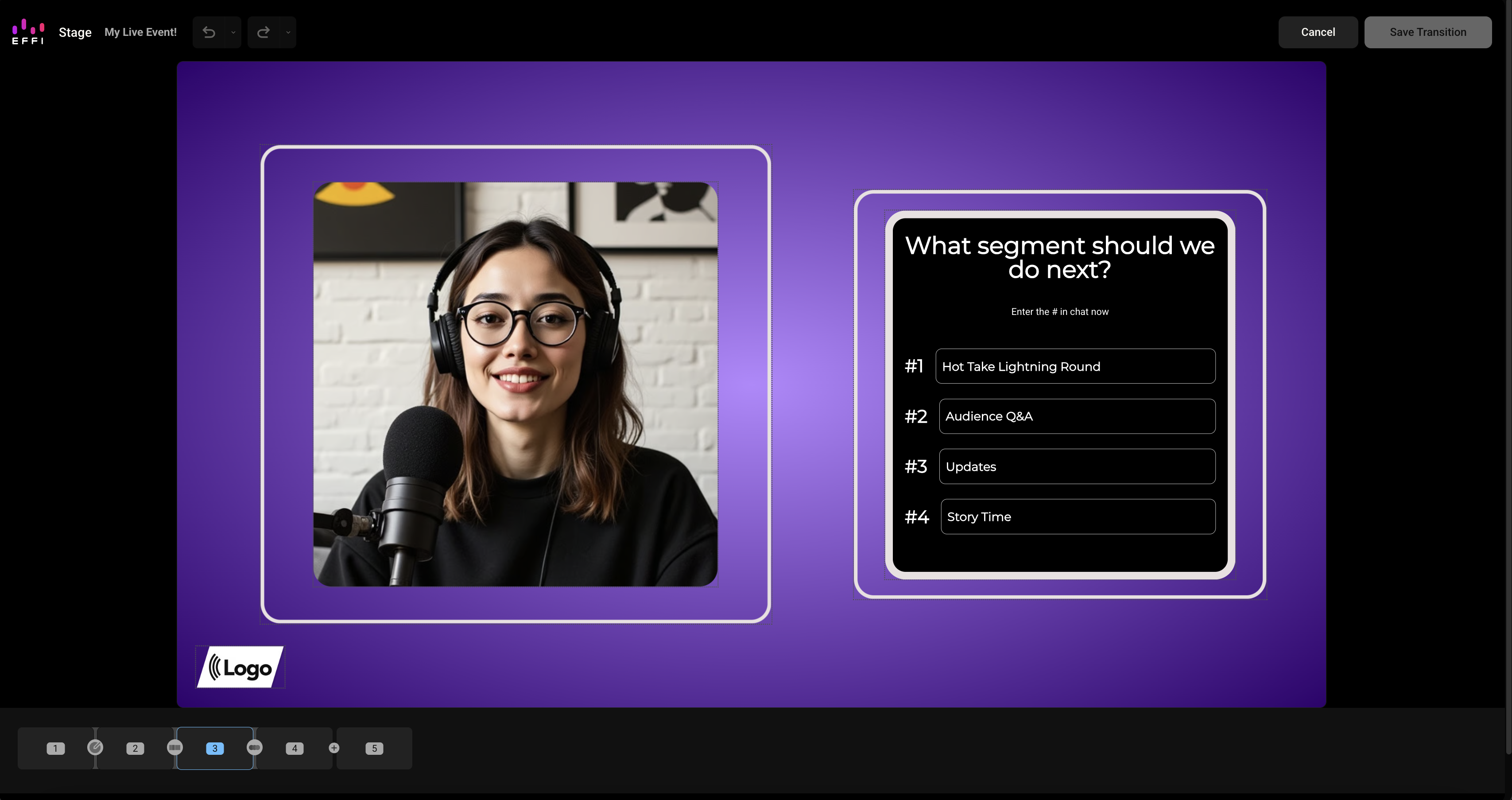
Between each pair of scenes you'll see a marker. An empty gap shows a +. A gap that already has a transition shows that transition's icon.
Adding a transition
- In the scene strip, click the + between the two scenes you want to connect.
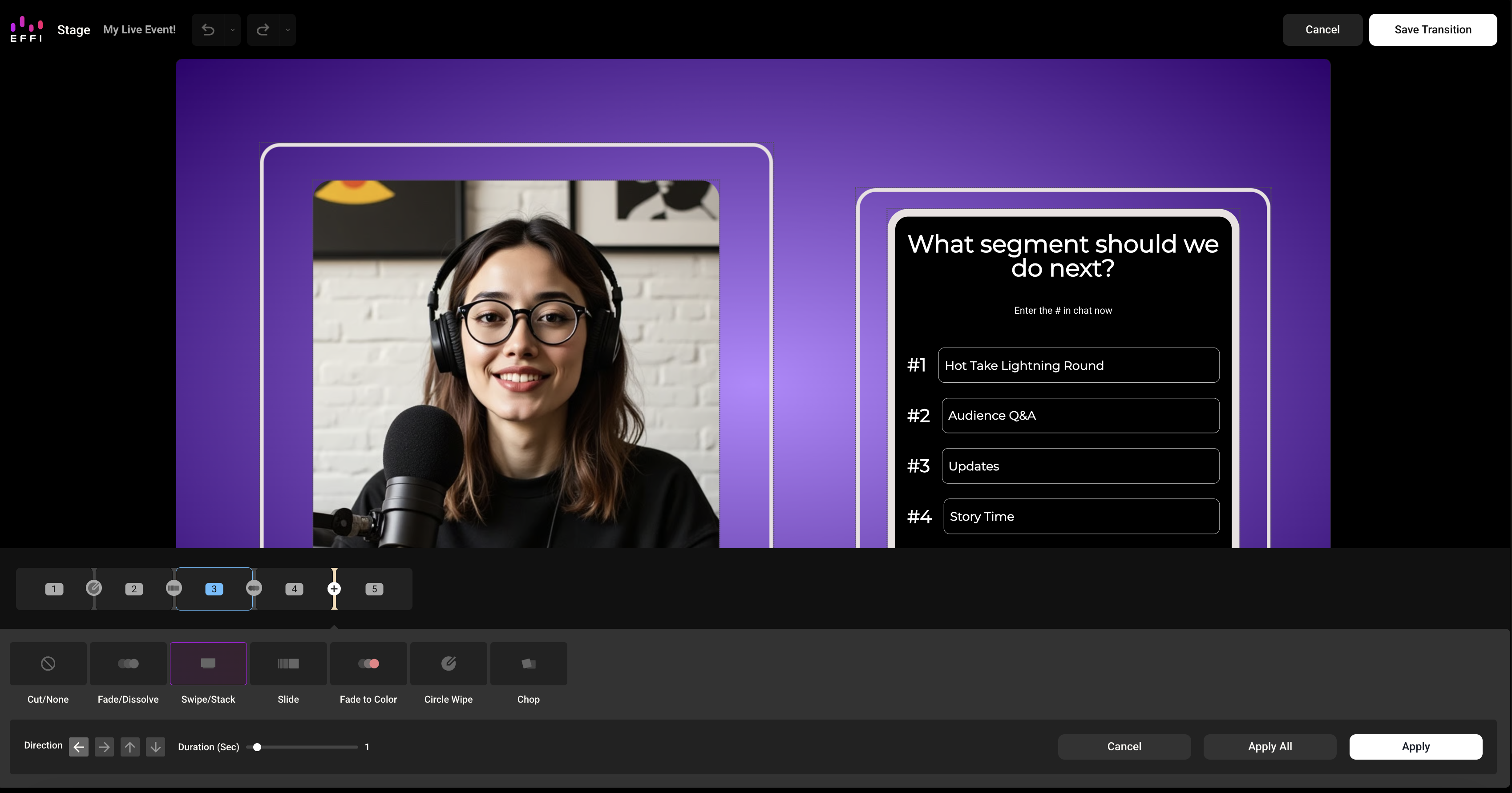
- Choose a transition type from the row of options.
- Adjust its settings, such as duration or direction (see the table below).
- Click Apply to add the transition to the selected gap, or Apply All to use it between every scene in your event.
- Click Save Transition at the top right.
Transition types and settings
Every type except Cut/None has a Duration (Sec) slider, which defaults to 1 second.
| Type | What it does | Settings |
|---|---|---|
| Cut/None | Switches instantly with no effect | None |
| Fade/Dissolve | Blends one scene into the next | Duration |
| Swipe/Stack | The next scene swipes in over the current one | Direction (left, right, up, down), Duration |
| Slide | Slides the next scene into place | Direction (left, right, up, down), Duration |
| Fade to Color | Fades out to a solid color, then into the next scene | Duration, Fade Color |
| Circle Wipe | Reveals the next scene with an expanding or shrinking circle | Duration, Wipe Mode (in or out) |
| Chop | Rotates the next scene in from a corner | Duration, Chop direction (clockwise or counterclockwise), Origin (top left, top right, bottom left, bottom right) |
Editing or removing a transition
- Open the transition editor.
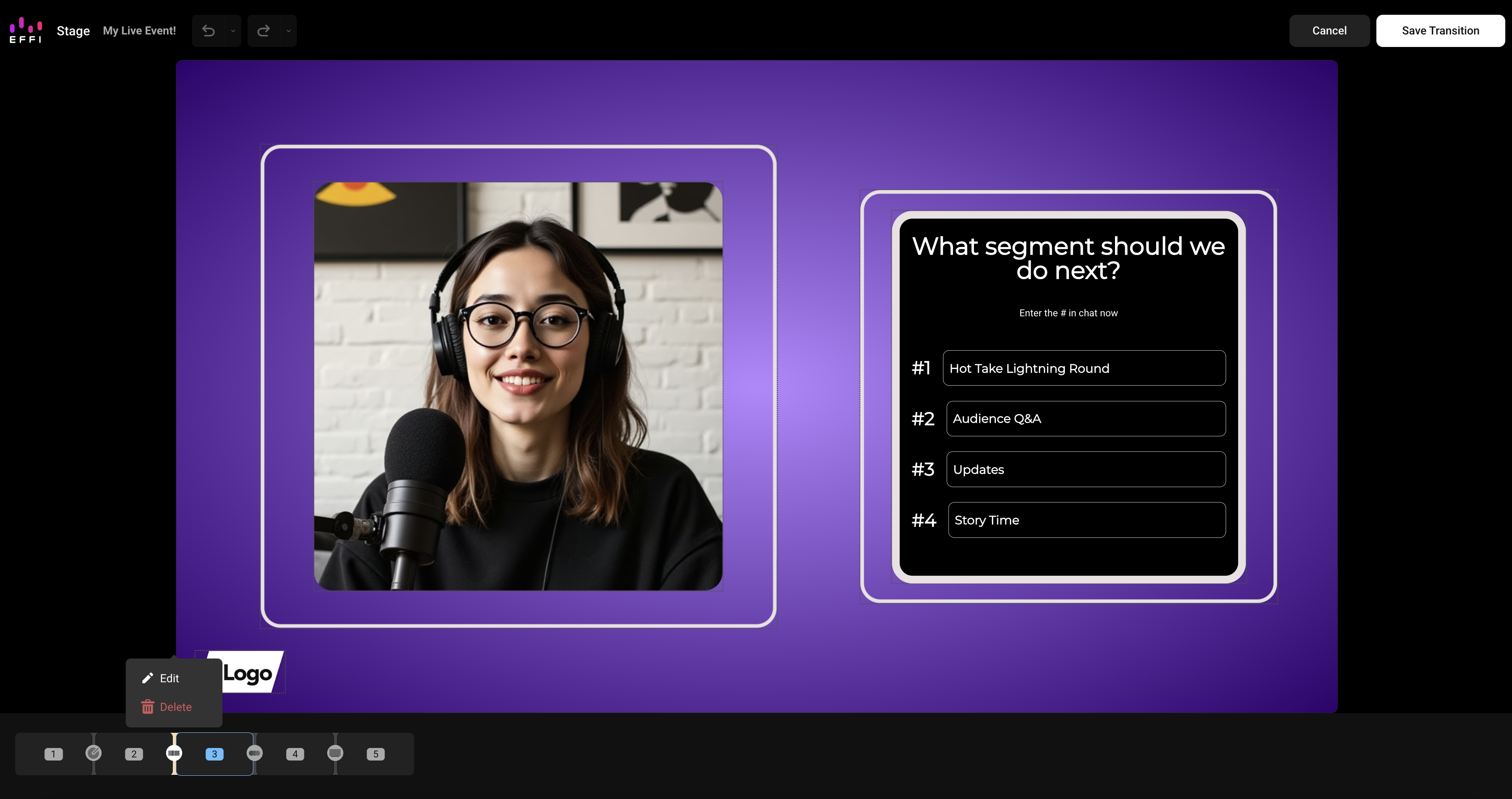
- Click the transition icon between the two scenes.
- Choose Edit to change the type or settings, then click Apply. Choose Delete to remove it.
- Click Save Transition.
Transitions are not required for your events, but can be used to easily up the production value.
Was this article helpful?
That’s Great!
Thank you for your feedback
Sorry! We couldn't be helpful
Thank you for your feedback
Feedback sent
We appreciate your effort and will try to fix the article