Each scene in Effi has its own settings — you can rename it, set a background image, or apply a background color. All of these are accessed the same way: through the Layers & Scenes panel on the right-hand side of Stage.
Accessing Scene Settings
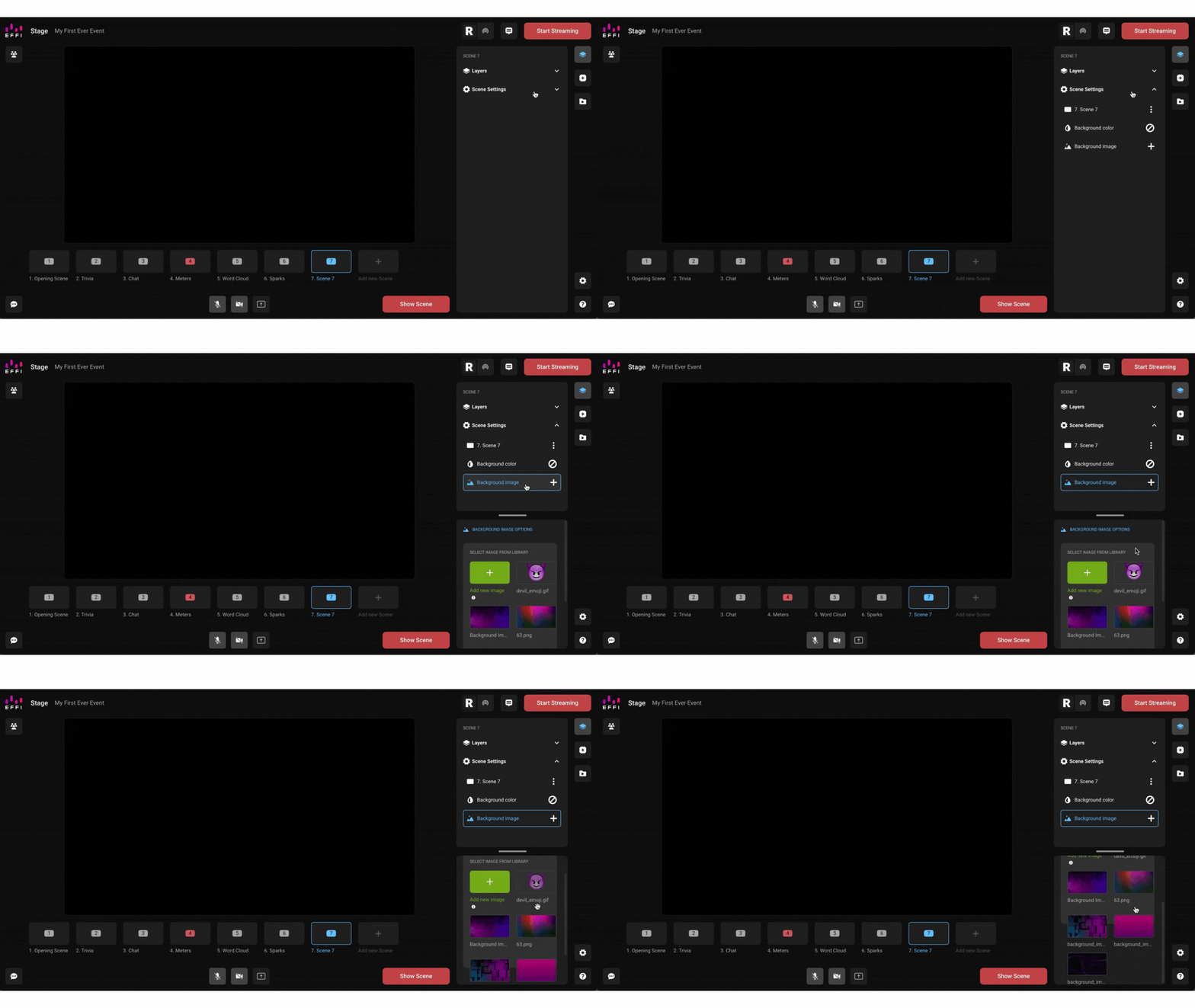
1. Select the scene you want to edit from the scene menu at the bottom of Stage.
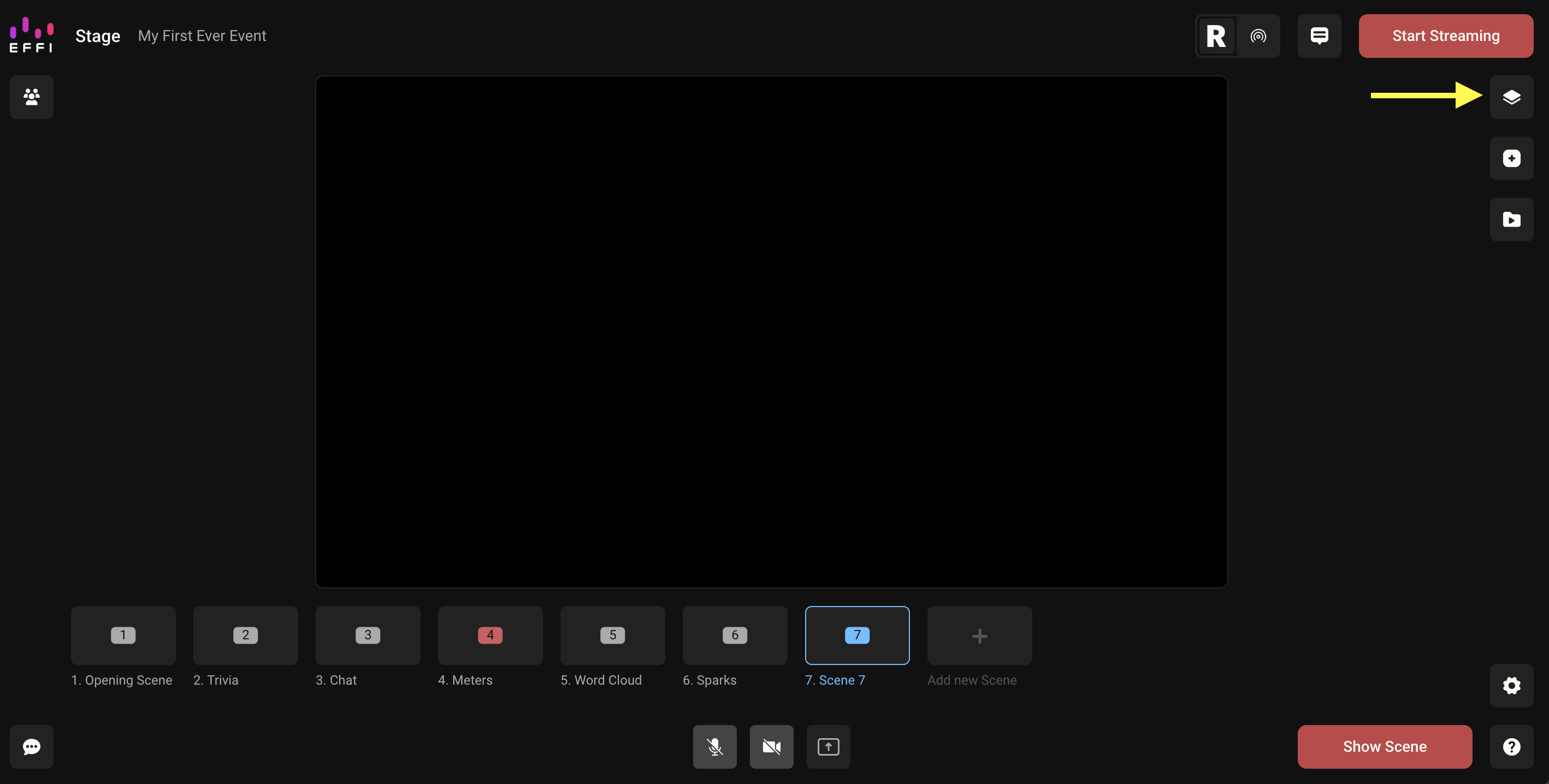
2. Click the Layers & Scenes icon on the right-hand panel.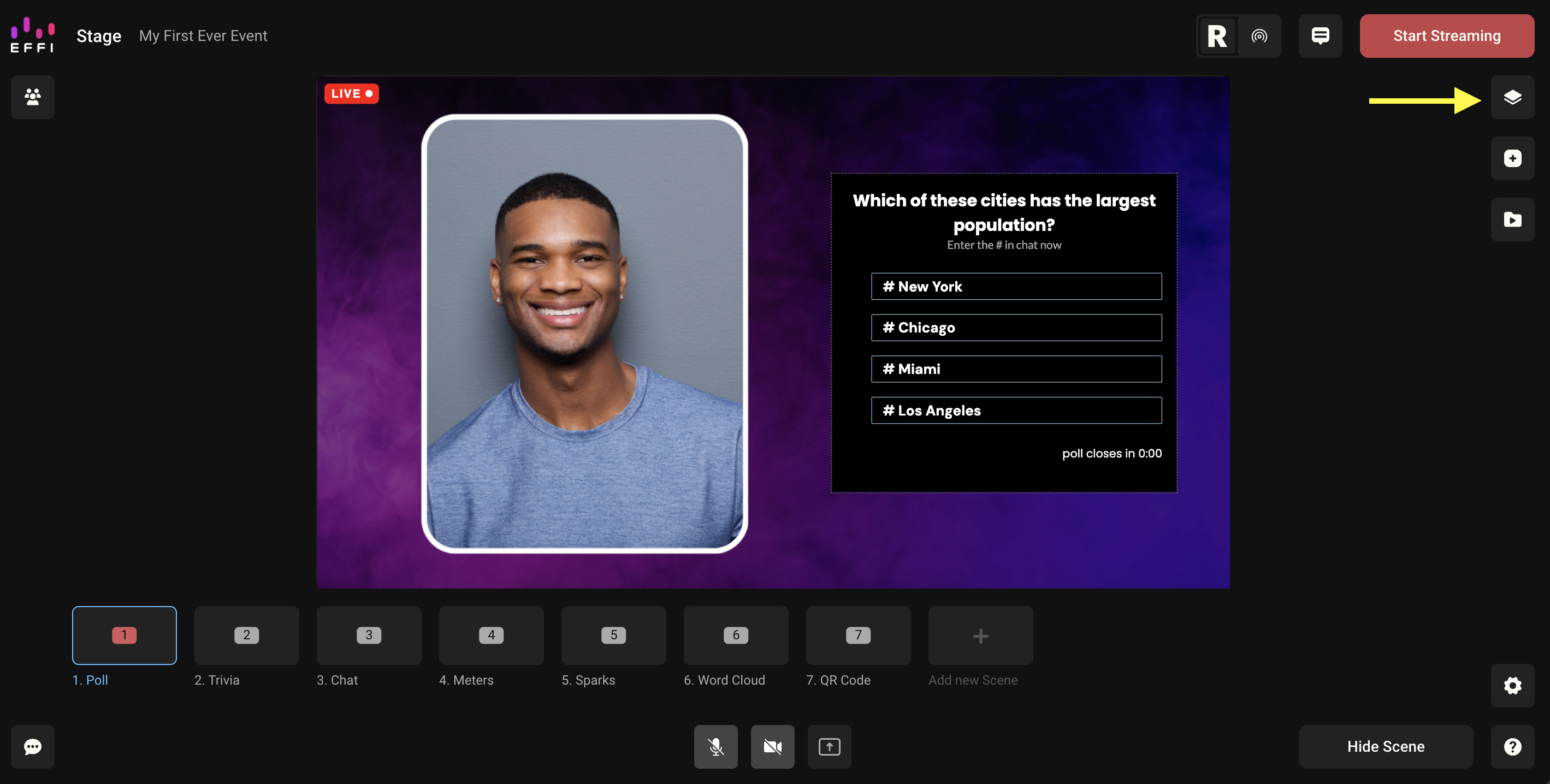
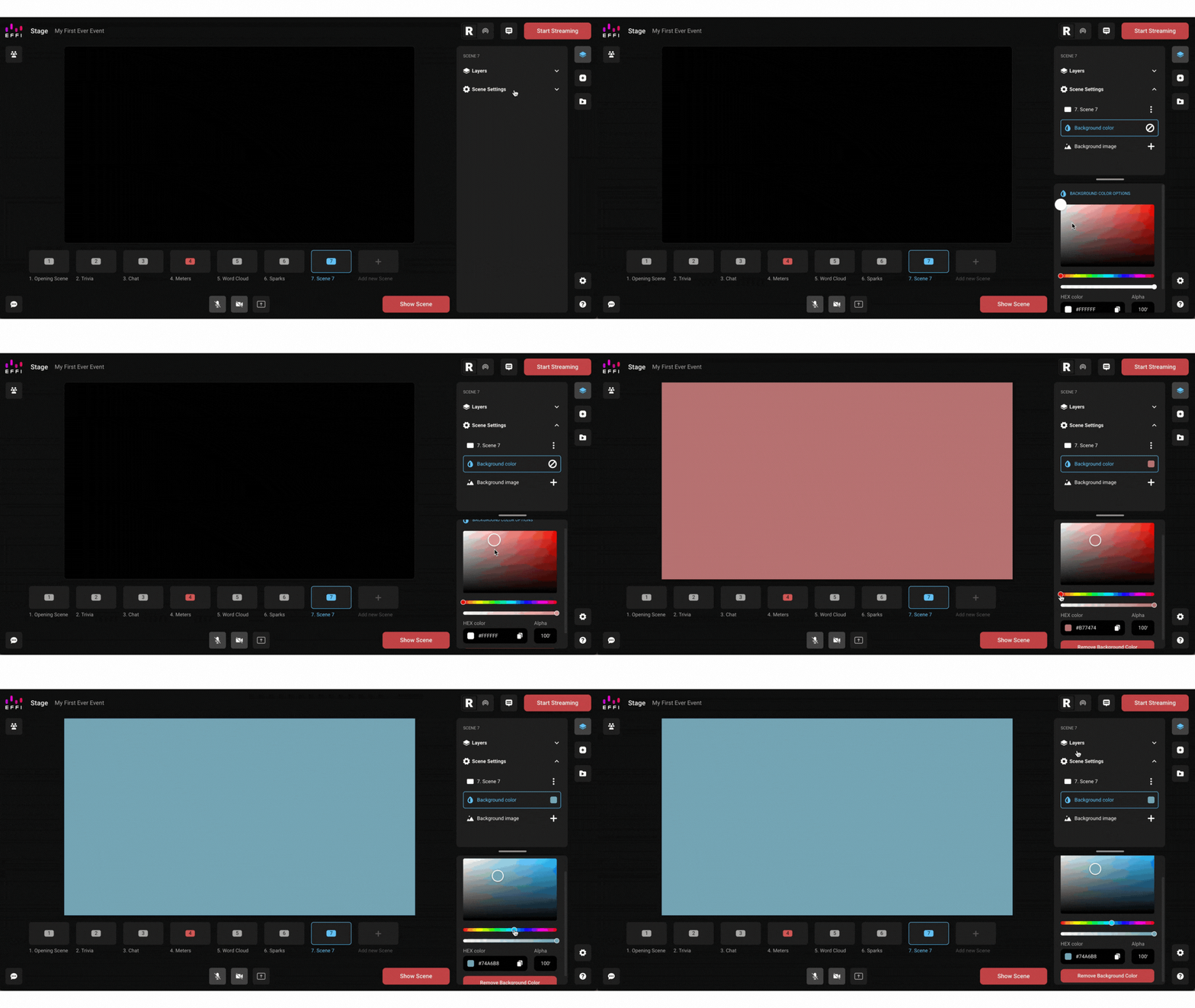
3. Click Scene Settings to expand the menu.
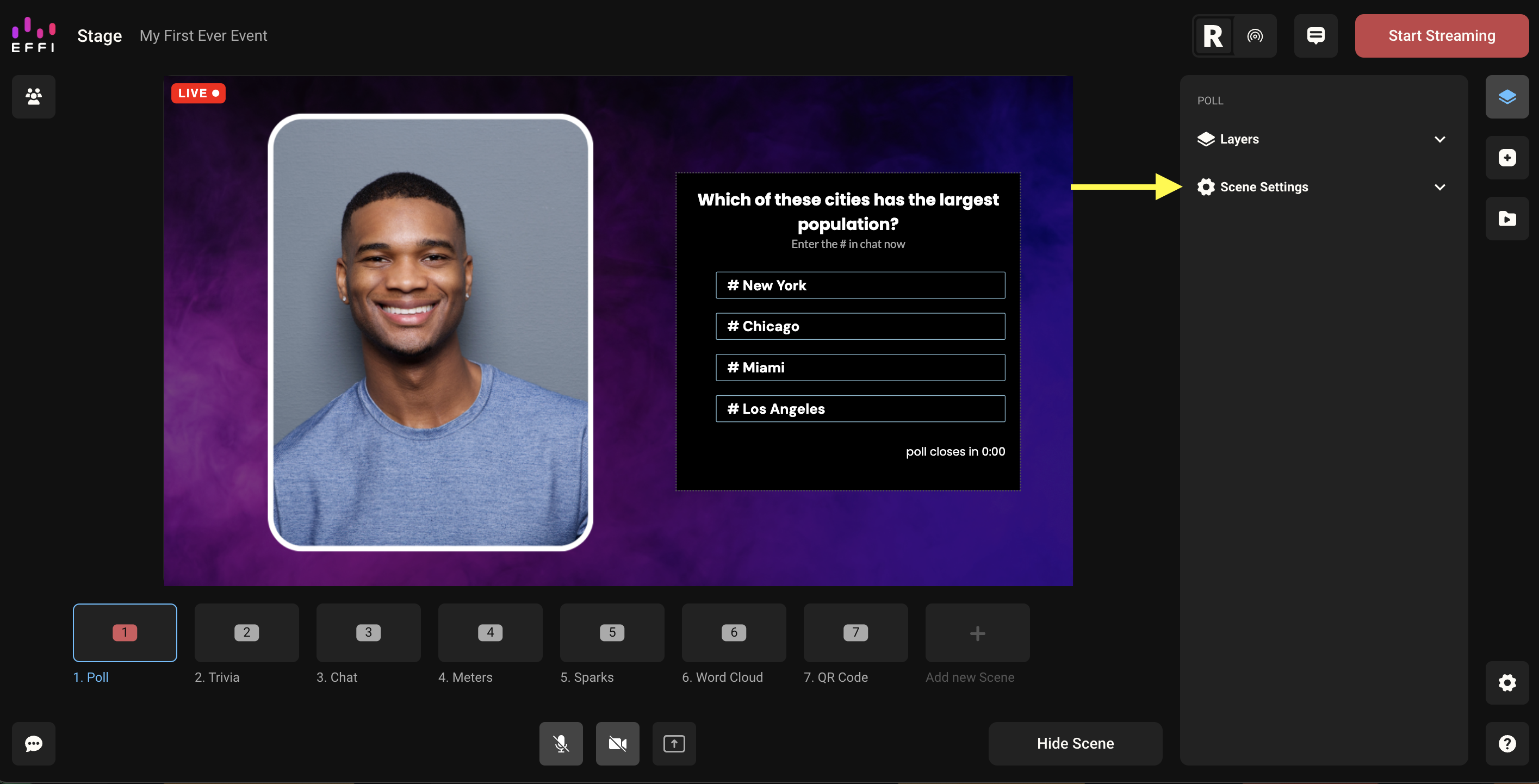
You'll see the scene name, Background color, and Background image — all editable from here.
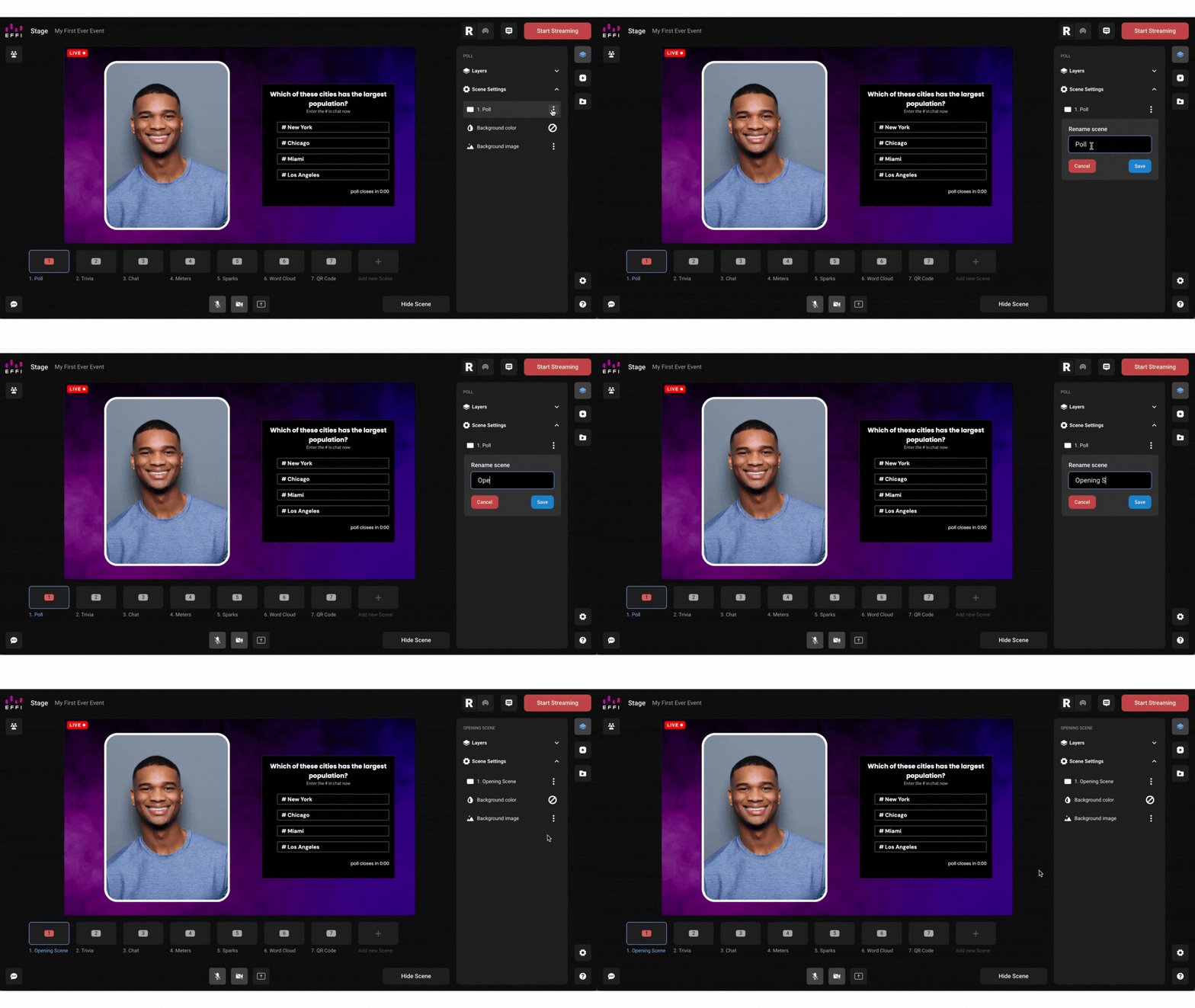
Renaming a Scene
By default, scenes are named in sequential order: Scene 1, Scene 2, Scene 3, and so on. You can rename any scene at any time.
From Scene Settings, click the three-dot menu next to the scene name and select Rename. Enter the new name and hit Save.
Tip: If you plan on having a lot of scenes, name them clearly so you can switch between them quickly during a live broadcast — for example: 2. Q&A, 4. Product Demo, 6. Closing.
Adding a Background Image
By default, scenes have no background image. You can upload your own — splash screens, branded visuals, custom backgrounds — to match the look and feel of your broadcast.
1. From Scene Settings, click the + icon next to Background image.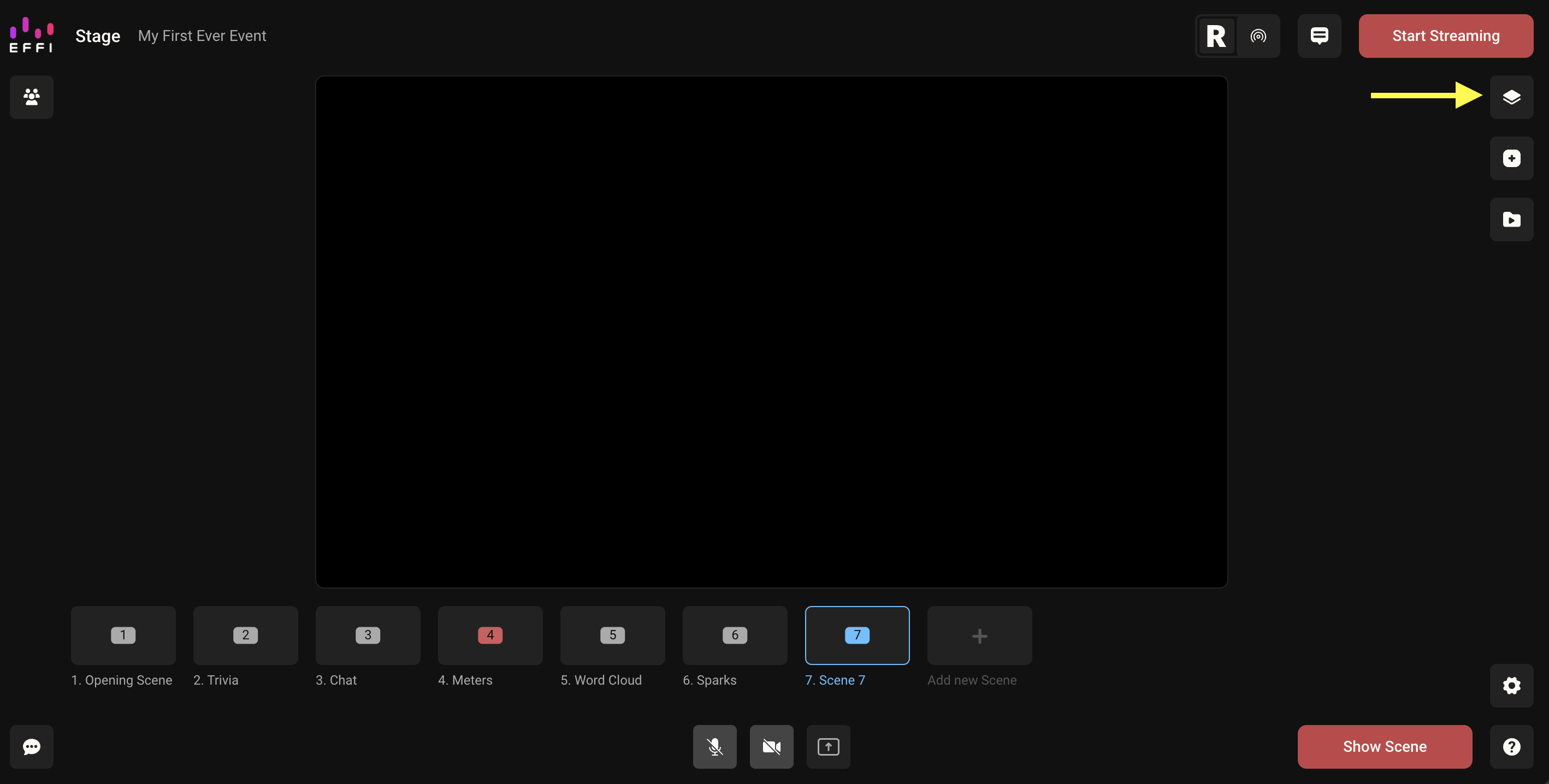
2. Your image library will open. Choose a previously uploaded image or click Add new image to upload one.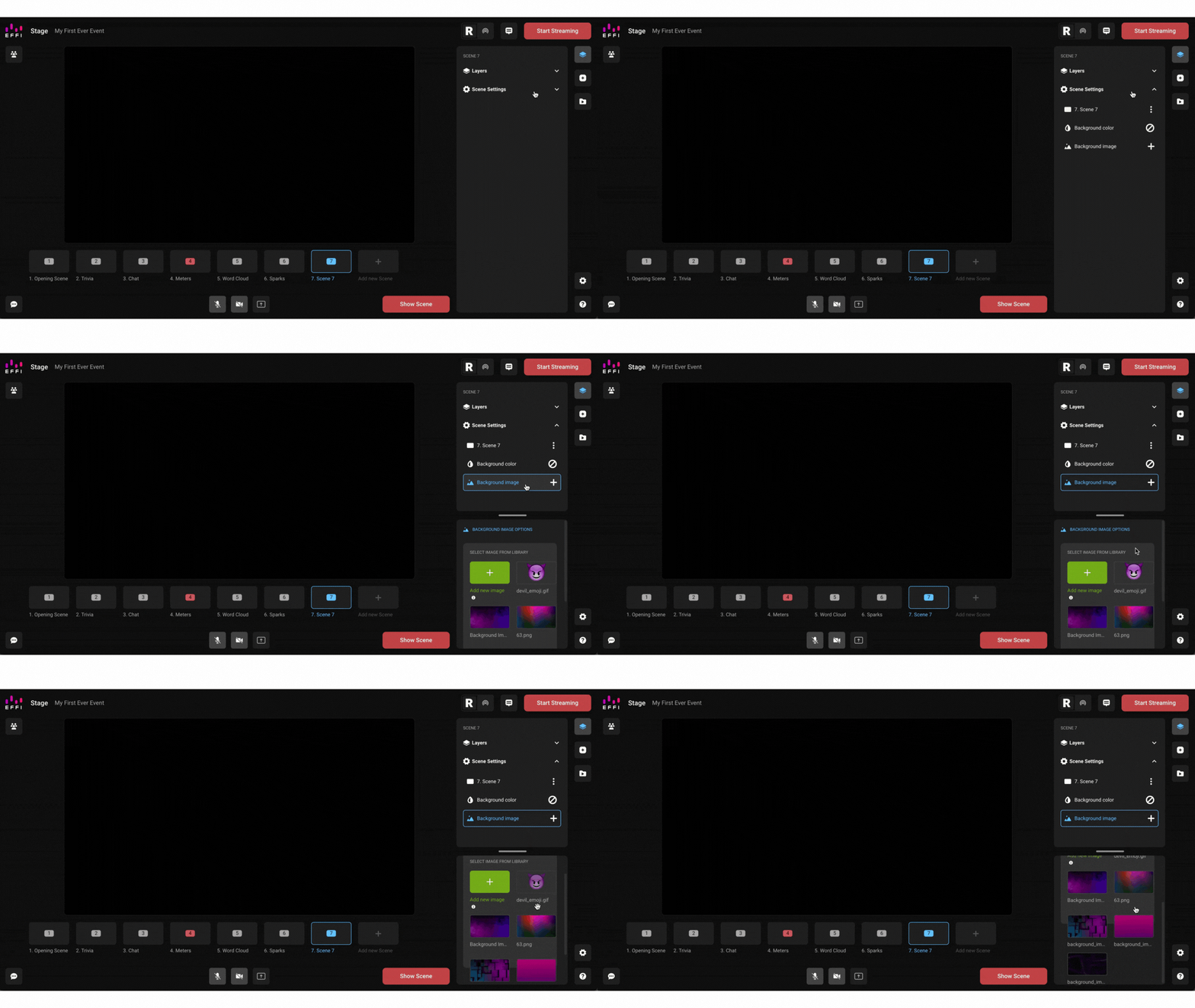
3. Select the image to apply it to the scene.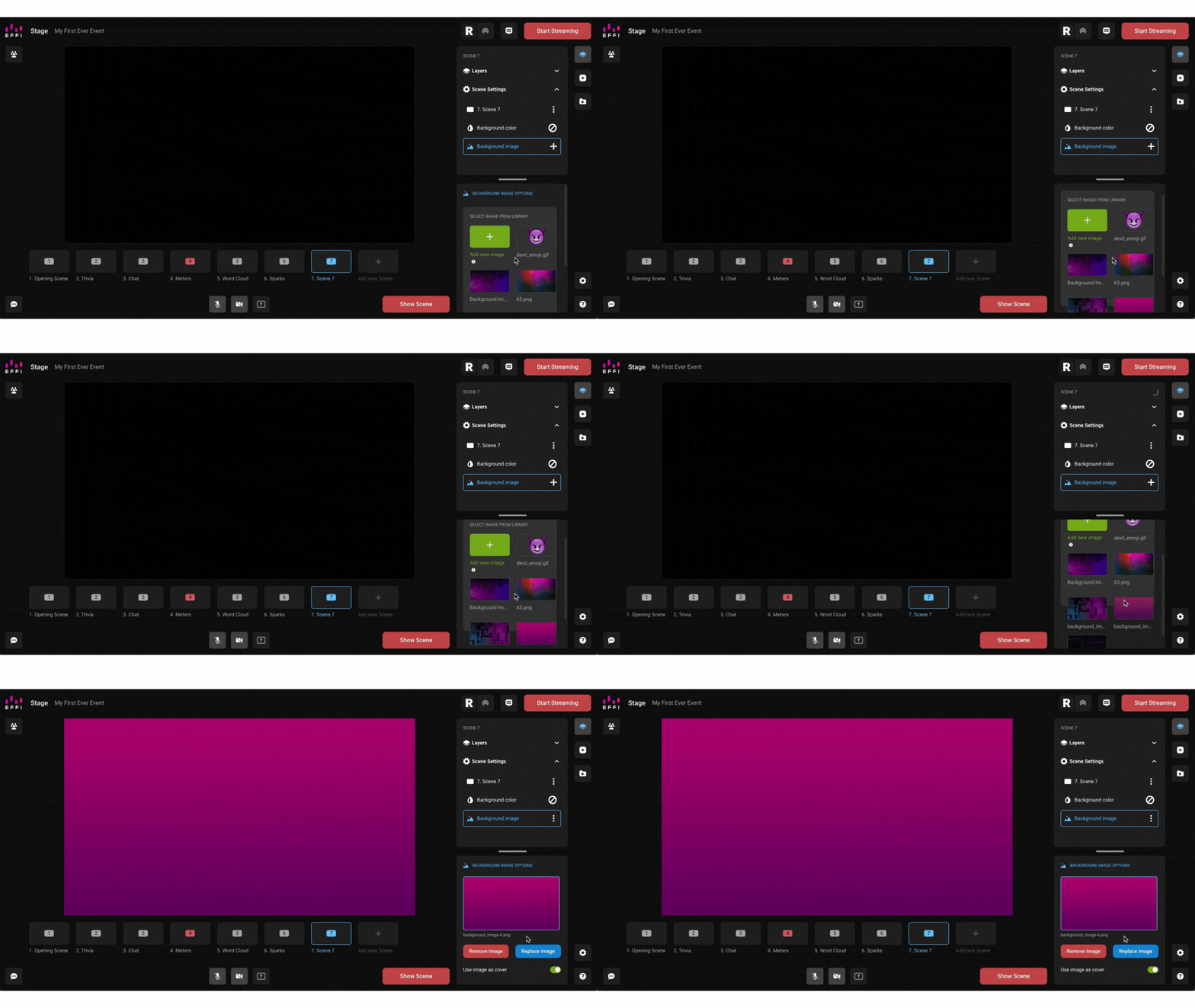
You can change your background image as many times as you like.
Removing a Background Image
From Scene Settings, click the three-dot menu next to Background image and select Remove.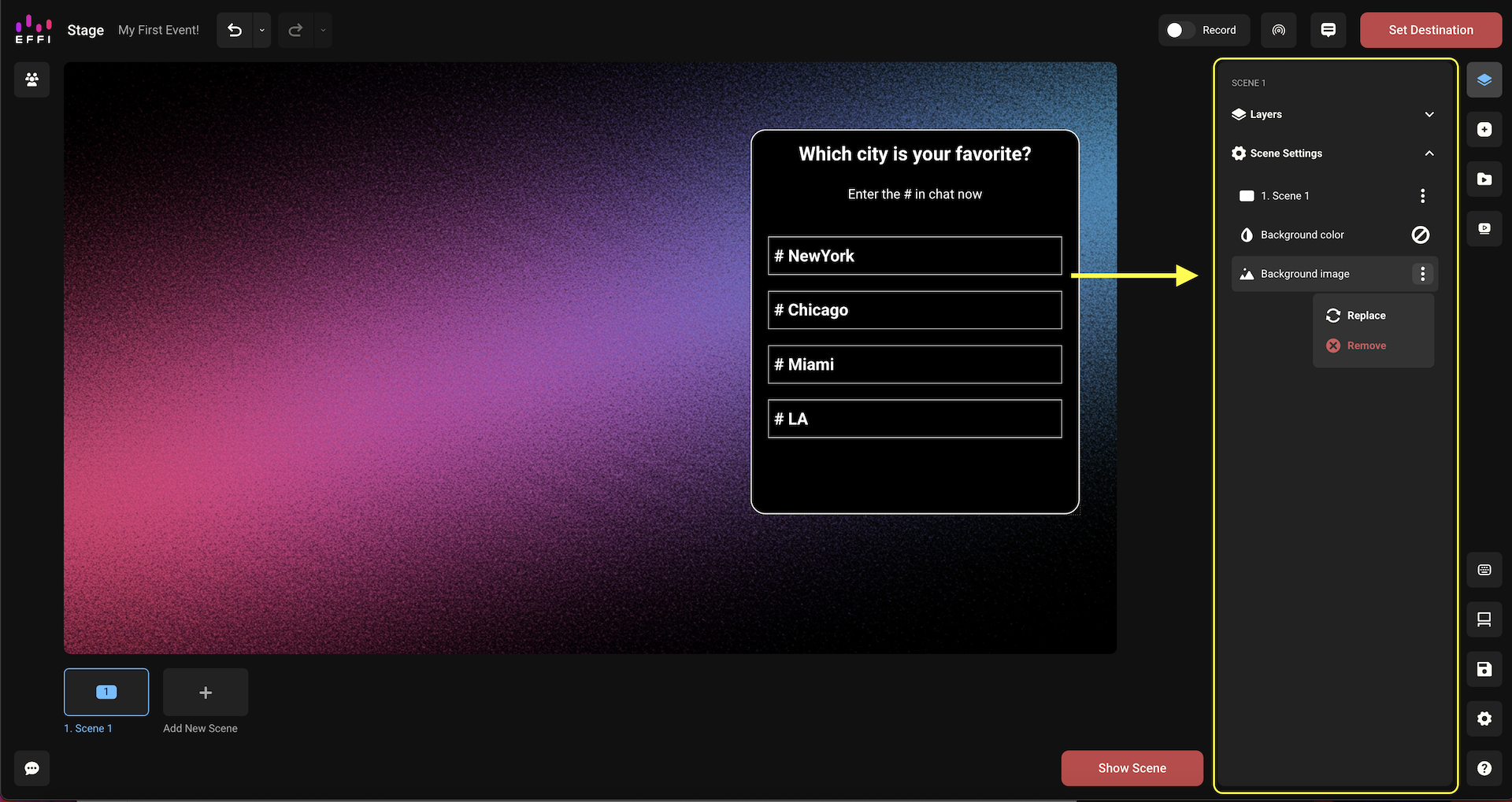
Tip: You can also select Replace instead if you want to swap it out for a different image without removing it first.
Adding a Background Color
You can apply a solid background color to any scene — useful for branded color washes or simple clean backdrops.
From Scene Settings, click Background color. Use the color picker to choose a color, or enter a hex code directly.
Removing a Background Color
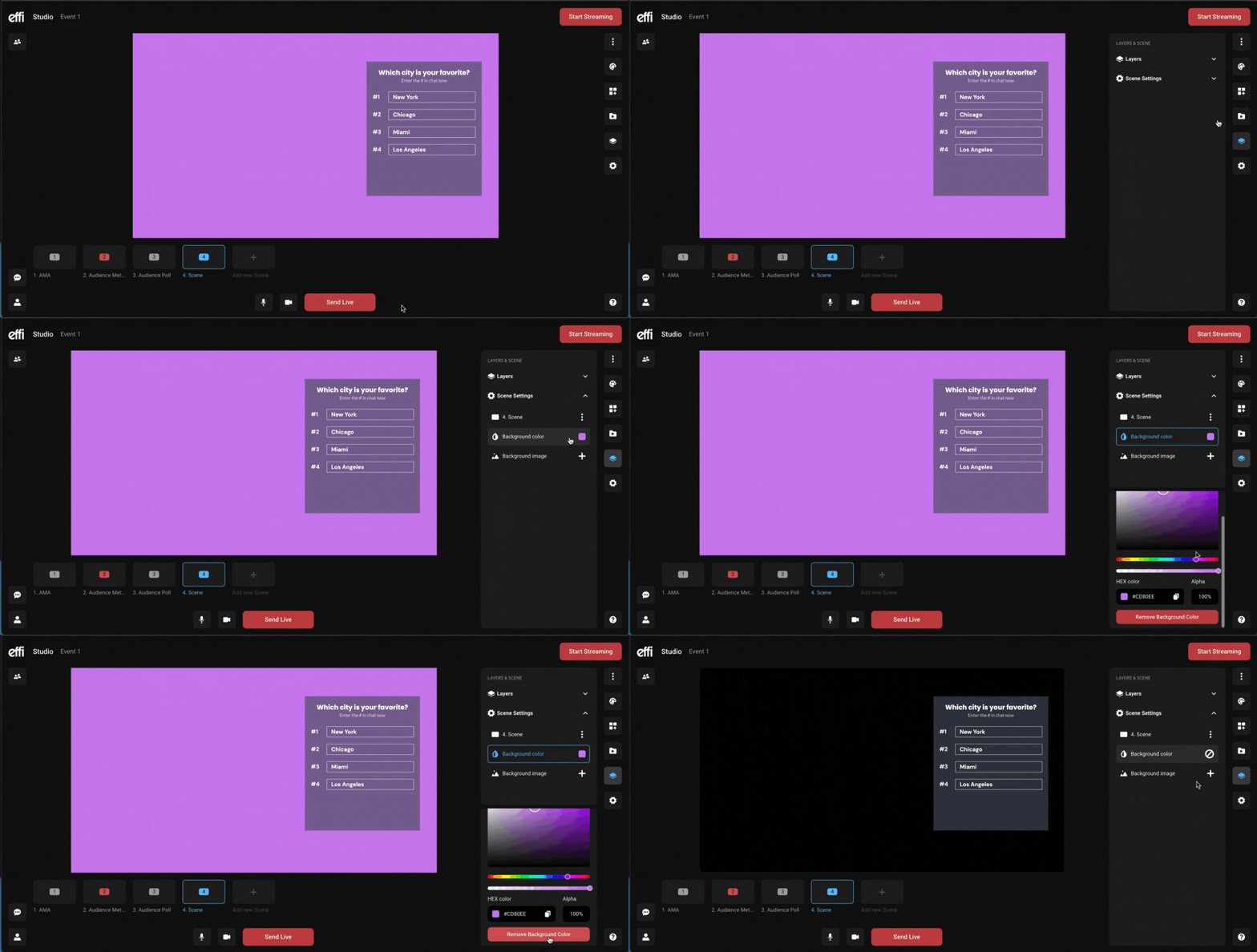
From Scene Settings, click Background color, then select Remove background color at the bottom of the color picker. You can also just pick a new color to replace it.
Note: Background settings apply per scene — changing the background on Scene 1 has no effect on Scene 2 or any other scene. You can also layer a background image on top of a background color if you want both.
Was this article helpful?
That’s Great!
Thank you for your feedback
Sorry! We couldn't be helpful
Thank you for your feedback
Feedback sent
We appreciate your effort and will try to fix the article