Effi lets you add QR Codes to your live broadcast and even customize them completely to match your branding. In this article, we will get into some of the ways you can use QR Codes in your broadcast, but first, let's look at how to add a QR Code to your event.
Add QR Code
First, select the scene you'd like to add a QR Code to, then click the Elements icon on the right-hand side.
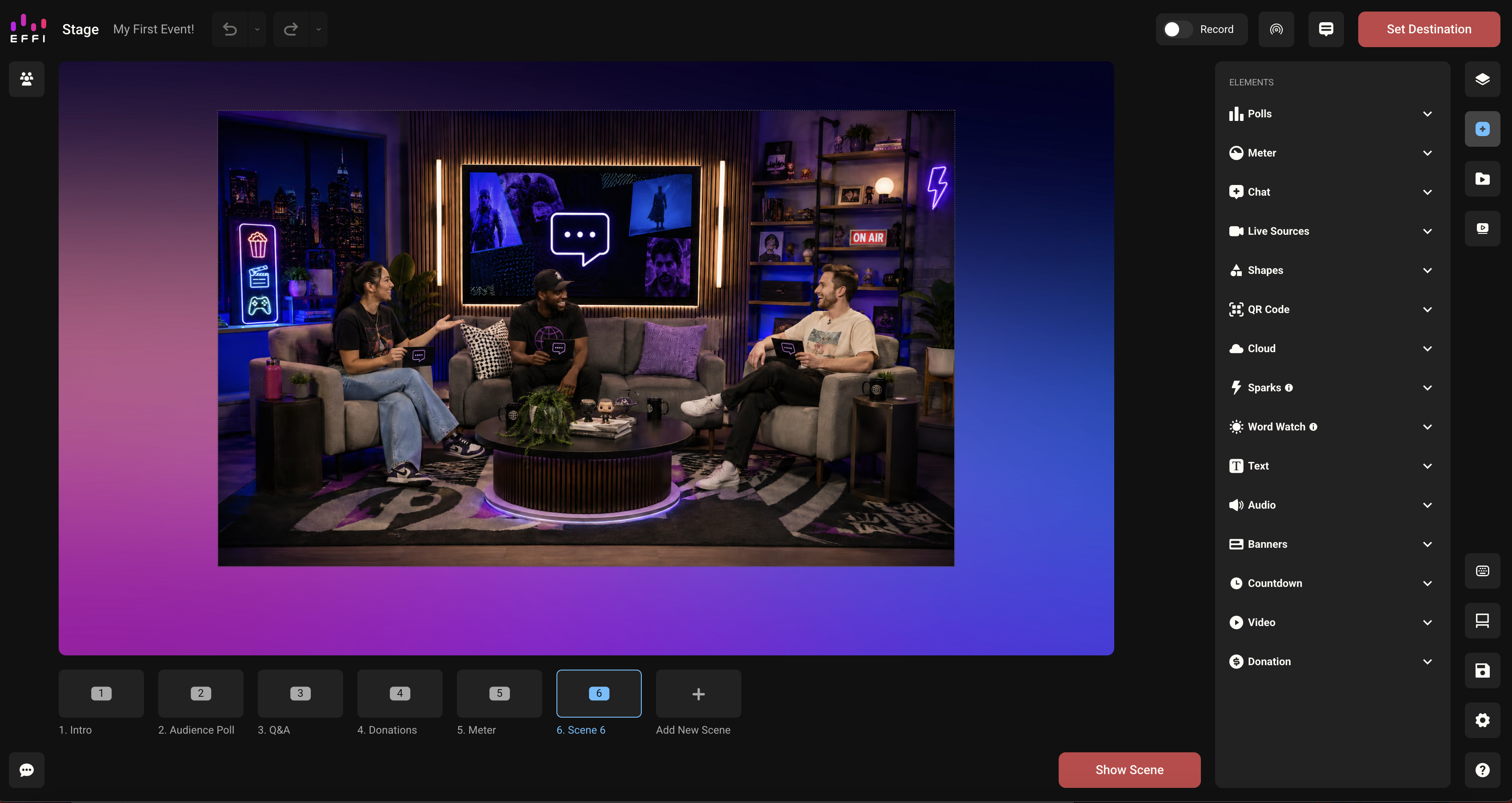
Select QR Code from the list, choose the style you'd like, and watch the code appear in your scene.

Where will the QR Code take the viewers? Once you've added your QR Code, you will see "Enter Destination URL." Just type or paste the link you want the QR Code to go to in there. Maybe it's your company website, a shopping page, or a sponsor's page.

In that same flyout you will also notice menus for changing your QR Code style and designing your QR Code. Using those menus you will be able to customize every last detail to make it match your event. For example, taking it from the example above... to this example below:

Was this article helpful?
That’s Great!
Thank you for your feedback
Sorry! We couldn't be helpful
Thank you for your feedback
Feedback sent
We appreciate your effort and will try to fix the article