Screen sharing lets you broadcast your computer screen to your audience during a live stream — great for slideshows, software demos, tutorials, or sharing documents. It gives your viewers a more engaging, interactive experience by letting them follow along with what you're presenting in real time.
Setting Up Screen Share
To share your screen, you'll use the Video Feed element — the same element used to place guests in a scene.
1. Open the Elements menu, select "Video Feed," and choose the "One" style option.
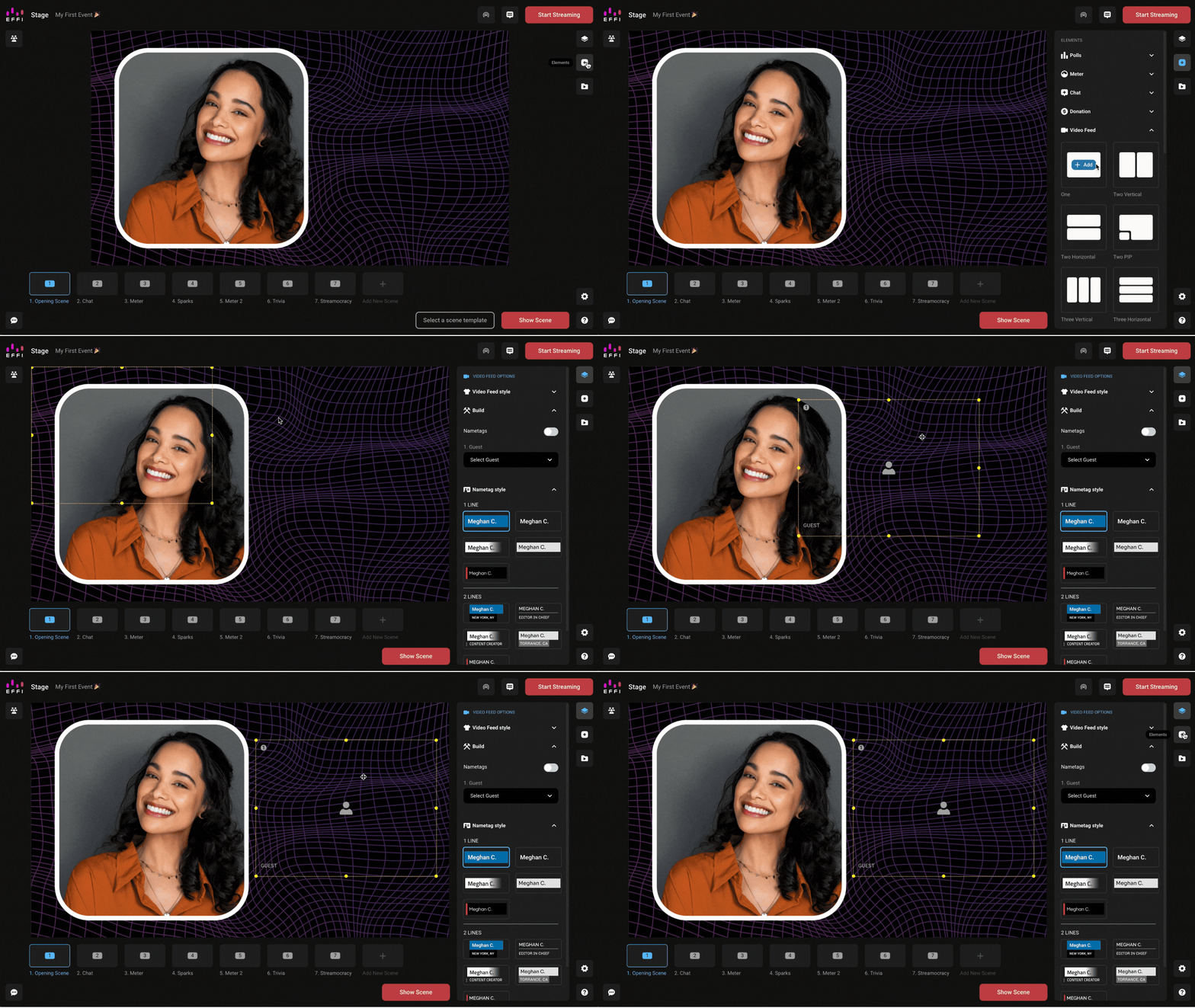
Tip: You can choose any layout style you'd like, depending on whether you have guests in your scene too. We recommend the "One" option for your screen share, then adding your guests in separate feeds — it makes everything easier to maneuver and work with on screen.
2. In the option menu under "Guest," choose YOUR NAME + SCREEN from the dropdown.
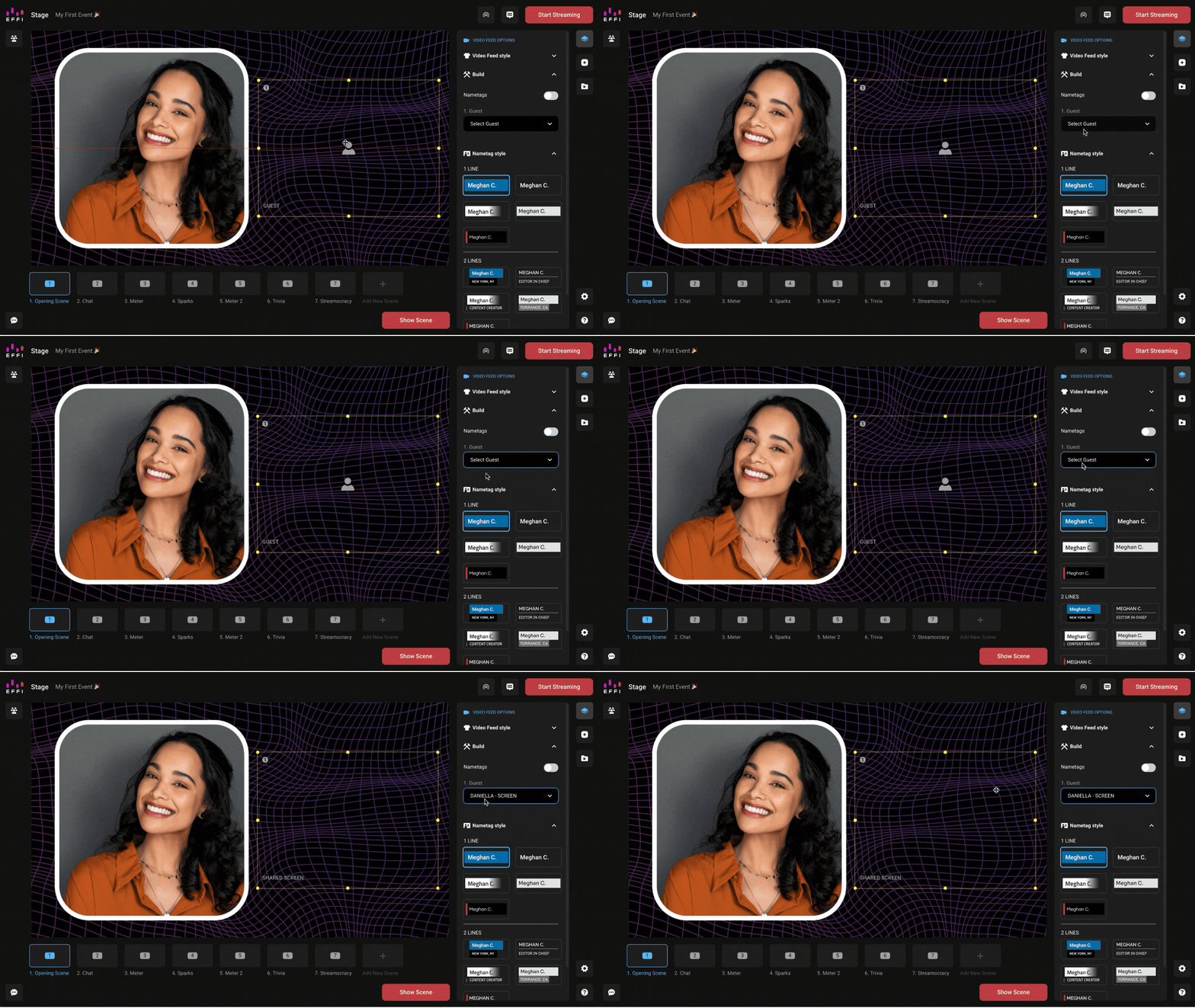
Once the broadcast is live and you start sharing your screen, it will appear in that feed.
Note: You'll notice the dropdown also has an option with just your name, without "Screen" next to it. Use that one instead if you plan to be in the broadcast as an on-camera participant, rather than only managing it.
Sharing Your Screen
Now that everything's set up, you're ready to share your screen.
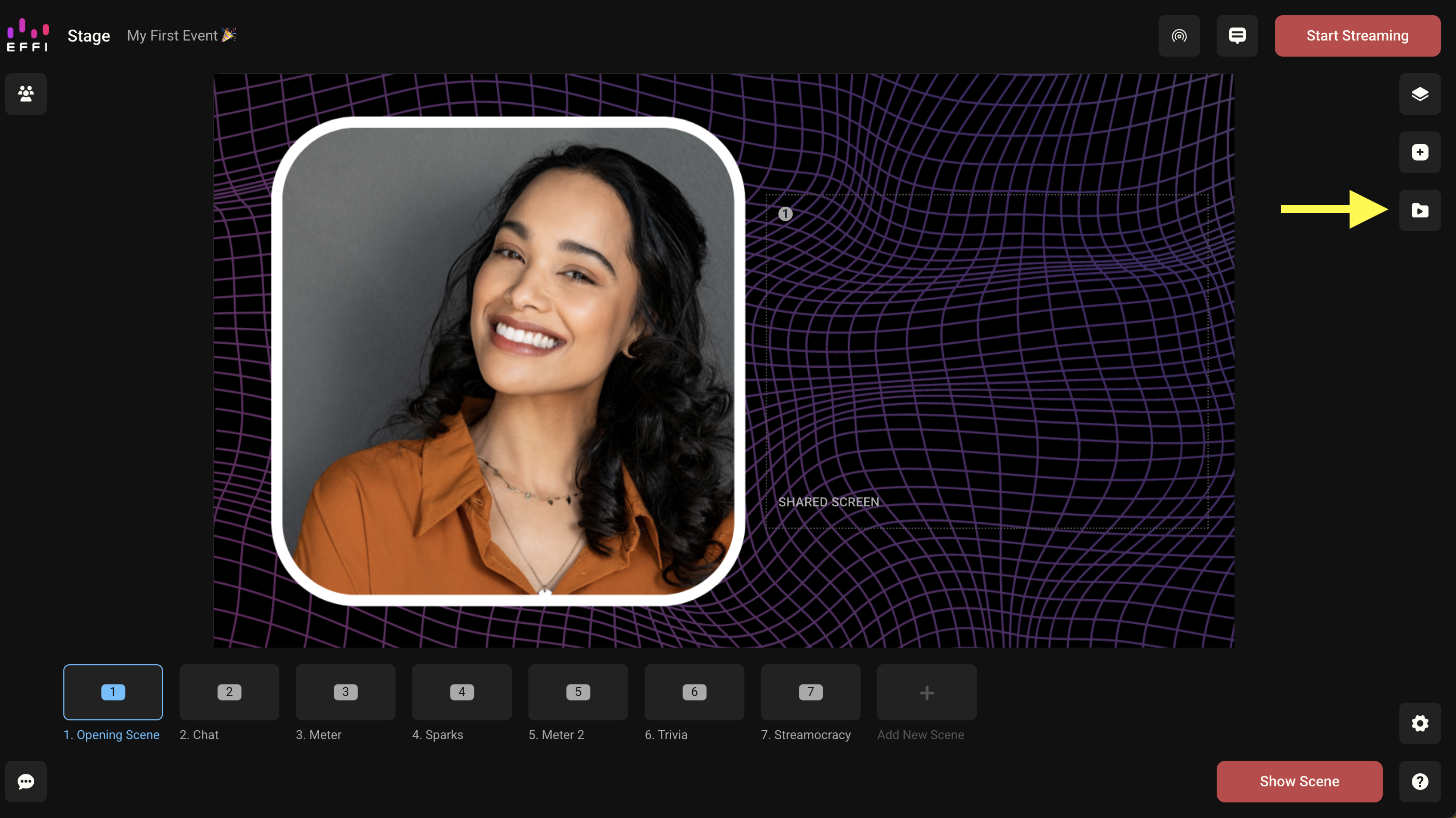
- Open the Media Library from the right-hand panel.
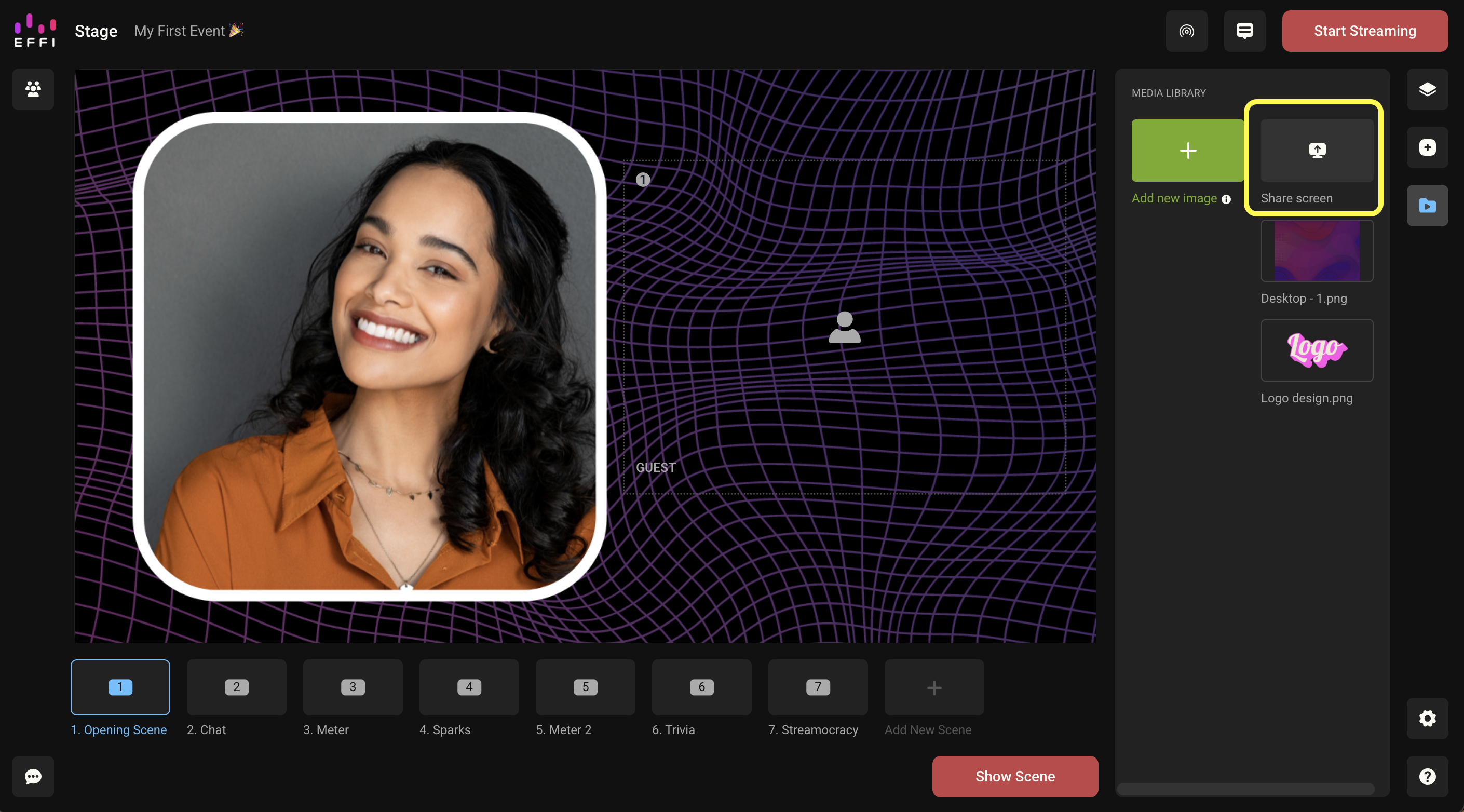
- From within the Media Library, select "Share screen."
- Choose the portion of your screen you'd like to share — this will look a little different depending on what browser you're using.
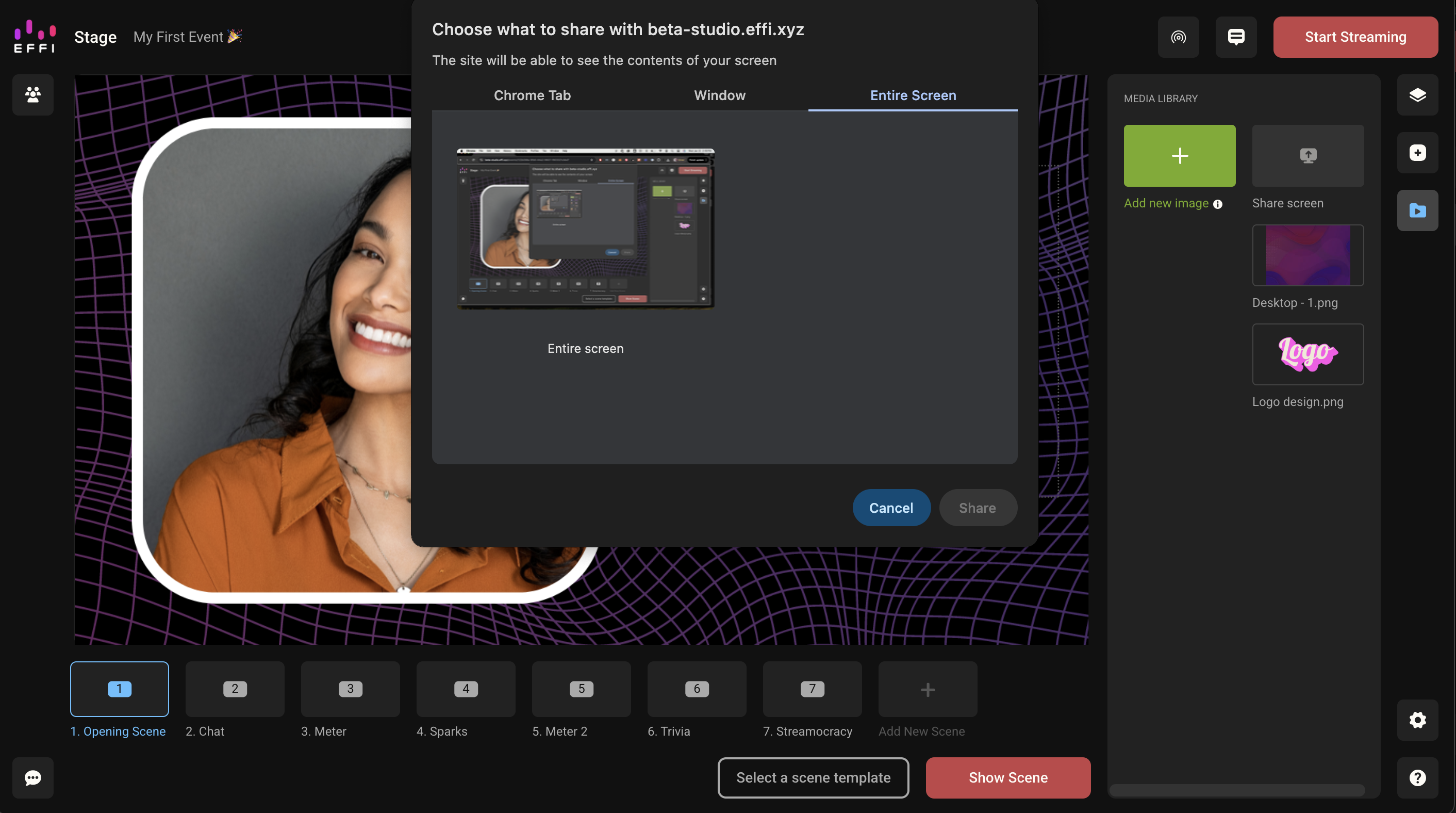
- Once you've made your selection, you'll see it in the feed you set up in the steps above.
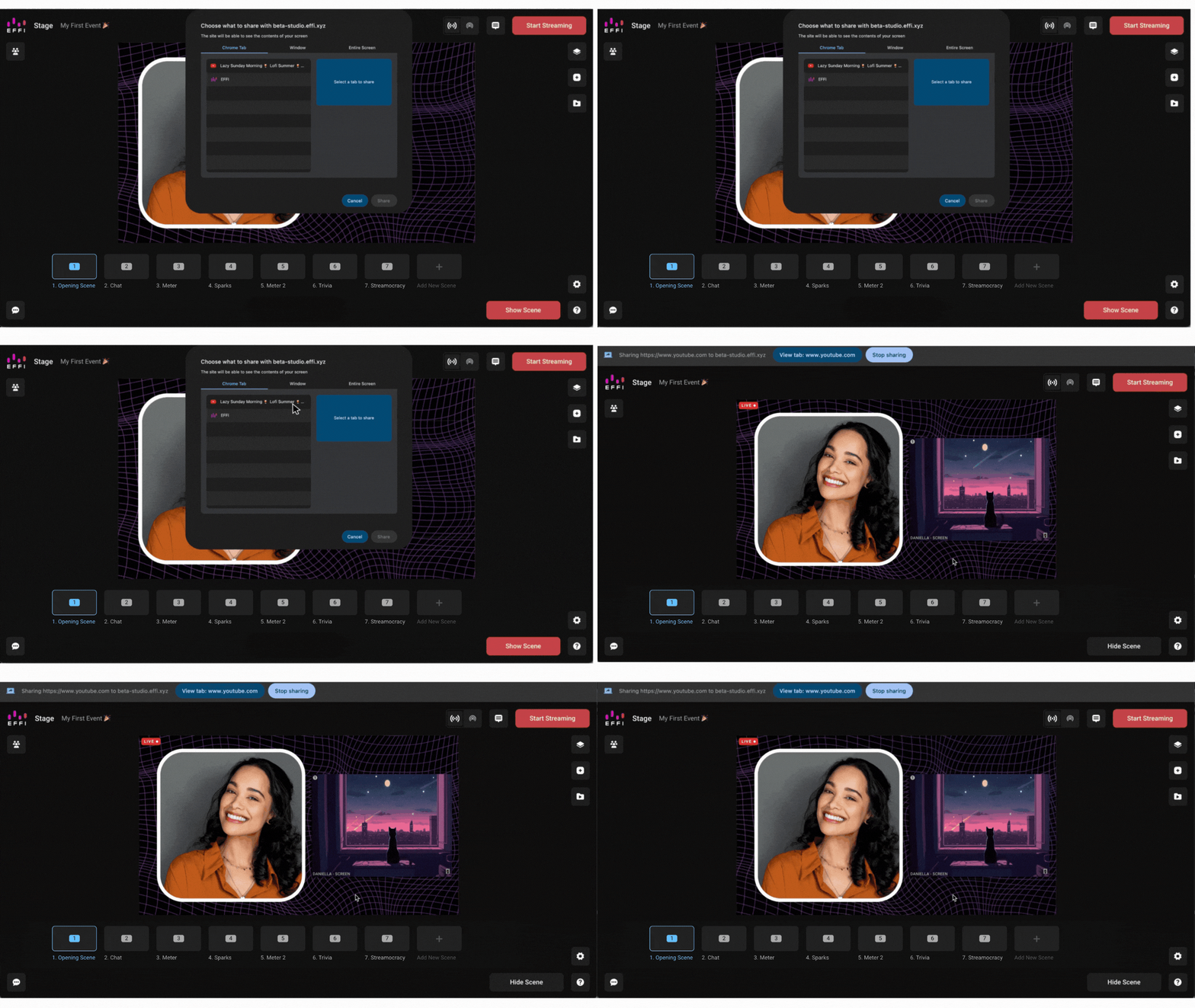
Screen sharing is a versatile tool for any live stream — it gives you more ways to present information to your viewers and enhance your broadcasts.
Who Can Screen Share
Screen sharing during an event is only open to those producing the event in Effi. Guests will not have the ability to share their screens, even if they are hosting the broadcast.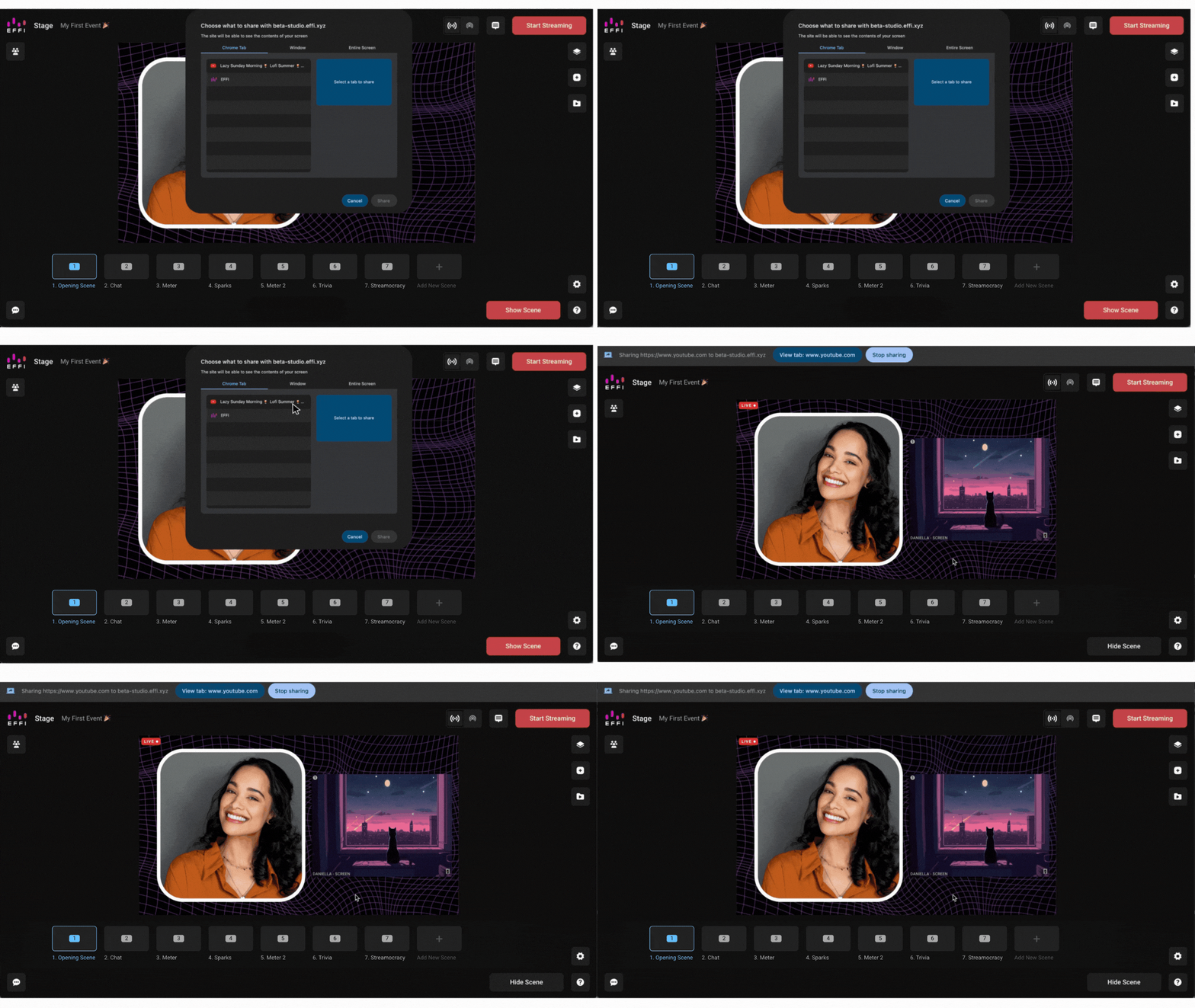
Why this restriction?
- Maintain control: Producers can ensure the content being shared is relevant and appropriate for the audience.
- Prevent disruptions: Restricting access minimizes the risk of technical issues or disruptions from unauthorized screen sharing.
- Enhance quality: Producers can manage the flow of the broadcast more smoothly for a seamless viewing experience.
Tip:If there's a piece of content you'd like a guest to share during the event, coordinate with them beforehand to make sure it's all set up and ready to go.
Was this article helpful?
That’s Great!
Thank you for your feedback
Sorry! We couldn't be helpful
Thank you for your feedback
Feedback sent
We appreciate your effort and will try to fix the article