The Donation Element lets you track your fundraising progress in real time during a Streamocracy broadcast on Effi. Add it to any scene to set a fundraising goal and display a dynamic meter that fills up as contributions come in, helping you monitor progress while building excitement for more giving.
Key Features
Here's what the Donation Element includes. See "Setting Up Your Donation Element" below for how to configure each of these.
Donation Prompt
A custom hashtag, like #donate or #give, that viewers type in chat to contribute.
Fundraising Goal
A primary goal that the meter tracks throughout your broadcast, with an optional secondary goal that kicks in once you hit your first.
Live Donation Meter
Fills up in real time as donations come in, so everyone can see your progress toward the goal.
Donation Alerts
Displays each donor's username and contribution amount on screen as it happens, with an optional custom sound.
Adding a Donation Element
1. Open the Elements Menu
Choose the scene you'd like to add a Donation Element to, then open the Elements menu.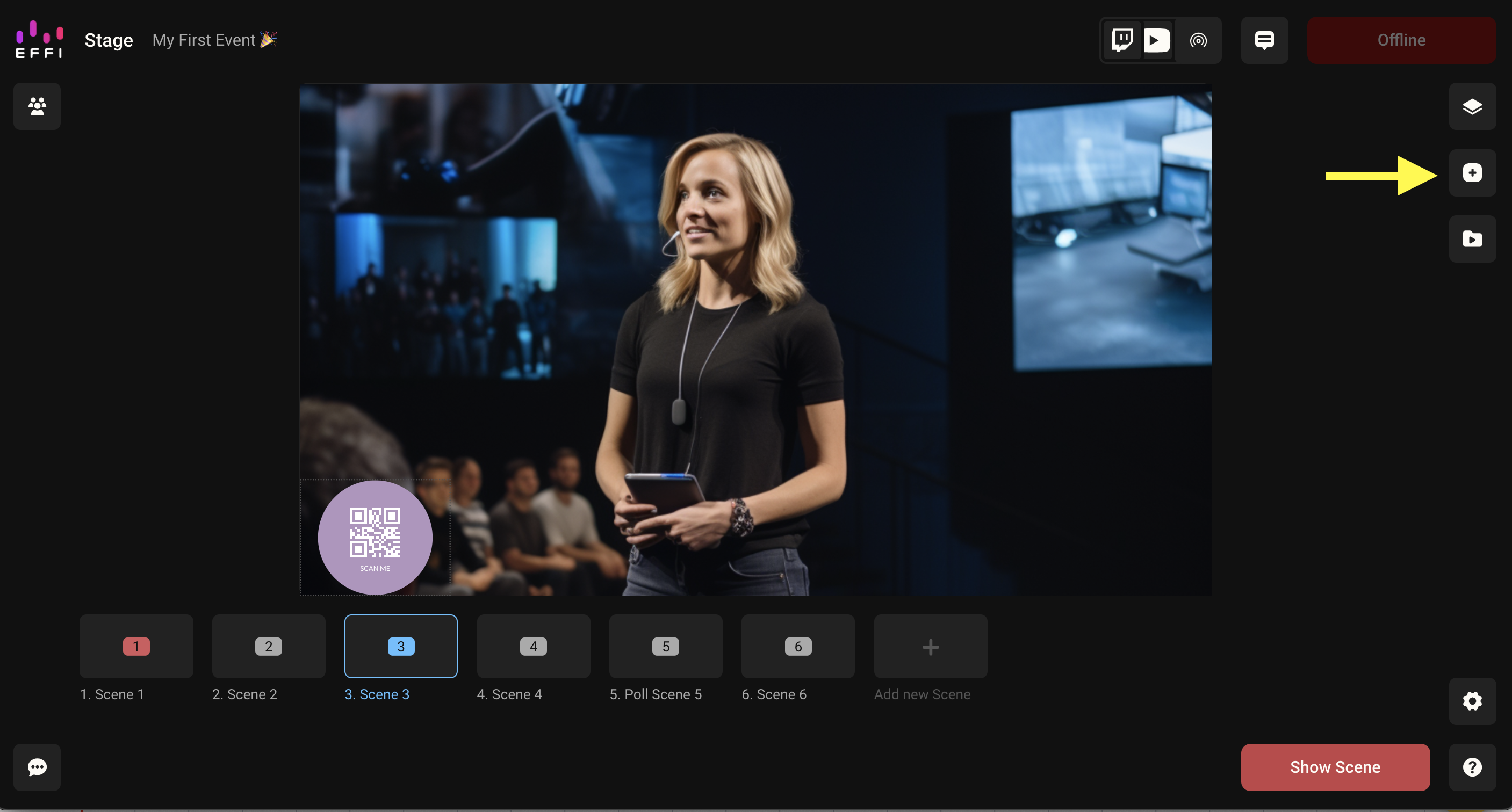
2. Choose Donation
Select Donation from the list of elements.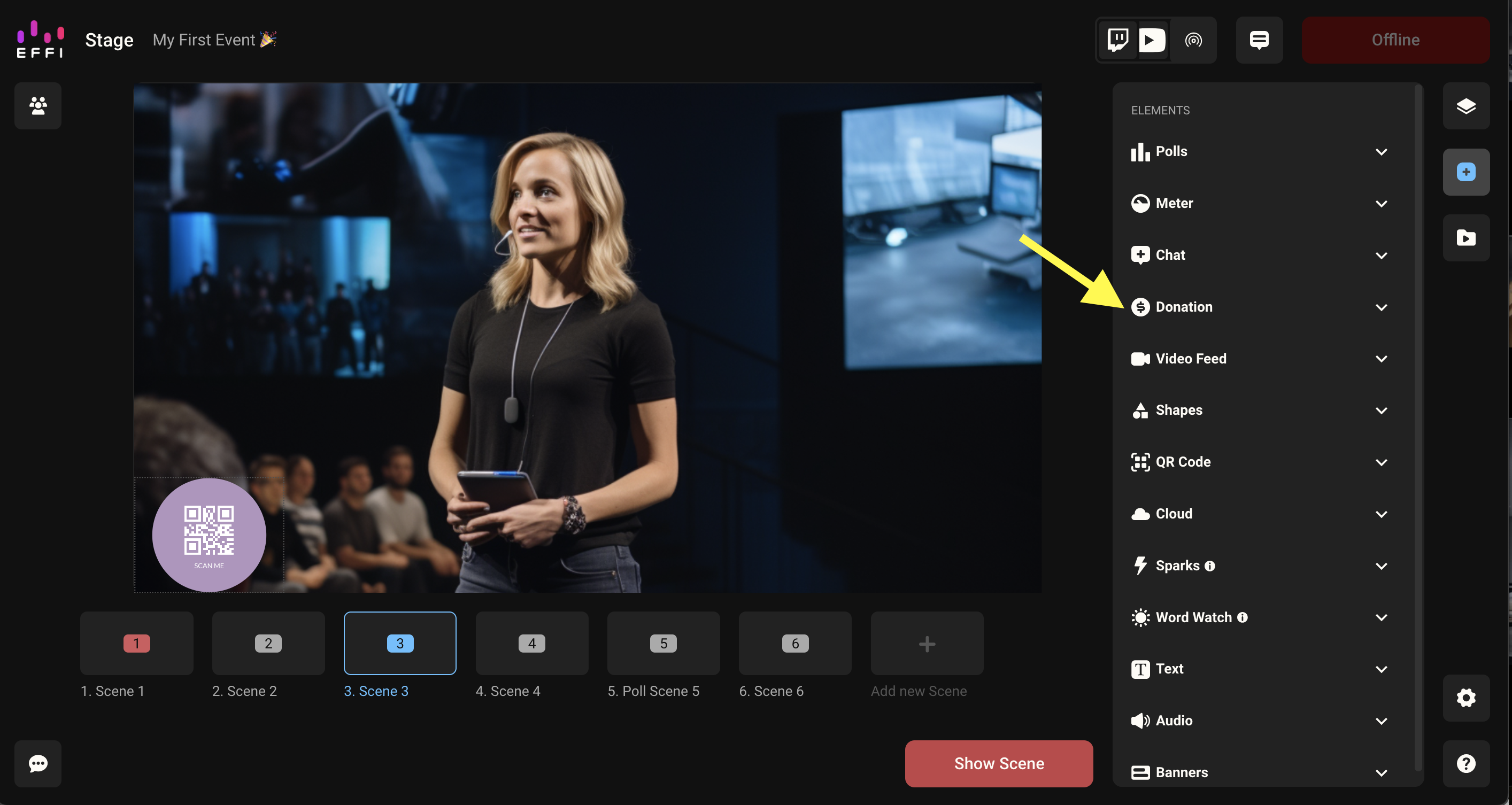
3. Select a Style and Add It
Choose a style from the options, then click Add to add it to your scene.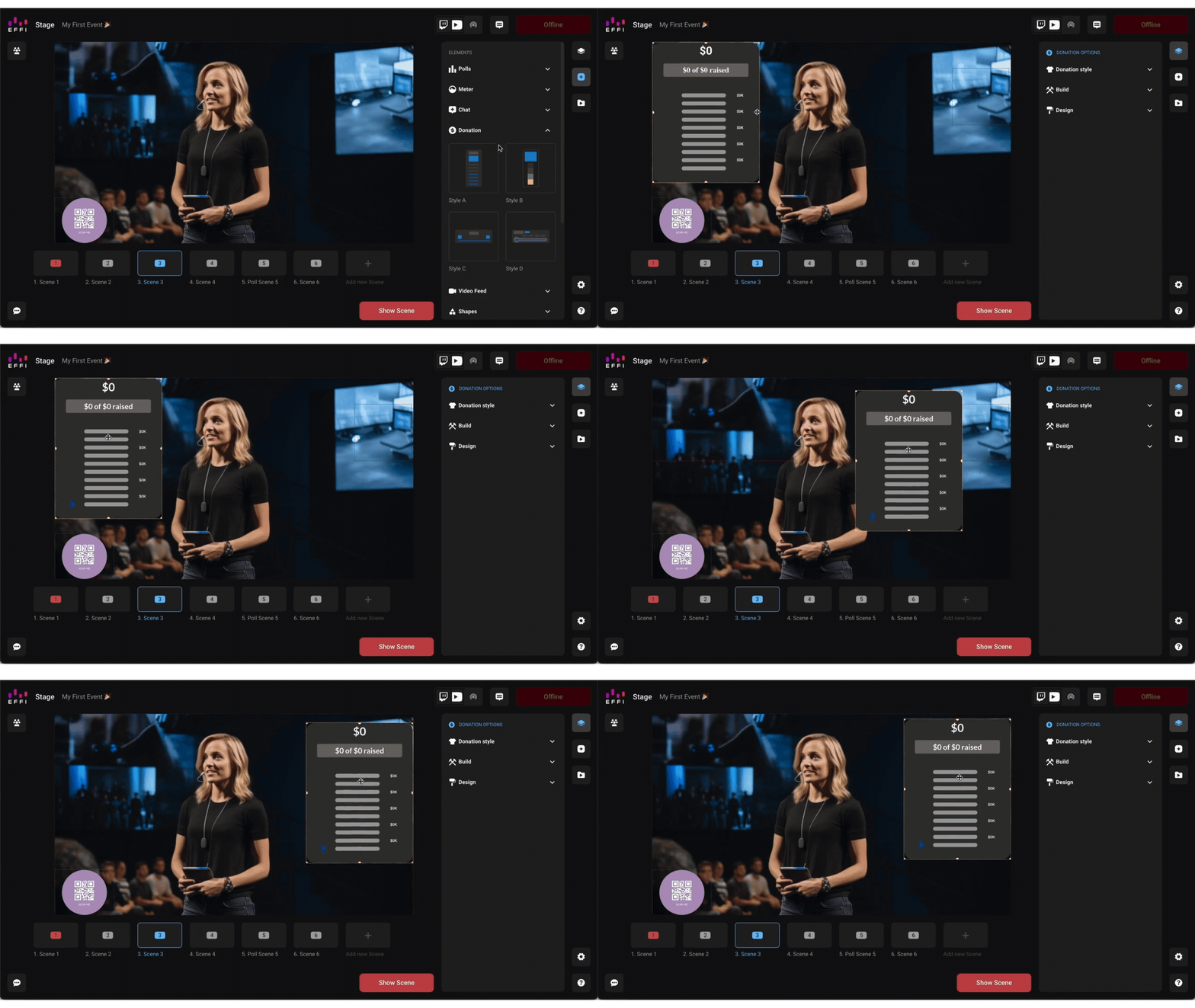
Setting Up Your Donation Element
In the Build menu, you'll find everything you need to set up your Donation Element.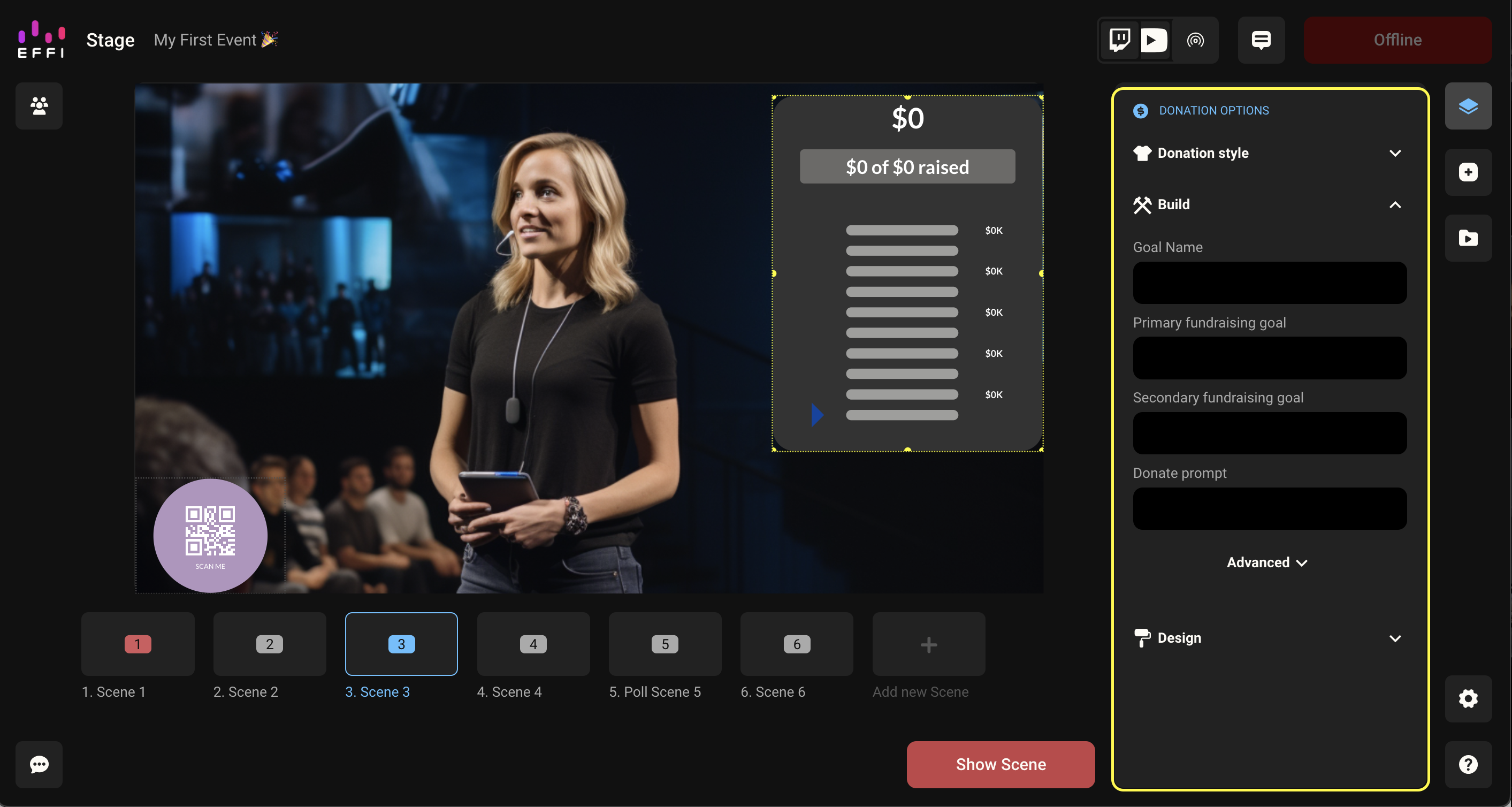
Goal Name
This is the name of your fundraising goal, and it appears at the top of the meter. For example, "2024 Campaign Fundraiser."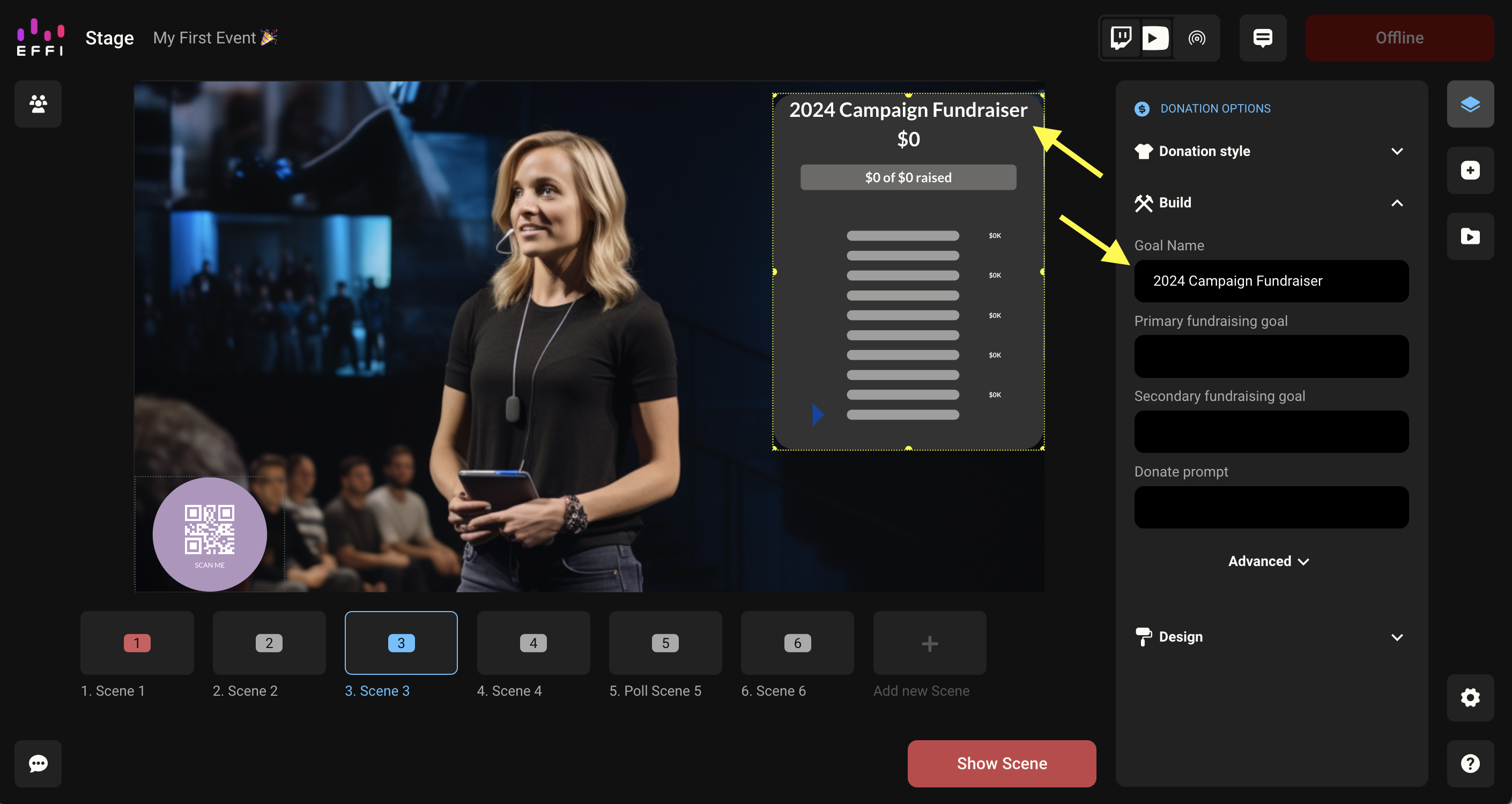
Primary Fundraising Goal
This is the amount you'd like to raise. It appears on the meter and determines its increments. For example, if your primary goal is $10,000, each marker on the meter will be in $2,000 increments ($2K, $4K, $6K, and so on).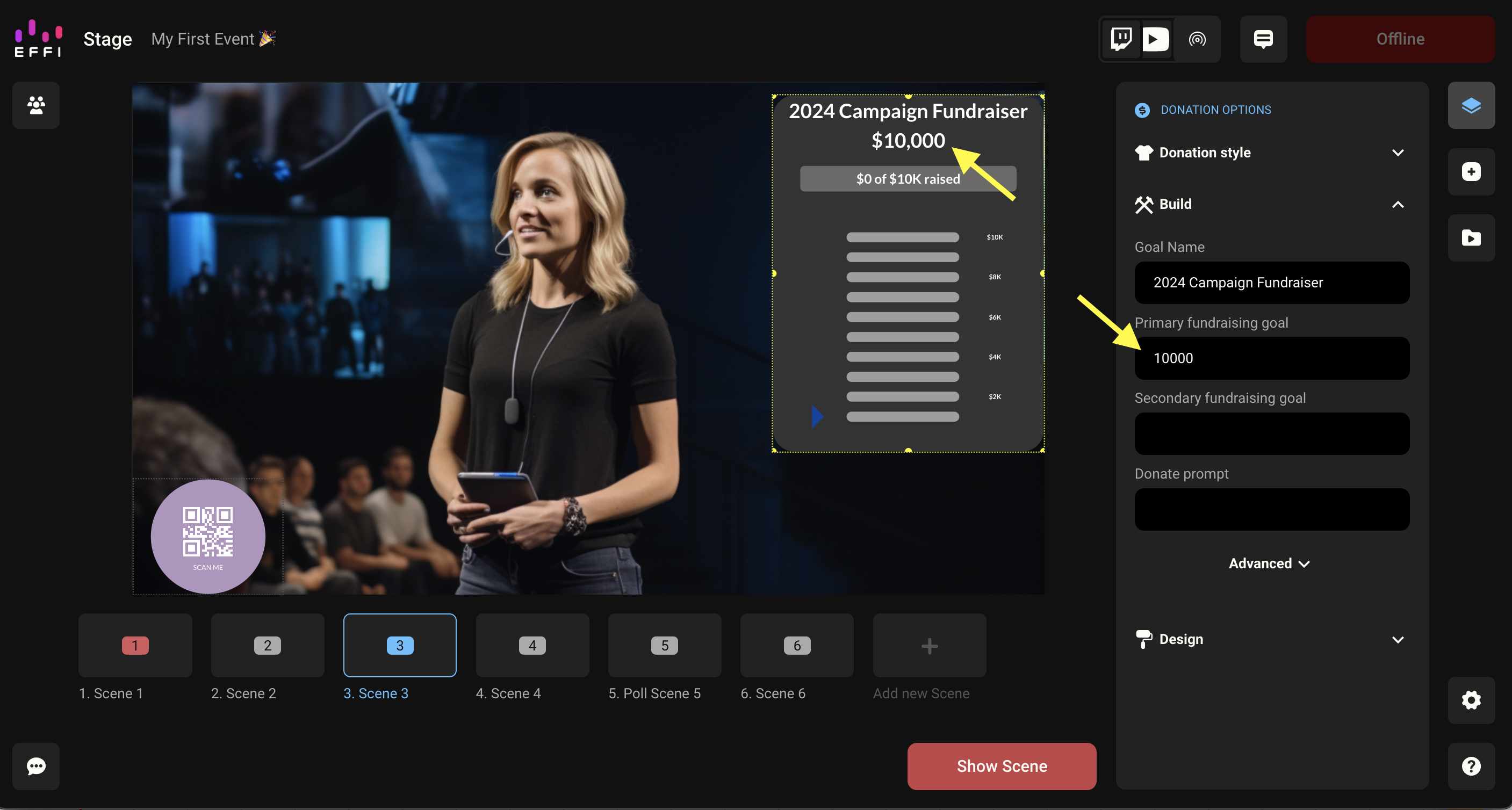
Secondary Fundraising Goal
If you hit your primary goal during the broadcast, the secondary goal kicks in to keep the momentum going. If your primary goal is $10,000, set your secondary goal higher. No one sees the secondary goal unless the primary one is met.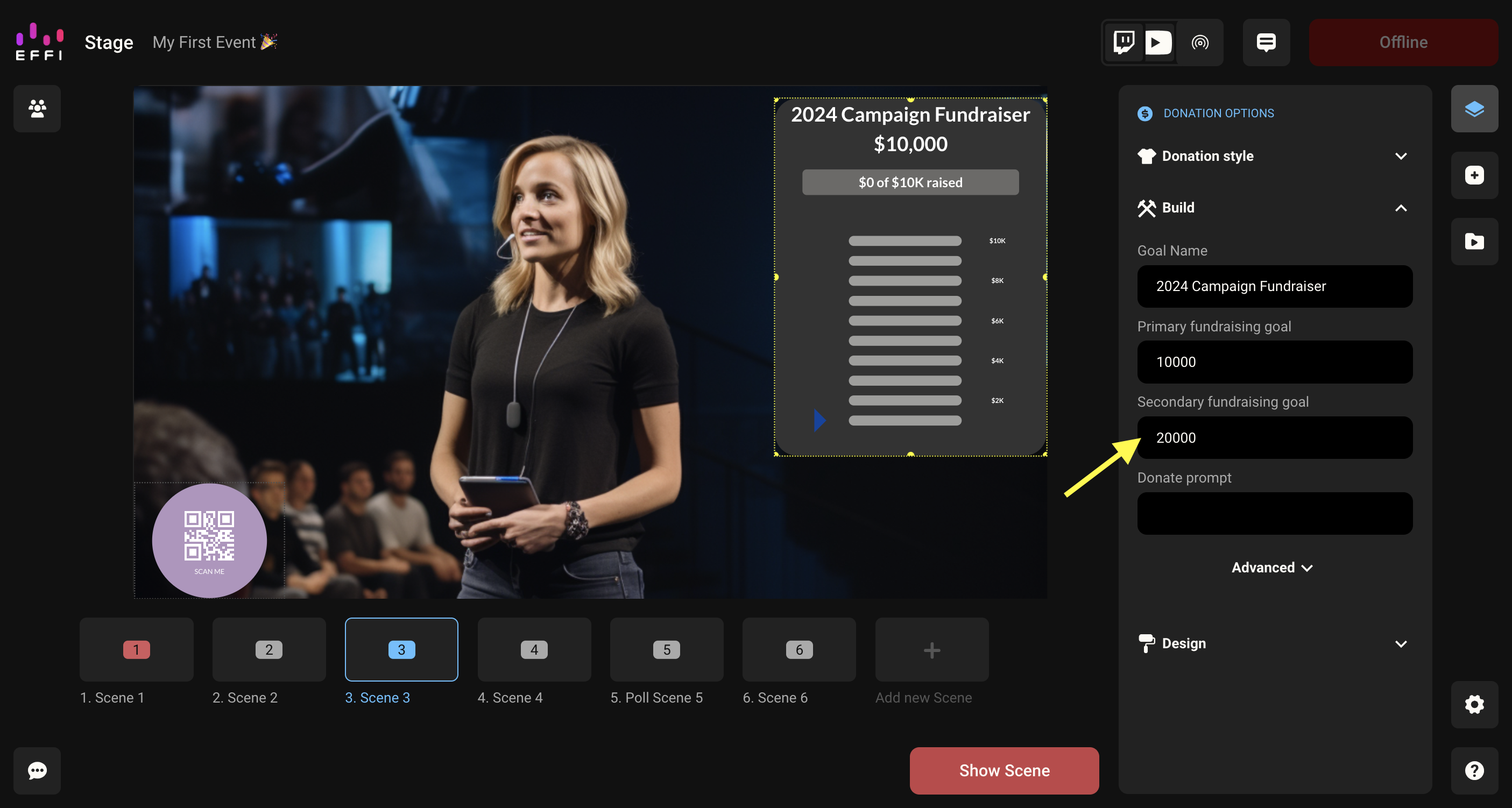
Donate Prompt
This is the hashtag viewers use in chat to donate. If you choose #donate, viewers contribute by typing #donate followed by an amount, so #donate20 gives $20. You can customize the prompt to whatever you like.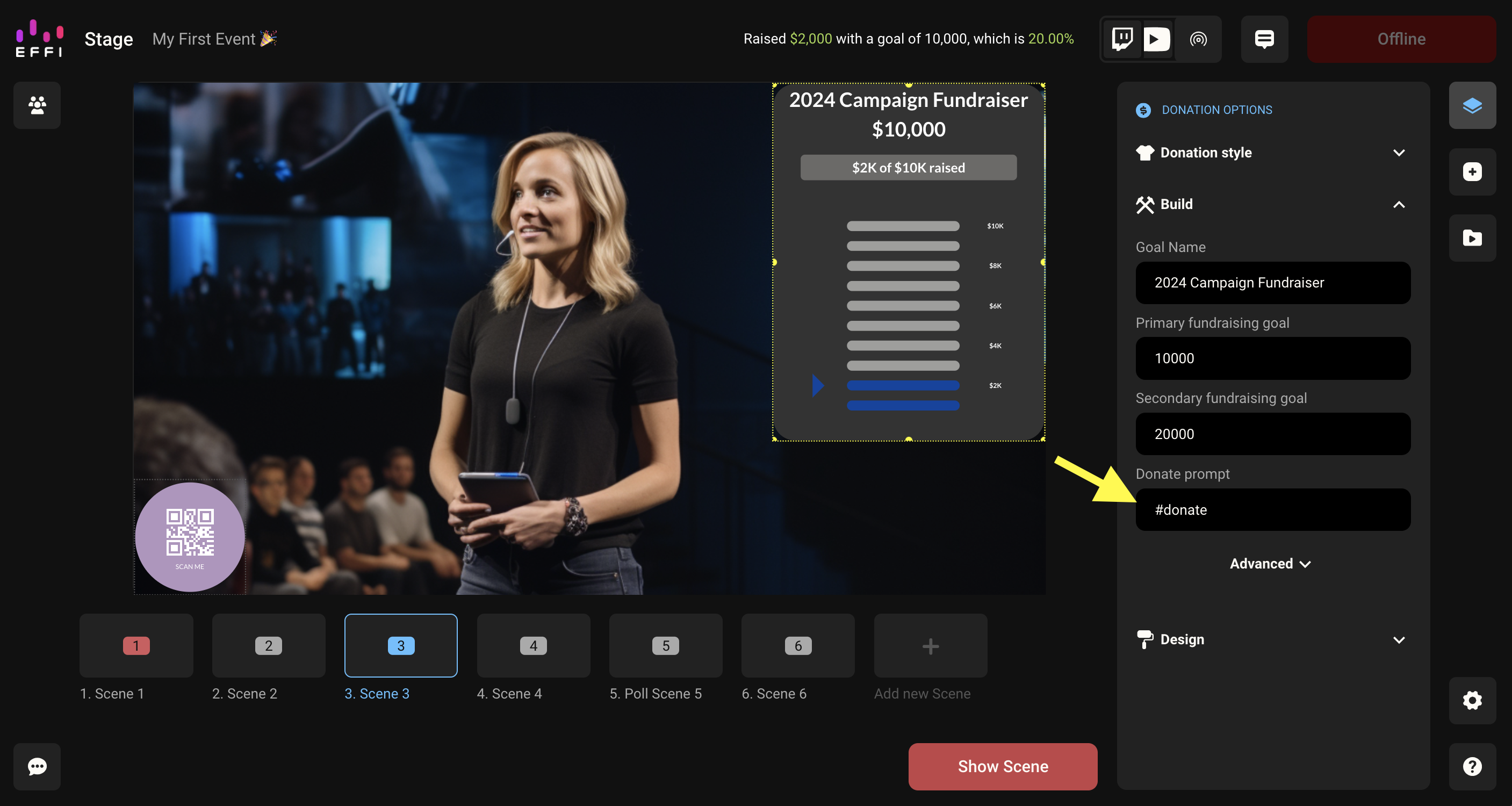
Advanced Settings
Once the fields above are filled in, you're ready to go, but the Build menu also includes a few optional enhancements.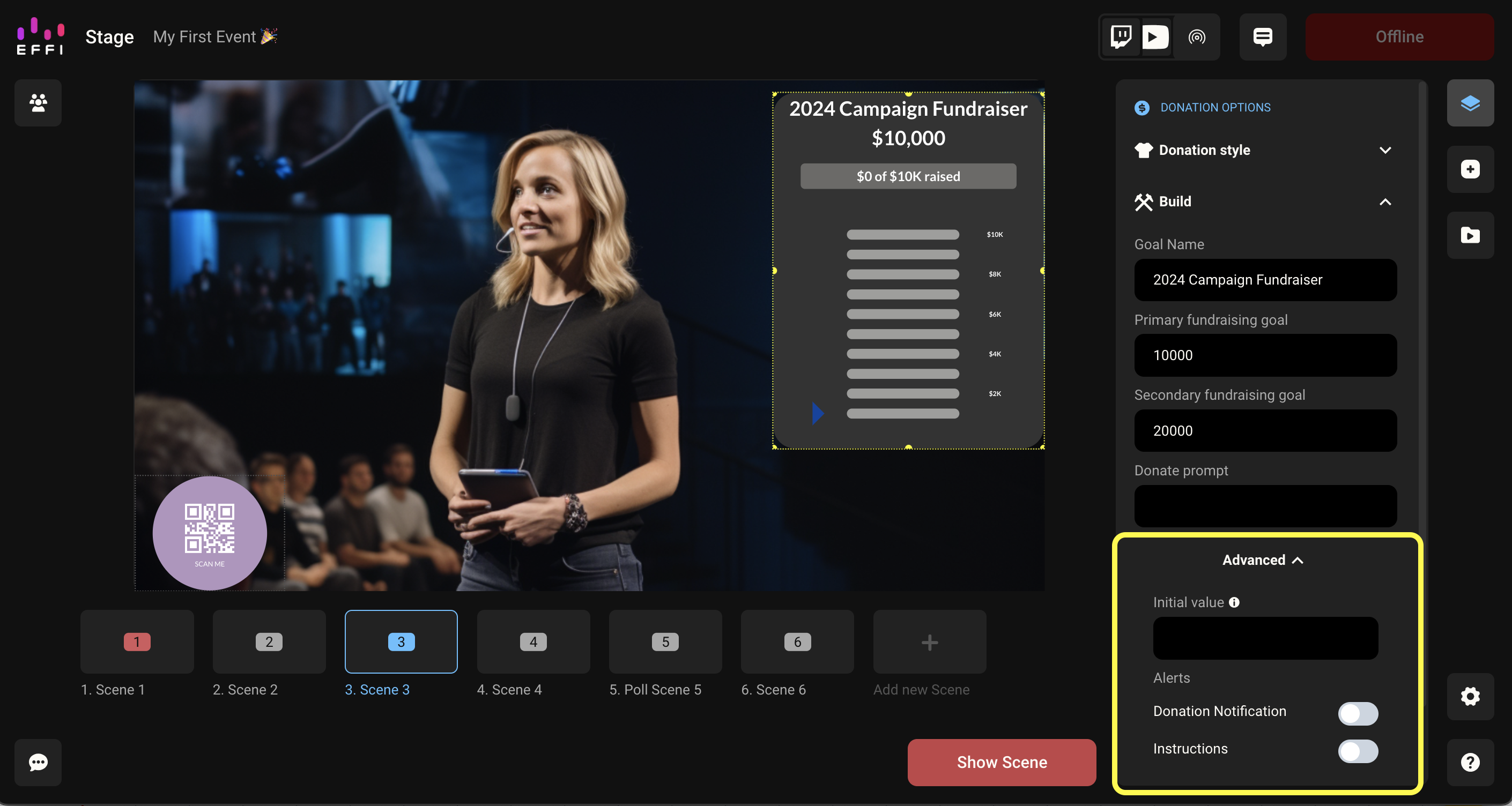
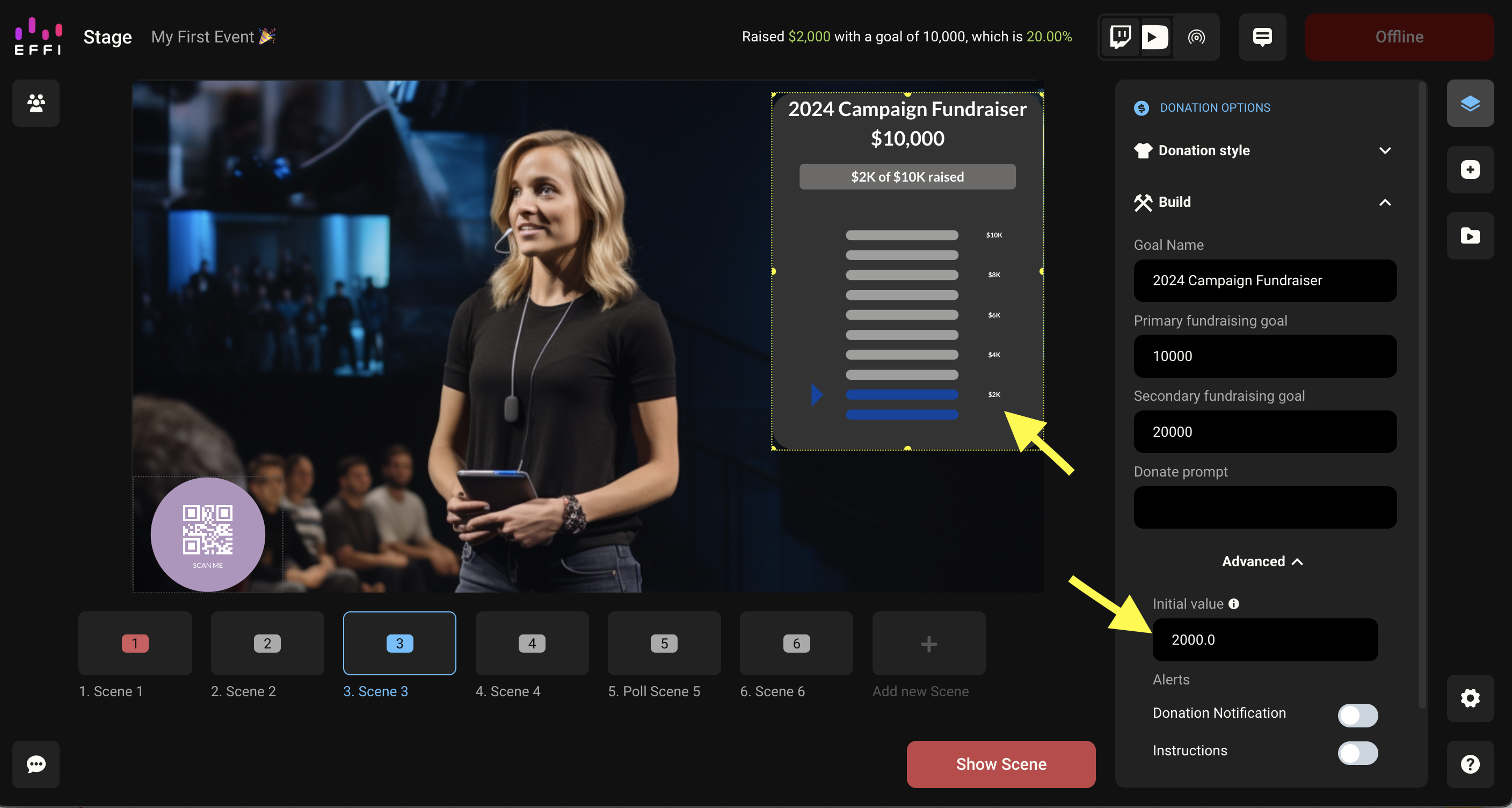
Initial value: If you raised funds before this event that you want to include, add that amount here. The meter will start from that value, so setting it to $2,000 means the meter begins at $2,000.
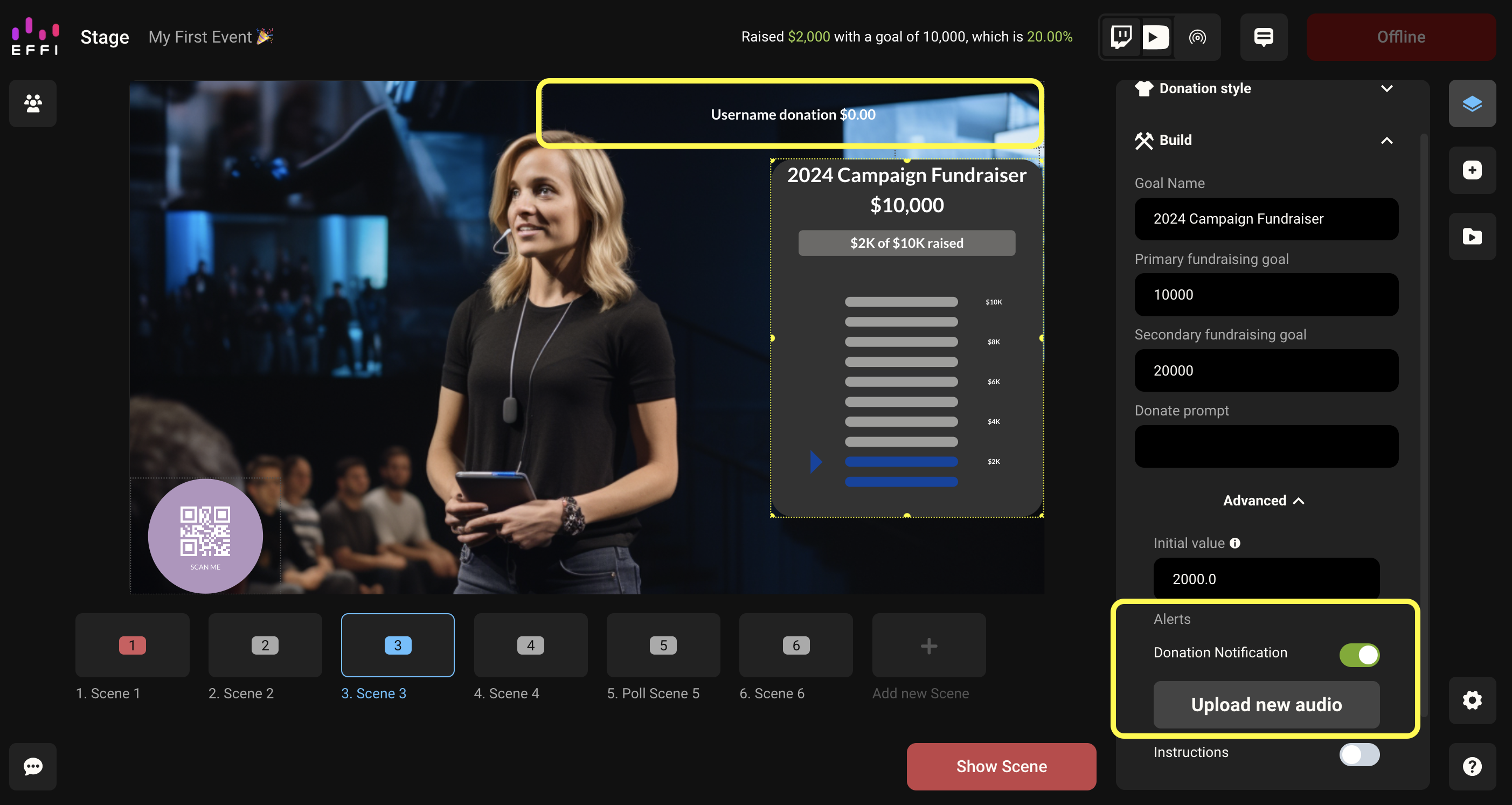
Donation Notification: When enabled, this briefly displays the donor's username and contribution amount on screen each time a donation comes in. You can also upload an audio clip to play alongside it.
Instructions: When enabled, on-screen instructions tell your audience how to donate. You can customize the text however you'd like.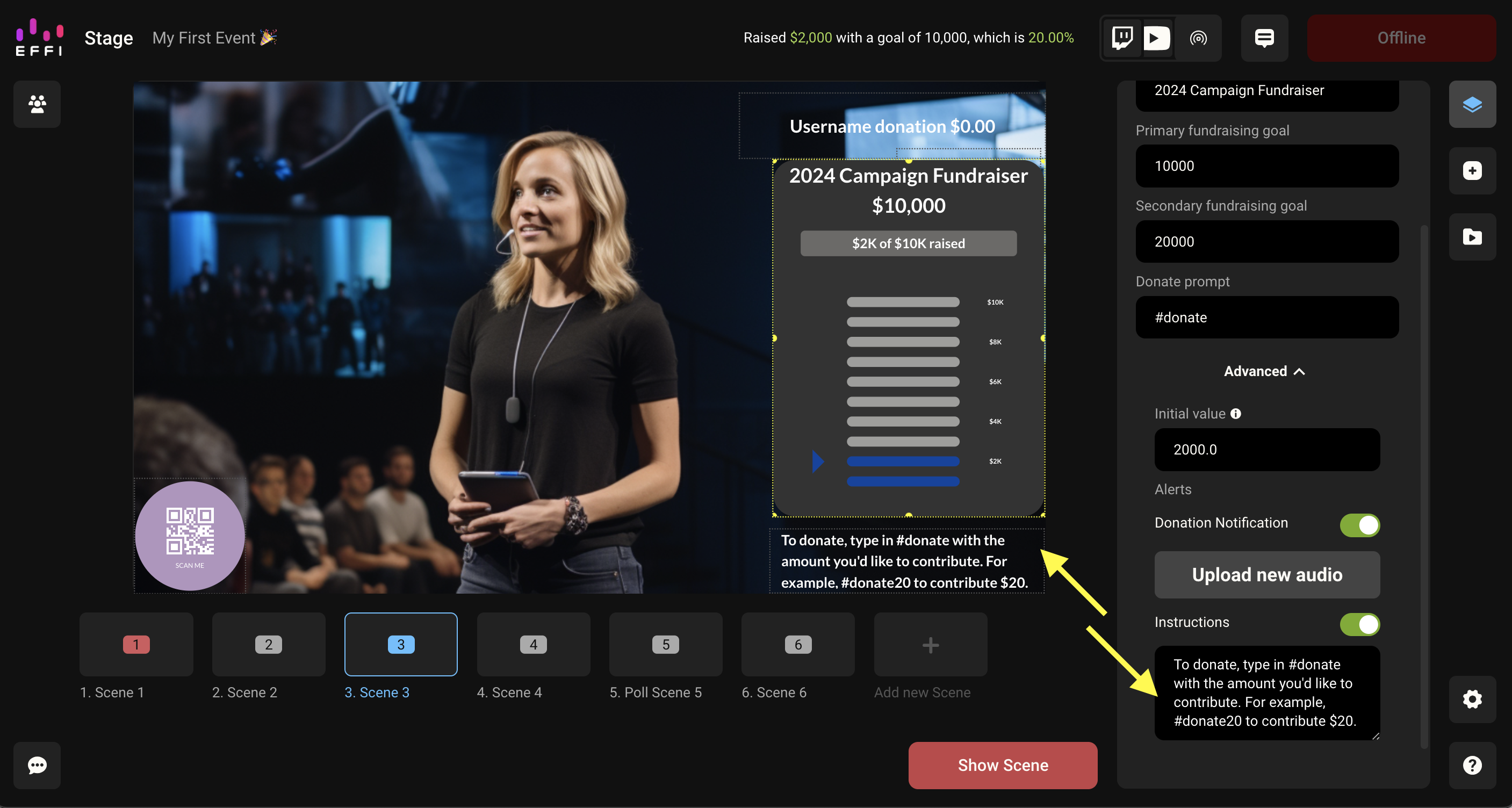
Designing Your Donation Element
In the Design menu, customize your element down to the last detail, backgrounds, fonts, colors, and borders for the meter, alerts, and instructions.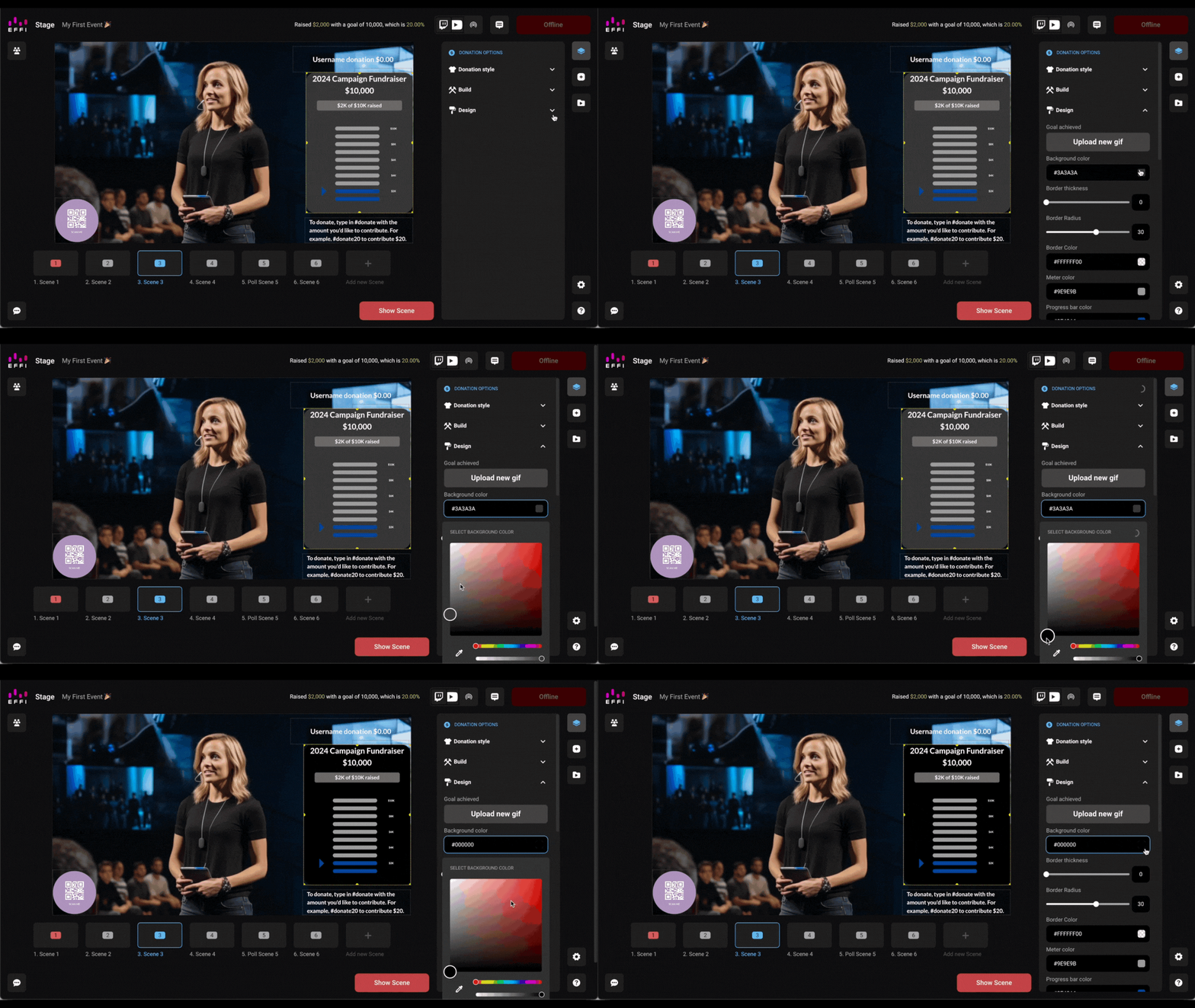
At the top of the Design menu, you can upload a gif to play on screen when you reach your fundraising goal.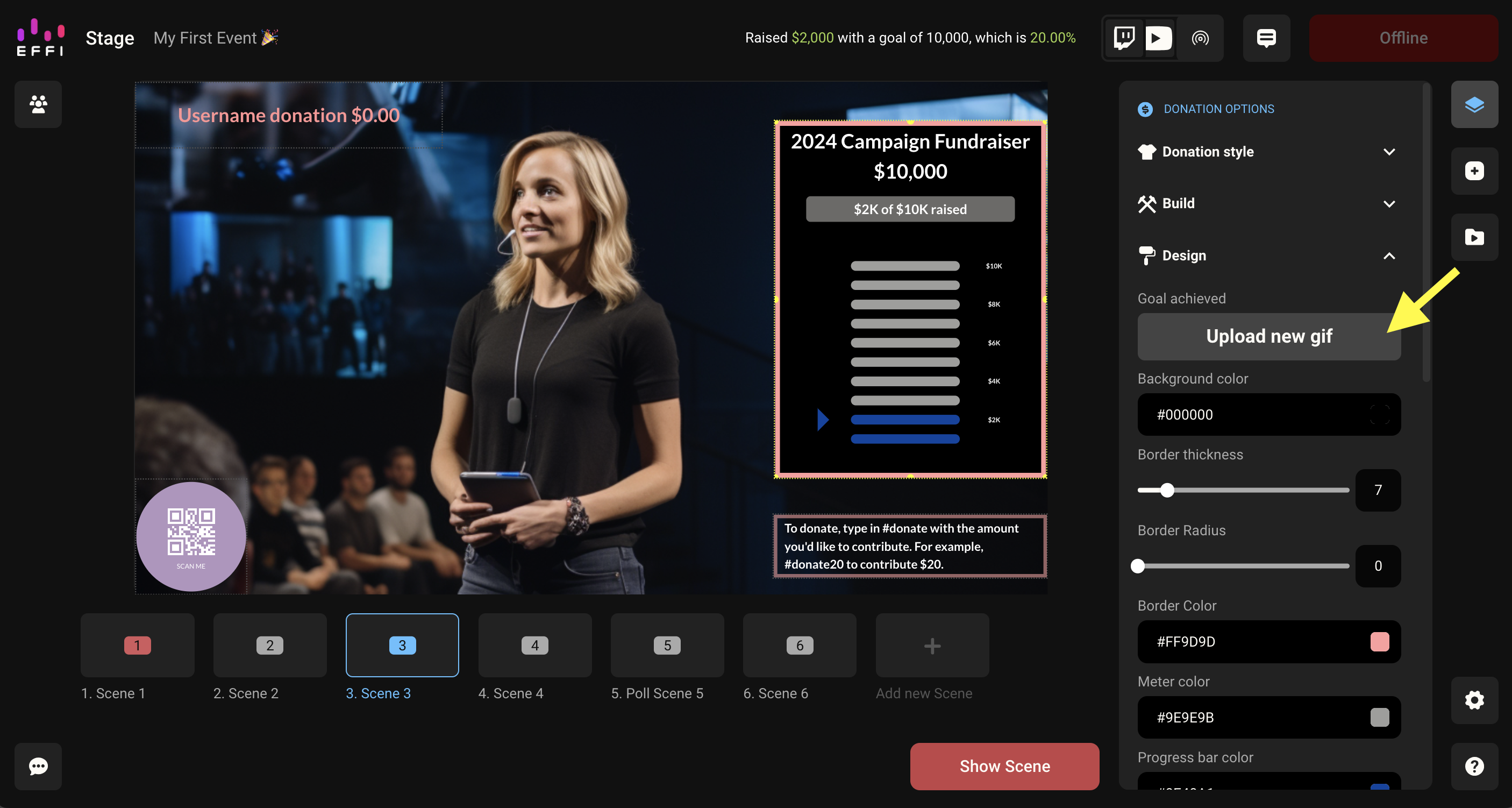
Once you're happy with the design, click Show Scene to bring your Donation Element live. At the top of Stage, you'll see a progress tracker showing your raised amount, goal, and percentage in real time. This tracker is only visible to you in Stage, not to your viewers.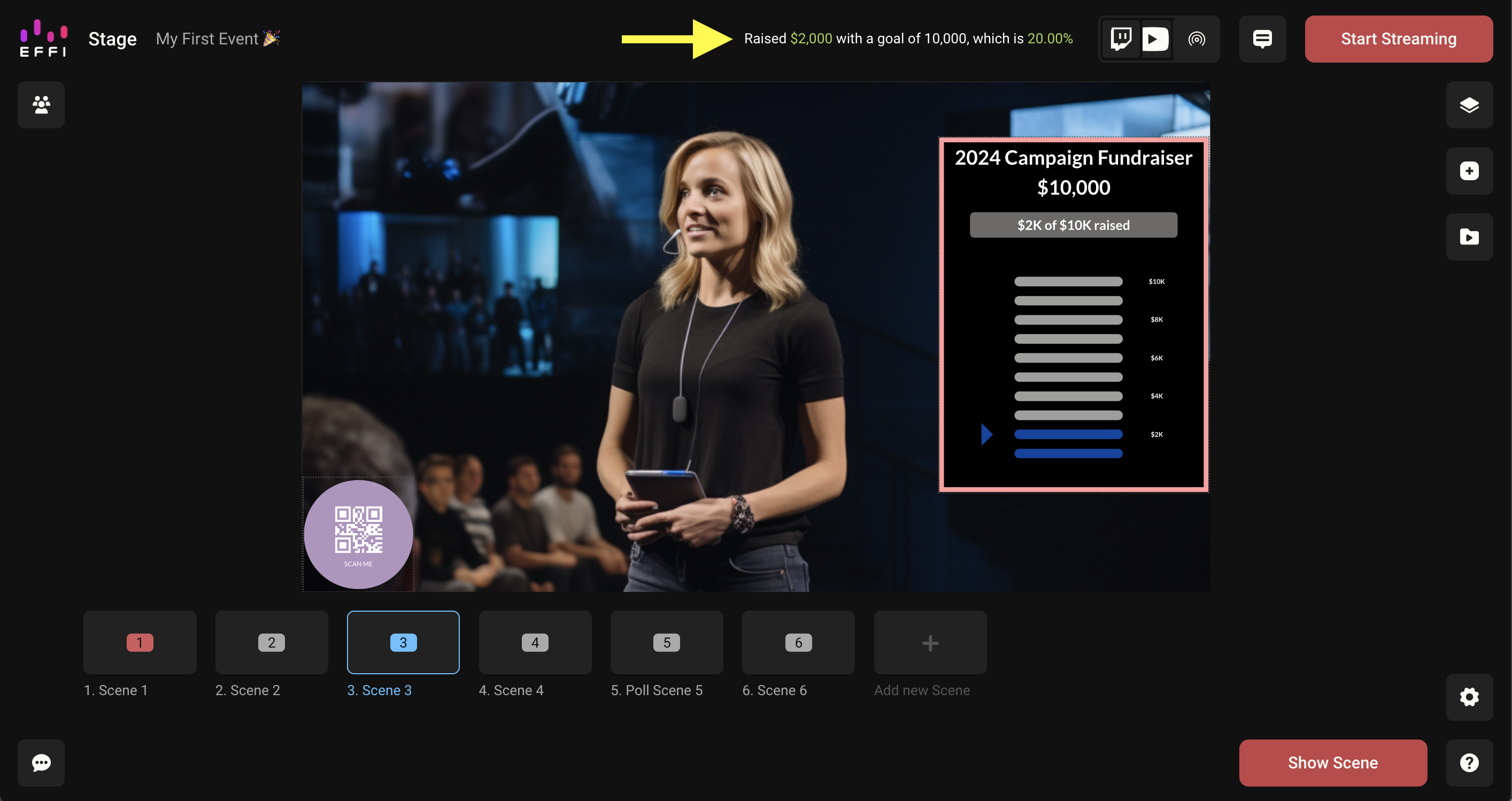
How Viewers Make Donations During a Livestream
Viewers give through Streamocracy, right from the chat on whatever platform they're watching. Here's what that looks like from their side.
1. Sign Up for a Streamocracy Account
Before anyone can donate, they'll need a Streamocracy account. Encourage viewers to sign up ahead of time at Streamocracy.com, by promoting it on your social channels, so they're ready to go when your event starts. You can also have them sign up during the event by displaying a QR code with the sign-up link on screen. Signing up only takes a few minutes, so there's still plenty of time to get those donations in.
2. Use the Donation Prompt
During the stream, give your viewers a prompt to use for donating, either by saying it out loud or displaying it on screen. It can be #donate, #give, or any custom hashtag you choose. Viewers add the amount they want to donate right after the prompt, so if your prompt is #donate and someone wants to give $20, they'd type #donate20.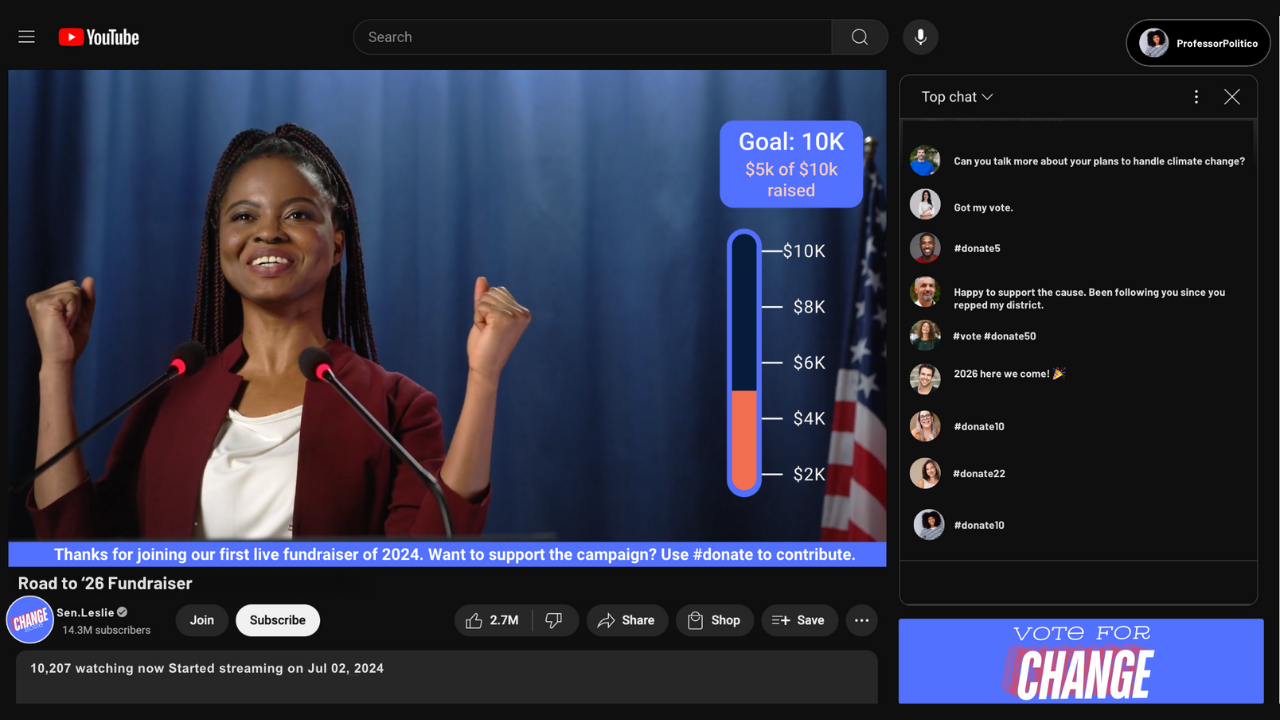
3. Confirm the Donation
Once a signed-up viewer sends the prompt in chat, they'll get a text message asking them to confirm the donation. The donation won't go through unless they confirm, so it's important they respond. If we don't receive a confirmation within a few minutes, we'll send a reminder.
Viewers can donate no matter which platform they're watching on, so you can stream to all your social platforms and collect donations simultaneously, regardless of where your audience chooses to watch.
Donating After the Livestream Ends
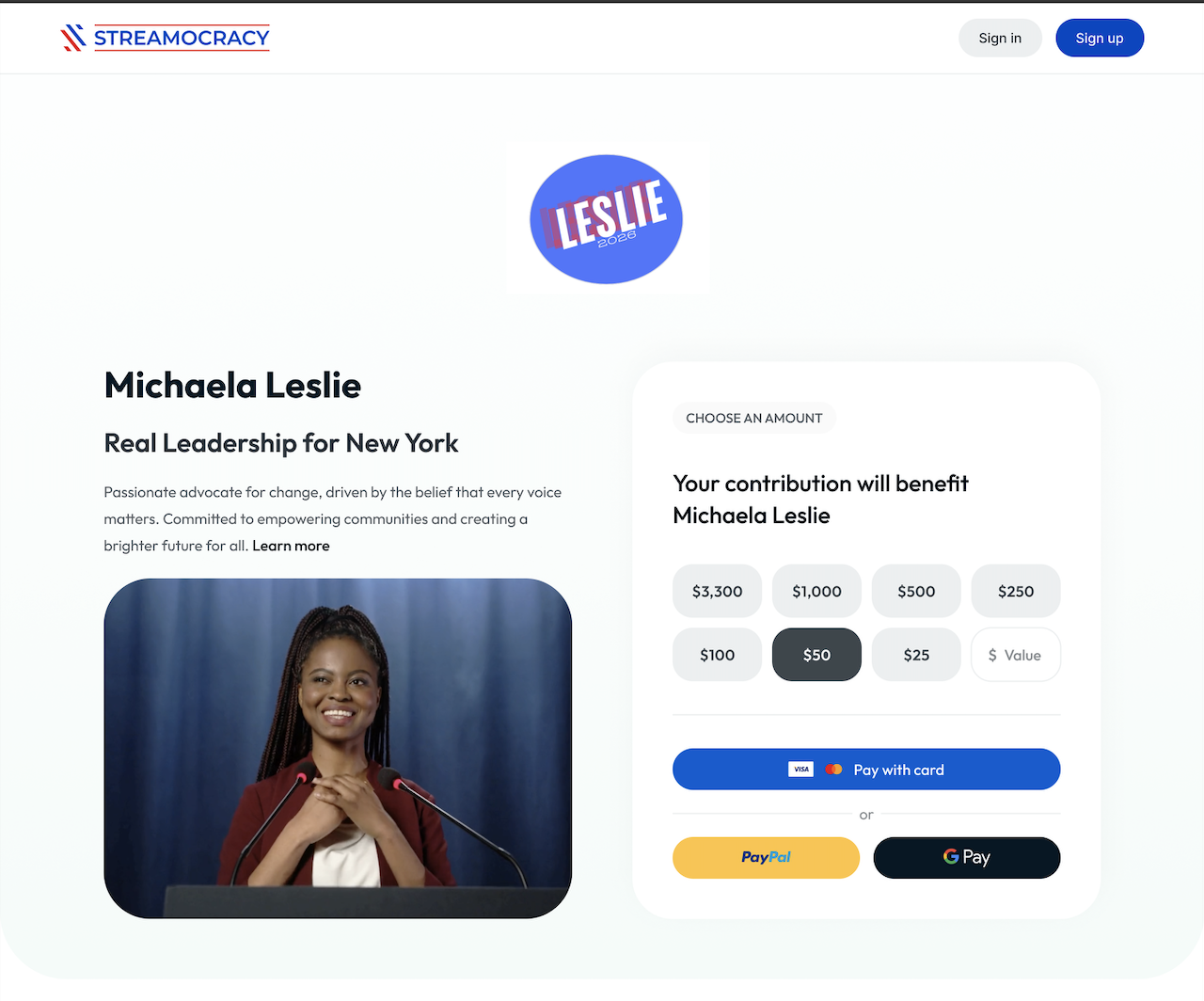
Viewers don't have to catch you live to give. Every organization has a dedicated page on Streamocracy that stays active and accessible at all times, whether you're streaming or not. On this page, donors can choose from preset donation amounts or enter a custom amount, and contribute whenever it's most convenient for them, before, during, or after your event. This means your fundraising can keep going even after the livestream wraps up.
FAQs
Can donors make multiple contributions?
Yes. During a livestream, viewers can use the donation prompt as many times as they like, for any amount, and they'll get a confirmation text for each one. They can also keep giving afterward through your organization's Streamocracy page. See "How Viewers Make Donations During a Livestream" and "Donating After the Livestream Ends" above.
Can people donate once an event has ended?
Yes. Your organization's Streamocracy page remains active at all times, so supporters can continue giving whenever it suits them, even after your stream ends. See "Donating After the Livestream Ends" above.
Was this article helpful?
That’s Great!
Thank you for your feedback
Sorry! We couldn't be helpful
Thank you for your feedback
Feedback sent
We appreciate your effort and will try to fix the article