You'll spend the whole broadcast in the Greenroom, moving through a few states as the show goes on. For a full tour of what the Greenroom looks like and what you can do there, see How Do I Join a Broadcast as a Guest? This guide covers everything else: knowing when you're live, talking privately with your host, voting on polls and meters, and leaving when you're done.
Knowing When You're Live
Visual Cues
A few simple badges keep you updated as the broadcast progresses.
- Once the event goes live, a "Backstage" label appears at the top of your screen.
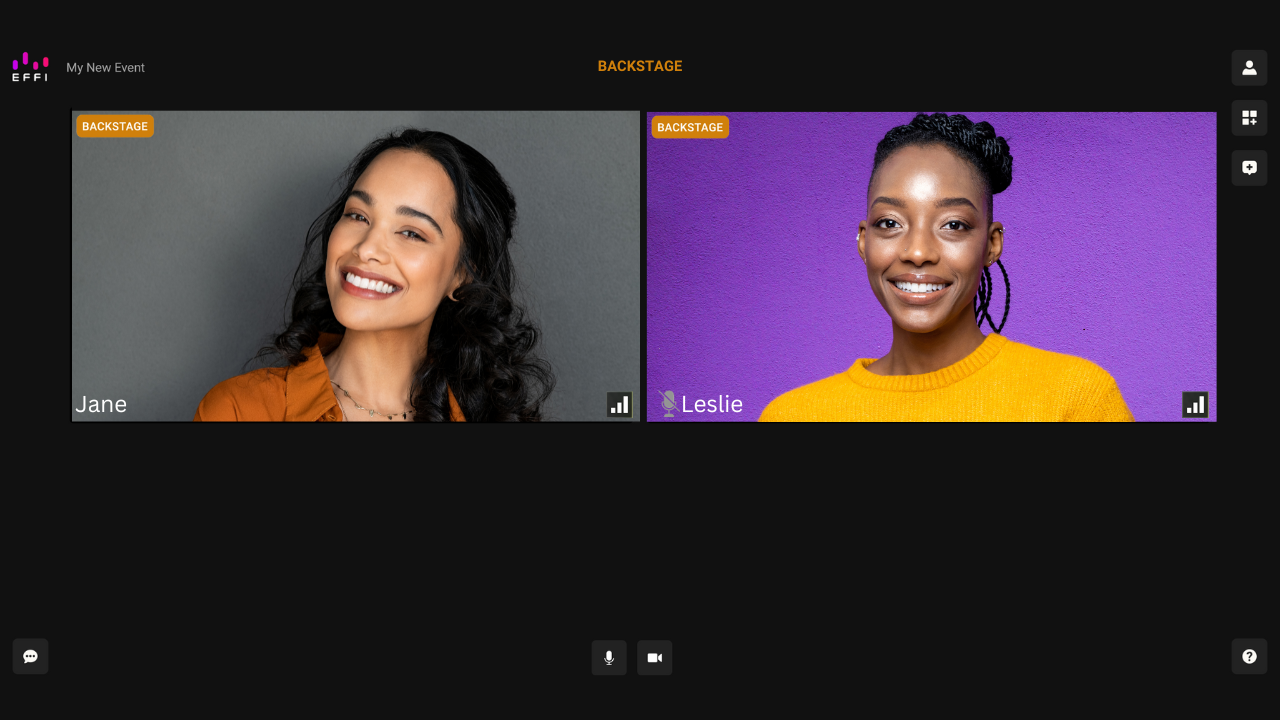
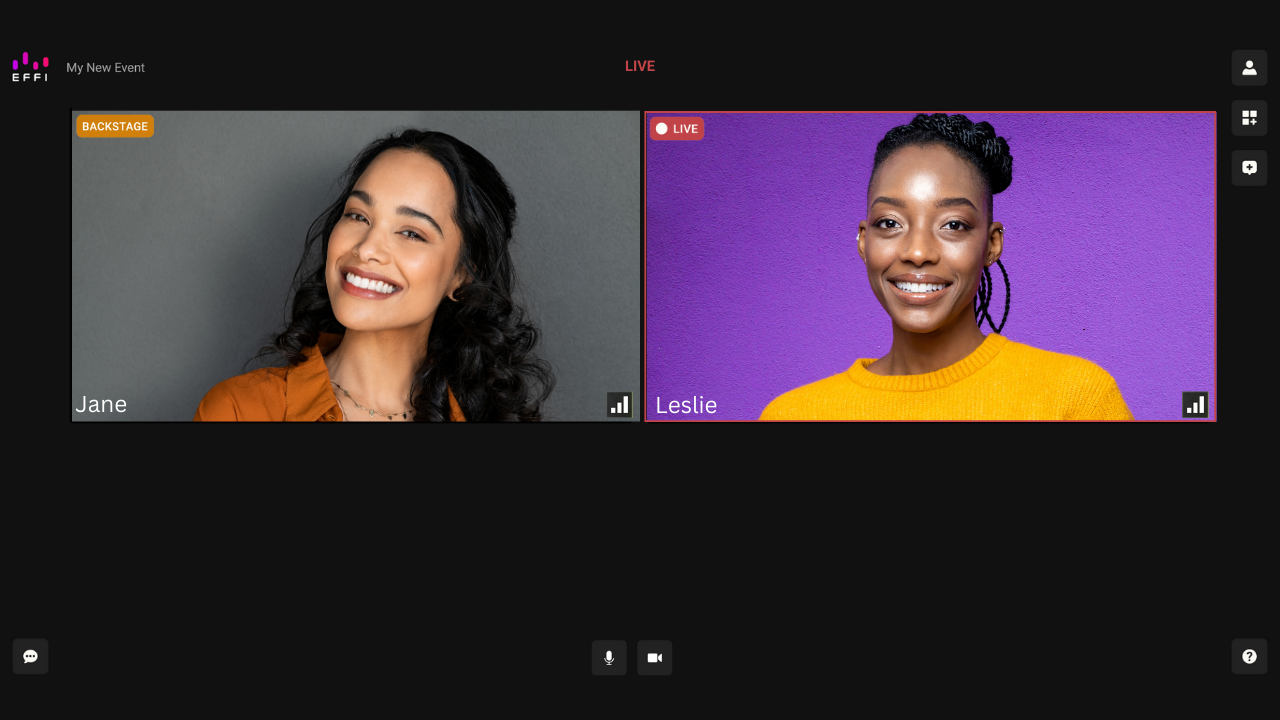
- You'll notice a "Live" badge next to anyone currently featured in the scene.
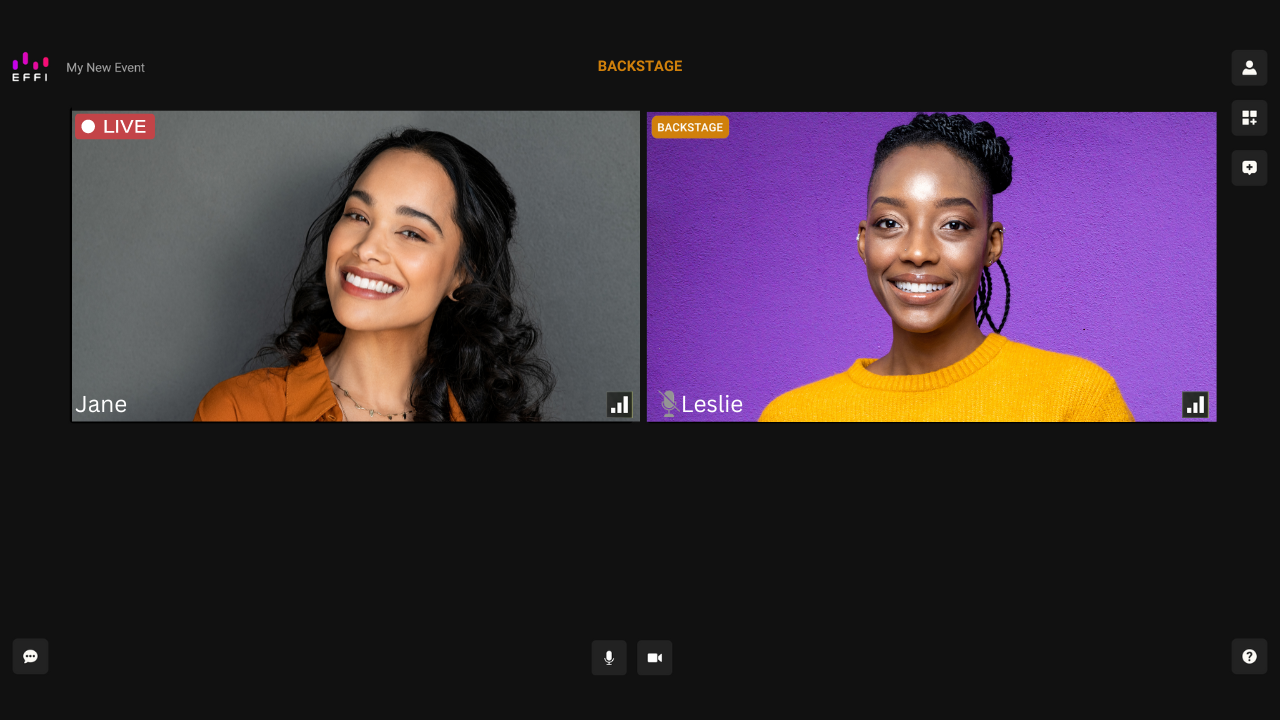
- When it's your turn, that same "Live" badge appears on your own feed and at the top of the screen, letting you know you're on screen.
Private Chat Heads-Up
Your host or producer can also give you a heads-up through Private Chat, letting you know when you're almost live or when it's nearly your turn.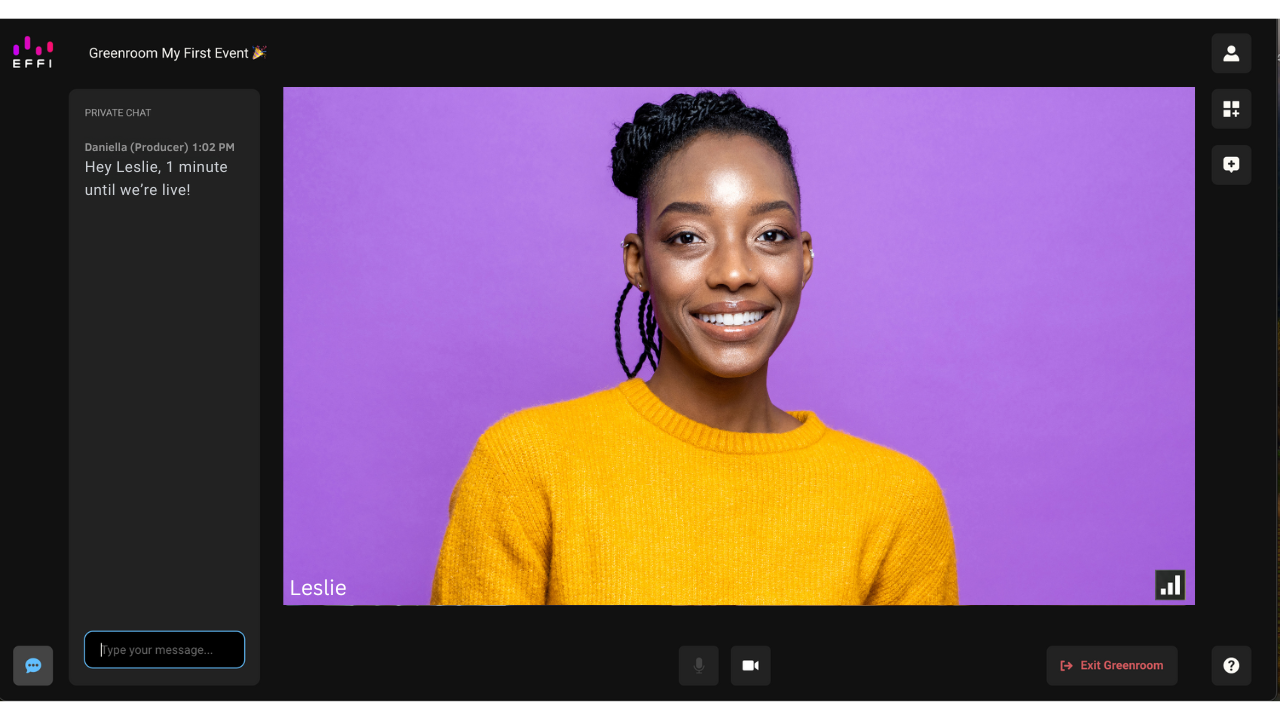
Talking Privately With Your Host
Private Chat lets you send text messages to whoever is managing the broadcast, without your audience seeing or hearing any of it. It's useful for stepping away for a moment, asking a quick question about your segment, or flagging a technical issue.
- Open the Private Chat icon at the bottom of the Greenroom and send your message.
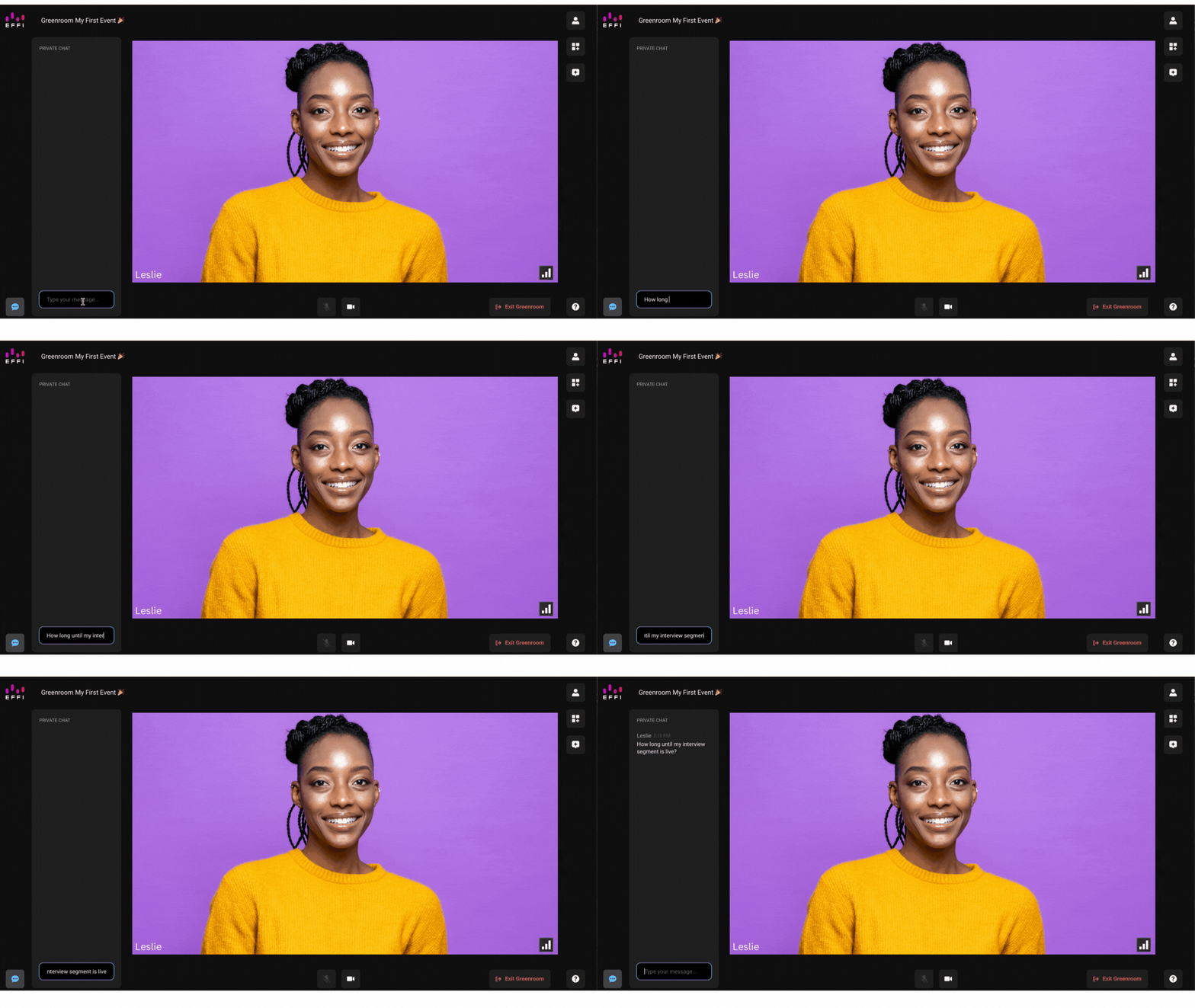
- Whoever is managing the broadcast will see your message and can reply the same way.
Voting on Polls and Meters
You'll be able to see polls and meters update live while you're in the Greenroom, but you won't be able to vote on them directly from there.
If you'd like to vote, you can pull up the broadcast on whichever platform it's streaming to, like YouTube, Twitch, or Facebook, and vote there just like any other viewer.
Leaving the Greenroom
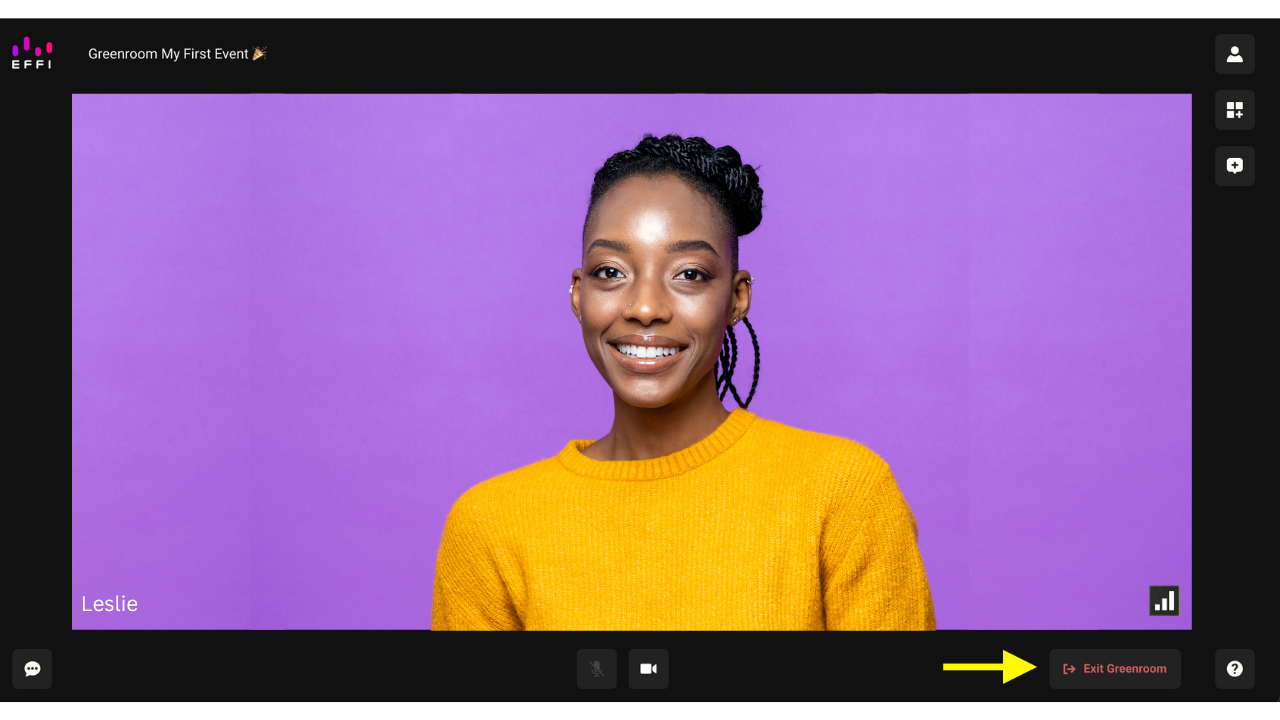
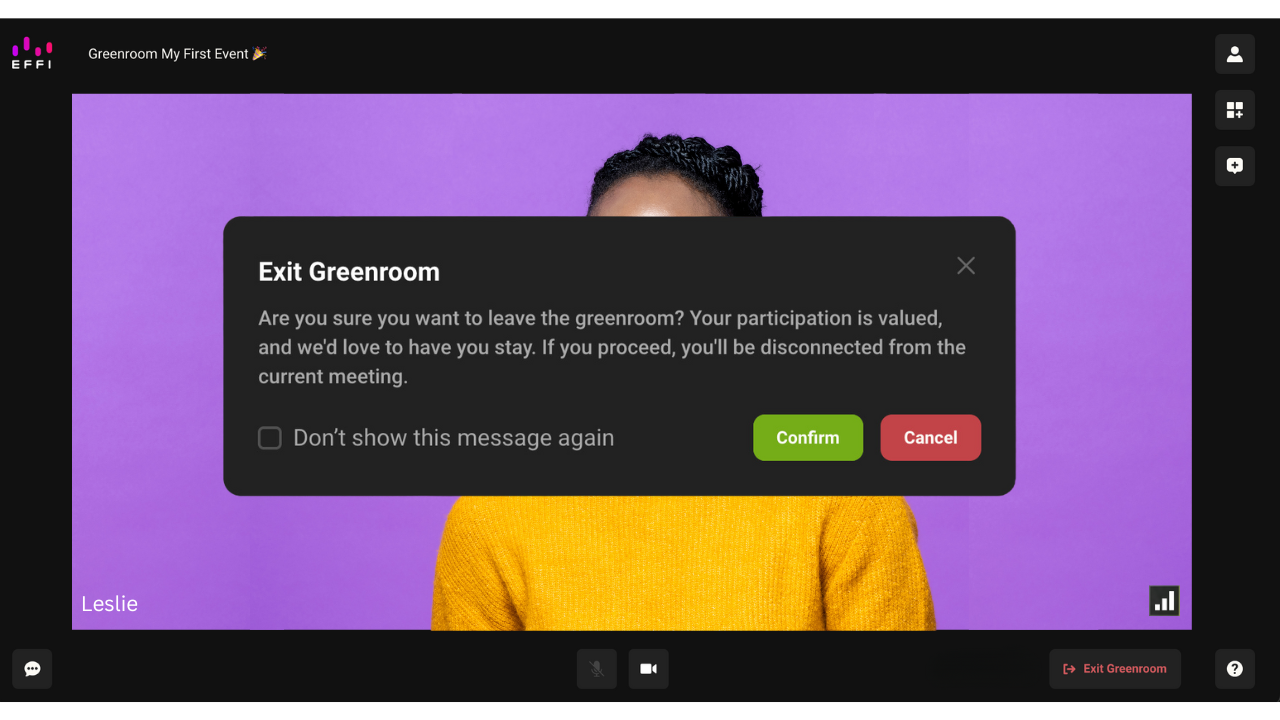
Whether the broadcast has ended or you're no longer needed, leaving only takes a couple of clicks.
- Click "Exit Greenroom" at the bottom of the screen.
- Confirm that you're ready to leave.
Was this article helpful?
That’s Great!
Thank you for your feedback
Sorry! We couldn't be helpful
Thank you for your feedback
Feedback sent
We appreciate your effort and will try to fix the article