Effi makes sure that you have control over every aspect of your live streams... including the equipment you use. So if your built-in camera or mic isn't going to cut it, Effi makes it easy to use the ones you want.
Adding an External Camera or Mic
If you would like to add a camera or mic other than your computer's built-in ones, all you need to do is plug it into your computer per the device's instructions — likely through your USB or USB-C ports.
If the device requires installation on your computer, do that before trying to use it with Effi.
Once you have completed all the necessary installation steps, the camera or mic will be available as an option in Effi. We'll get deeper into that in the next section.
Selecting Your Camera and Mic
By default, you will not need to allow camera or mic access or select either when joining the studio. Therefore, to enable and select a camera or mic while in the studio you will first have to join the Greenroom.
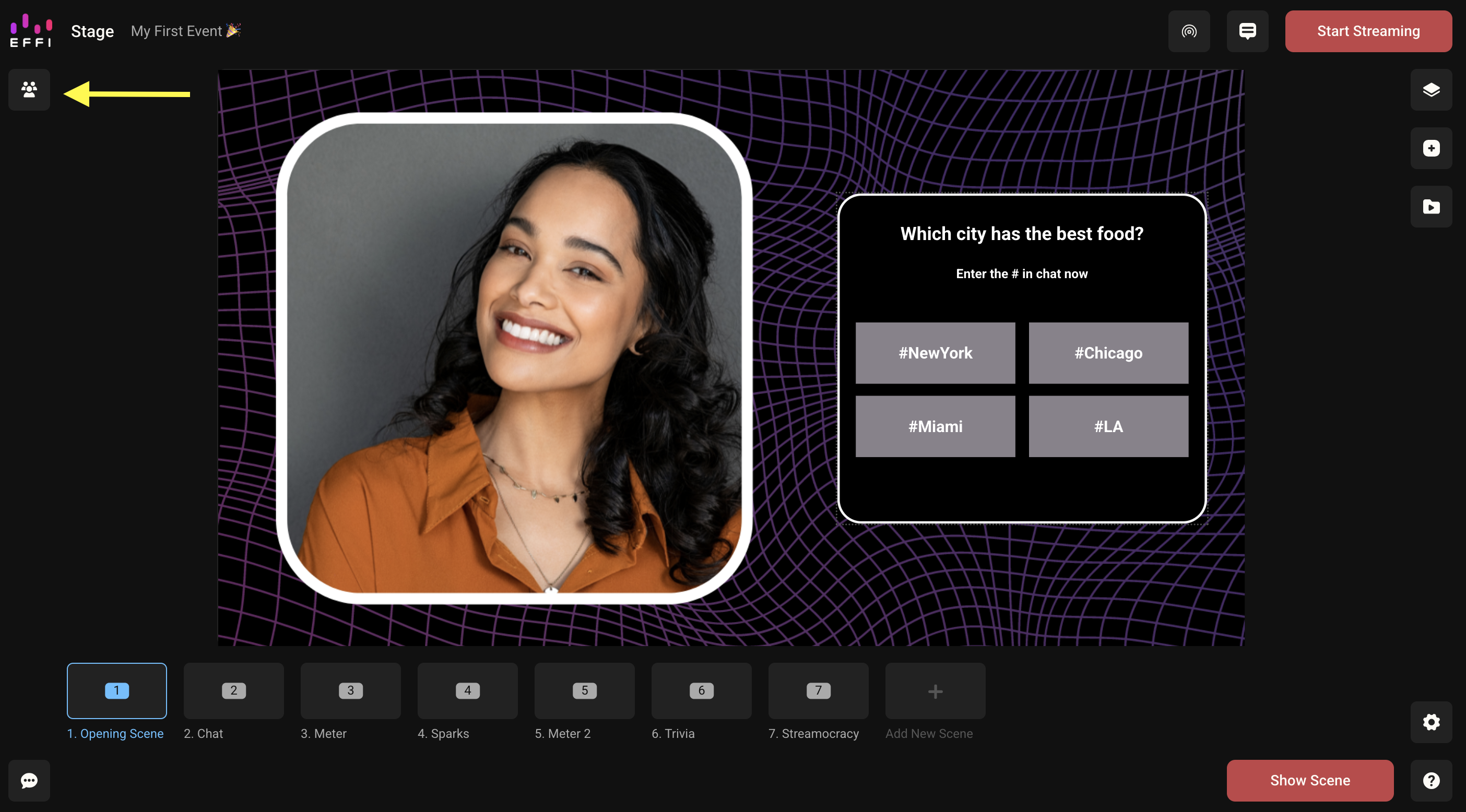
- Click the icon under the Effi logo to open the guest panel.
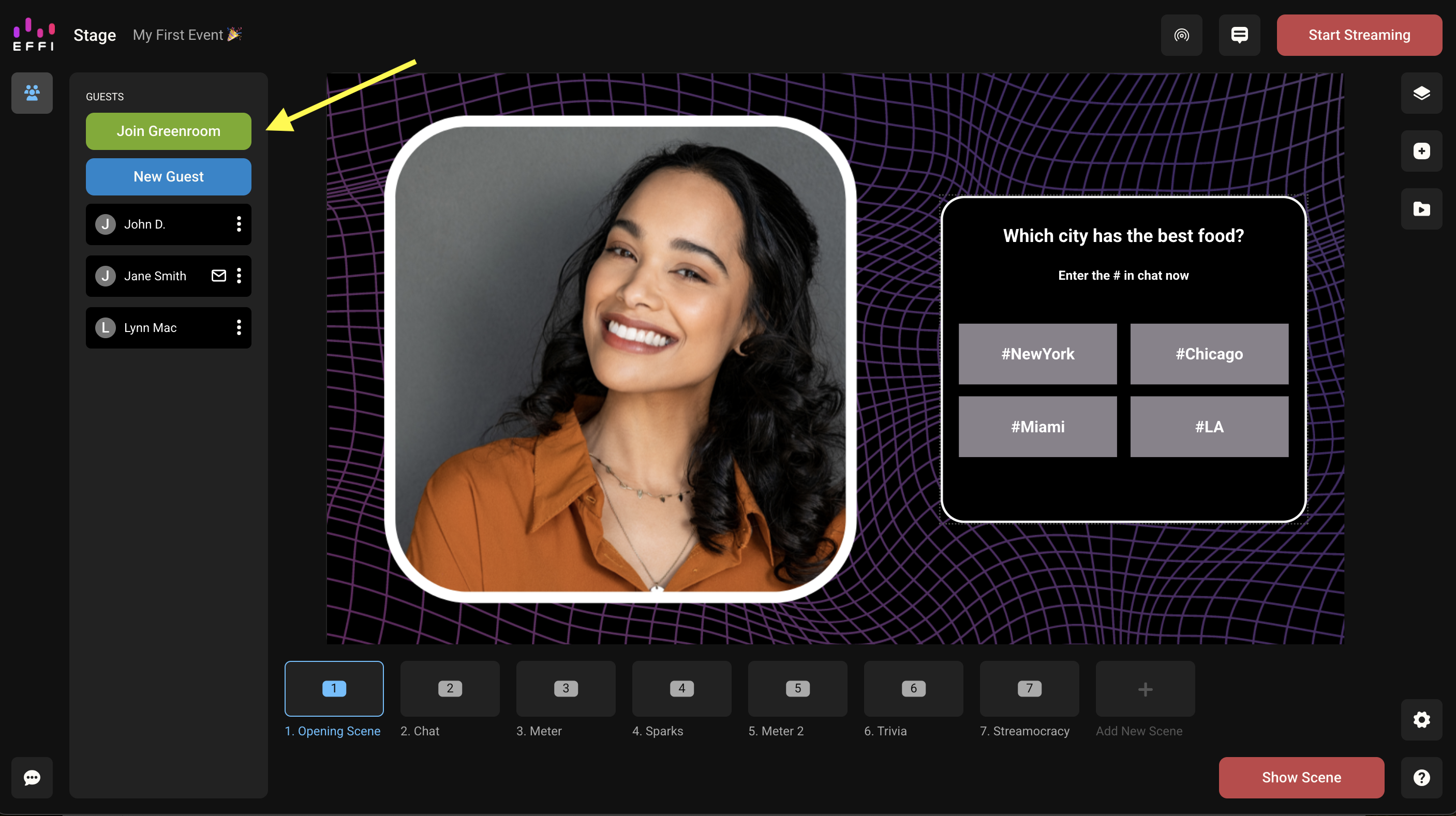
- Click the "Join Greenroom" button.
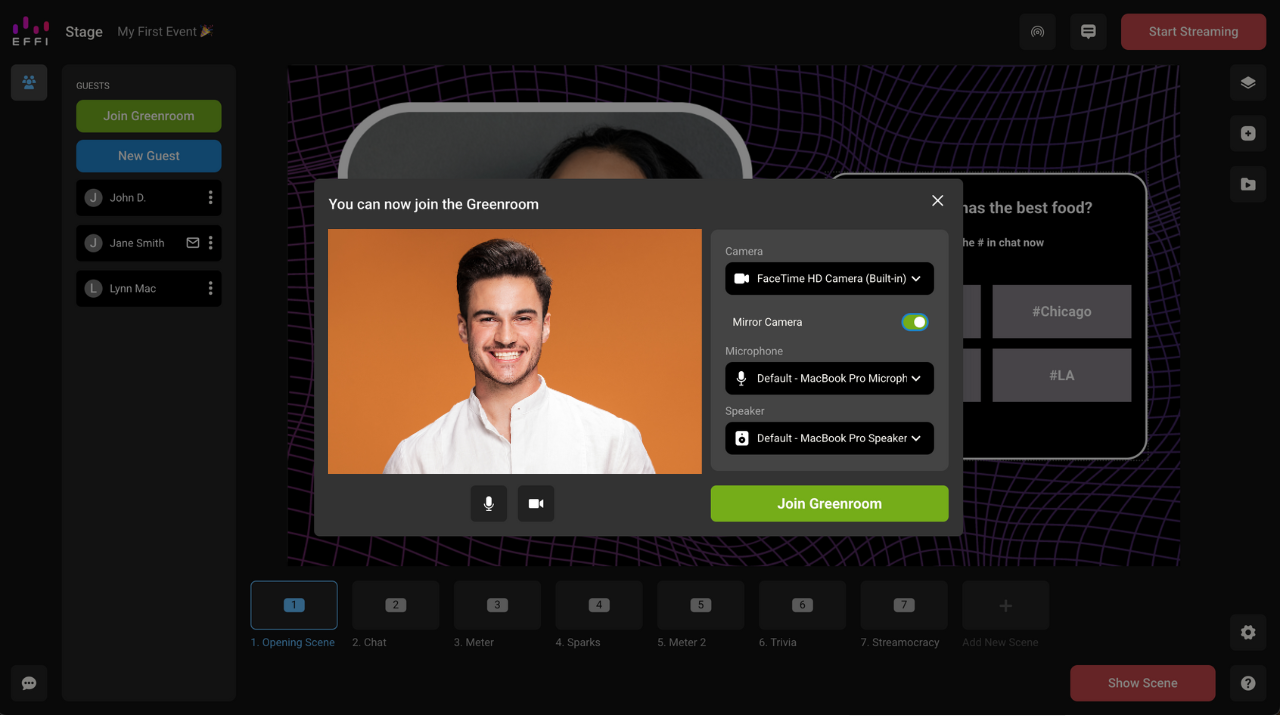
- Once you hit "Join Greenroom" you'll get a pop-up asking you to select the camera and mic you'd like to use. You can stick with the default or click your current selection for a dropdown list of all your connected devices. You can select your speaker here too.
? Once you are in the Greenroom, you will be able to change your camera, mic, and speaker settings by opening the guest panel and clicking your video preview at any time before or during a broadcast.
Changing Your Camera or Mic
When you join the Greenroom for the first time you will be asked to select a camera and mic, but you can change that at any time before or during the broadcast.
- Click the icon under the Effi logo.
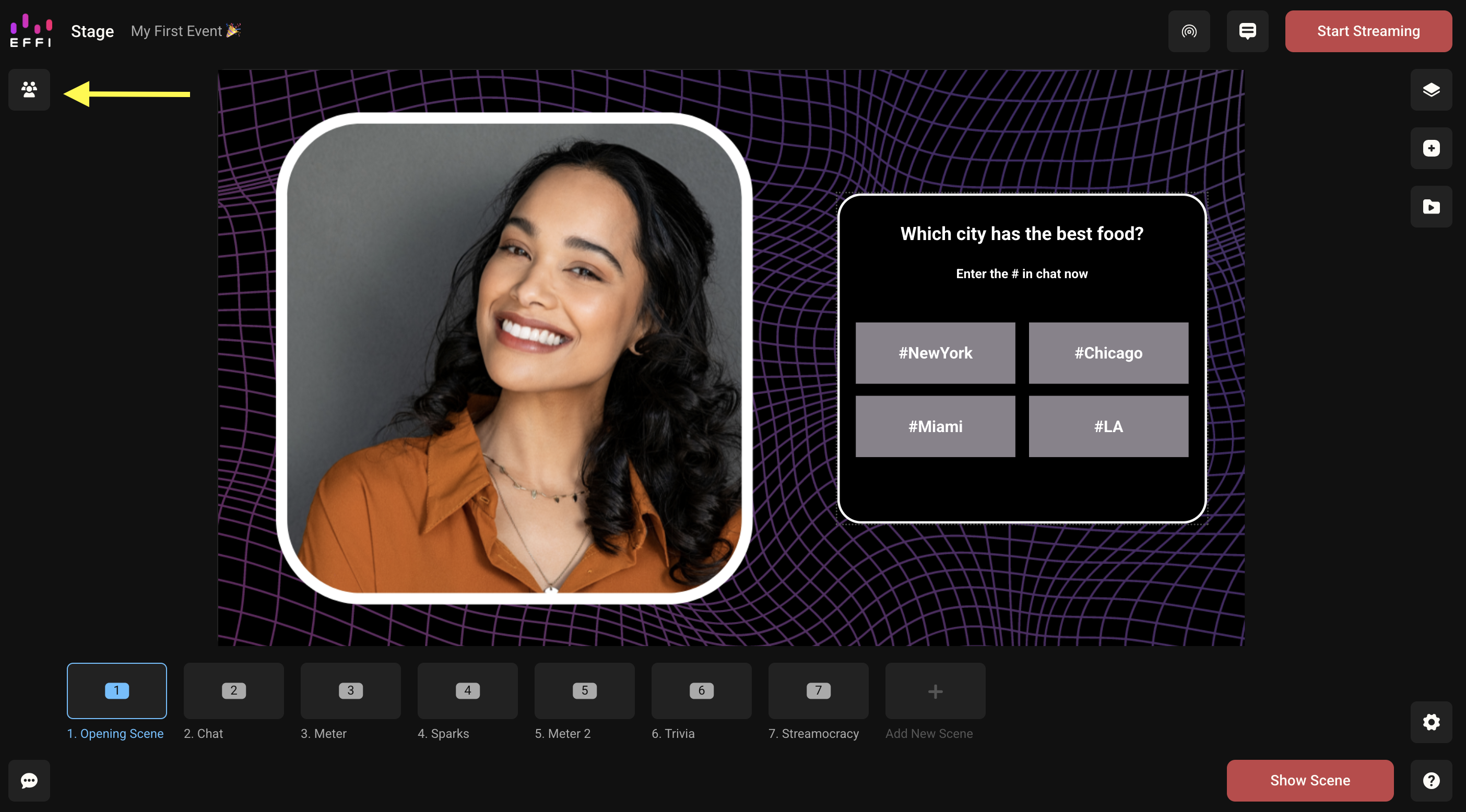
- This will show you your video feed. Hover for additional options.
- Click the quick actions menu and then choose "Video & audio."
- This will open up all your video and audio options. You will see what you currently have enabled and be able to select a new camera, mic, or speaker by clicking the dropdown.
? When you are satisfied with your options, just click the "X" to leave and get back to your event. Change your camera, mic, and any other options as often as you need to!
Was this article helpful?
That’s Great!
Thank you for your feedback
Sorry! We couldn't be helpful
Thank you for your feedback
Feedback sent
We appreciate your effort and will try to fix the article