Whether it's your company logo, a branded overlay, or a fun graphic for your audience, adding images to your scenes is quick and straightforward.
Supported File Types
Effi currently supports the most common image formats used for livestream graphics, overlays, and scene design:
- JPG / JPEG — great for photos or larger images where file size matters
- PNG — ideal when you need transparency, such as overlays or cutout graphics
- GIF — supported for animated images
How to Add an Image to a Scene
1. Select the scene you want to add an image to, then click the Media Library icon on the right-hand panel.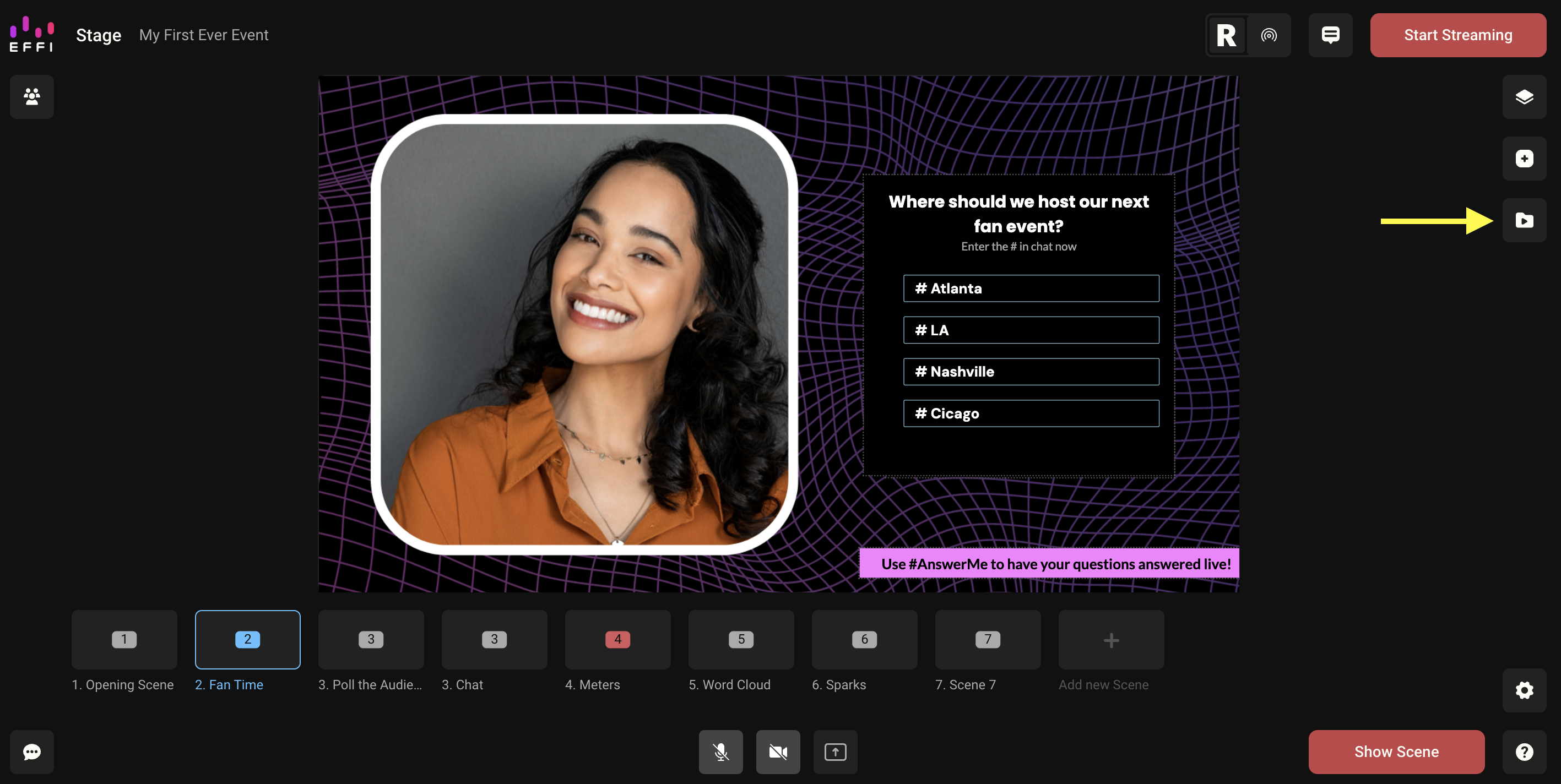
2. Your Media Library will open. Click Add New Image to upload an image from your device, or select one you've already uploaded.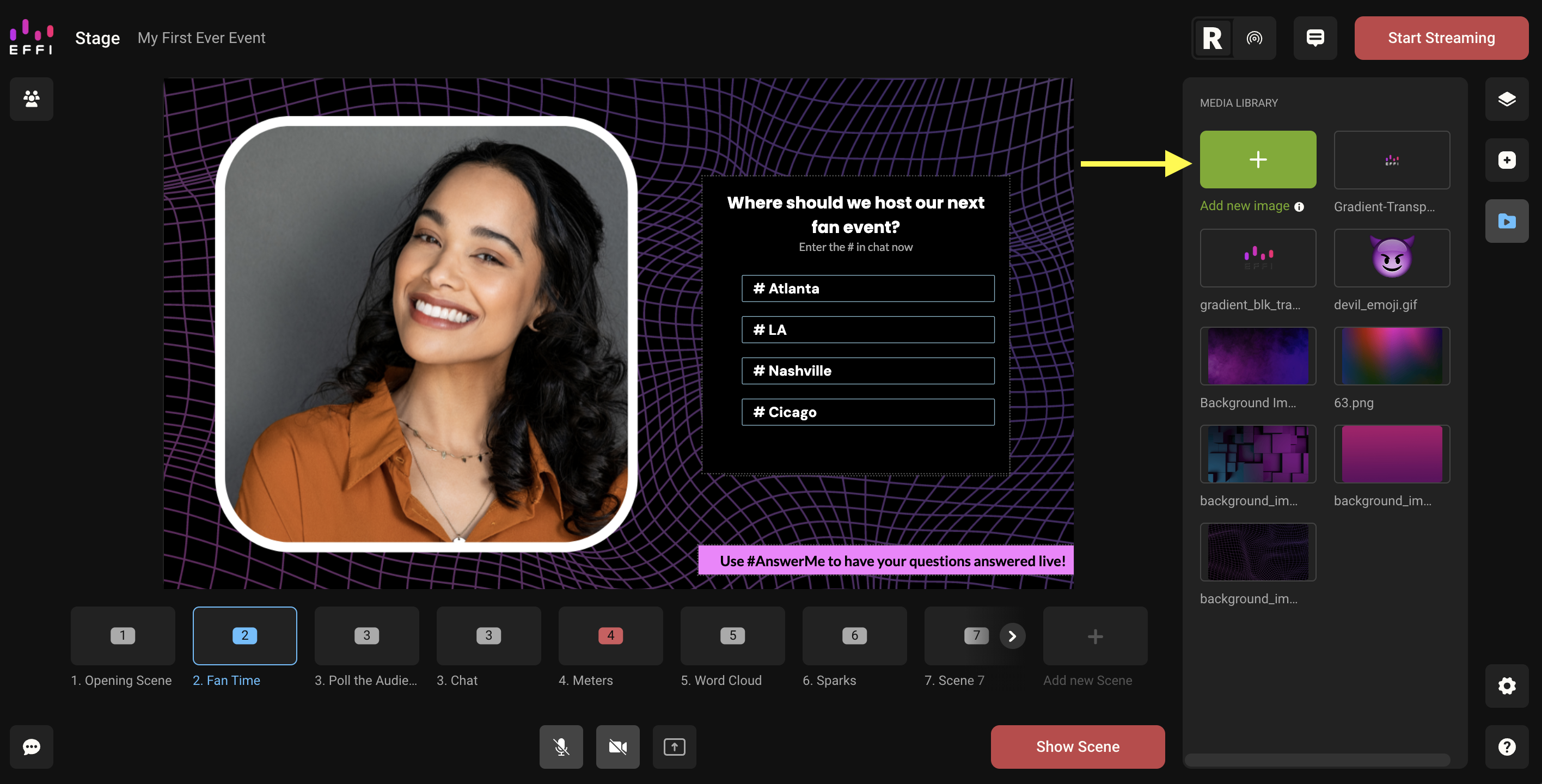
3. Drag and drop the image directly into your scene. Reposition and resize it right on the canvas.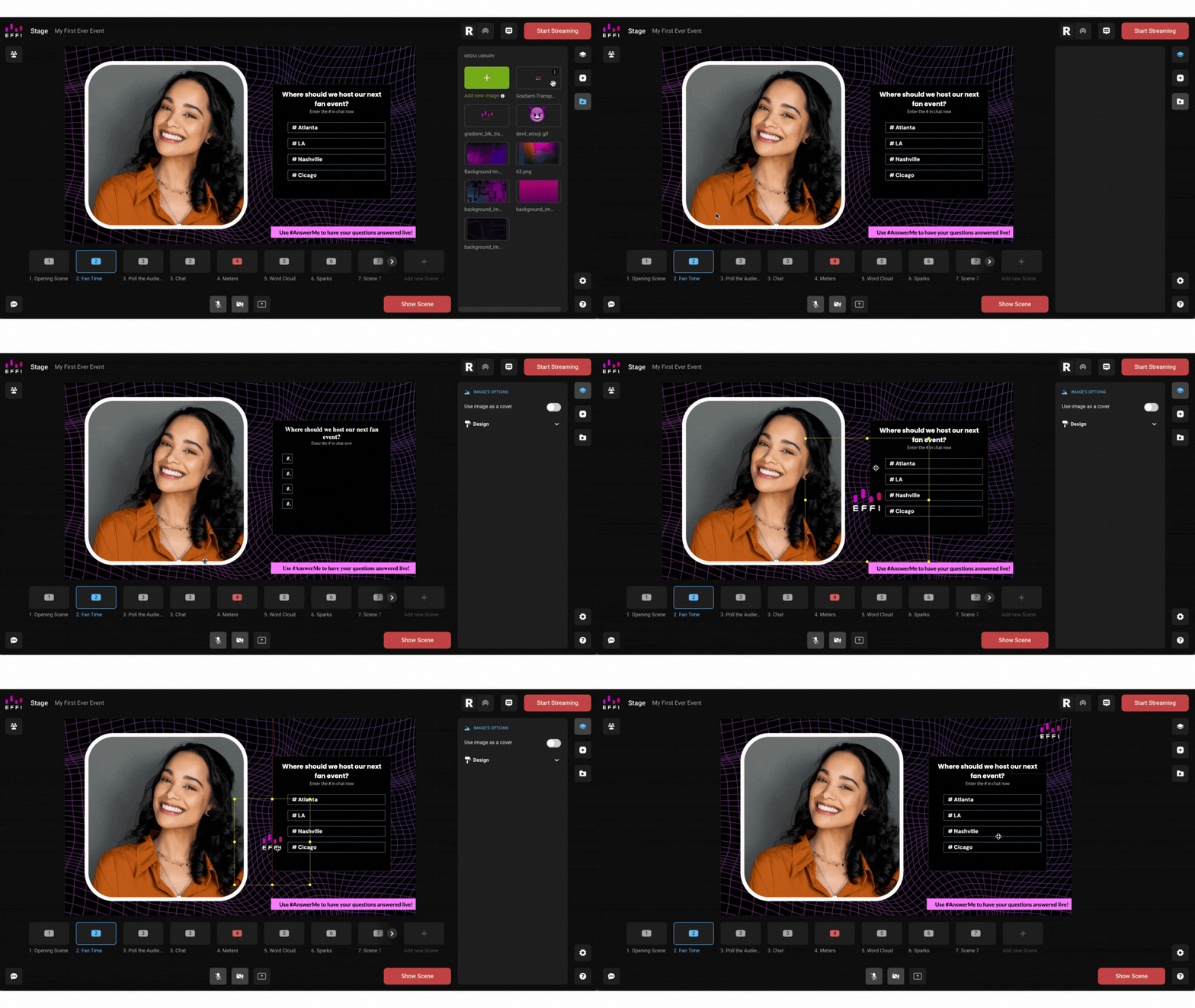
Note: Images uploaded here are saved to your Media Library and can be reused across any scene in your event — including as background images. See [Managing Scene Backgrounds] for more.
Was this article helpful?
That’s Great!
Thank you for your feedback
Sorry! We couldn't be helpful
Thank you for your feedback
Feedback sent
We appreciate your effort and will try to fix the article