Layers catalog every element in your scene — polls, guests, chat, images, audio, text, and more — and display them as a list in the right-hand panel. Instead of clicking into the scene to manage each element individually, layers give you everything in one place so you can show, hide, reorder, and control elements quickly, even while you're live.
Every time you add something to a scene, a corresponding layer is automatically created. You don't have to do anything — it just appears.
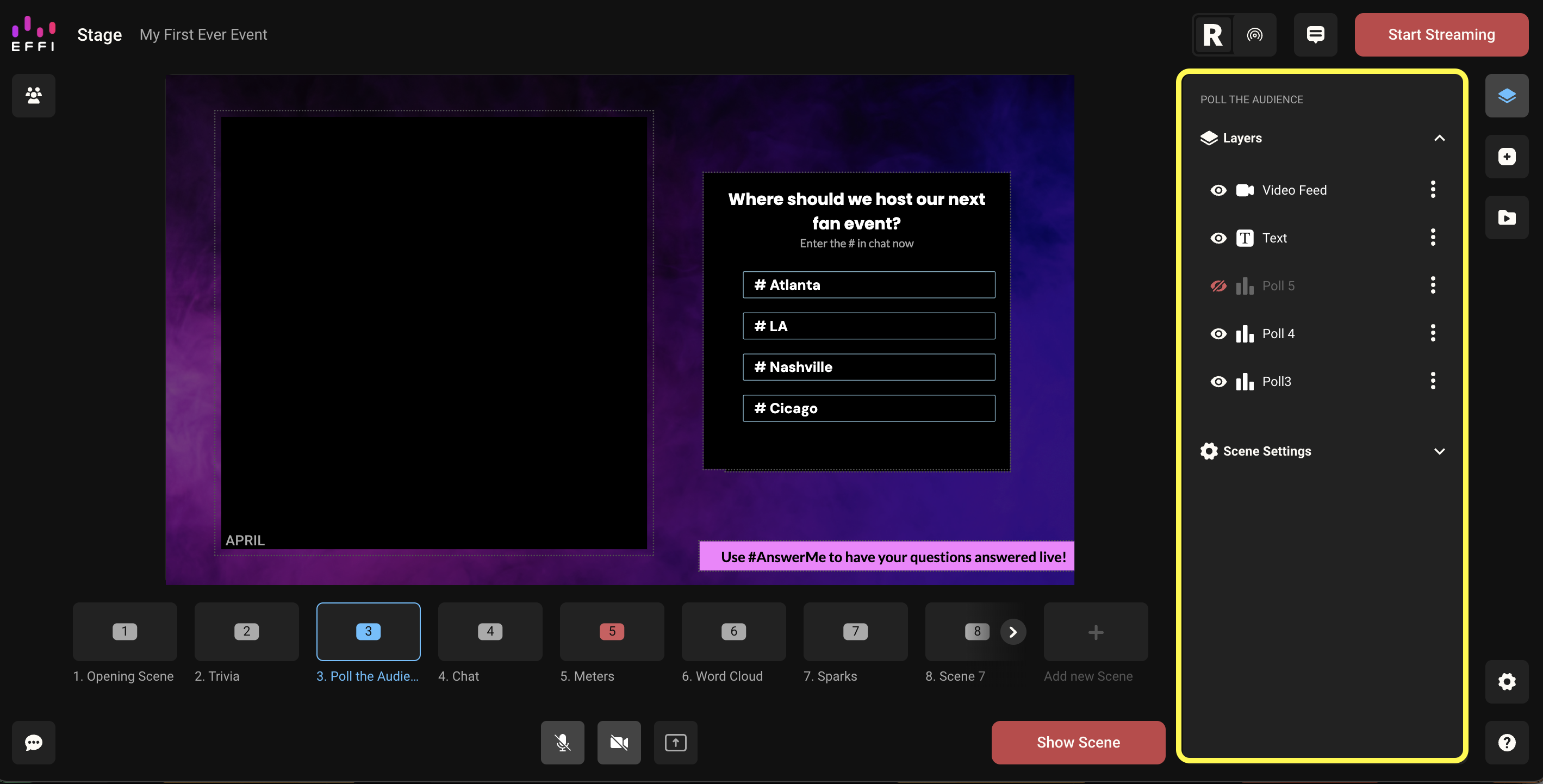
Note: Keep the Layers panel open while broadcasting. If you lose it, click the Layers & Scenes icon on the right-hand panel to bring it back.
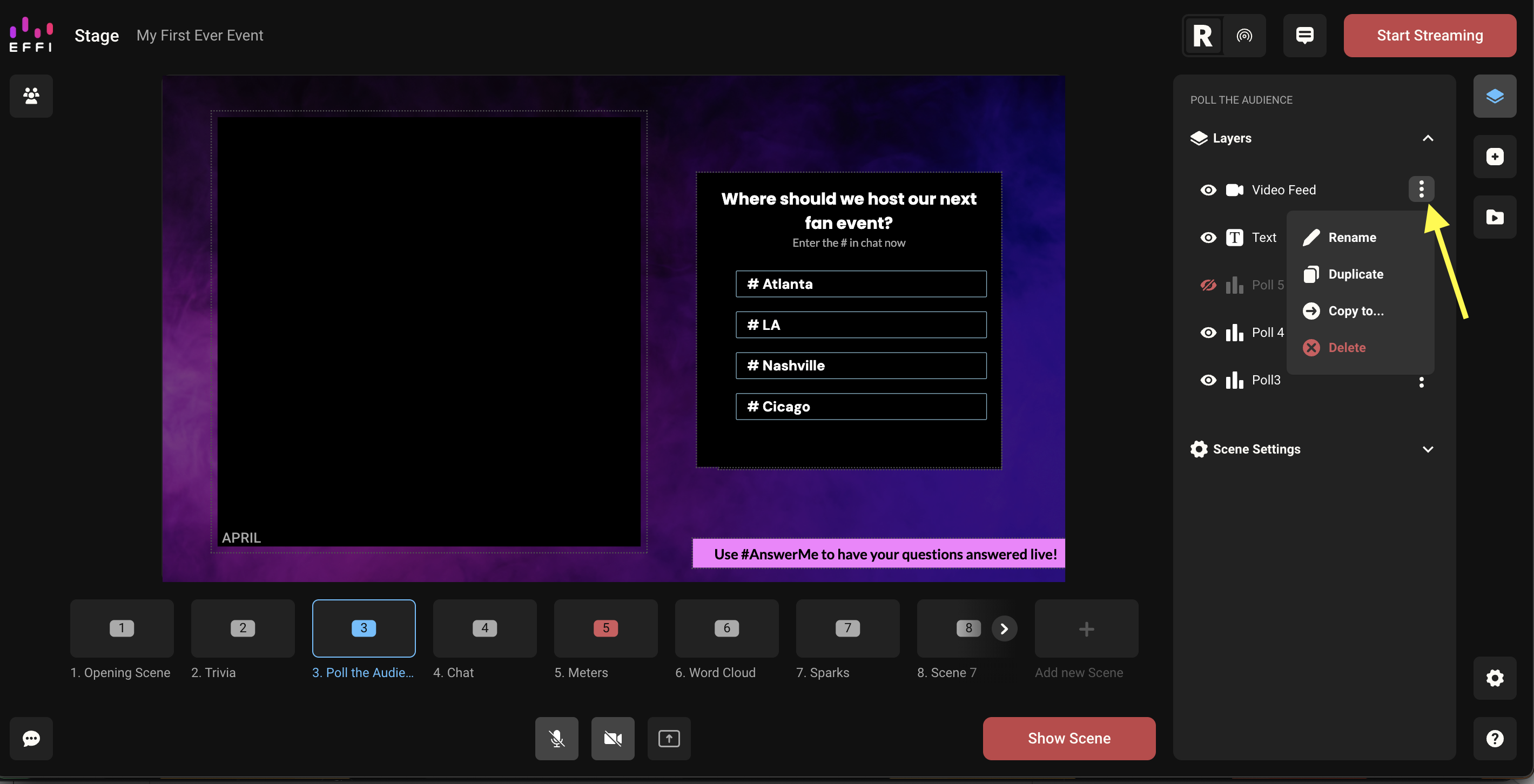
Showing and Hiding Layers
Each layer has an eye icon to the left of its name. Click it to hide or show that element at any time — including while live. This is useful if you have multiple polls in one scene and only want to show one at a time.
Layer Settings
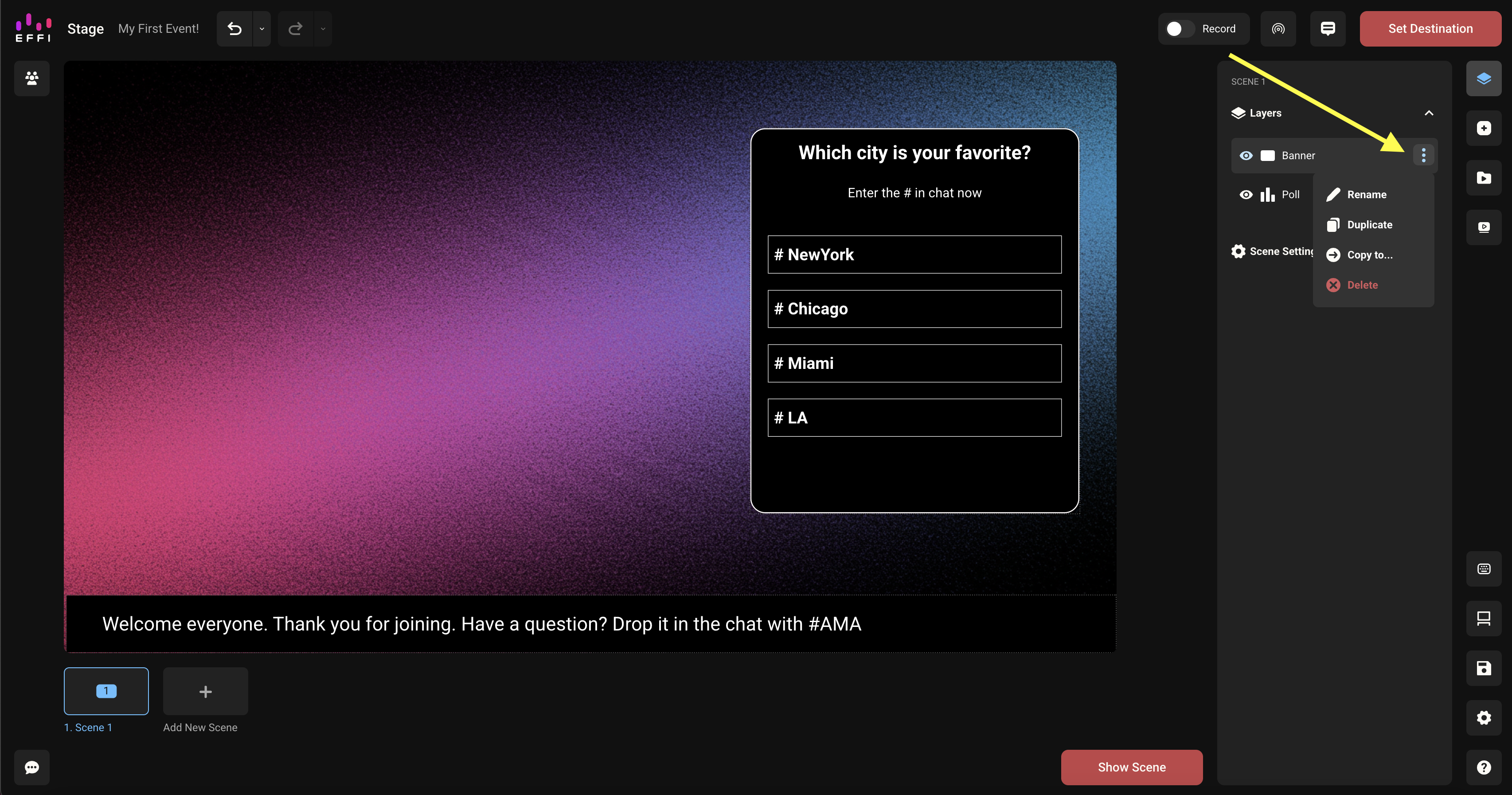
Each layer has a three-dot menu (⋮) to the right of its name with the following options:
- Rename — change the name of the layer
- Duplicate — copy the layer into the same scene
- Copy to… — copy the layer to a different scene (useful for reusing a guest feed or poll across multiple scenes)
- Delete — remove the layer and its element from the scene
Adding Layers
Layers are added automatically every time you add an element to your scene. Add a poll, a guest, an image, some text — each one creates its own layer instantly. There's nothing to configure.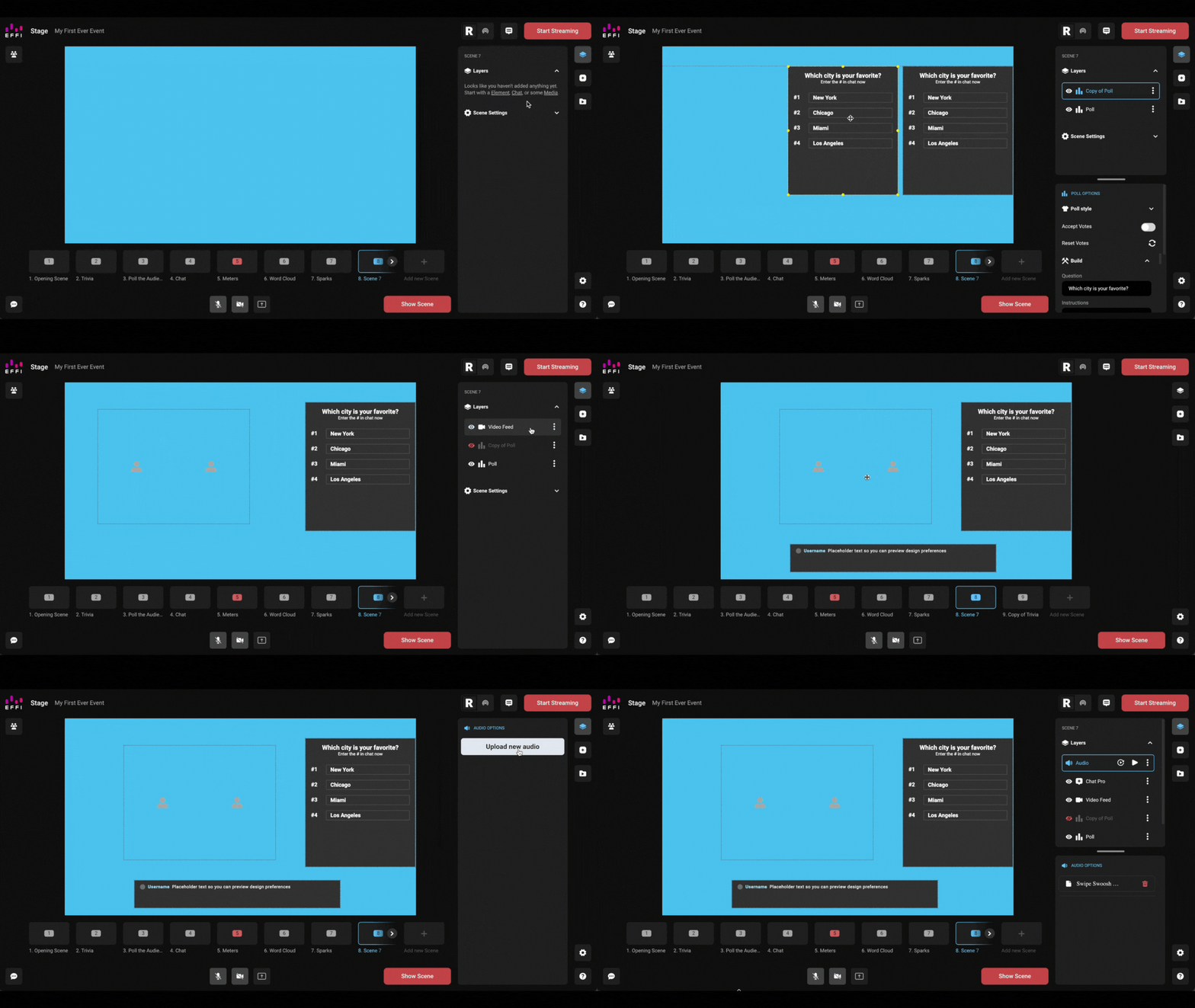
Removing a Layer
Removing a layer removes that element from the scene entirely.
1. Select the scene you want to edit and click the Layers & Scenes icon on the right-hand panel.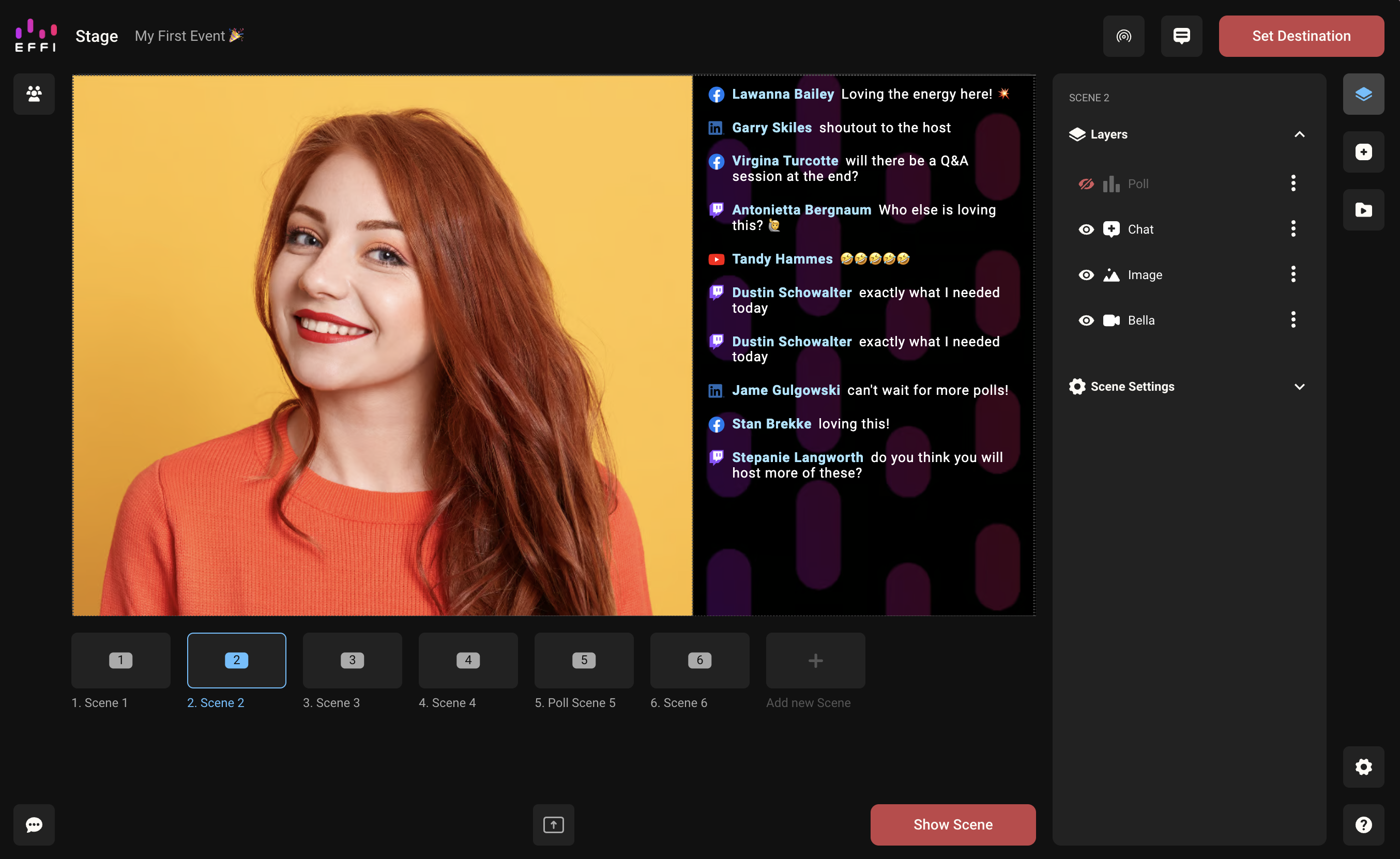
2. Find the layer you want to remove and click its three-dot menu.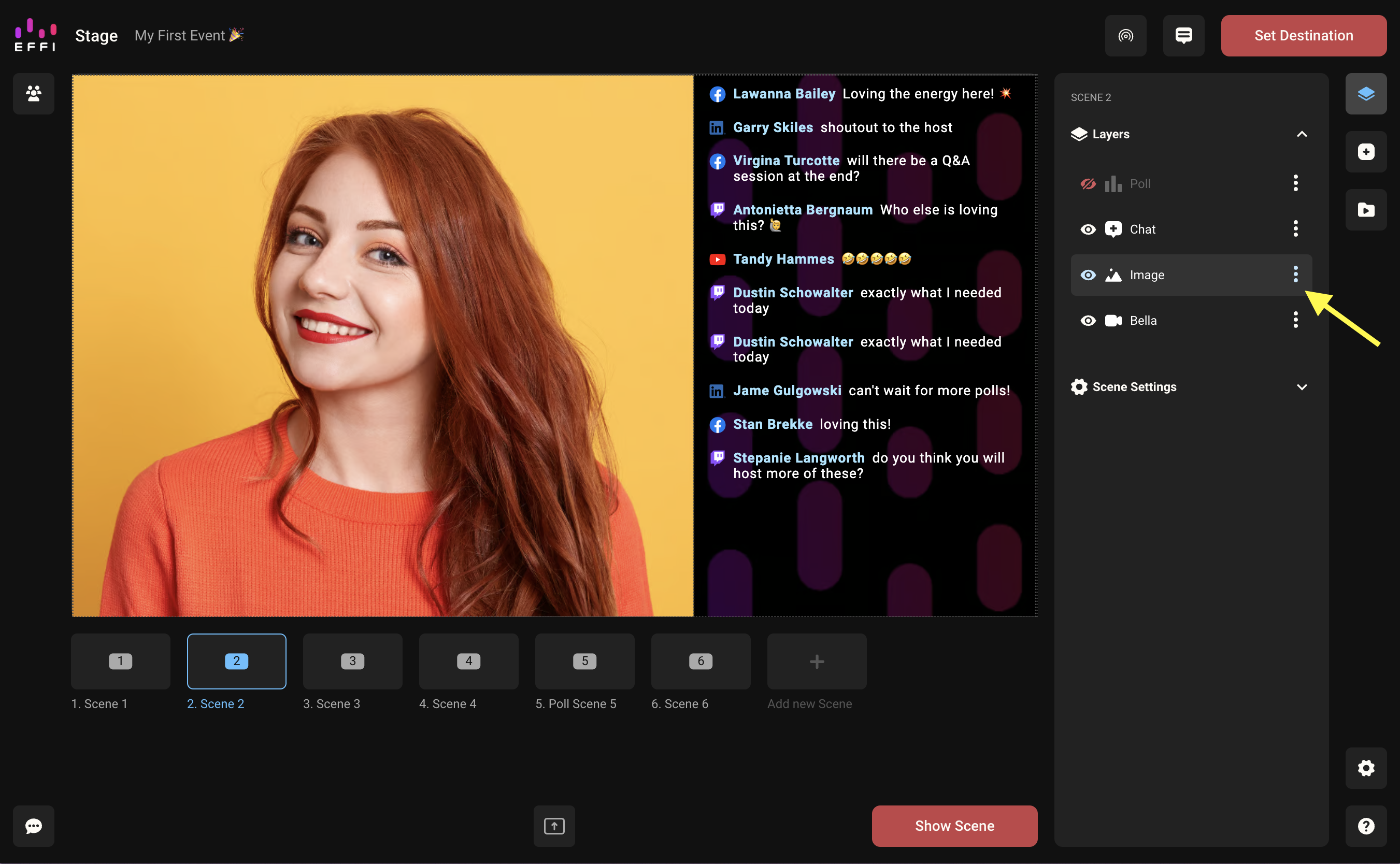
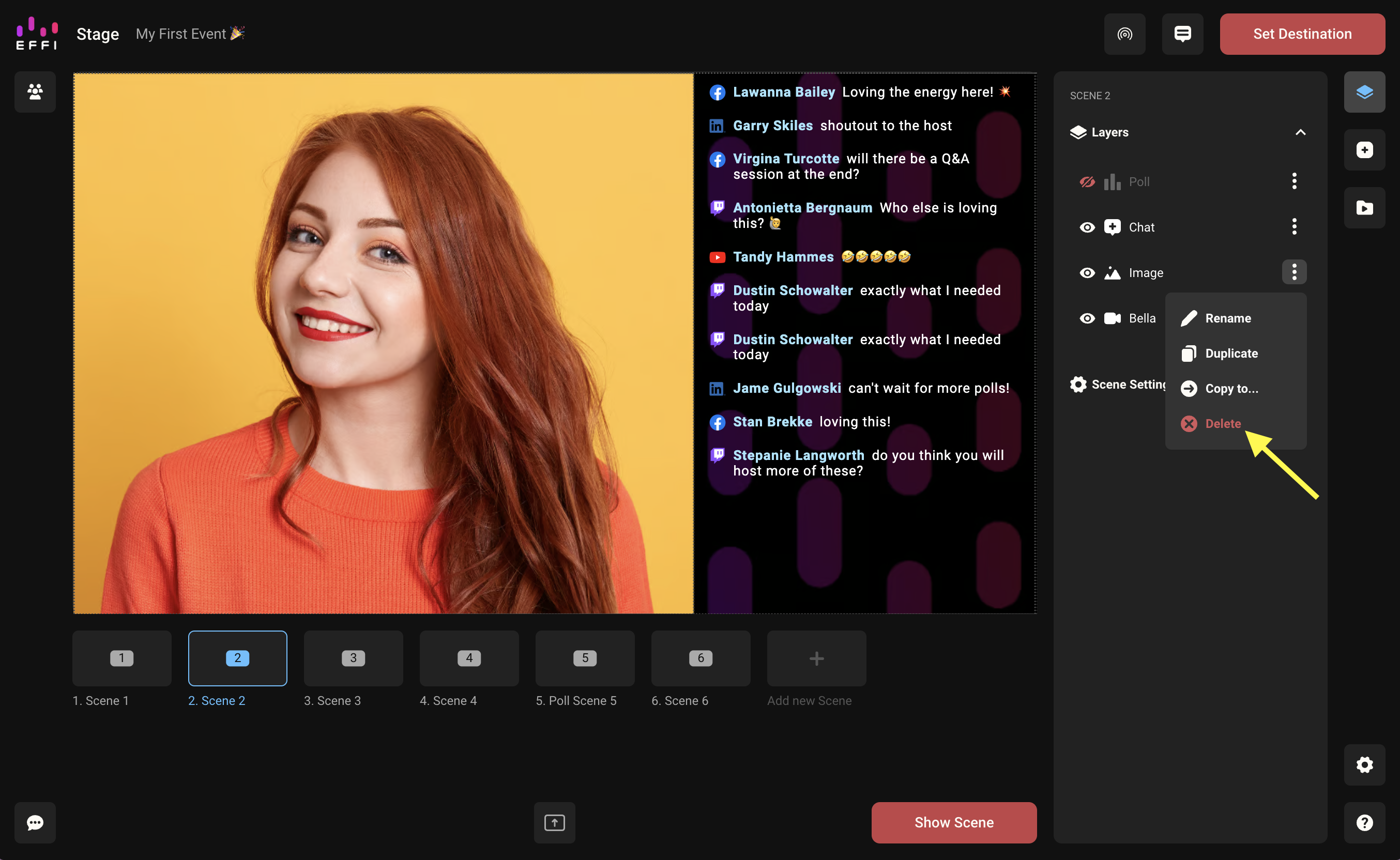
3. Select Delete. You'll be asked to confirm, then the element will be removed from the scene.
Tip: Not ready to remove it permanently? Use the eye icon to hide it instead — it stays in the scene but won't be visible to your audience.
Reordering Layers
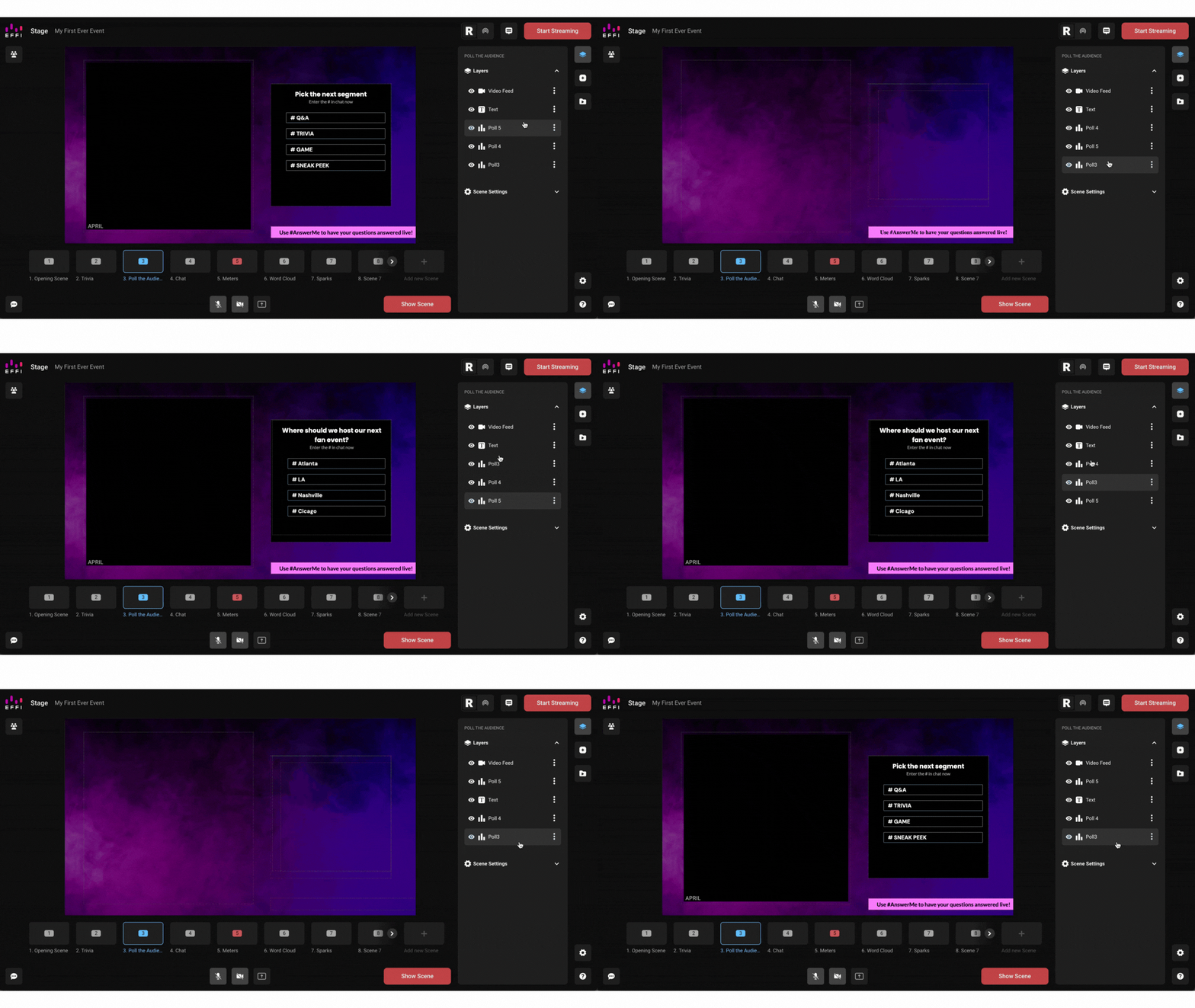
Layers also control the stacking order of elements in your scene — similar to how Photoshop or Canva handle layers. Elements higher in the list appear on top of elements lower in the list. If a full-screen video is buried at the bottom of the layer list, it may be covered by other elements.
A common use case: trivia questions. If you have four poll questions in one scene, you'll want them in the right order so you can work through them sequentially during the broadcast — hiding each one as you go.
1. Select the scene and open the Layers panel.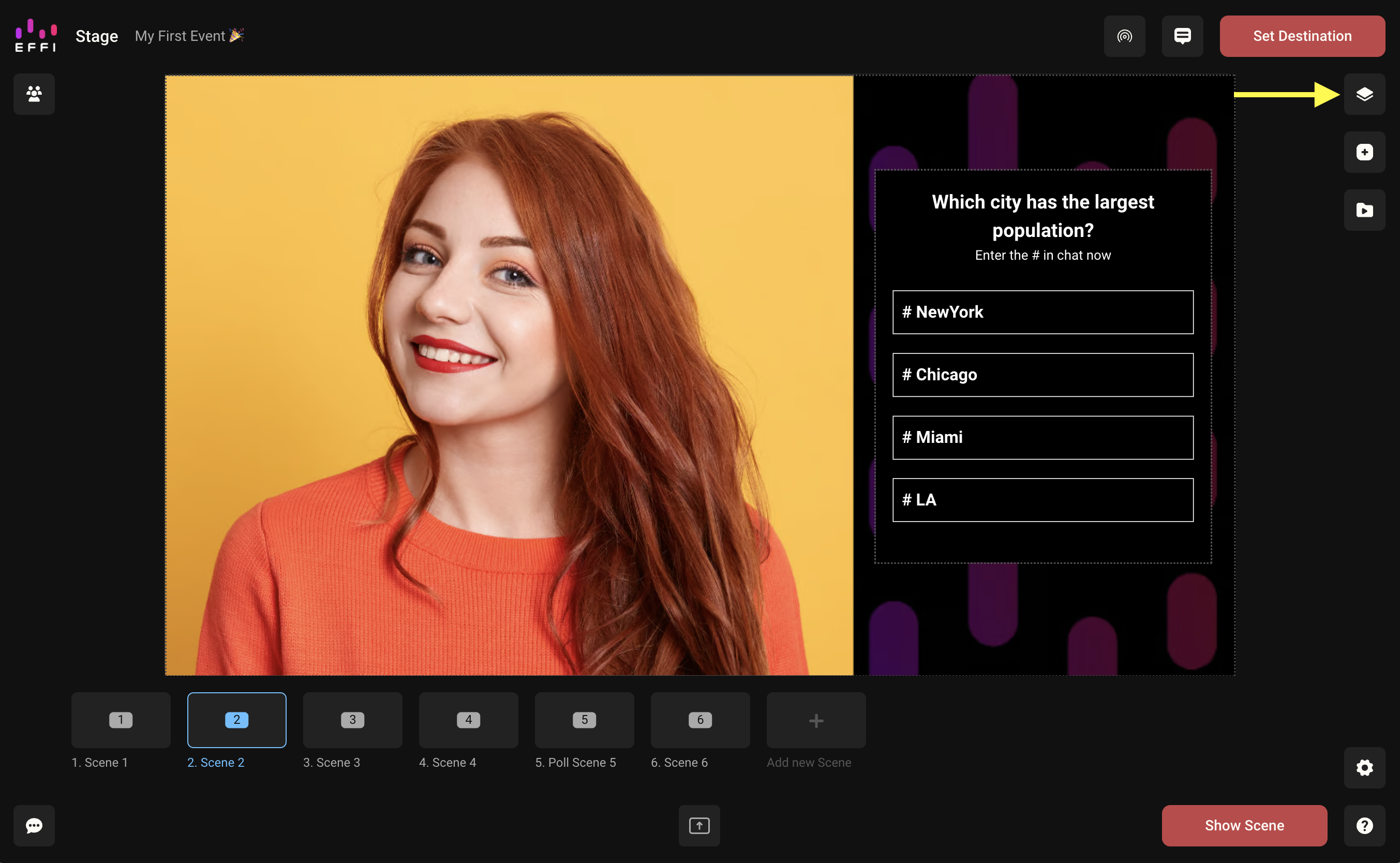
2. Review the current layer order.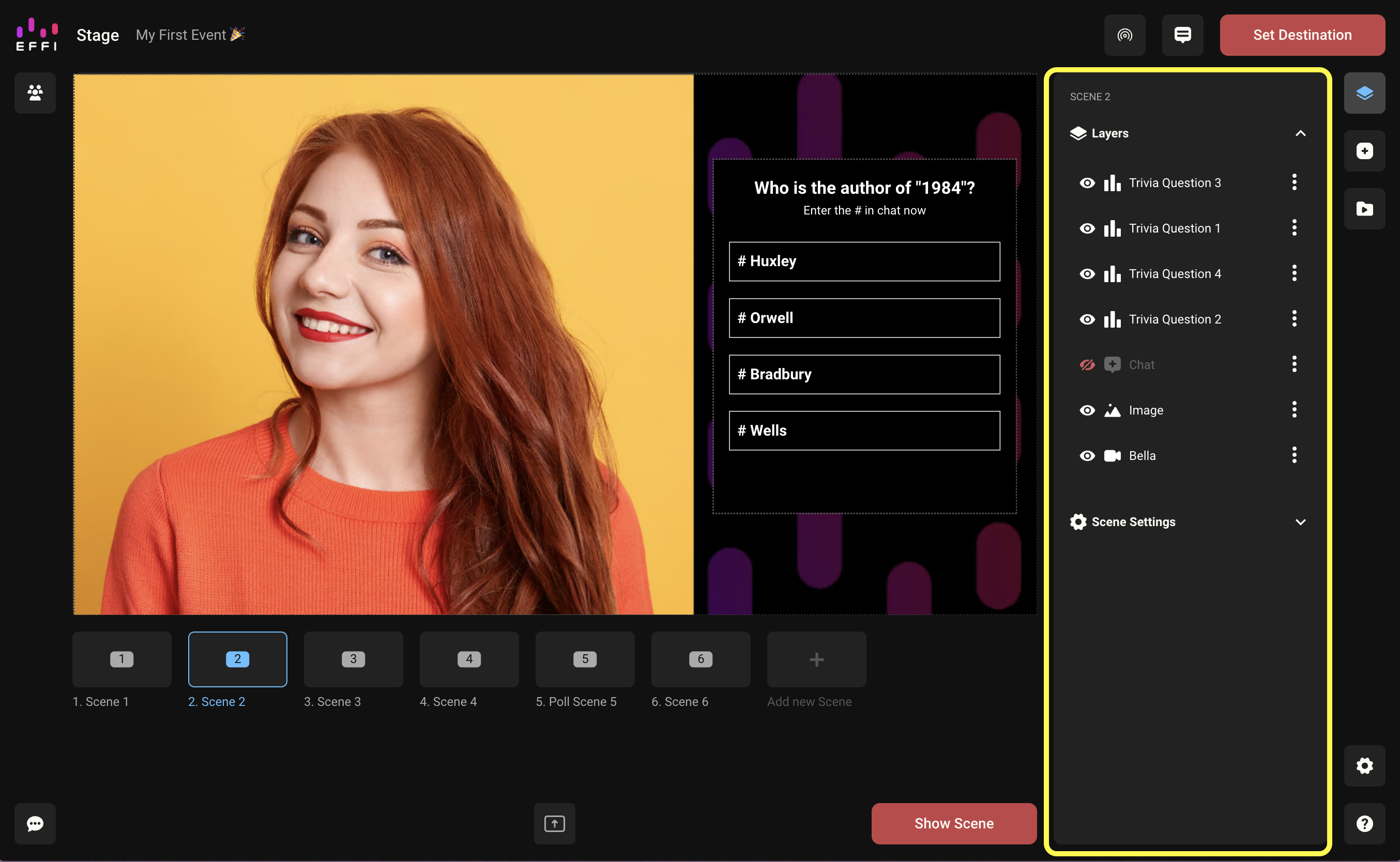
3. Drag and drop layers to rearrange them.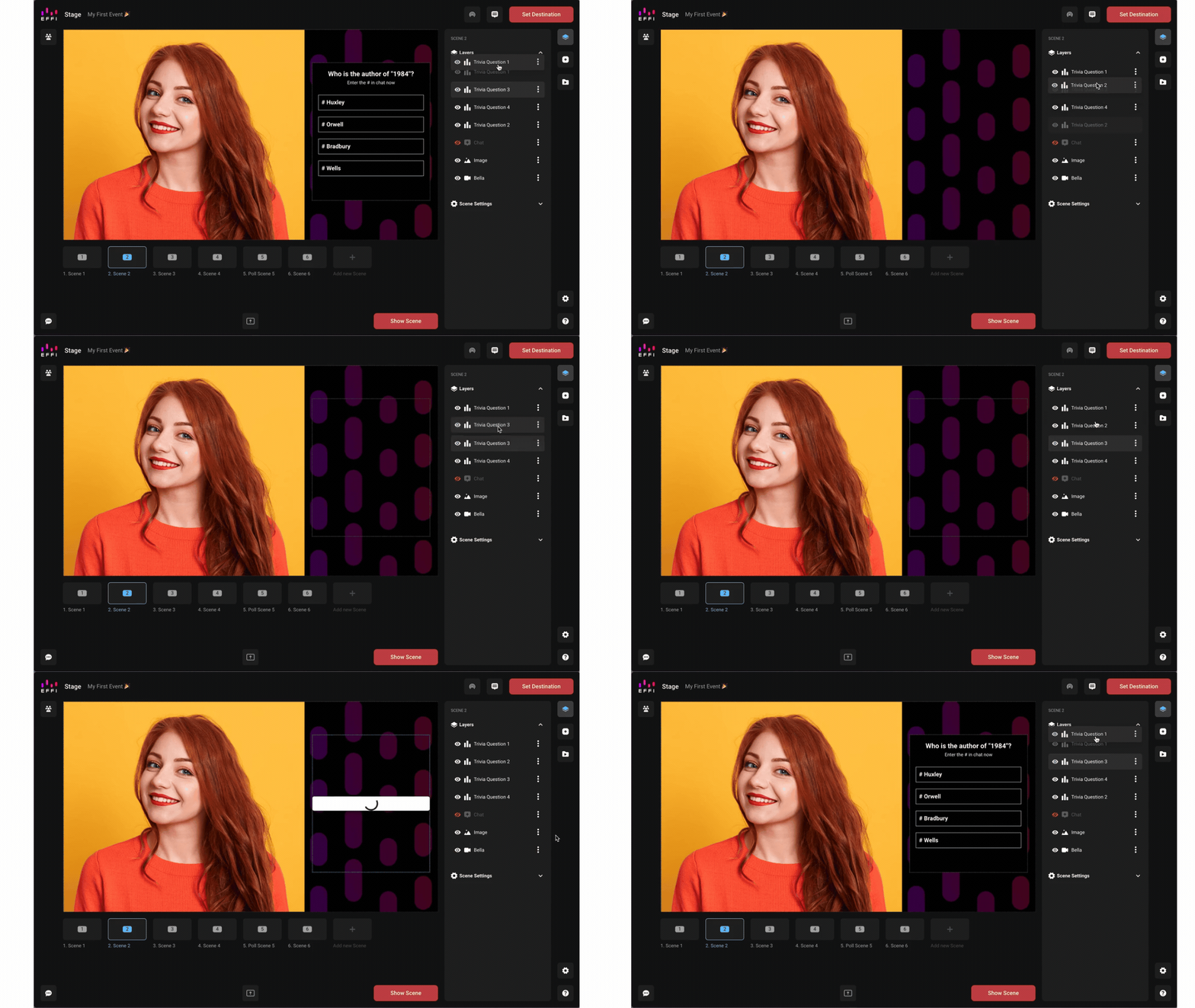
4. Once reordered, hide completed layers as you go to reveal the next one.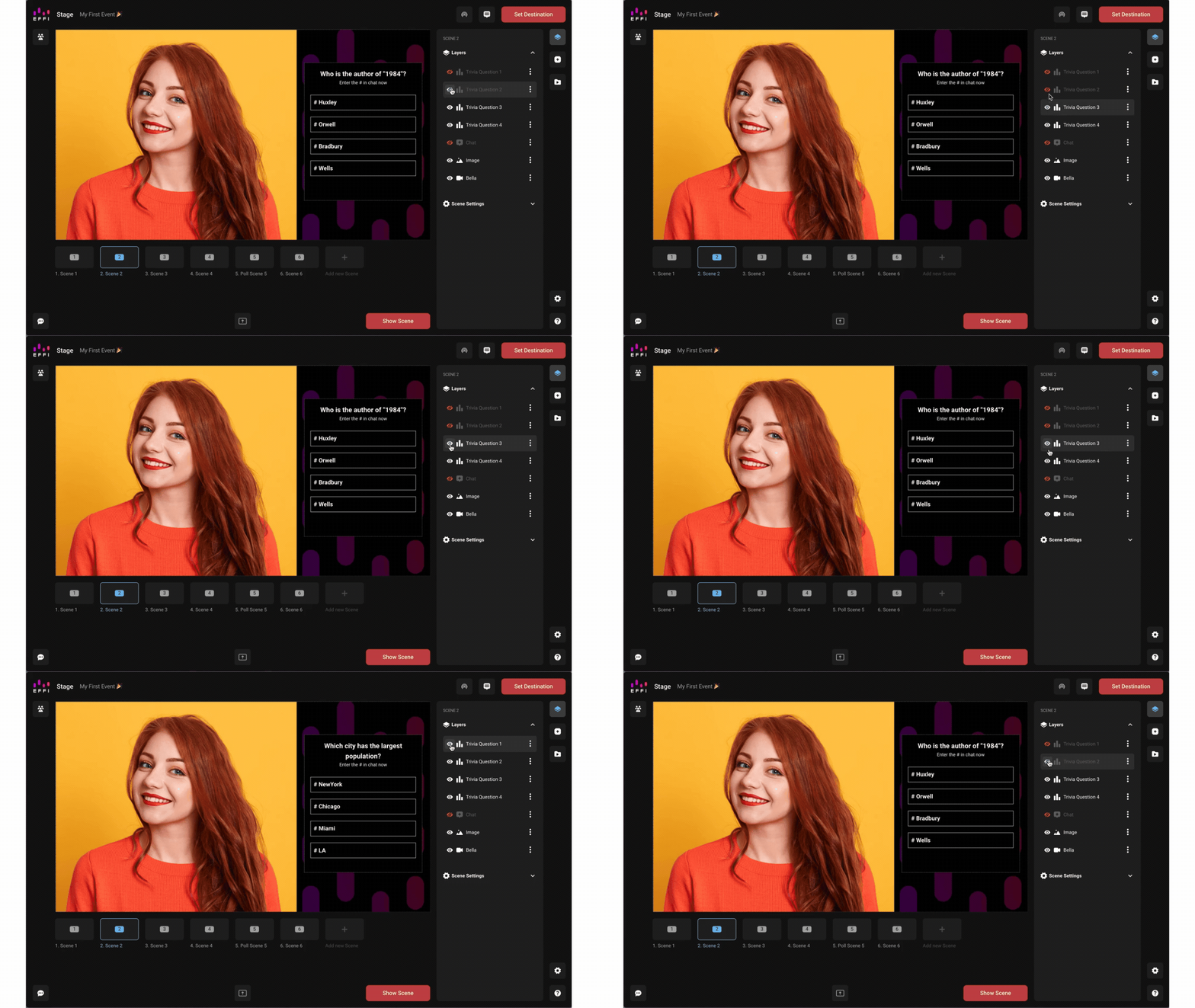
Was this article helpful?
That’s Great!
Thank you for your feedback
Sorry! We couldn't be helpful
Thank you for your feedback
Feedback sent
We appreciate your effort and will try to fix the article