You can update your event name and broadcast resolution at any time — either from the Dashboard or from inside Stage.
Renaming Your Event
Your event name is only visible internally to you and your team in Effi — your audience will never see it. You can change it as many times as you like.
From the Dashboard
1. Locate the event card you want to rename and click the three-dot menu in the top right corner of the card.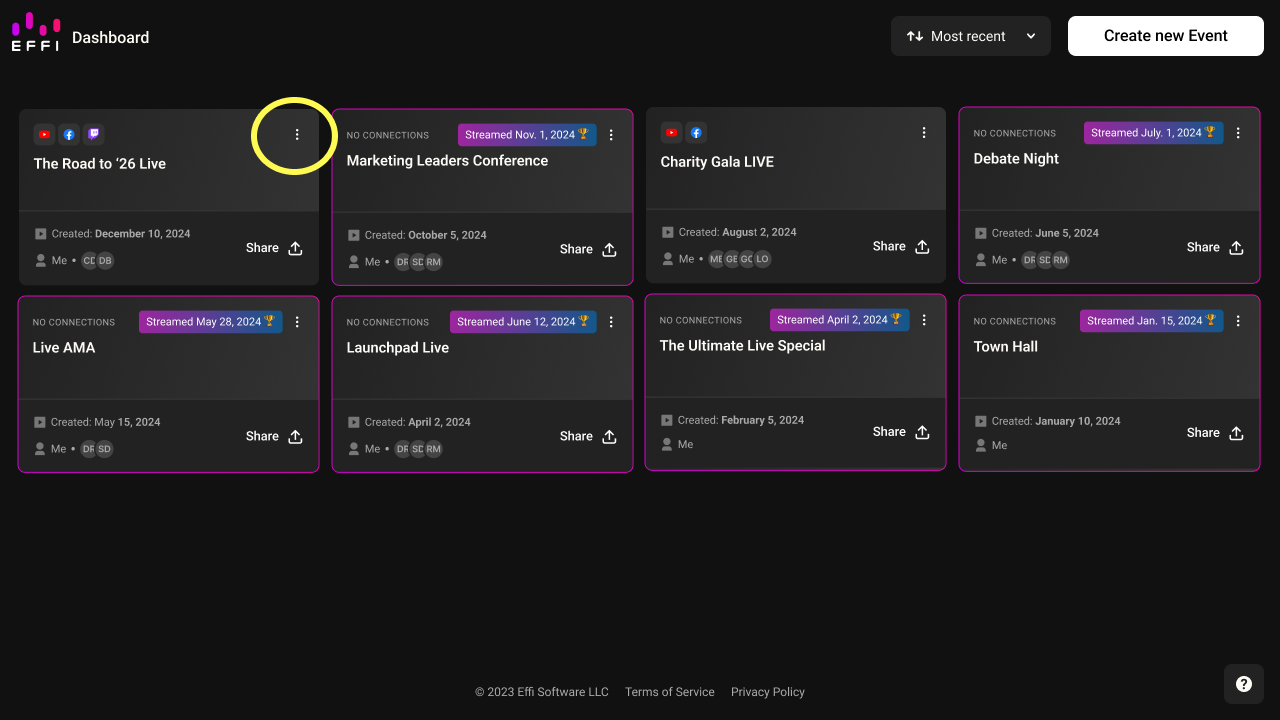
2. Select Rename from the dropdown.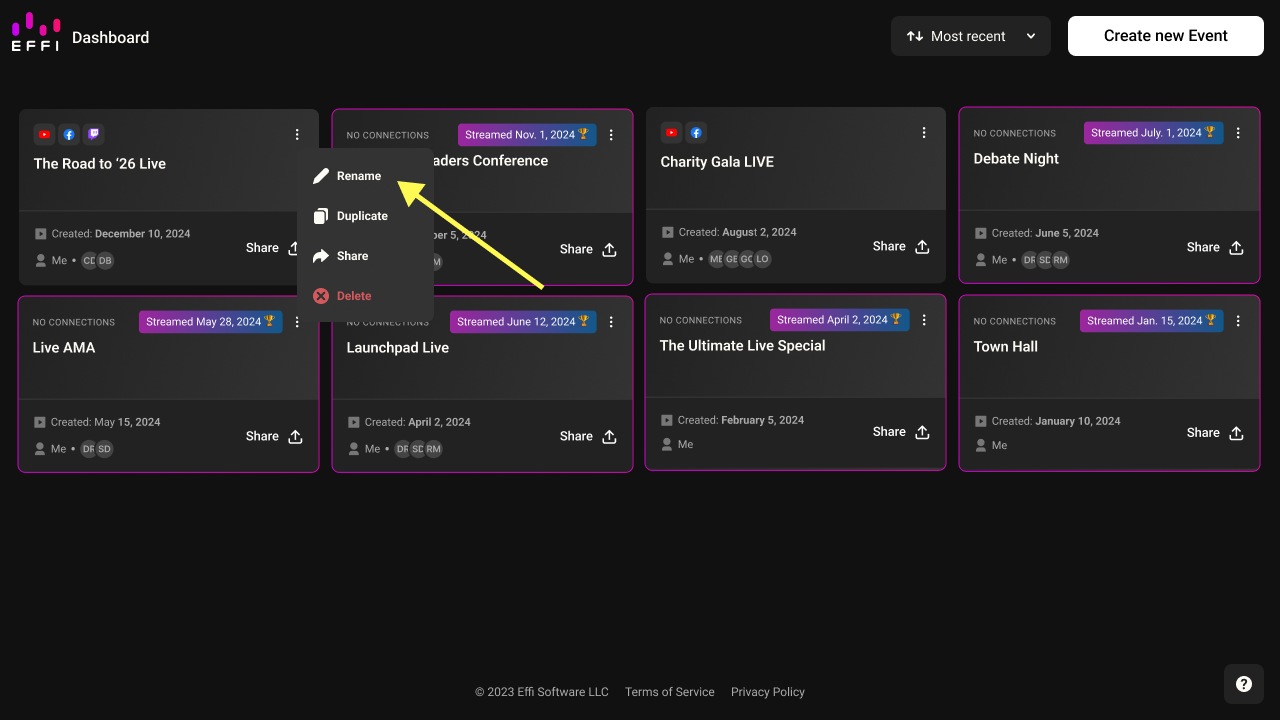
3. Enter the new name and click Save.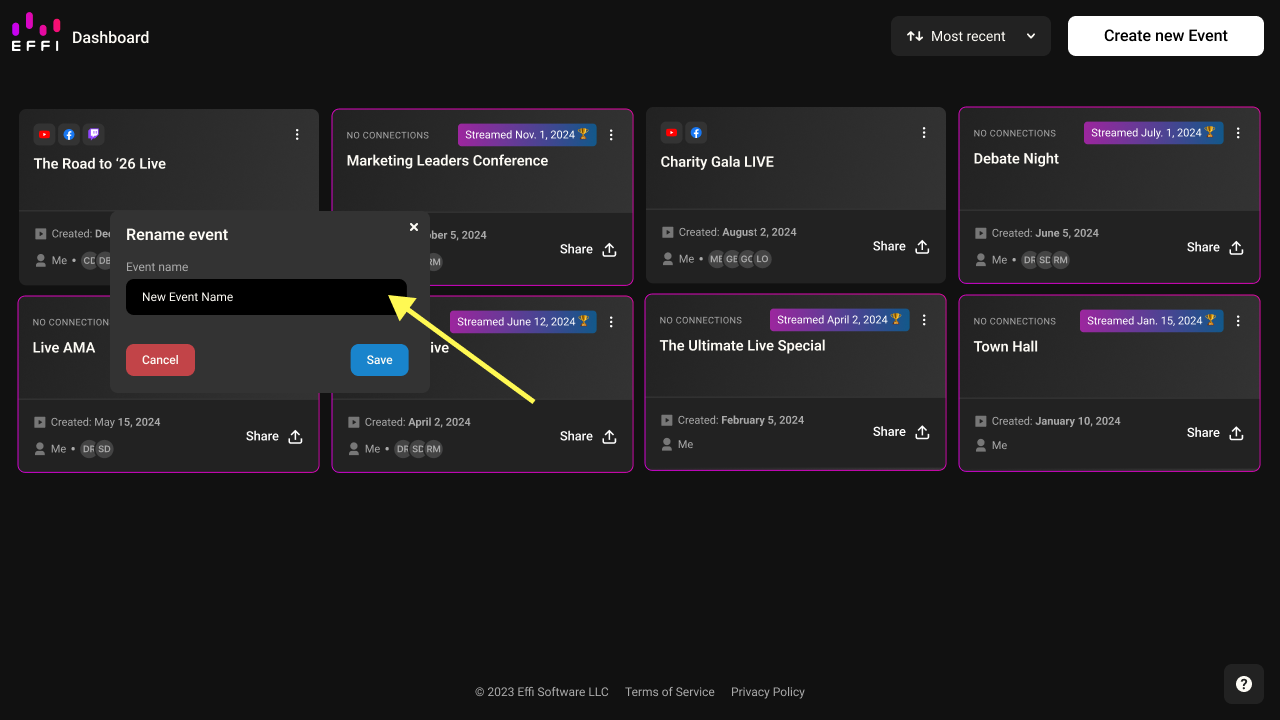
From Stage
1. Click the gear icon on the right-hand panel to open Event Settings.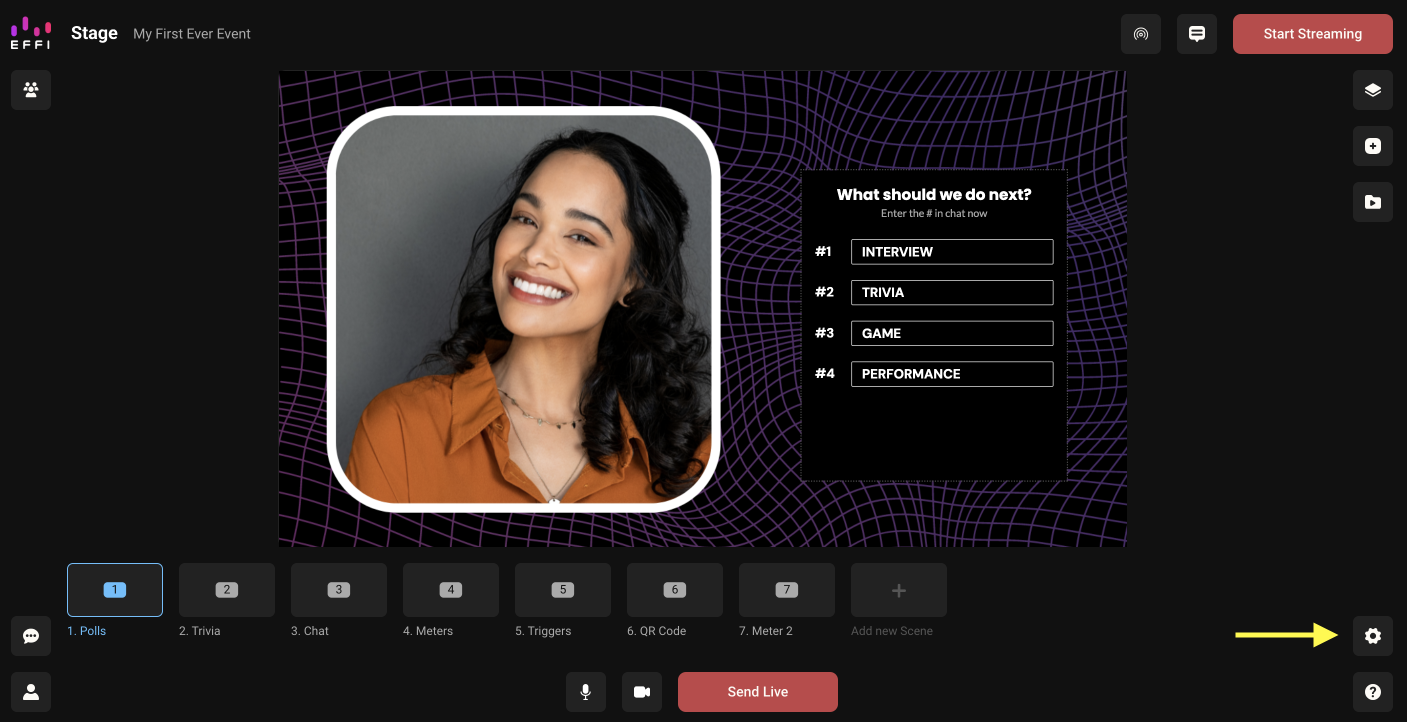
2. In the Event Settings flyout, click into the Event name field, erase the current name, and type a new one. It saves automatically.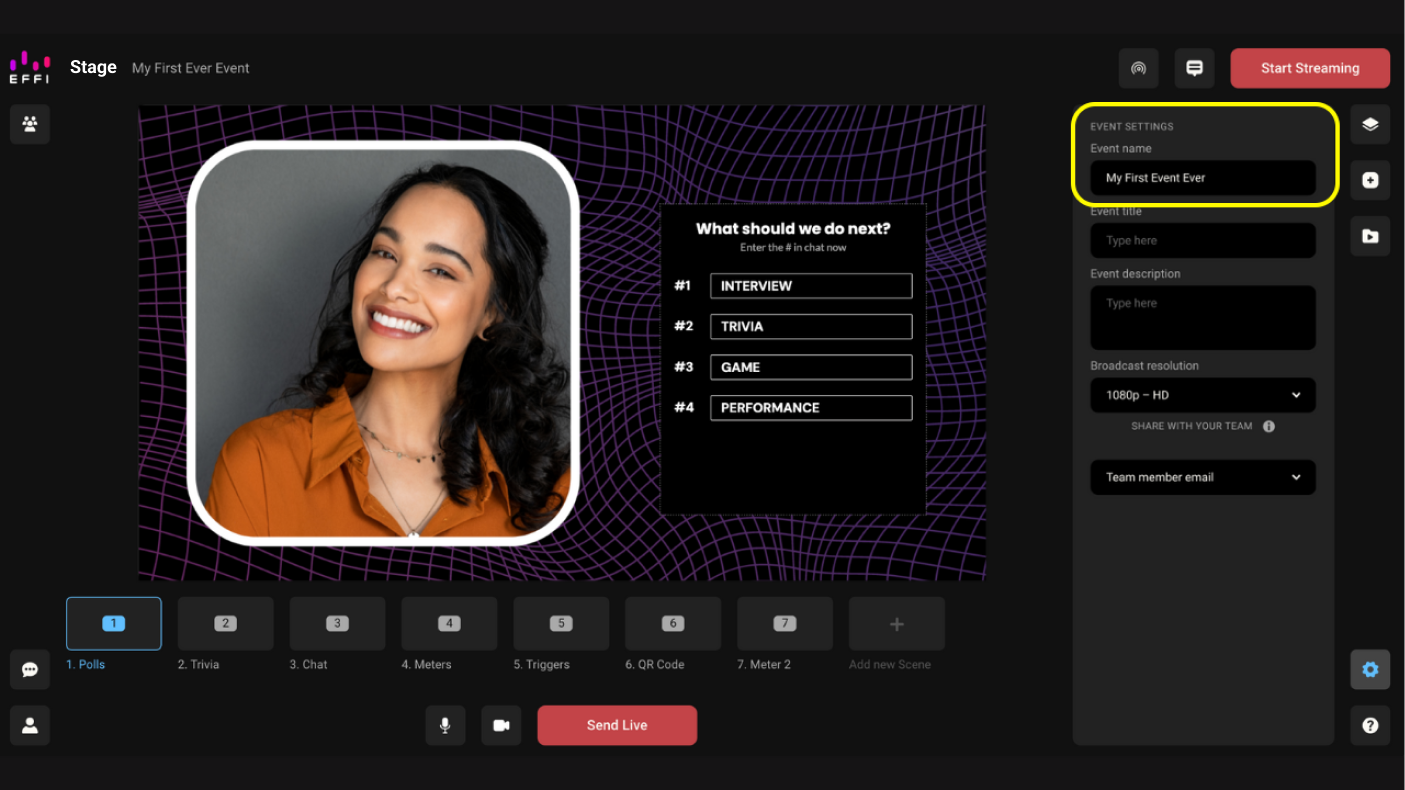
Changing the Broadcast Resolution
Effi offers three broadcast resolutions. You set this when creating your event, but you can change it at any time from Stage.
| Resolution | Pixels | Best for |
|---|---|---|
| 480p (SD) | 720 × 480 | Limited bandwidth, older devices, simple visuals |
| 720p (HD) | 1280 × 720 | Presentations, webinars, most professional streams |
| 1080p (Full HD) | 1920 × 1080 | High visual fidelity — gaming, product showcases, cinematic content |
Note: Higher resolutions require more internet bandwidth. If you experience buffering or lag, try lowering the resolution.
To change the resolution:
1. From Stage, click the gear icon on the right-hand panel to open Event Settings.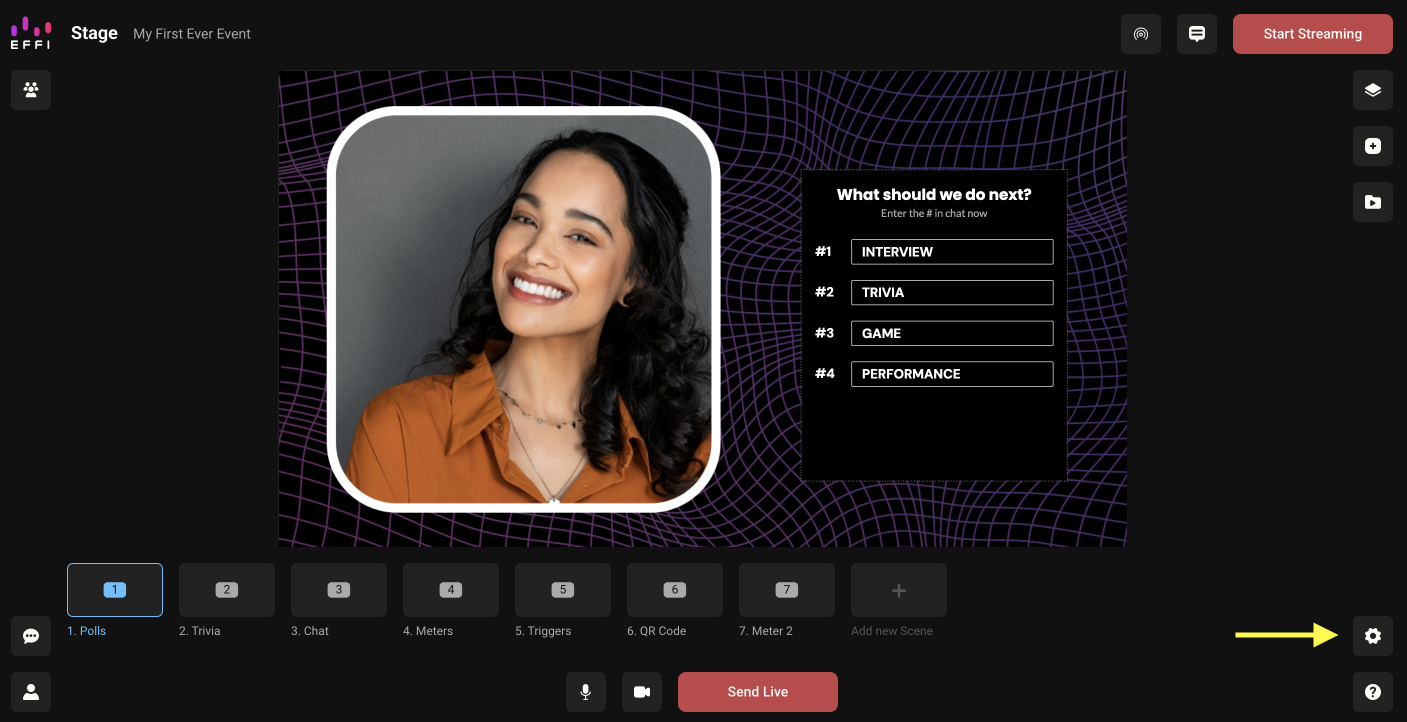
2. Click the Broadcast resolution dropdown.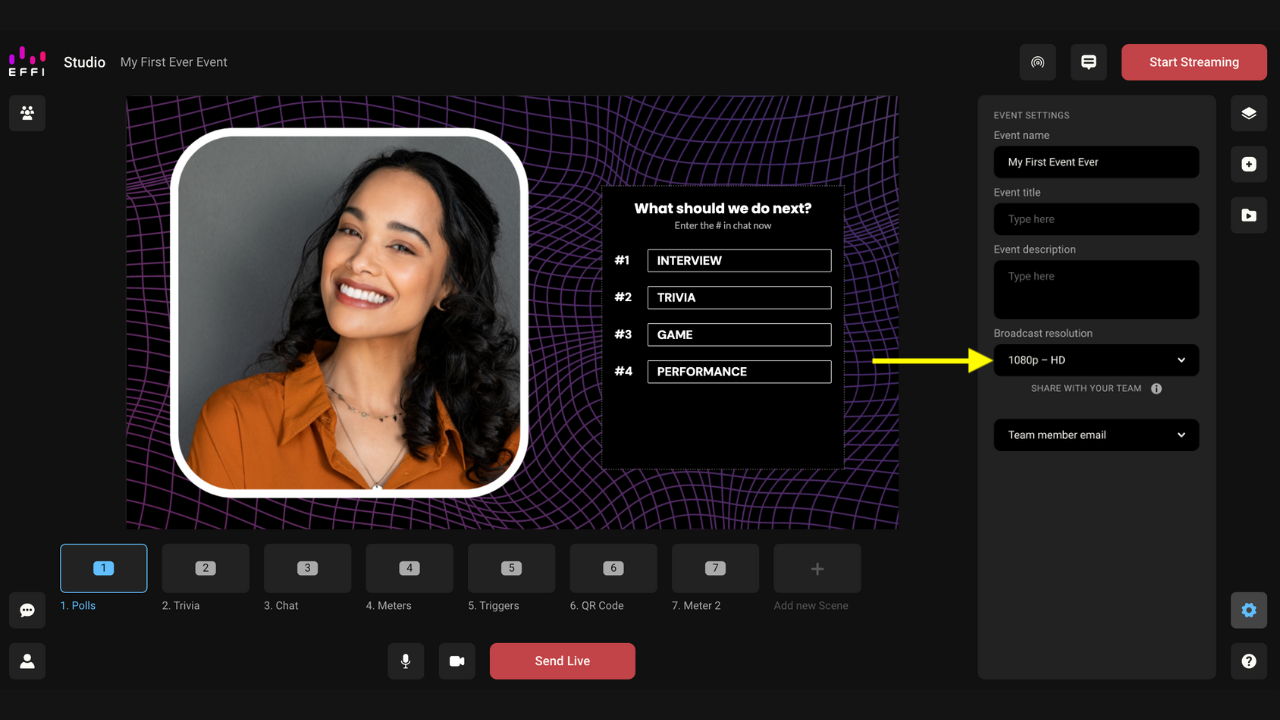
3. Select your desired resolution. It updates automatically — no need to save.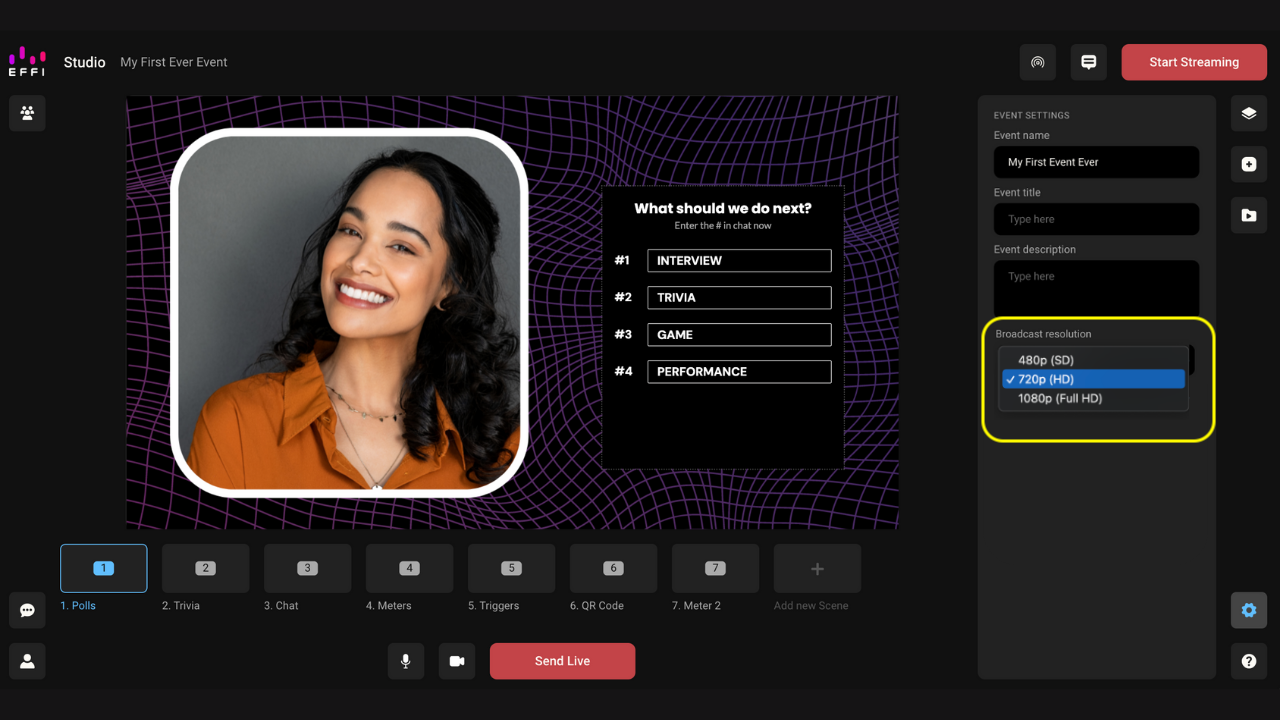
Note: You can also set the broadcast resolution when first creating an event. See How to Create an Event for more.
Was this article helpful?
That’s Great!
Thank you for your feedback
Sorry! We couldn't be helpful
Thank you for your feedback
Feedback sent
We appreciate your effort and will try to fix the article