Duplicating an event creates a copy with the same scenes and elements, so you can reuse a setup you've already built instead of starting from scratch. It's a quick way to run a recurring show or create a new version of an event.
How to duplicate an event
- Go to your Dashboard.
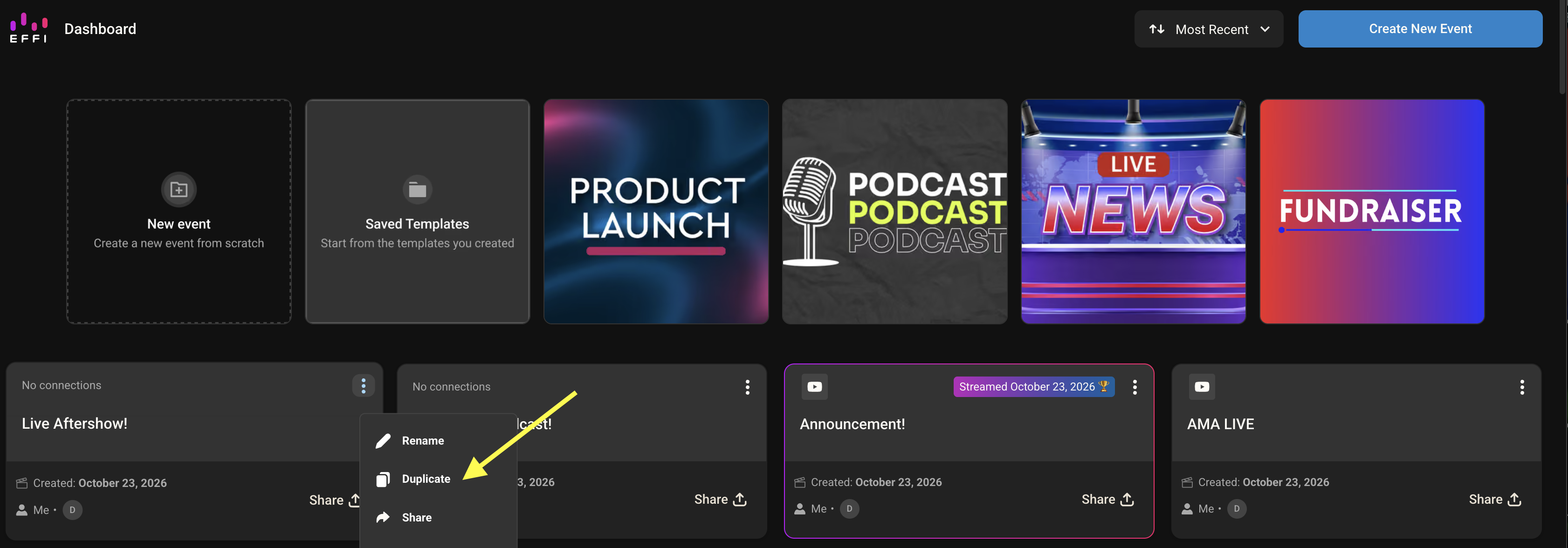
- Find the event you want to copy and click the ⋮ menu on its card.
- Click Duplicate.
- In the Duplicate Event window, review the event name. It's filled in as "Copy of" followed by the original name, and you can change it.
- Choose a Broadcast resolution: 480p (SD), 720p (HD), or 1080p (Full HD).
- Check Duplicate with the same guests if you want the same guests added to the new event.
- Click Save.
You'll see an Event Duplicated! confirmation, and your new event opens on the Stage. It also appears on your Dashboard.
Duplicating from the Stage after you stream
Each event can only be streamed once. After you've streamed an event, the Start Streaming button at the top right of the Stage changes to Duplicate this event. Click it to create a copy of the event that's ready to stream again.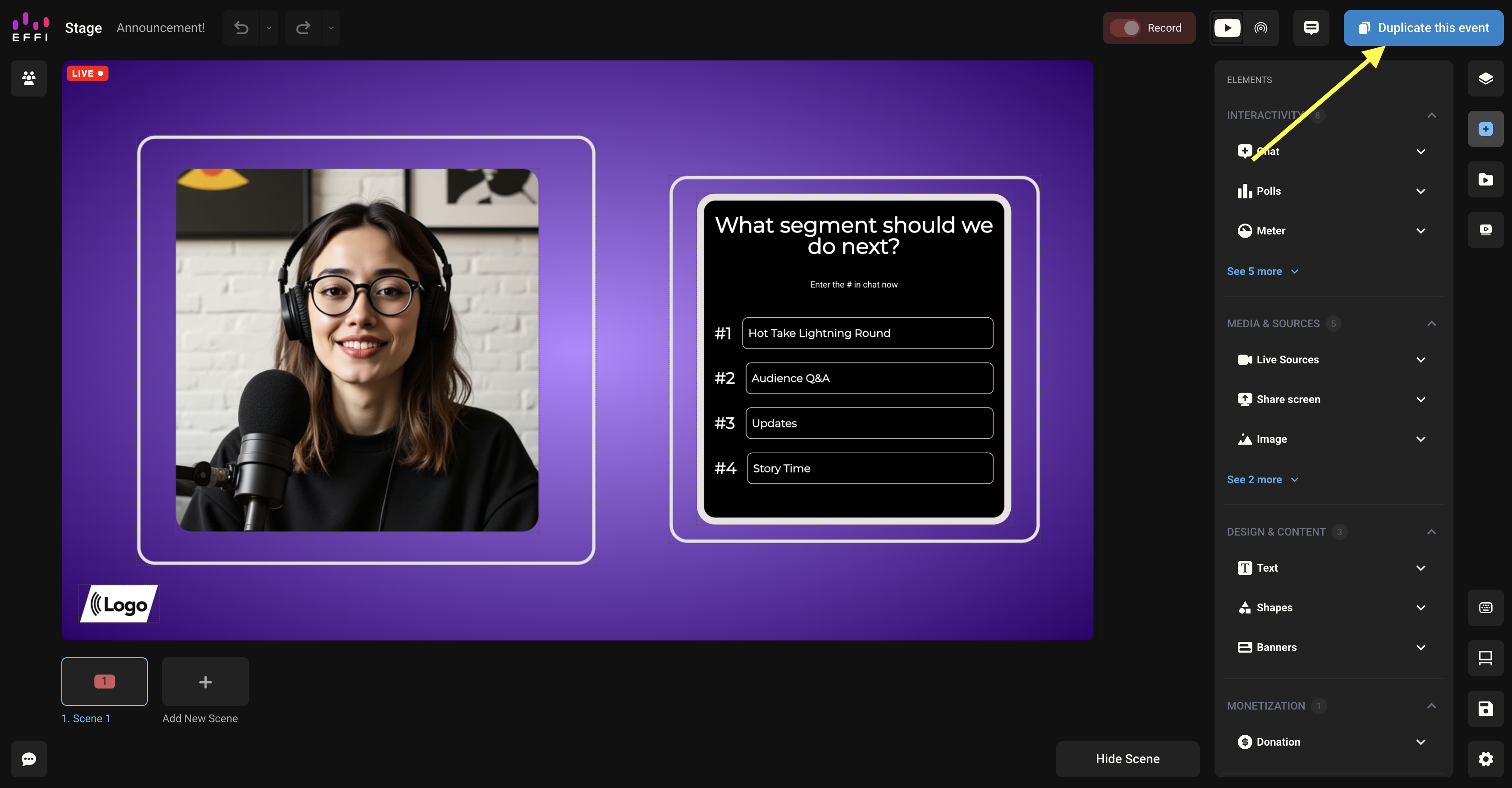
What gets copied
| Copied | Not copied |
|---|---|
| Scenes, including their names and order Elements and layouts on each scene Guests, if you checked Duplicate with the same guests | Destinations |
Was this article helpful?
That’s Great!
Thank you for your feedback
Sorry! We couldn't be helpful
Thank you for your feedback
Feedback sent
We appreciate your effort and will try to fix the article