Hotkeys are keyboard shortcuts for common Stage actions, like switching scenes, muting sources, or starting your stream. You can view and customize them from the Stage, and your hotkeys apply across all of your events.
Opening the Hotkeys panel
- Open any event on the Stage.
- In the right-hand rail, click the keyboard icon (the first icon in the bottom group).
- The Hotkeys panel opens, showing every available action and its current shortcut.
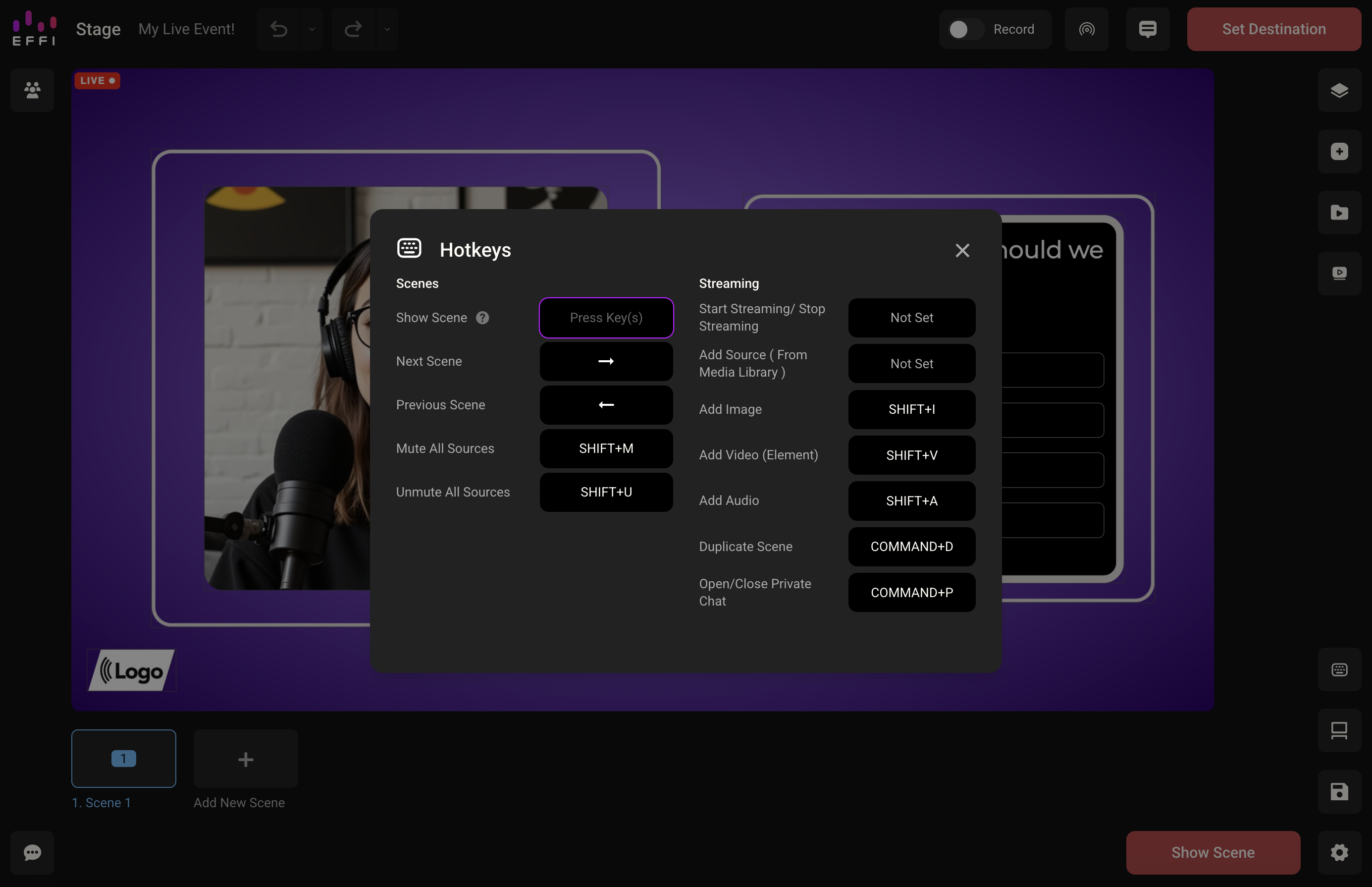
Available hotkeys
Hotkeys are grouped into two sections: Scenes and Streaming. Some actions have no hotkey by default and show Not Set until you assign one.
| Action | What it does | Default |
|---|---|---|
| Scenes | ||
| Show Scene | Makes the current scene viewable to your audience | Not set |
| Next Scene | Moves to the next scene | Right arrow |
| Previous Scene | Moves to the previous scene | Left arrow |
| Mute All Sources | Mutes every live source at once | SHIFT+M |
| Unmute All Sources | Unmutes every live source at once | SHIFT+U |
| Streaming | ||
| Start Streaming / Stop Streaming | Starts or stops your stream | Not set |
| Add Source (From Media Library) | Adds a source from your Media Library | Not set |
| Add Image | Adds an image to the scene | SHIFT+I |
| Add Video (Element) | Adds a Video element to the scene | SHIFT+V |
| Add Audio | Adds audio to the scene | SHIFT+A |
| Duplicate Scene | Creates a copy of the current scene | COMMAND+D |
| Open/Close Private Chat | Opens or closes the private chat | COMMAND+P |
Changing a hotkey
- In the Hotkeys panel, click the shortcut box next to the action you want to change.
- The box is highlighted and shows Press Key(s).
- Press the key or key combination you want to use.
Your new hotkey saves automatically and a confirmation message appears. It applies to all of your events.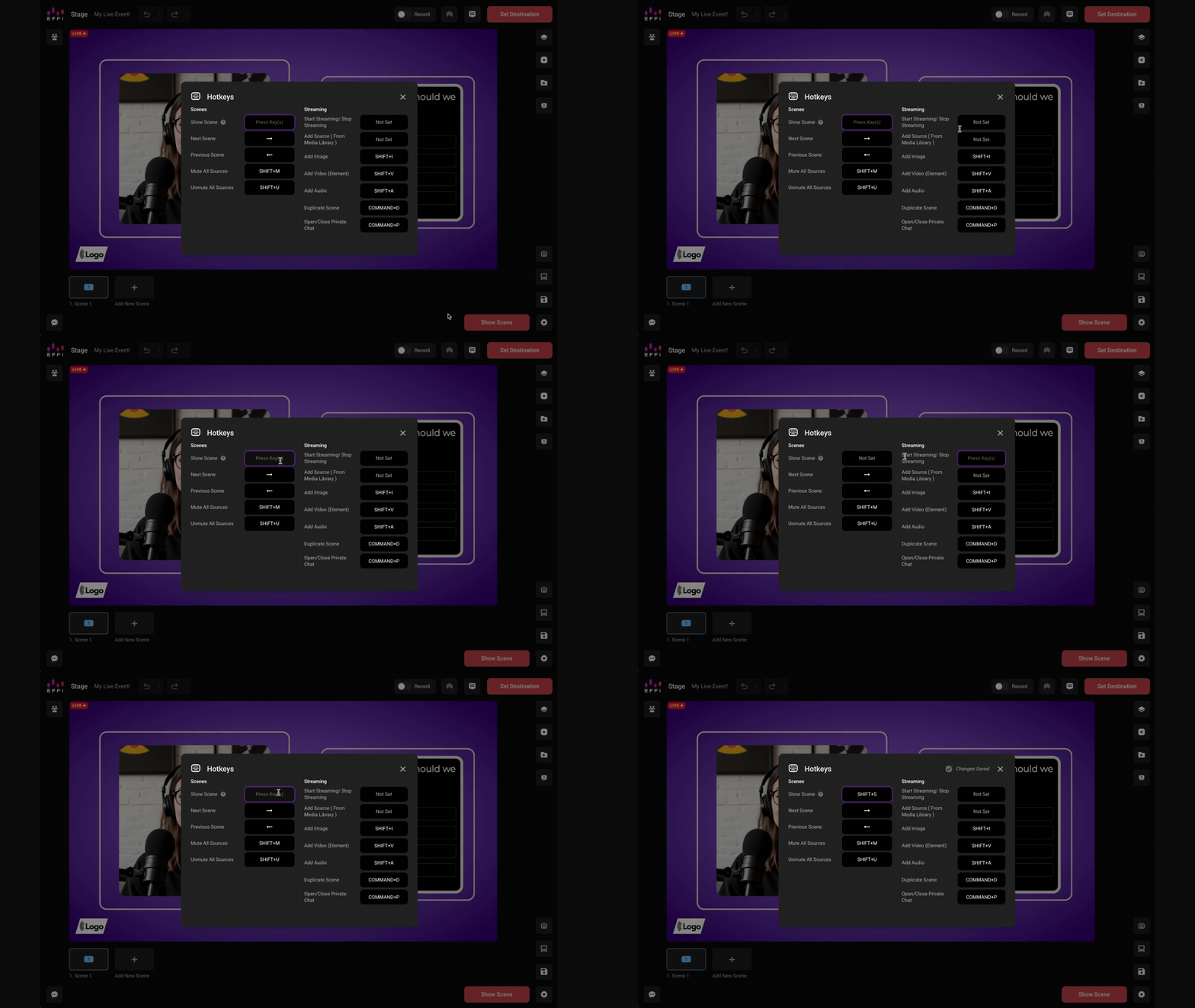
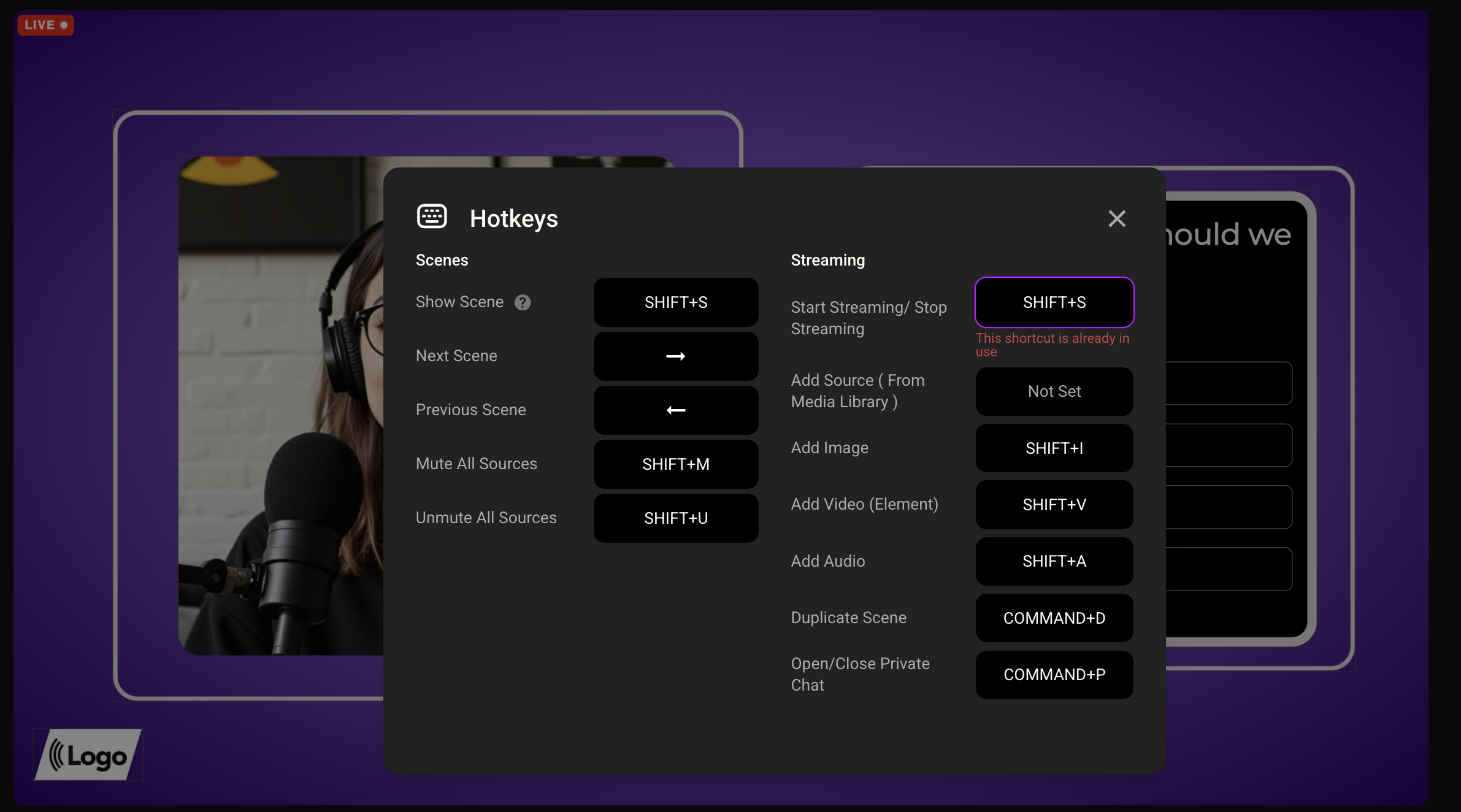
Using hotkeys with a Stream Deck
You can trigger any Effi hotkey from a Stream Deck button. Assign the hotkey to a tile in your Stream Deck software, and pressing the tile sends that keystroke to Effi, so you don't have to remember or press the shortcut yourself.
For example, to create a Show Scene button:
- In Effi, assign a hotkey to Show Scene (for example, SHIFT+S).
- Open your Stream Deck software.
- Choose the tile you want to use.
- Drag the Hotkey action onto that tile.
- Name the tile "Show Scene" and enter the same keystroke you set in Effi.
Now pressing that tile shows your current scene.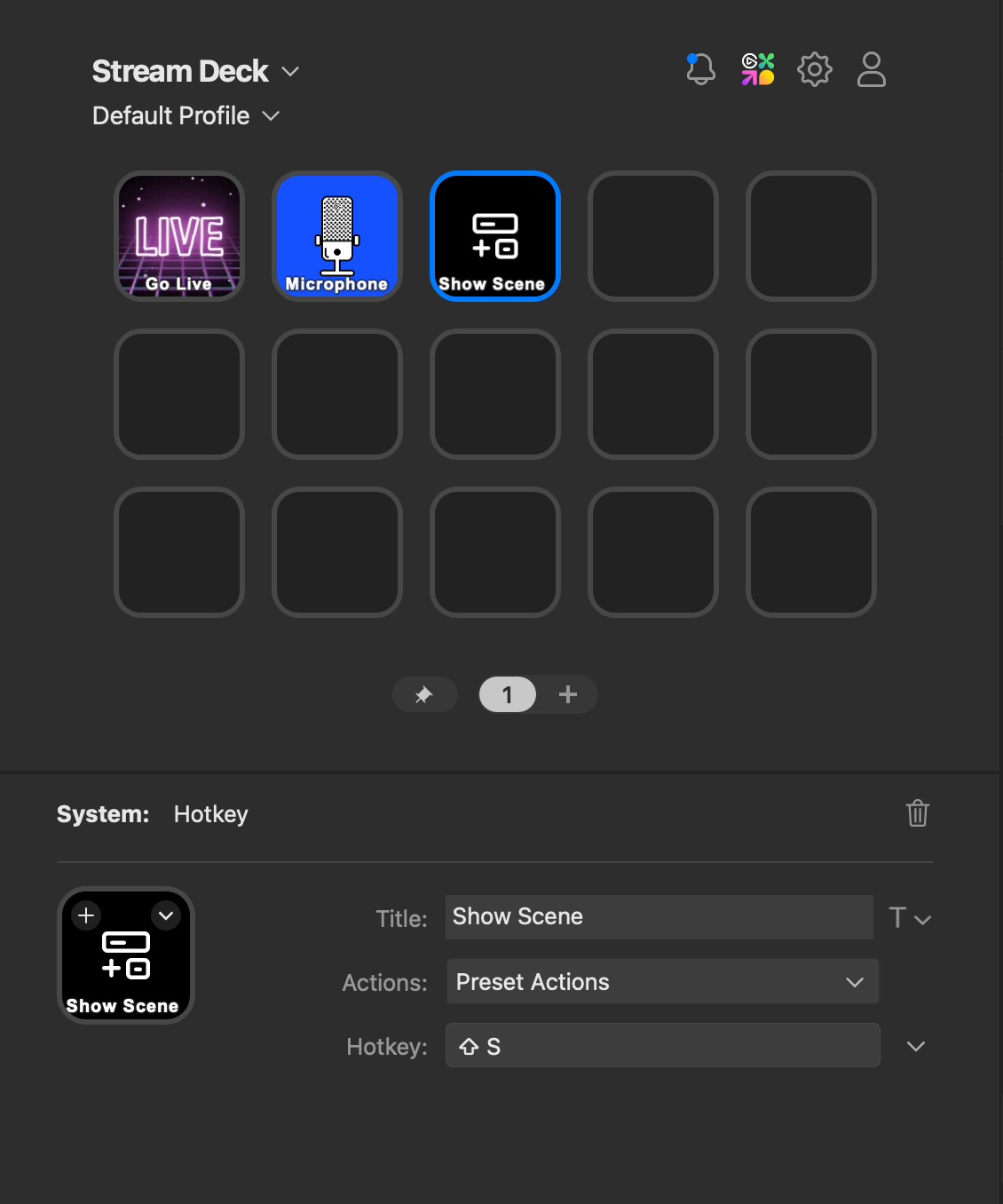
Was this article helpful?
That’s Great!
Thank you for your feedback
Sorry! We couldn't be helpful
Thank you for your feedback
Feedback sent
We appreciate your effort and will try to fix the article