Once you're collecting donations through Effi, you can access your funds and keep track of your donation activity, all from your Streamocracy dashboard.
Withdrawing Donations
Before you can withdraw your donations, you'll need to connect a bank account.
Connecting Your Bank Account
There are two ways to connect a bank account.
Through Account Settings
1. Open the main menu.
2. Select Account Settings.
3. Navigate to Organization.
4. Scroll down to Payout Preferences.
5. Connect your bank account via Stripe.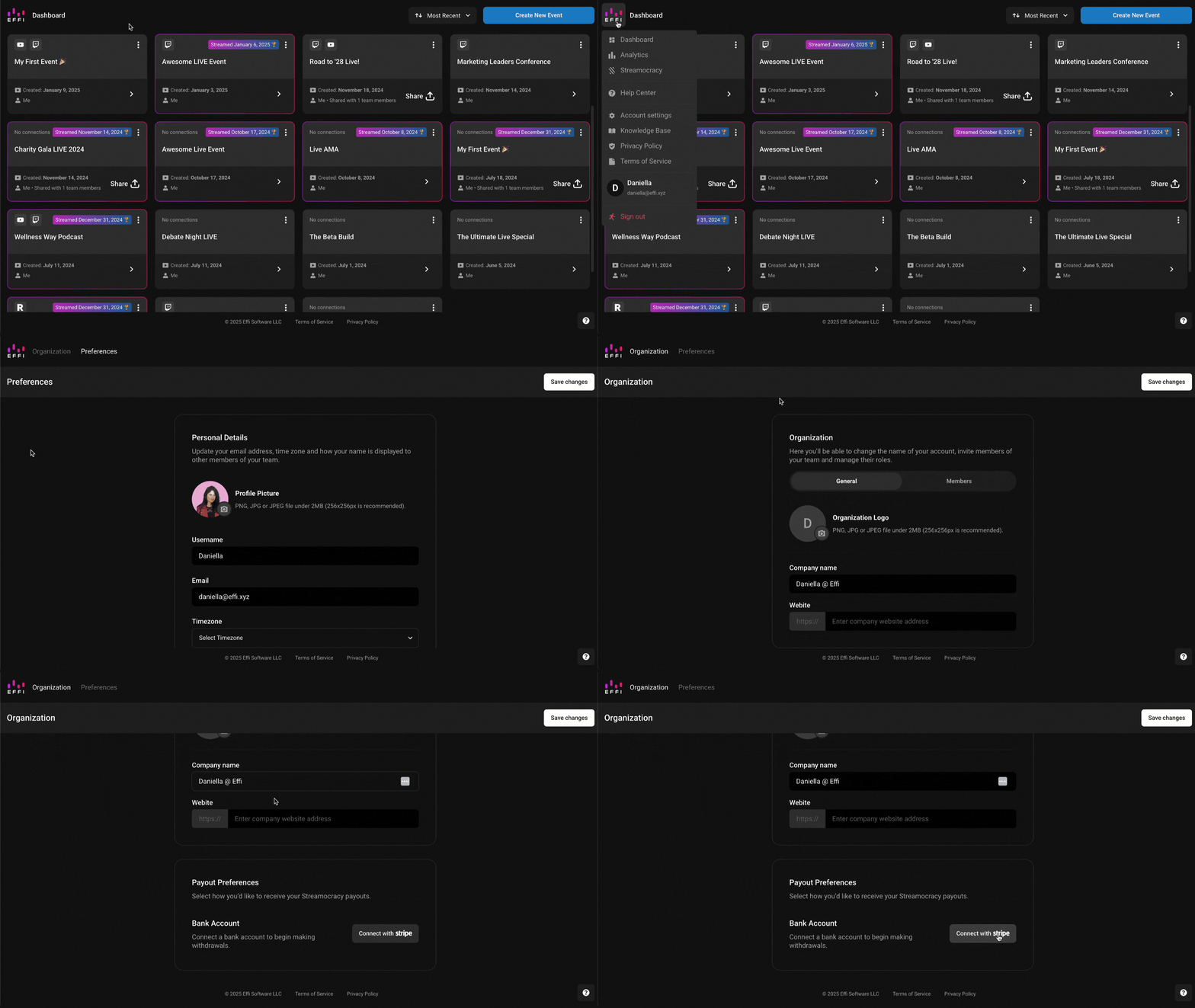
Only Owners have access to Payout Preferences and can add or withdraw funds.
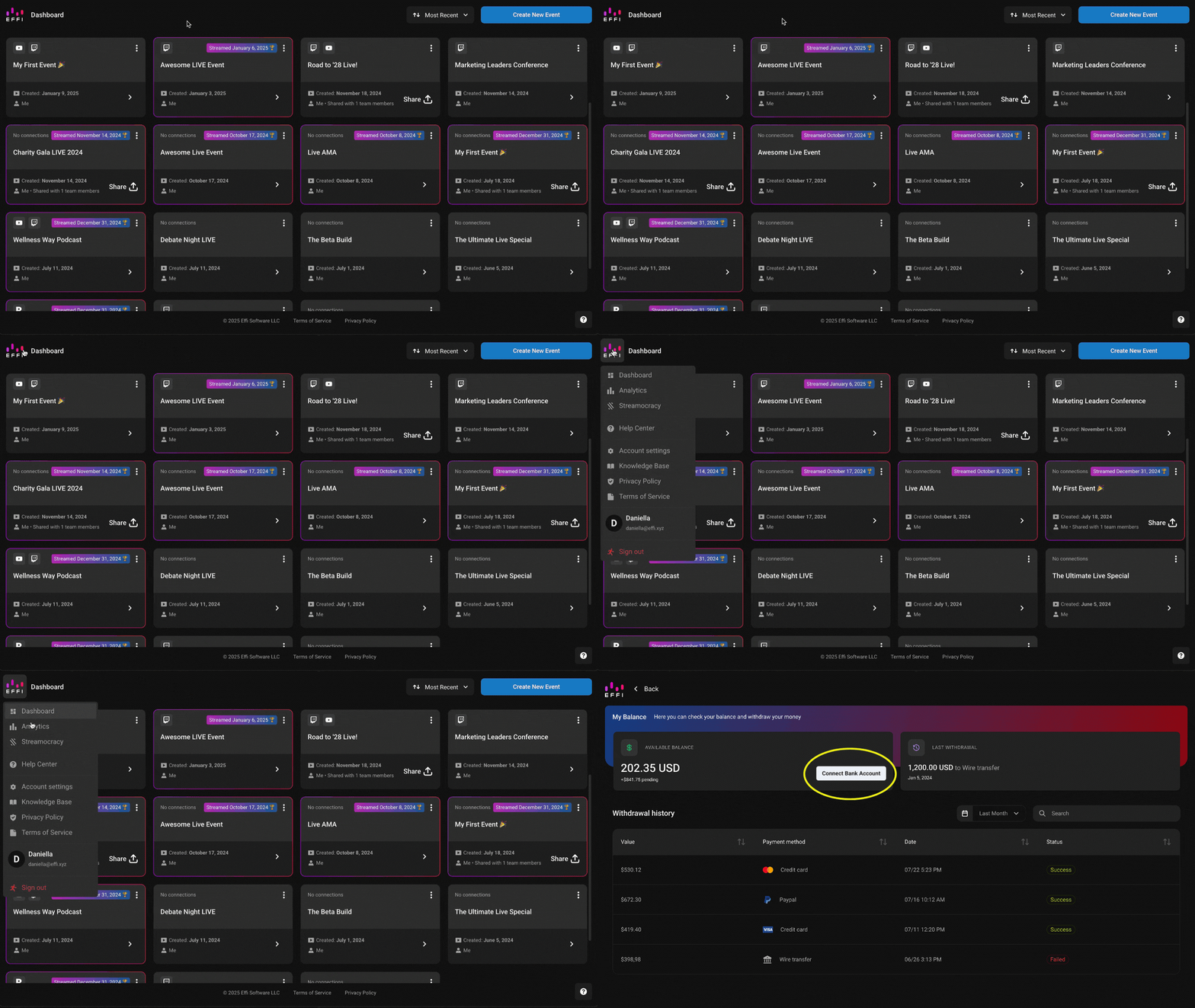
Through the Streamocracy Dashboard
1. Open the main menu.
2. Select Streamocracy.
3. Click the arrow next to your Available Balance.
4. If you haven't connected a bank account yet, you'll be prompted to do so via Stripe.
5. Follow the connection process to set up your bank account.
Making a Withdrawal
The withdraw option only appears once you've connected a bank account. From there:
1. Access your Streamocracy dashboard from the main menu.
2. Click the arrow next to your Available Balance.
3. Select Withdraw.
4. Follow the Stripe prompts to complete your withdrawal.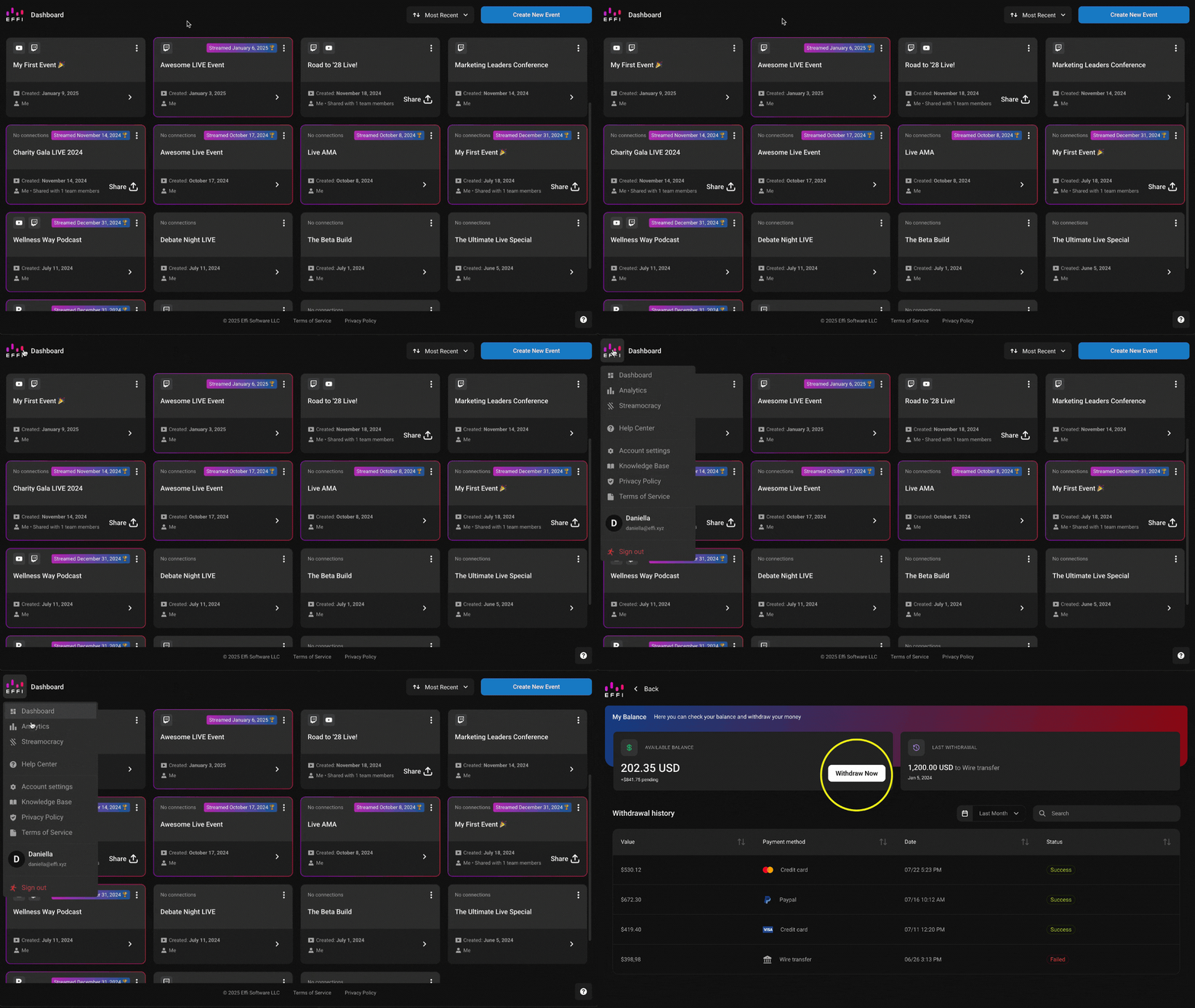
If you don't see the withdraw button, double check that you've completed the bank connection process first. Once you do, your funds will transfer to your connected bank account.
Reviewing Your Donations
Whether for reporting or just for your own records, you can access and download detailed information on your donations and donors straight from your Streamocracy dashboard.
Downloading Your Donation Summary
From your Streamocracy dashboard, click the download button to generate a CSV file with all of your donation data.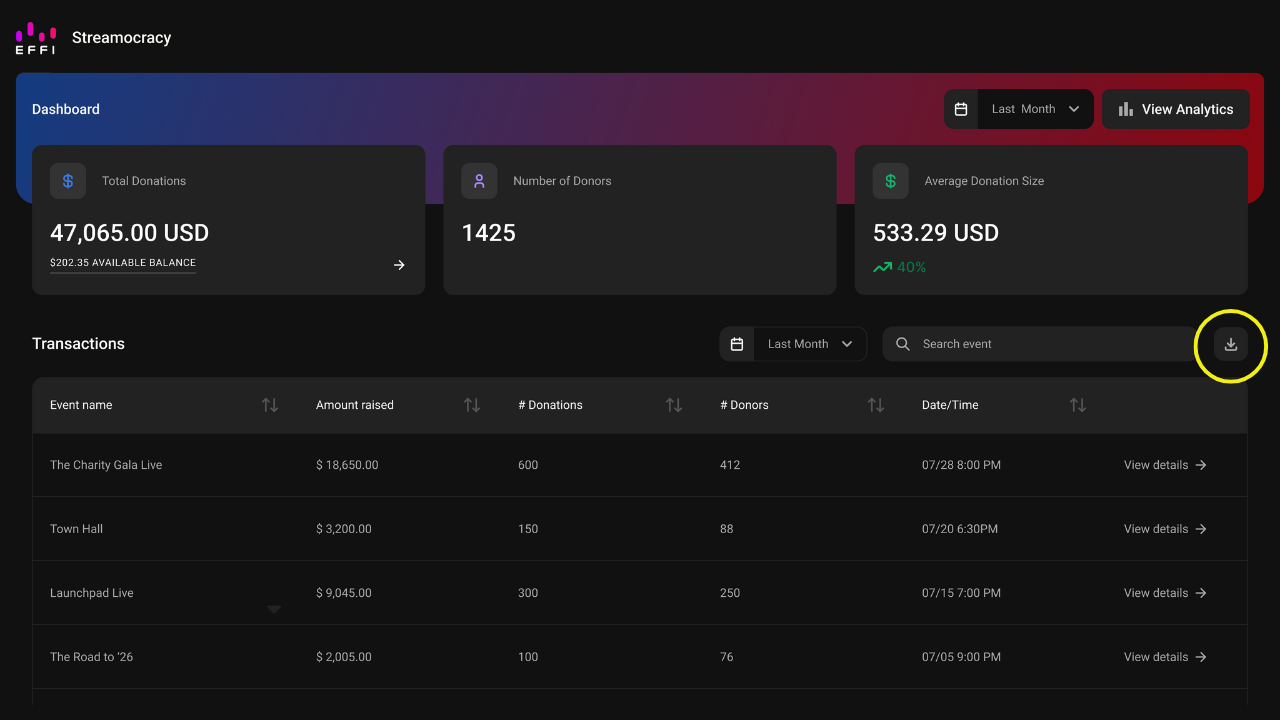
Downloading Donor Information
Next to each event in your dashboard, you'll see an option to View details. Clicking it opens a dashboard with all the donation information for that specific event.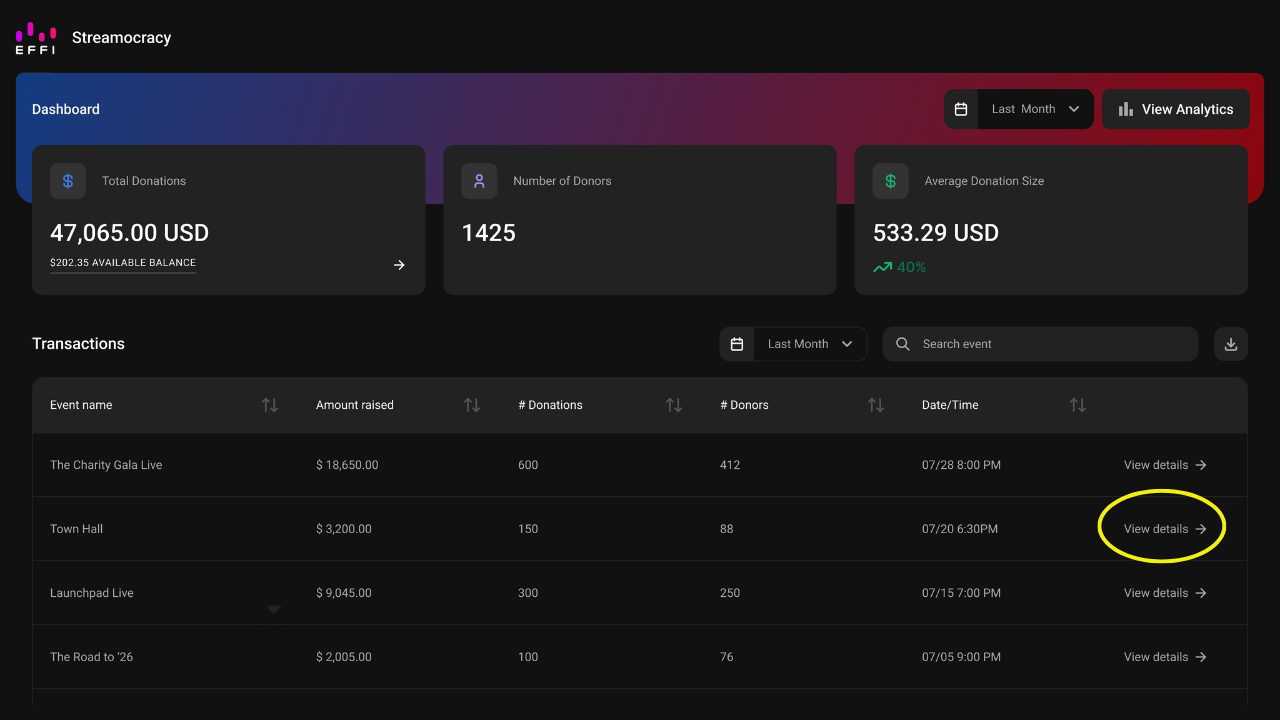
From there, click the download button on the event page to download a CSV file with all of your donor information for that event.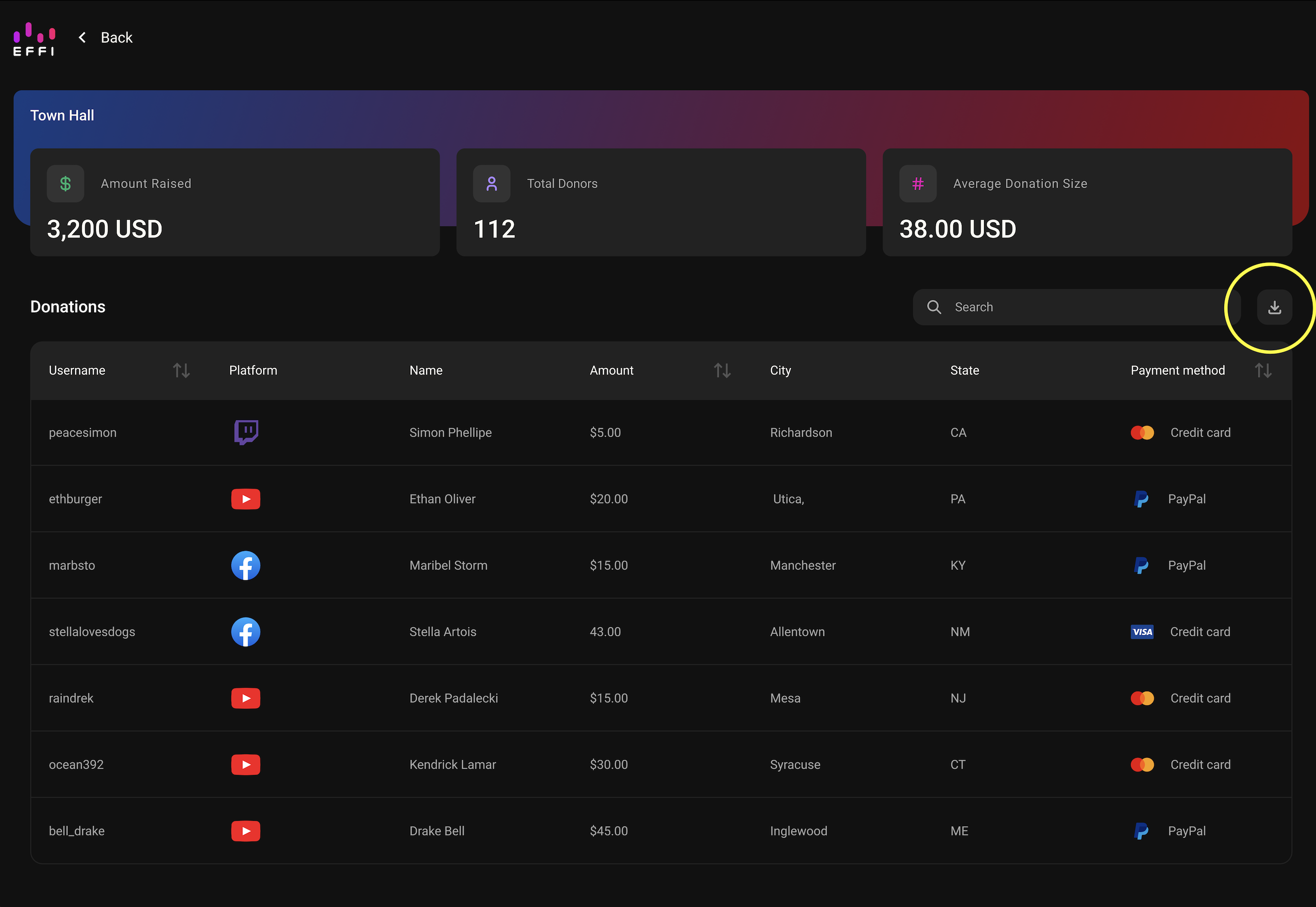
What's Included in the Report
The CSV file includes more detail than what's visible on the dashboard, such as:
- Email addresses
- Phone numbers
- Addresses
- Payment methods
- Employer information
- Transaction details
- Donor eligibility
This gives you a fuller picture of your donor base and helps you keep accurate records of every contribution.
Was this article helpful?
That’s Great!
Thank you for your feedback
Sorry! We couldn't be helpful
Thank you for your feedback
Feedback sent
We appreciate your effort and will try to fix the article