You're in control of your camera and mic the whole time you're a guest. You can choose which devices to use before you even join, switch them at any point during the broadcast, and use external hardware if you have it.
Selecting Your Camera and Mic When You Join
When you click your invite and prepare to enter the Greenroom, you'll see dropdowns for your camera, microphone, and speaker. Pick whichever you'd like to use, then click Join GreenRoom.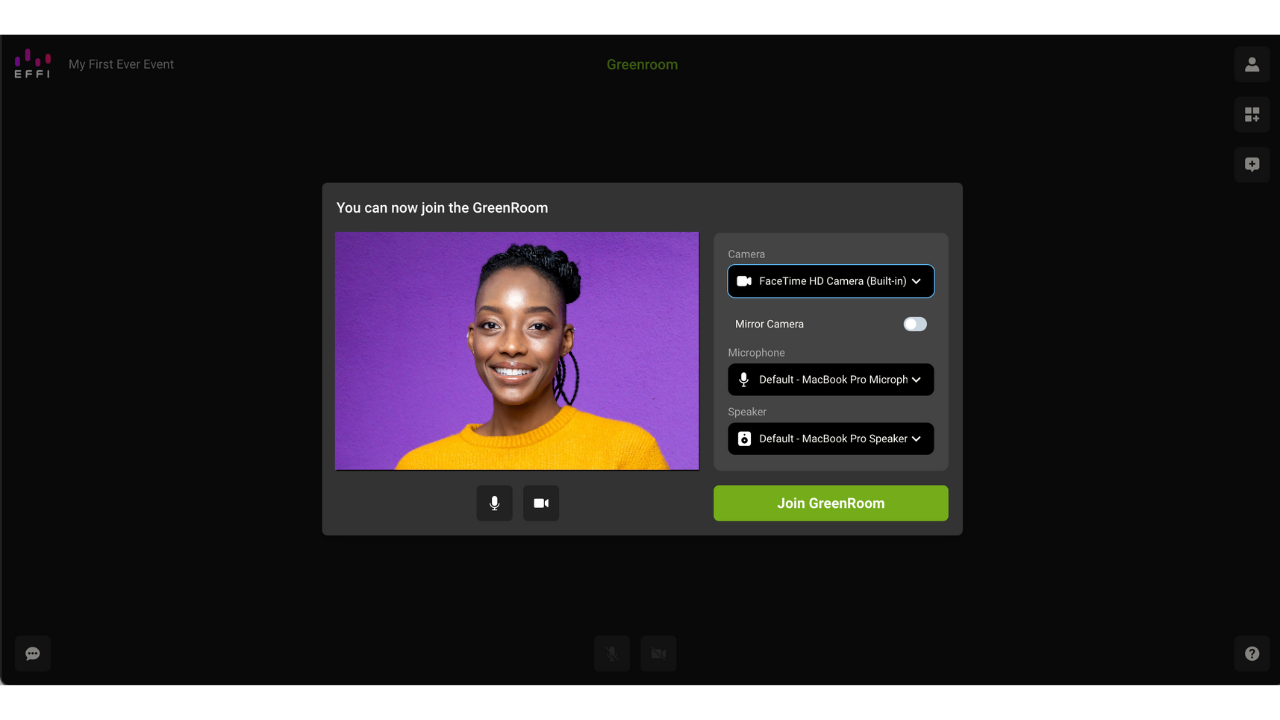
Changing Your Camera or Mic Mid-Broadcast
Already in the Greenroom and want to switch devices? You can do it without missing a beat.
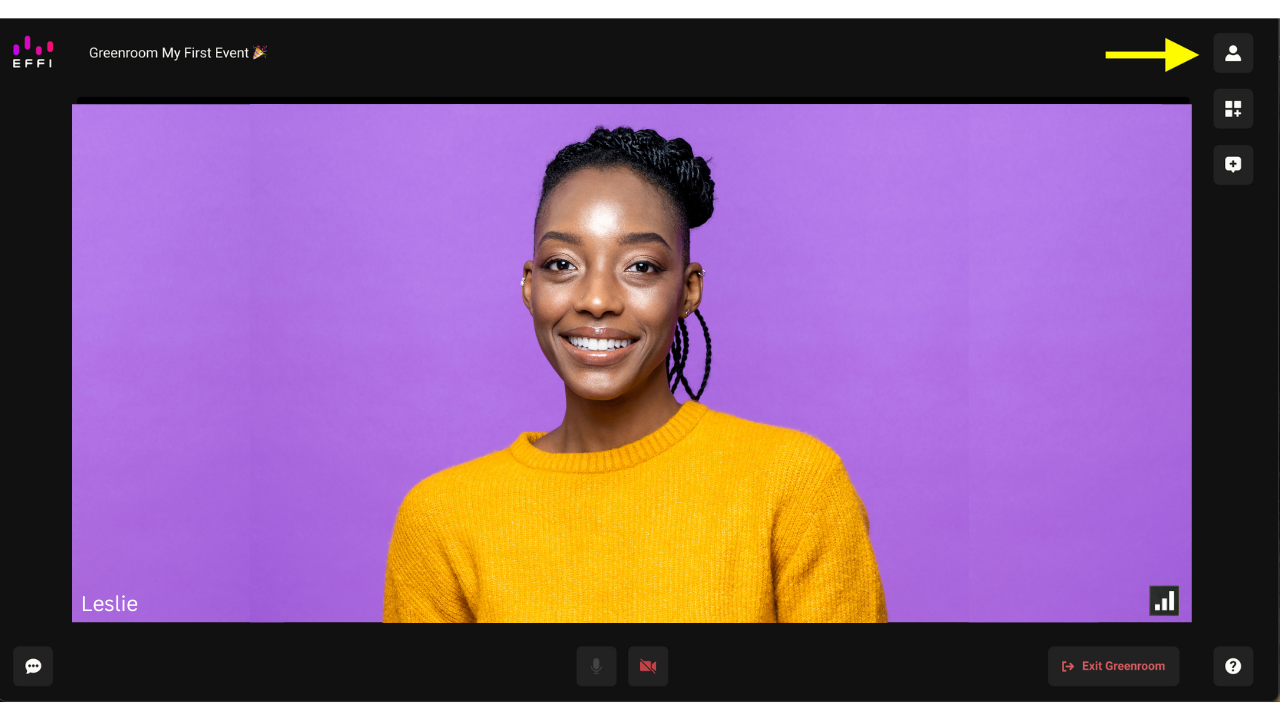
- Click the person icon in the top-right corner to open your Guest Settings.
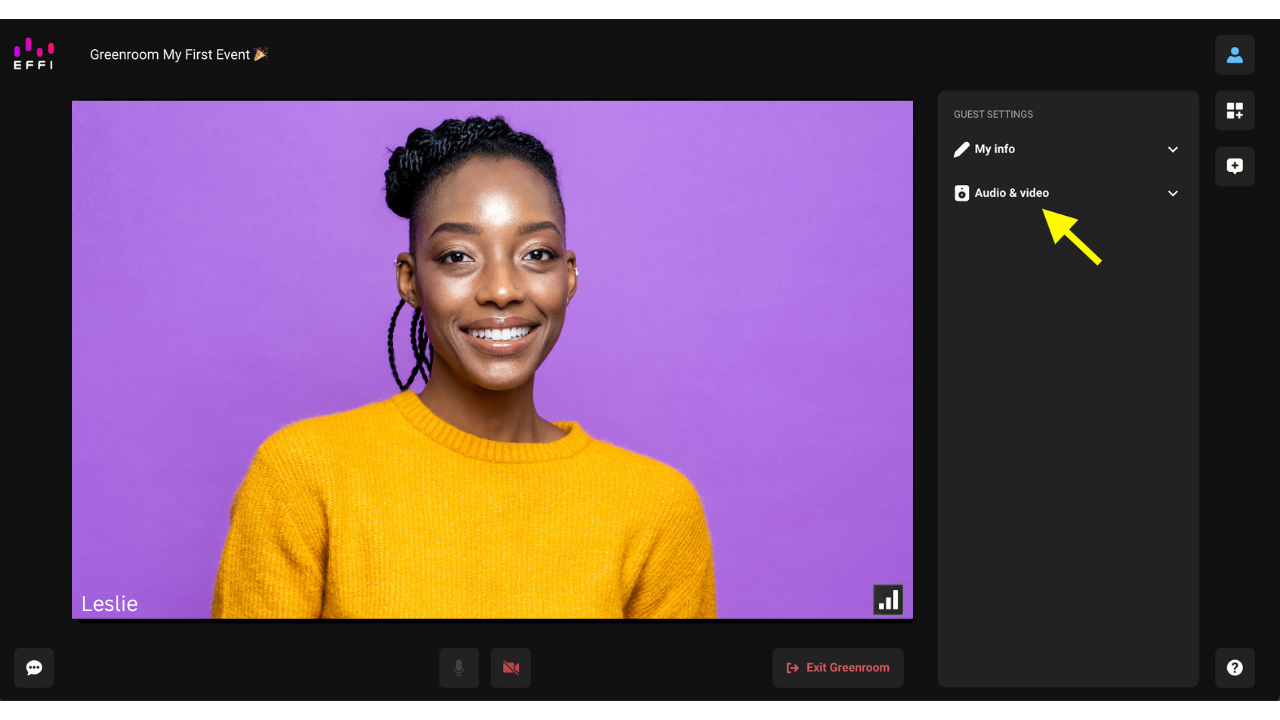
- Expand Audio & Video.
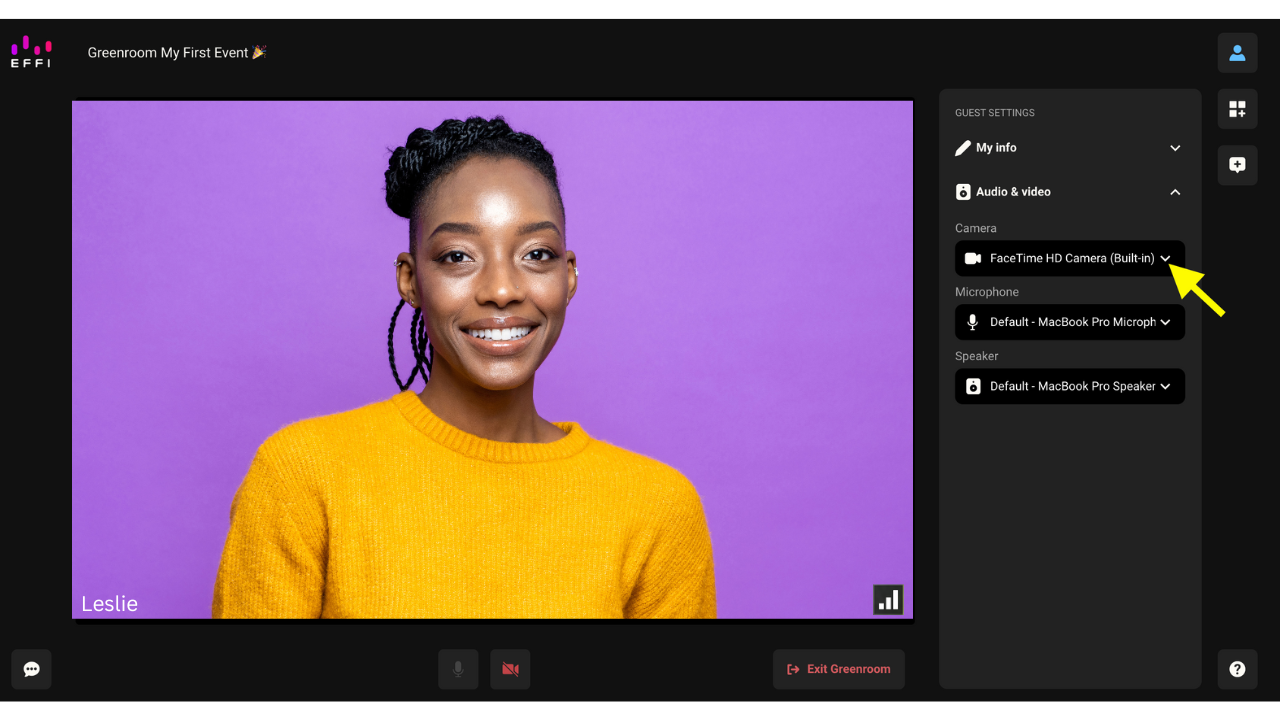
- Choose a new camera, microphone, or speaker from the dropdowns. The change takes effect right away.
Turning Your Camera Off
There may be moments where you'd like to step away, handle a distraction, or troubleshoot something without it showing on camera. You can turn your camera off at any point.
- Click the camera icon at the bottom of the Greenroom.
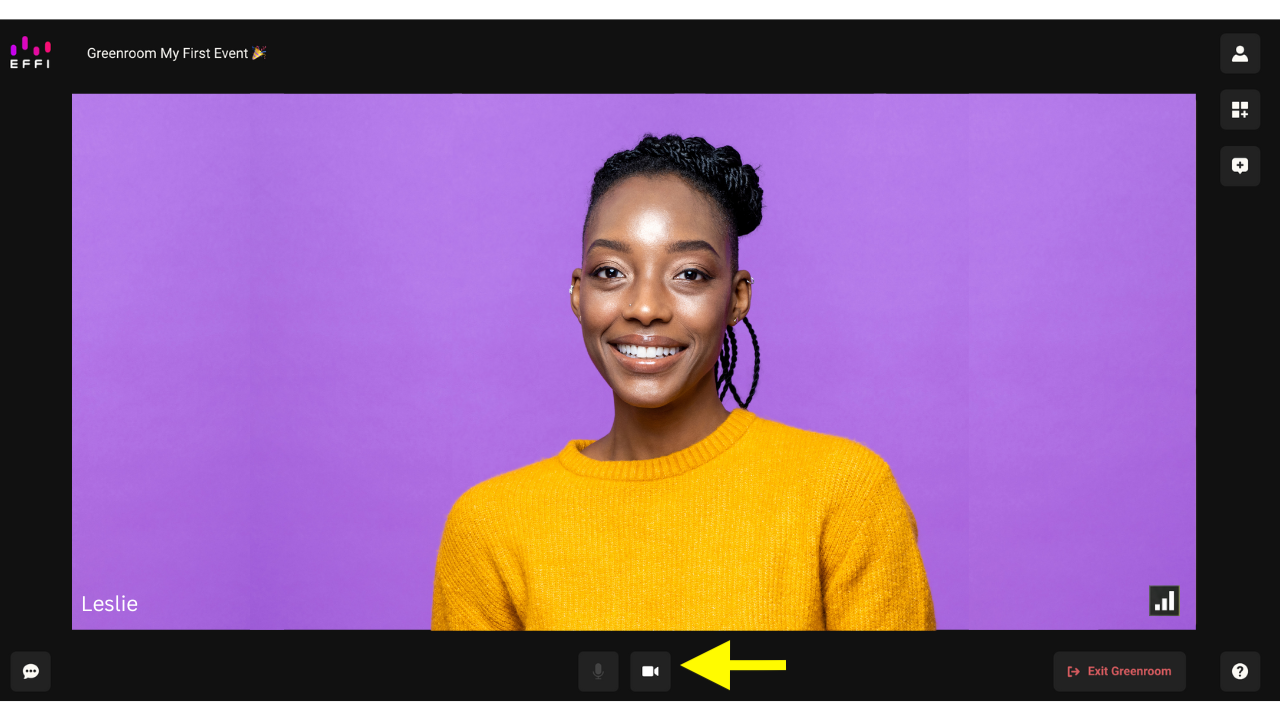
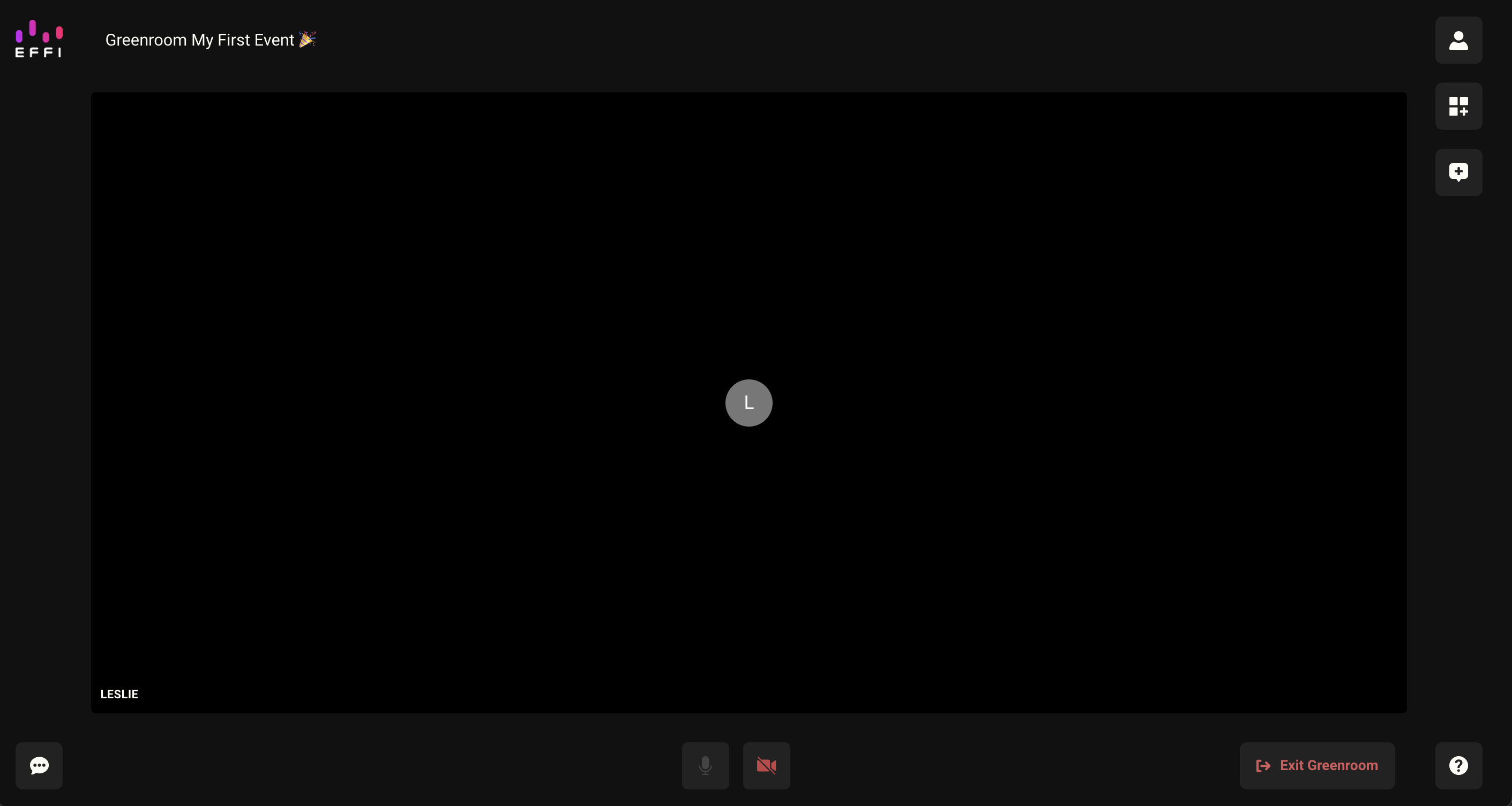
- Your camera turns off, and an avatar (your initials, or one uploaded by the event host) takes its place.
Using an External Camera or Mic
External cameras and microphones work the same way as your built-in ones. Once connected to your device, they'll simply show up as options in the same dropdowns, whether you're selecting them when you first join or switching to them later from Guest Settings.
Was this article helpful?
That’s Great!
Thank you for your feedback
Sorry! We couldn't be helpful
Thank you for your feedback
Feedback sent
We appreciate your effort and will try to fix the article