
Effi Meters are interactive meters that you can add to your livestream to engage your audience and gather feedback in real time. Meters give your audience two distinct options to choose from. All meters are added and managed from the Elements panel in Stage. You can add one of our pre-designed Meters and get going, or completely transform it with Effi's array of customization options to match the look and feel of your broadcast.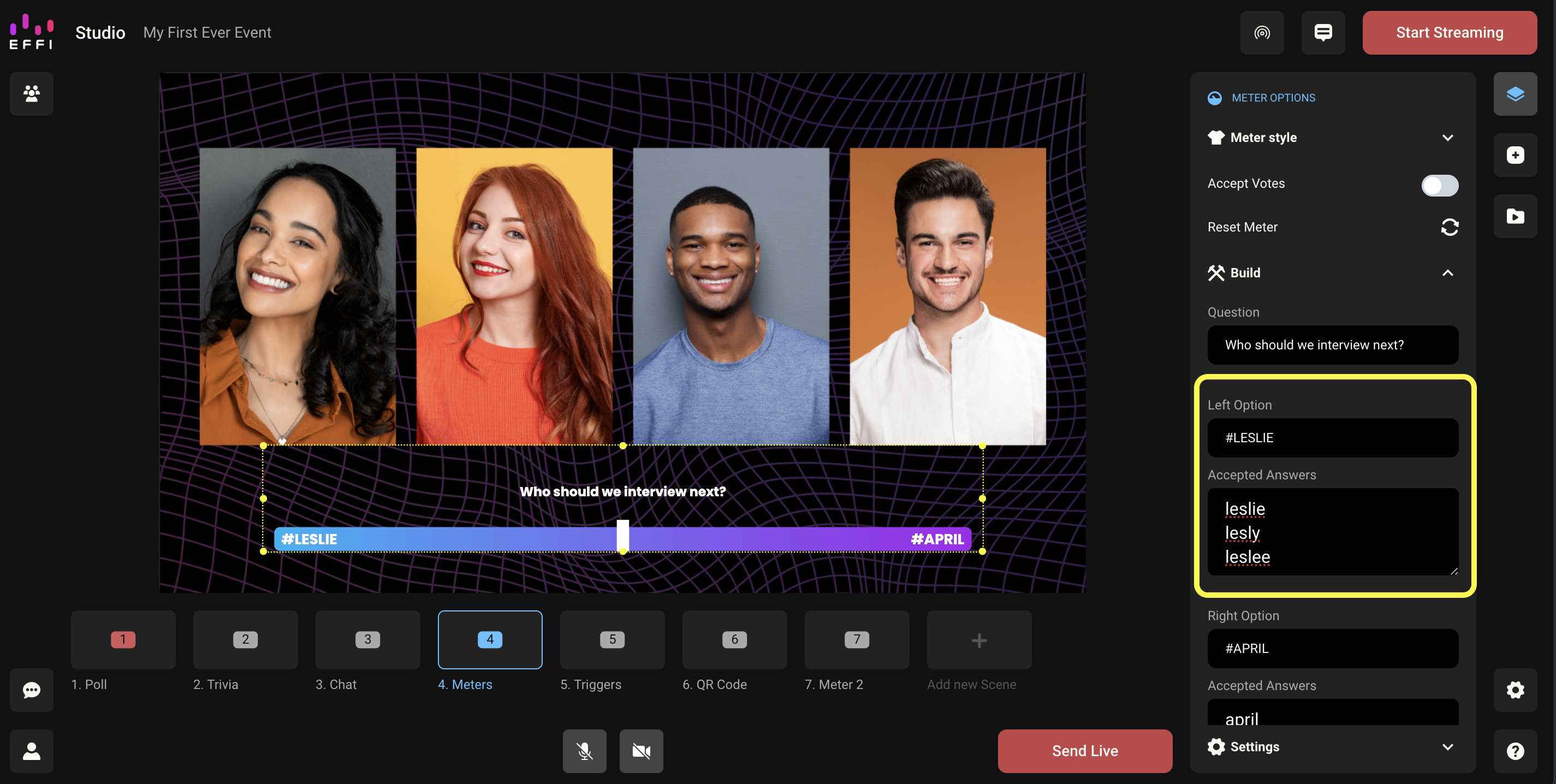
There are so many ways you can use Meters to add a layer of interactivity to your livestreams. We can't wait to see what you come up with, but if you are looking for some inspiration, here are some ways to use Effi Meters:
- Let the audience decide what the next segment should be.
- Have the audience vote on which behind-the-scenes bonus footage they would like to see.
- Overlay Meters on pre-recorded footage to let the audience predict what might happen next.
- Gauge whether they are having a good time or bored with the segment and use that to determine whether you should keep going or move on to the next thing.
How to Add Meters to My Stream
Add a Meter to Your Event
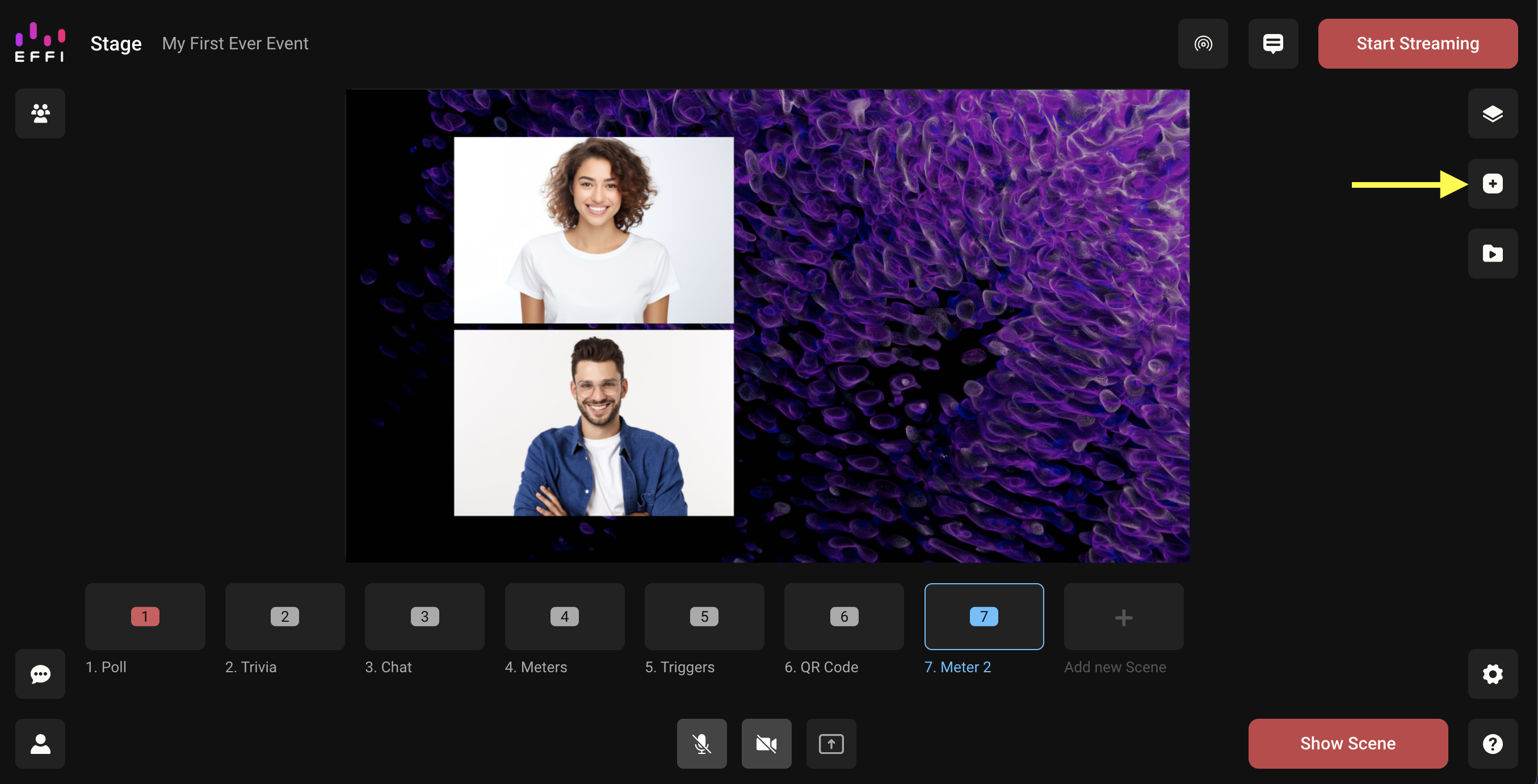
- Select the scene you'd like to add a Meter to from the list of scenes under the preview window in Stage and then click the Elements icon on the right-hand side to open the panel.
- From the list of elements, choose "Meter" and select a style from the panel. Once you click it, the Meter will populate in your scene preview window.
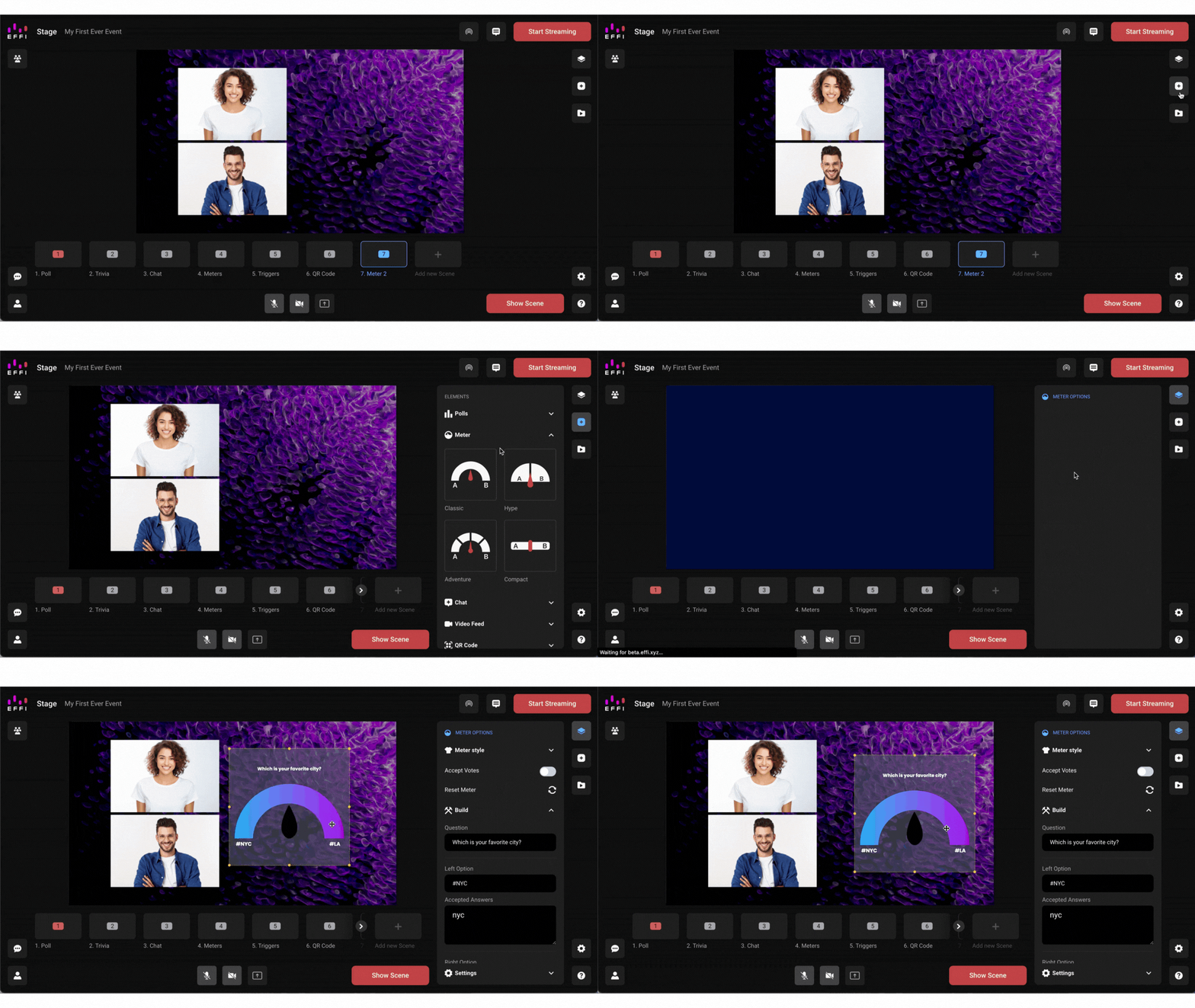
Adding a Meter to your event is that easy, now it's time to build out your meter with what you'd like the audience to vote on.
Build Your Meter
Note: You can open your Meter options at any time by clicking the Meter directly or opening the layers tab on the scene containing the Meter and then choosing the Meter you'd like to view.
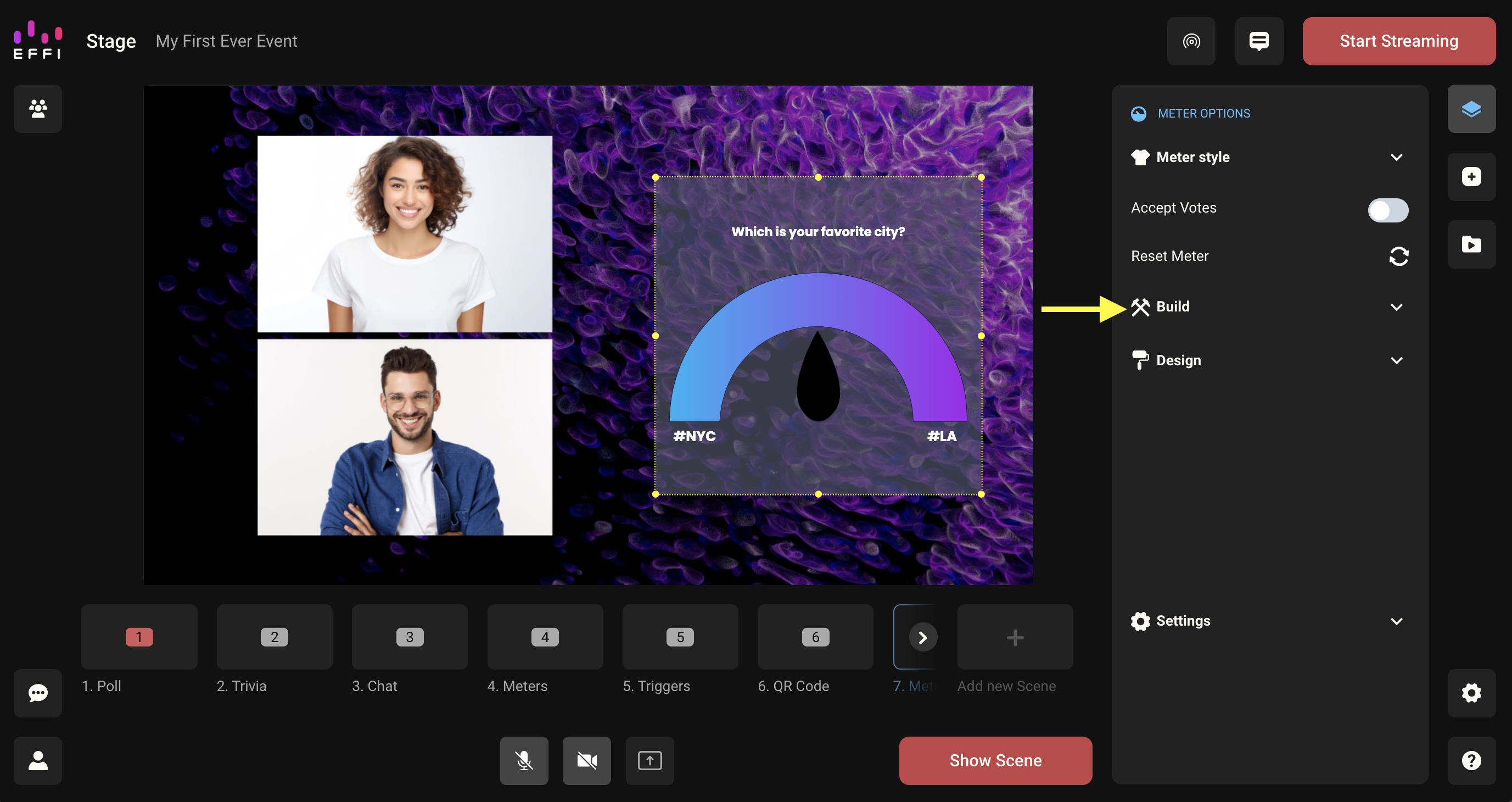
- You will notice that when you add a Meter the build menu will automatically open. To access it any other time, click "Build" in the Meter Options menu on the right-hand side.
- Fill in a question in the field if you'd like — Meters do not require questions. Fill in your left and right options in the appropriate fields.
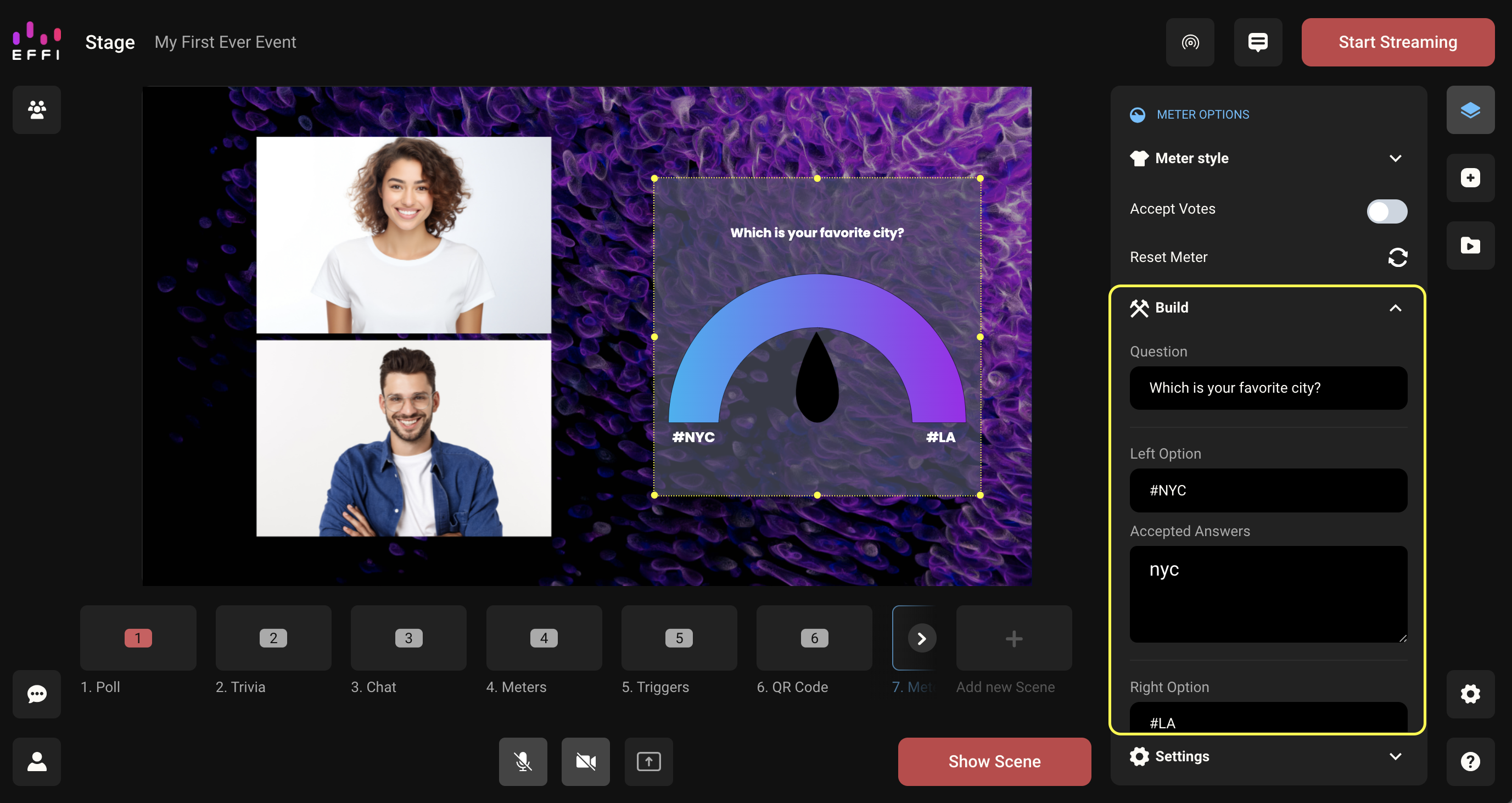
Tip: We suggest going with a one-word hashtag, but hashtags aren't required to vote and you can use any word or phrase of your choosing.
Accepted Answers
Under each option field, you will notice a box for adding Accepted Answers — this is where you can list out response variations you'd like counted toward each choice. See the "What Are Accepted Answers for Meters?" section below for a full breakdown and examples.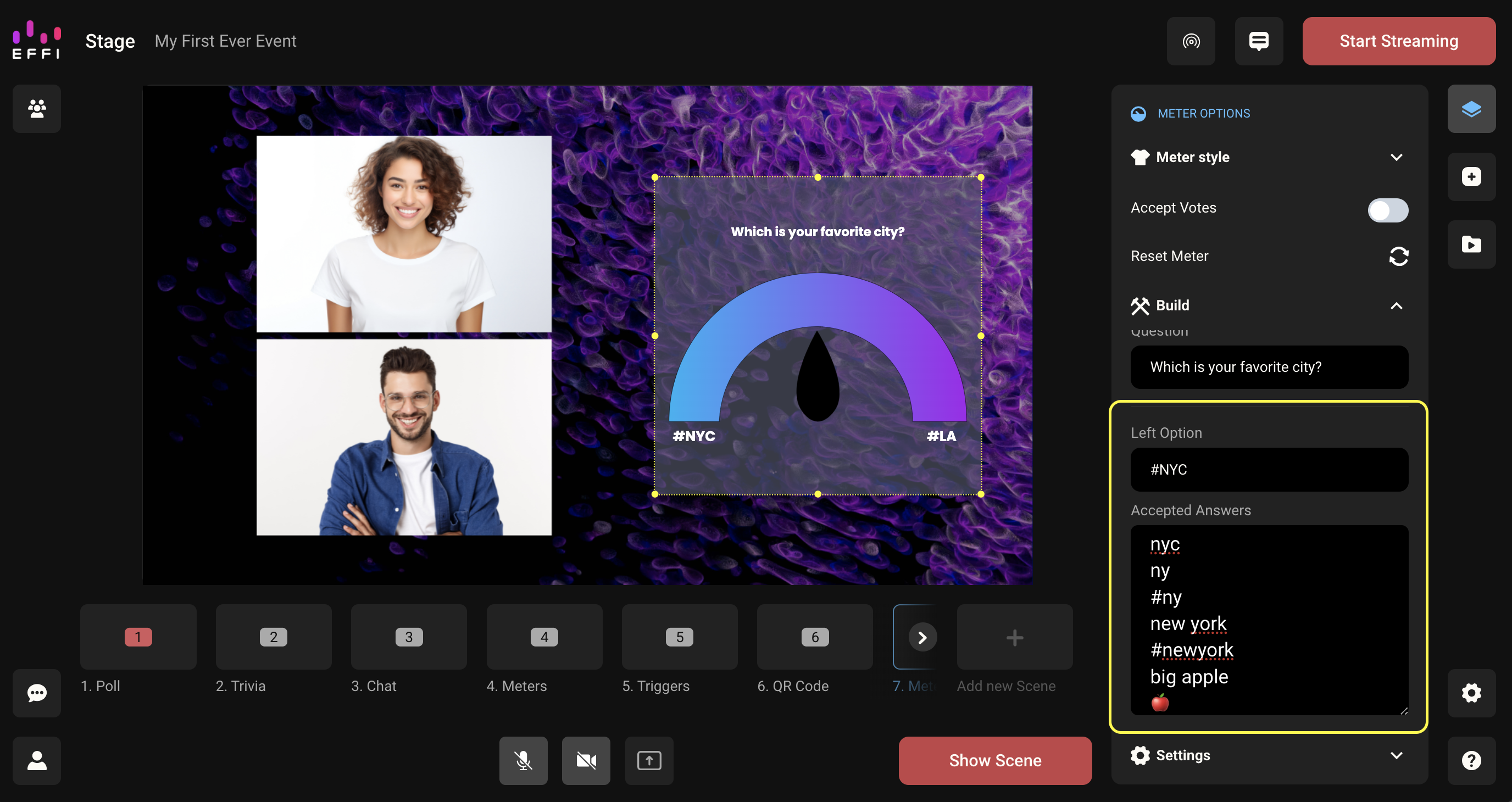
At this point, you have taken care of all the major steps to adding a Meter to your stream. Way to go! You can stop here and be ready to go, but if you would like to customize your Meter to match your event keep reading.
Design Your Meter
- Click "Design" in the Meter Options menu on the right-hand side.
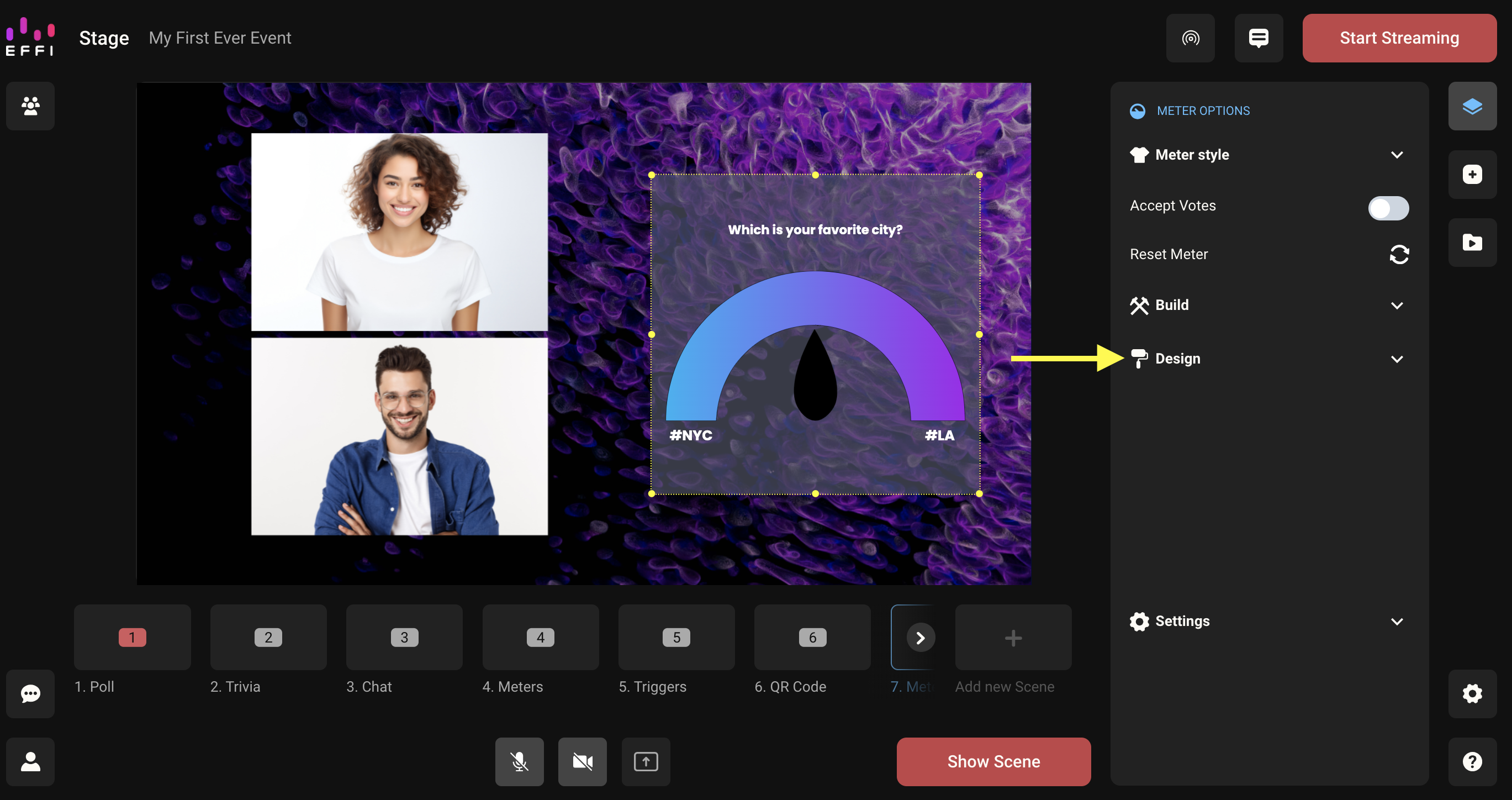
- Choose fonts and colors for your question and options. Change the color of your pointer and background or upload a background image.
That's it. You've officially added a Meter to your event and the last thing to do is set it live for your audience to see and vote on.
Send Live & Accept Votes
When your scene is live, your Meter will be viewable to the audience. But they will only be able to vote once you toggle on "Accept Votes" at the top of your Meter options panel. As soon as that's on, the Meter will start collecting responses and the pointer will begin to move.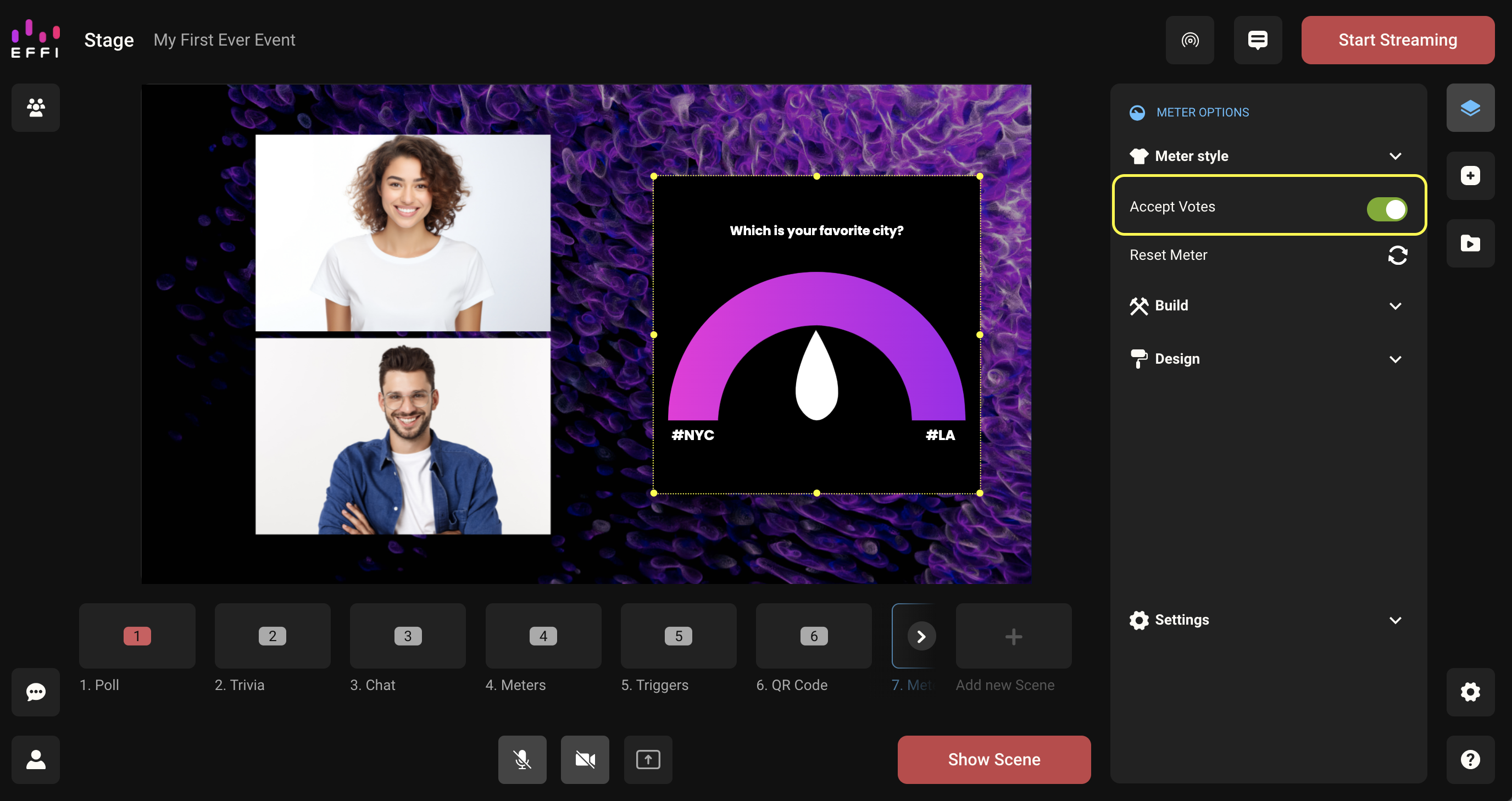
When you are ready to stop accepting votes, simply toggle off "Accept Votes" and see where your audience landed.
Note: The "Accept Votes" toggle can also be accessed by opening the Meter options in your scene layers.
Once the scene is no longer live, your Meter will no longer be viewable.
What Are Accepted Answers for Meters?
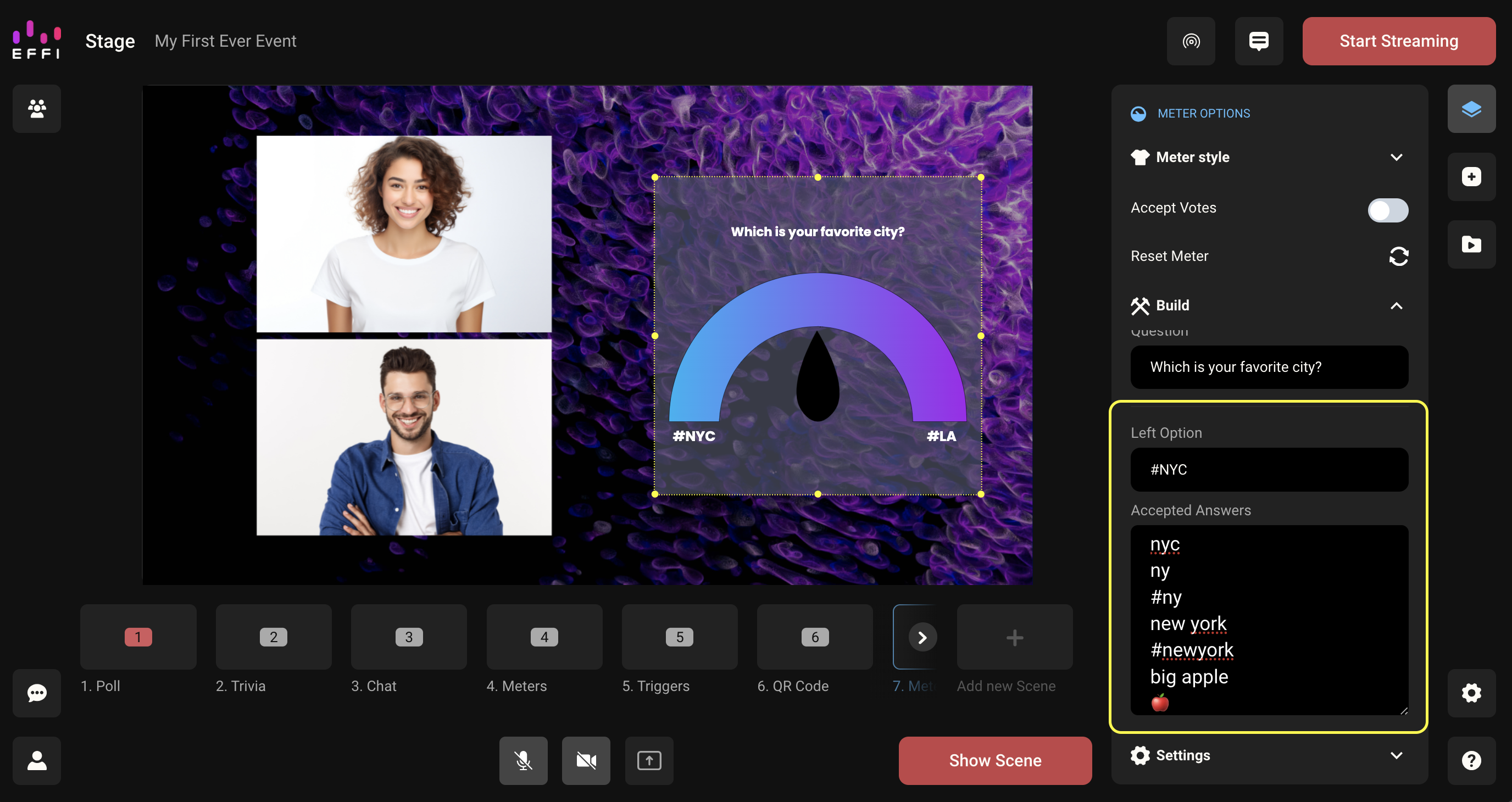
Unlike a Poll where you can choose the "Smart Poll" option and allow Effi's AI to capture more data by accounting for typos and other variations of expression of the entered choices, Meters provide a more ad hoc approach by using what we call Accepted Answers. You have the ability to enter multiple response variations that will count toward each choice (left or right). You can include hashtags, spelling variations, obvious typos, emojis?, and whatever makes sense for you. This way you can manipulate the Meter and objectives the way you'd like, whereas Polls are a bit more rigid.
Note: Accepted answers can also work like social listening. Imagine you left the question blank and the options were LOVES IT / HATES IT. You don't tell the audience anything else. In the tracking parameters, you list words that someone would use if they loved something, including emojis?. In the other section you'd use words people would type if they disliked something (ex. lame).
Here are some examples of Accepted Answer lists. If you see one that works for your stream, you can even copy and paste it into your Accepted Answer field!
Option: Funny
Accepted Answers:
| #funny | fun | ha | ? |
| #funnyy | fnny | lol | ? |
| funnyy | haha | loll | ? |
| lolz | rofl | laughs | ? |
| hilarious | dead | ? | ? |
Option: Love
Accepted Answers:
| #love | yass | ? | ? |
| luv | yaas | ❤️ | ? |
| #luv | slaps | ? | ? |
| hearts | yes | ? | ? |
| #loveit | loveee | ? | ? |
Option: Boring
Accepted Answers:
| #boring | snooze | #nxt | ? |
| boringg | nope | nxt | ? |
| bored | nah | yawn | ? |
| #bored | next | asleep | ? |
There are so many ways to use meters with Accepted Answers, can't wait to see what you do.
Do I Need to Include Accepted Answers?
All you need to make a meter work is a left and a right option. Accepted Answers are not required. The audience will have to type in the options exactly as they are shown in order for their vote to be counted.
For instance, using the #NYC / #LA example, the audience will have to type in either #NYC or #LA to vote. If you did include accepted answers, the audience might be able to type things like New York, Los Angeles, and #NY and those would count towards the tally, depending on what options you chose to list in Accepted Answers.
How Do Viewers Vote on a Meter?
Meters are a great way to add interactivity to your live stream. They can work similarly to a Poll where there is a question and two choices (right or left) or they can be a little more freeform by using them as a gauge by ditching the question. Because you can add an array of words, phrases, and emojis that count towards your choices in the form of Accepted Answers, the possibilities are endless.
Those endless possibilities also apply to voting. Here are all the things you need to know about voting on meters:
- You are not required to use hashtags in your Meter options. But whether you choose to use a hashtag or not, viewers do not need to use a hashtag to vote on a Meter. As long as what they use is included in your list of Accepted Answers.
- Any word, phrase, or emoji listed as an Accepted Answer will count towards a vote.
- The left and right options count, you do not need to enter any Accepted Answers if you don't want to.
Can Meter Options Be More Than One-Word Long?
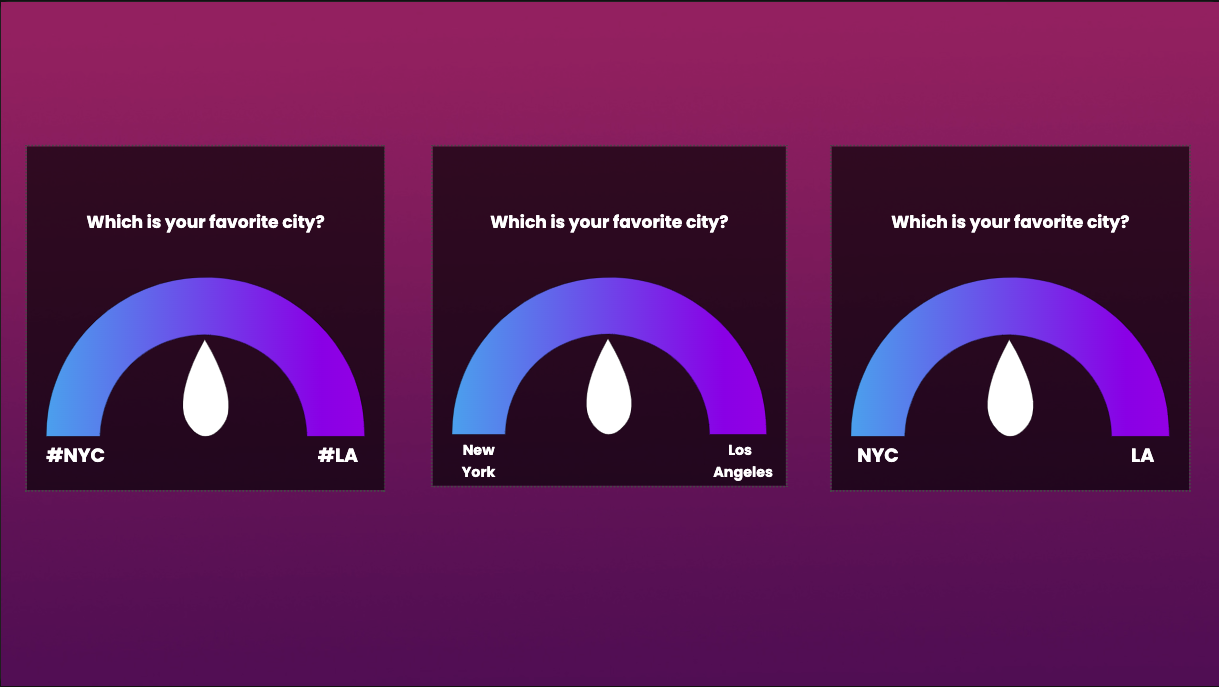
Effi wants to offer you flexibility in how you build your Meters and how your viewers vote on them. Therefore, Effi allows you to make your Meter options pretty much anything you'd like from hashtags, to emojis, to single words, and, yes, even phrases.
Best Practices for Choosing Meter Options
- Make sure your options are clear. If you are looking at the audience to vote between two options, we recommend going with a one-word option, emoji, or hashtag. This way it's clear, quick, and easy for your audience to type in and get the action going.
- Rely on your Accepted Answers. Whether using a simple hashtag or a phrase, accepted answers are there for you to add more accepted options and account for typos and misspellings. Of course, Accepted Answers are way more crucial if you have a complicated option like something that is more than one word or words people commonly misspell.
Remember, you can add as many accepted answers as you want and they can include single words, hashtags, emojis, or phrases. So whatever you choose for your options, you always have Accepted Answers at your disposal.
Can I Add an Emoji as a Meter Option?
A great feature of Effi is that it fully supports emojis, even as options in Polls and Meters. That means, if you are looking to add another layer of fun to your Meters, you can swap out those word options for some emojis.
Adding Emojis as Options
- Open the Elements panel on your right-hand side to add a Meter as you normally would.
- Go to your "Build" menu.
- In the left and right option fields, enter an emoji of your choosing.
If you have a keyboard that is emoji-compatible, just choose the emoji you would like from your menu. If not, then you can go to any site that has emojis, we like getemoji.com, and just copy and paste the emoji into your option field.
Making your Meter options emojis means your viewers will be able to vote with the chosen emojis.
Tip: If you don't want to include emojis in your options, you can always add emojis to your accepted answers list.
Can I Add Emojis as Accepted Answers for Meters?
Effi fully supports emojis which means that you can add some flair with them wherever you want while building out your project. That includes making them options for your Polls and Meters and including them in your Accepted Answers list on Meters.
Adding Emojis to Your Accepted Answers List
- Add a Meter as you normally would by selecting "Meter" from the Elements panel and choosing a style. Or, if you've added a Meter already, click the meter to open the "Build" menu.
- Choose a question if you'd like — questions are not required — and enter a right and left option (these can also be emojis).
- Under each option in the "Accepted Answer" field, list as many emojis as you'd like. For example, if your Meter option is "Great" you might include emojis like: ??????.
Note: Emojis refers to standard emojis and not app-specific emojis like ones used on Twitch or Discord.
Was this article helpful?
That’s Great!
Thank you for your feedback
Sorry! We couldn't be helpful
Thank you for your feedback
Feedback sent
We appreciate your effort and will try to fix the article