On supported platforms, you can use the Scheduled Event option to schedule your event on the platform directly from Effi, or to stream into an event you've already scheduled there. That means you can set everything up ahead of time and share your event link with your audience before you go live.
Supported platforms
| Platform | Schedule a new event from Effi | Stream into an existing scheduled event |
|---|---|---|
| YouTube | Yes | Yes |
| Yes | No |
Opening the Scheduled Event options
- Open your event on the Stage and connect your YouTube or LinkedIn account as a destination.
- Open the destinations panel. If you haven't added a destination yet, click Set Destination at the top right. Otherwise, click the destinations icon next to your channel icons at the top of the Stage.
- Under Destinations, click the name of your channel. The options panel for that platform opens below.
- At the top of the options panel, select Scheduled Event.
- Use the Event dropdown to choose Create Event or one of your existing scheduled events.
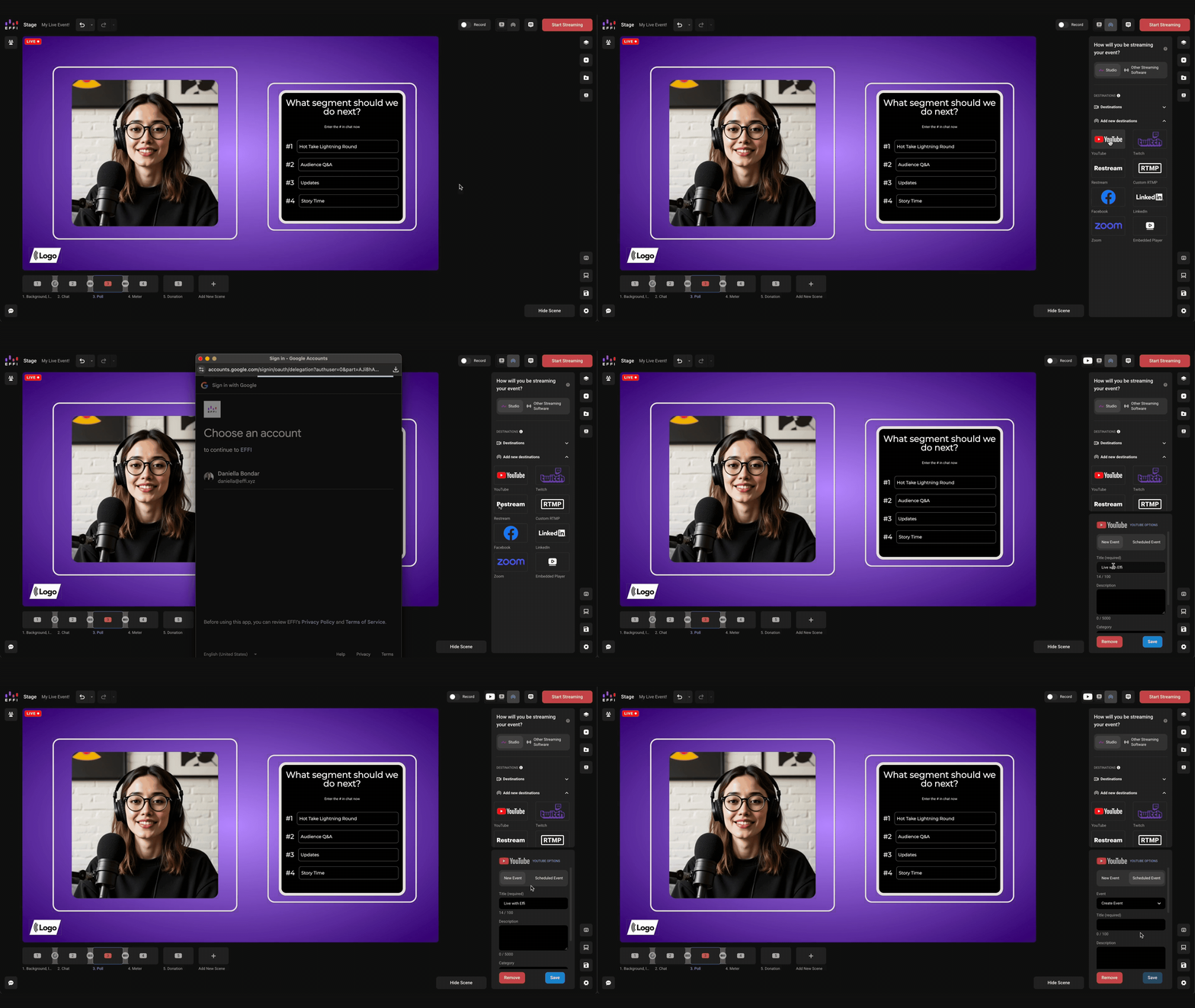
Scheduling a new event on the platform
Choose Create Event to schedule a new event on the platform from Effi.
- In the Event dropdown, choose Create Event.
- Enter a Title (required, up to 100 characters) and, if you like, a Description (up to 5,000 characters).
- Set the Scheduled Time by choosing a date and time.
- Review the Auto-Start and Auto-Stop toggles. Both are on by default, and Auto-Start is required ( see the tooltips or read below about their functions).
- Click Save.
Your event is now scheduled on the platform.
Streaming into an event you've already scheduled
If you've already scheduled an event on YouTube, you can stream straight into it.
- In the Event dropdown, choose your event. The dropdown lists the events already scheduled on your channel ( including the ones you may have previously created in Effi).
- The event's title, description, category, visibility, and other settings are filled in from YouTube and locked.
- Click Save.
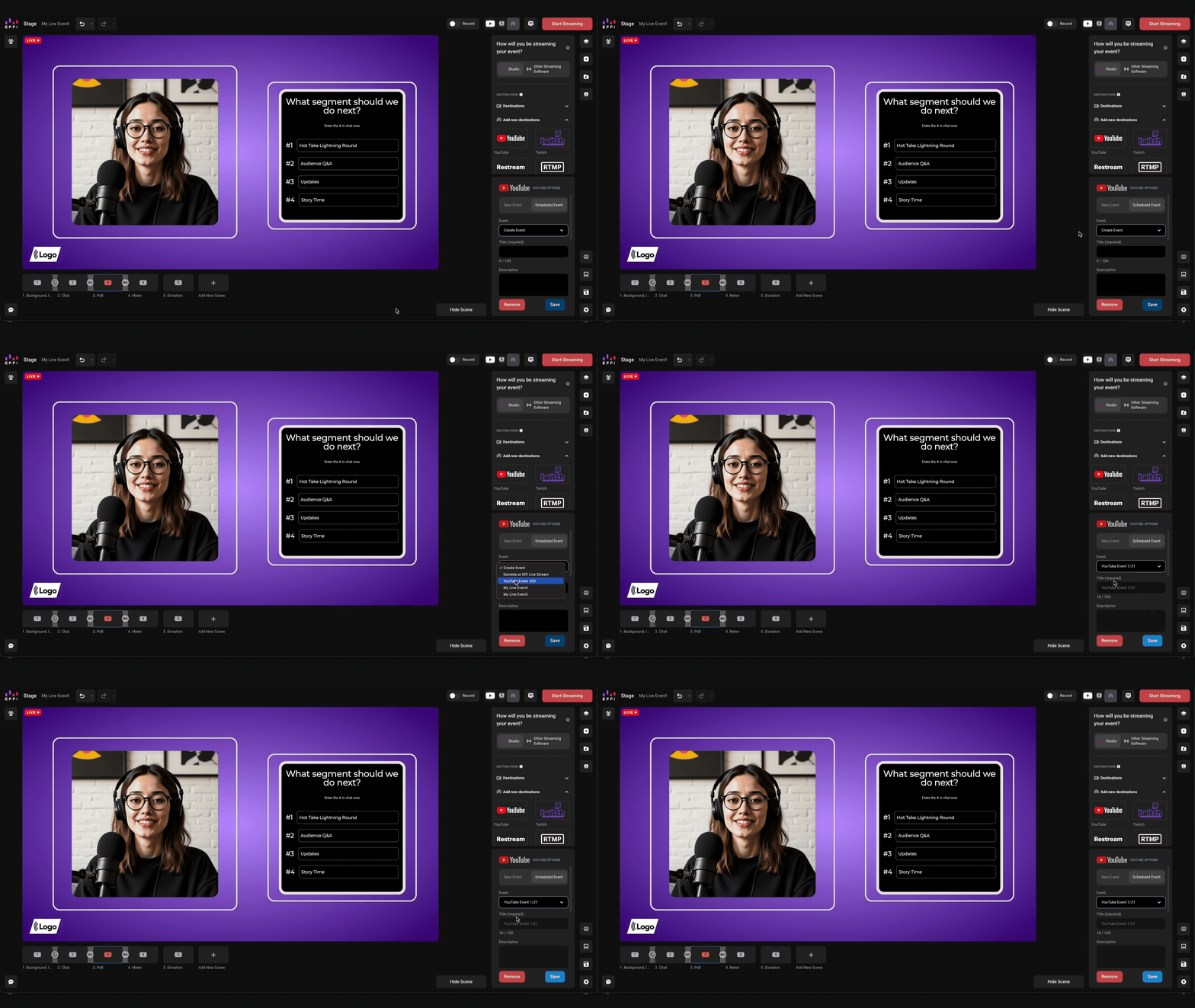
Going live
When you're ready, click Start Streaming at the top right of the Stage. Your stream goes to the event you set up in your destination's options.
Was this article helpful?
That’s Great!
Thank you for your feedback
Sorry! We couldn't be helpful
Thank you for your feedback
Feedback sent
We appreciate your effort and will try to fix the article