Effi has two ways to display incoming chat messages to your viewers: Chat and Chat Pro. Both pull in messages from every platform you're streaming to and display them to viewers on all of those platforms — so someone watching on YouTube can see what someone on Twitch or Facebook is saying, and vice versa. Both are also fully customizable to match the look and feel of your stream, and both give you control over which messages get displayed. The biggest difference between them comes down to how they handle curation.
What is Chat?
Chat pulls in incoming messages from every platform you're streaming to and displays them to your live viewers — on all platforms. All chat elements are added and managed from the Elements panel in Stage. Choose one of the pre-designed templates and get going, or customize it further with Effi's array of options.
Chat is a great, easy way to pull your audience into the action of a live event. Seeing their name displayed on screen makes them feel involved and keeps them engaged.
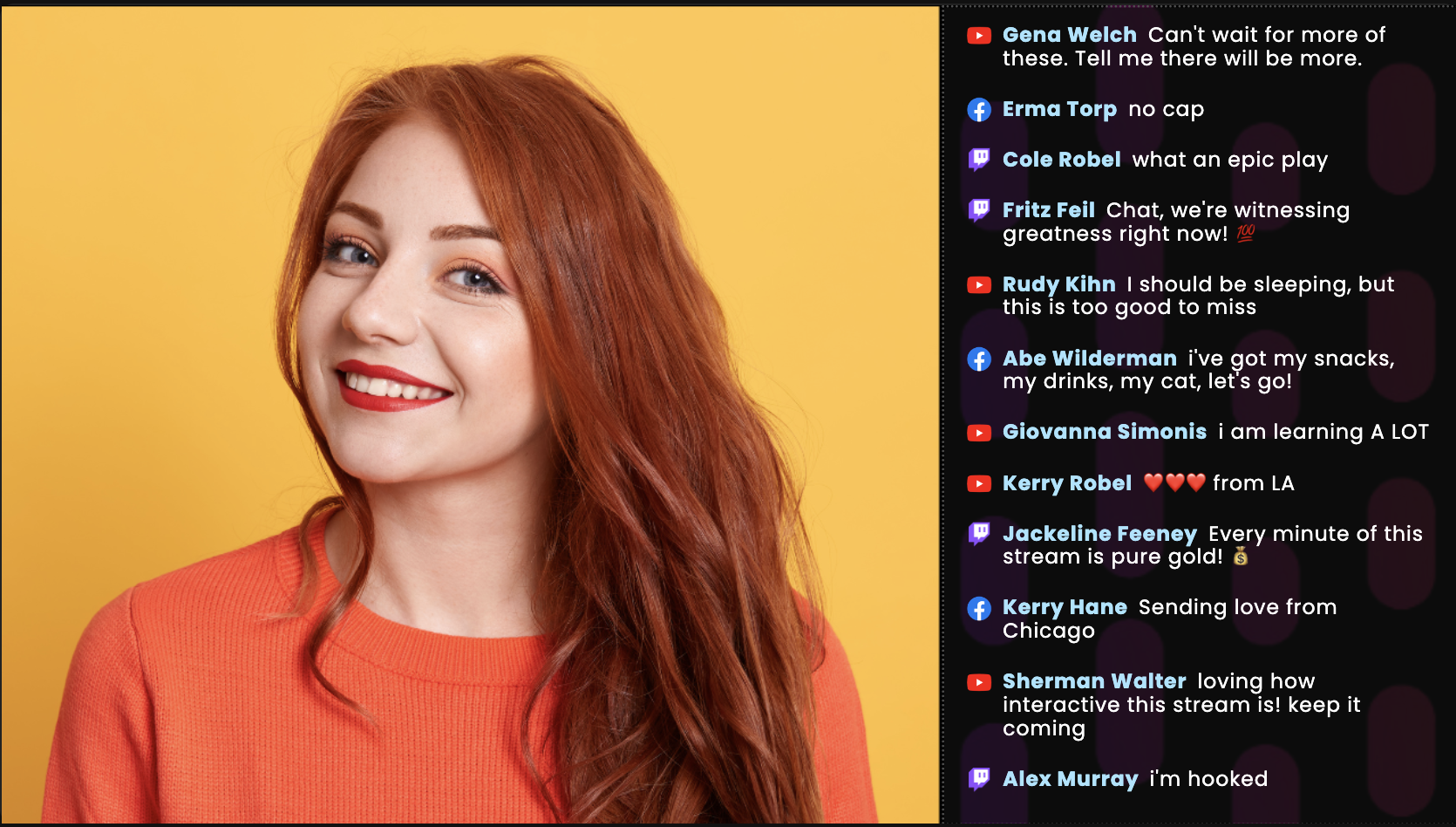
With filtering and moderation options, you can also use Chat to highlight specific hashtags, host special Q&A segments, and more.
What is Chat Pro?
With both Chat and Chat Pro, Effi lets you curate and display incoming messages from viewers on all platforms to viewers on all platforms. While Chat offers a more "set it and forget it" approach to curation, Chat Pro gives you full control with its own Moderation Panel that lets you hand-select each message displayed to viewers.
Here's a look at the Moderation Panel
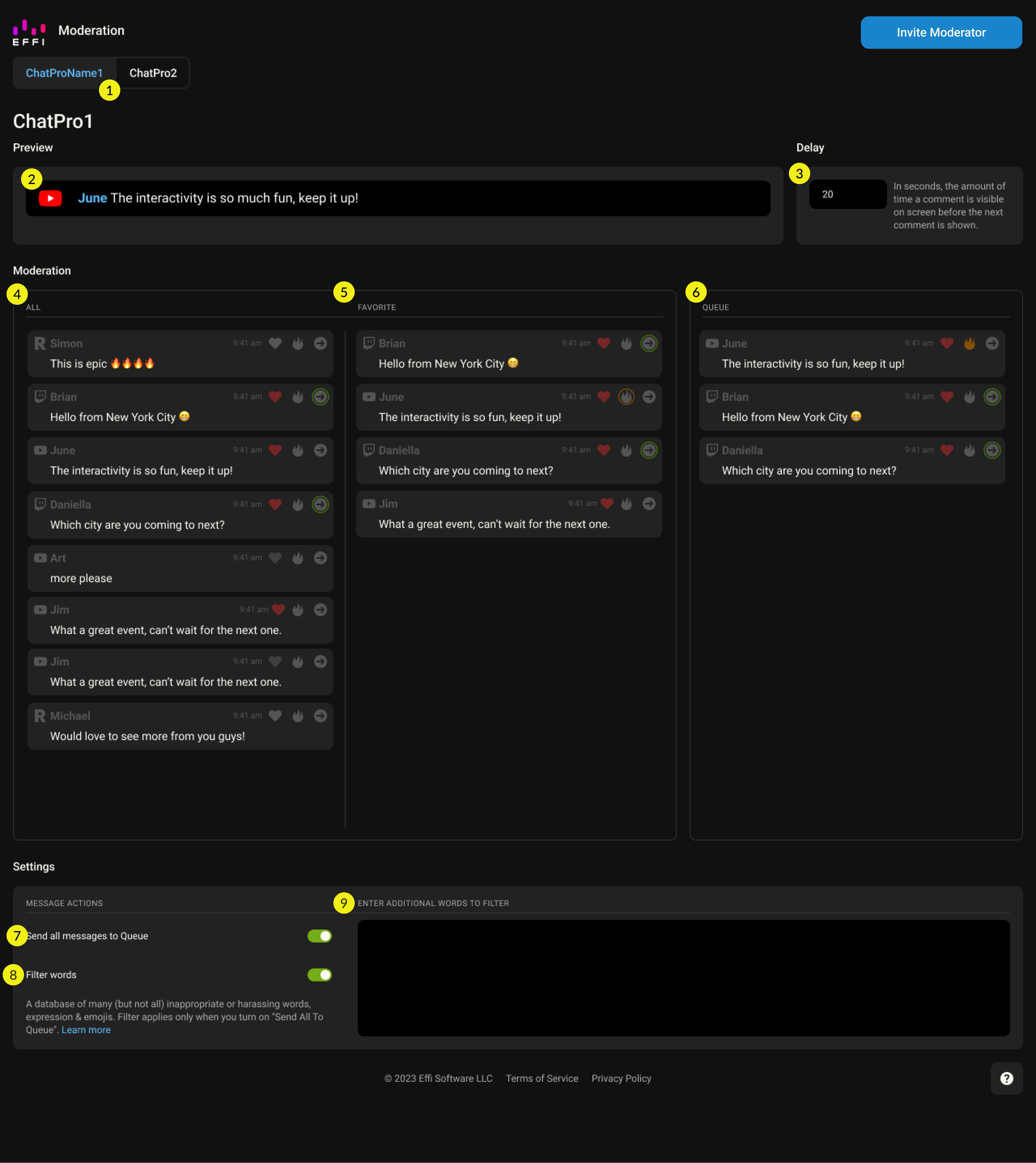
- Chat Pro List: If you're using more than one Chat Pro in your event, they'll be listed at the top. Each requires separate moderation, but you can toggle between them from this panel.
- Chat Preview: Shows you the chat window exactly how the audience sees it.
- Delay: The time between messages in the queue. Default is 20 seconds — but this really depends on volume. Lots of comments coming in? Lower the number so more get seen and no single comment sits on screen too long.
- All: Shows all incoming messages from every platform you're streaming to.
- Favorite: Shows all the messages you've favorited.
- Queue: The list of messages you've decided will be shown to the audience, displayed top to bottom.
- Send all messages to Queue: Toggling this on automatically sends all incoming messages to the queue.
- Filter words: We maintain a database of inappropriate, hateful, and harassing words, expressions, and emojis. Toggling this on filters those out — but note it only applies when "Send all messages to Queue" is also on.
- Enter additional words to filter: Add anything else you'd like filtered from chat here.
- Invite Moderator: Invite someone as a moderator. They'll only have access to the Moderation Panel — nothing else in your event or account.
That covers the basics of the Moderation Panel — but to actually use it, you'll want to know the symbols next to each message:
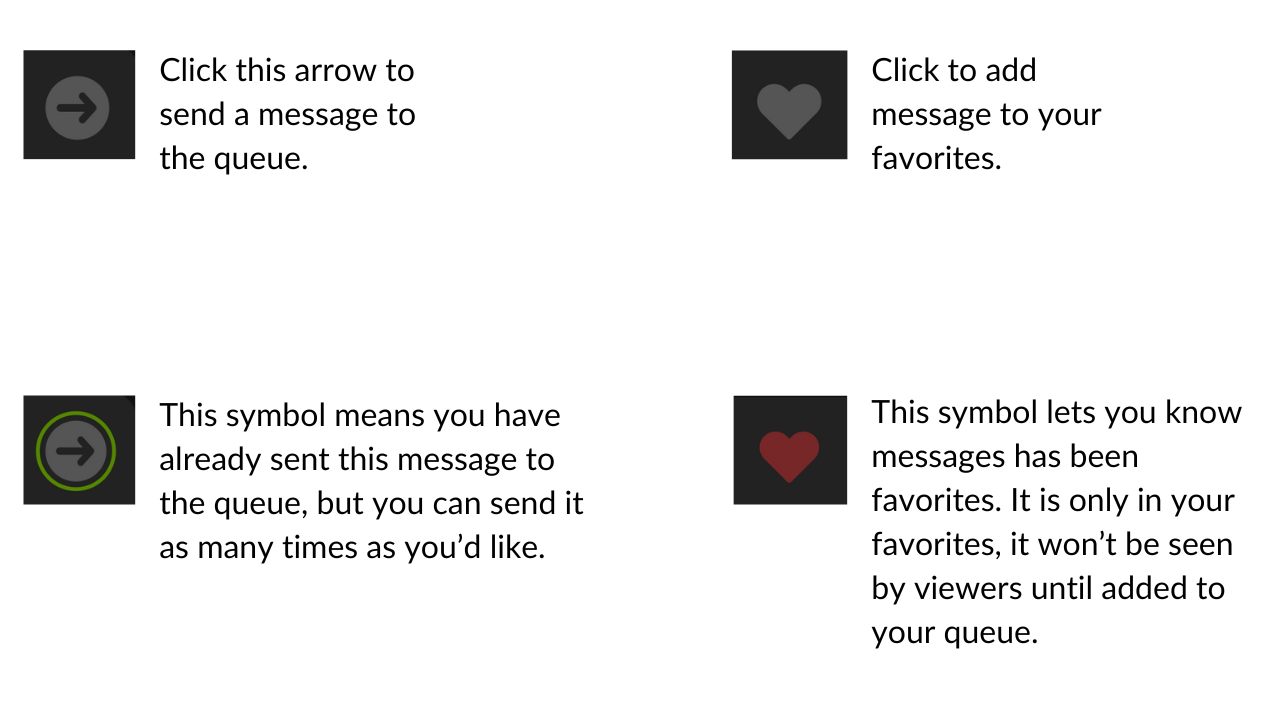
- Arrow (gray): Click to send a message to the queue.
- Heart (gray): Click to add a message to your favorites.
- Arrow (green outline): Means you've already sent this message to the queue — you can send it again as many times as you'd like.
- Heart (red): Means the message has been favorited. It's only in your favorites — it won't be seen by viewers until you also add it to your queue.
Note: Chat Pro requires a pretty hands-on approach, so for many types of events it may also need an extra set of hands — that's why you can invite moderators right from your Chat Pro element.
Curating Messages: Chat vs. Chat Pro
Chat was built with a "set it and forget it" usability — add the element and it displays all incoming messages while you focus on the stream. But if you want to ride the line between ease of use and automation, Chat also lets you manually select each message from the audience chat to display. Once you choose to show or hide a message, the change is reflected immediately in the display window.
Chat Pro gives you more flexibility in curation. It features a separate Moderation Panel that lets you curate a custom queue, choose how long messages are displayed, and save great messages for later.
That flexibility comes with a bit more hands-on effort, and Chat Pro will often require a person dedicated solely to chat. If you have a team member who can act as a moderator, assign them the moderator role — they'll get access to just the Moderation Panel, while you and your team retain full settings and customization access.
Which One Should You Choose?
- Think about your event. Is it more casual? The regular Chat element is a good, less formal option. Is it a bigger, paid event? You might want more control over what's displayed — that's Chat Pro.
- Do you have the resources? Chat Pro requires an extra set of hands. If you don't have a team member to spare, Chat might be the better fit.
No matter which you choose, you'll give viewers the thrill of having their comments highlighted and the ability to see what's happening on other platforms you're streaming to — creating a fun, engaging community vibe across your whole audience, regardless of where they're watching from.
A Quick Note on Emojis
Effi supports emojis in all of its elements, including Chat and Chat Pro — messages display exactly how viewers send them, smiley faces, fire signs, and all. The one exception: platform-specific emotes (like a channel-specific Twitch emote) won't render — but all standard emojis will.
Was this article helpful?
That’s Great!
Thank you for your feedback
Sorry! We couldn't be helpful
Thank you for your feedback
Feedback sent
We appreciate your effort and will try to fix the article