Chat is a great and easy way to pull the audience into the action of your live event. Seeing their name displayed on screen can make them feel special, involved, and keep them engaged. But what happens when you see a message you don't want displayed to viewers? Luckily, with filtering and moderation options, Effi lets you highlight the messages you want and remove the ones you don't.
Removing a Message from Chat
All moderation for the regular Chat element is done through Audience Chat. Audience Chat lets you see all incoming messages throughout the broadcast, whether there's a chat element on screen or not.
1.Open Audience Chat
Click the Chat Bubble icon at the top right of Stage.
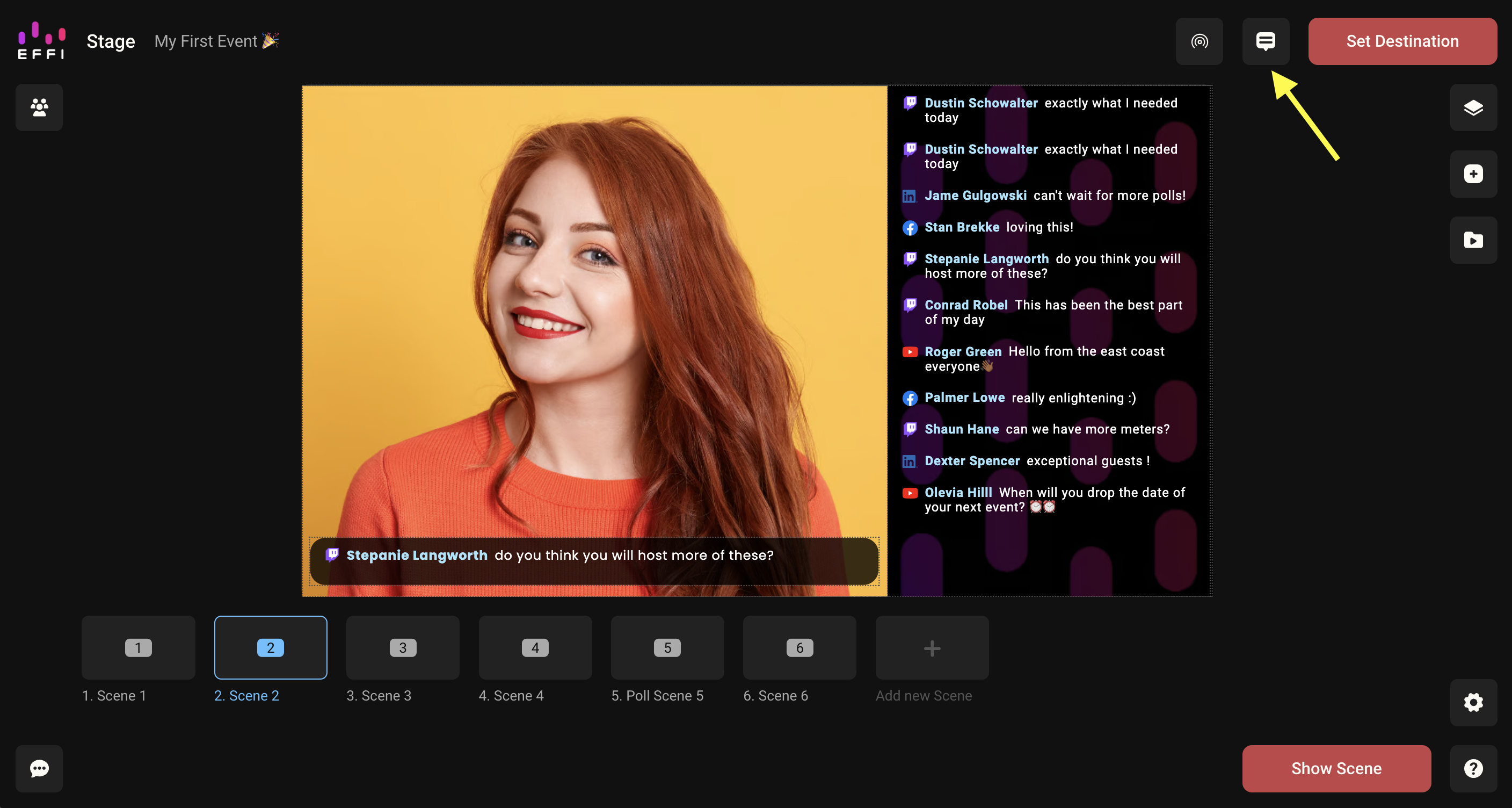
2. Review what's live
You'll see all of the messages currently displayed, or about to be displayed, outlined for you.
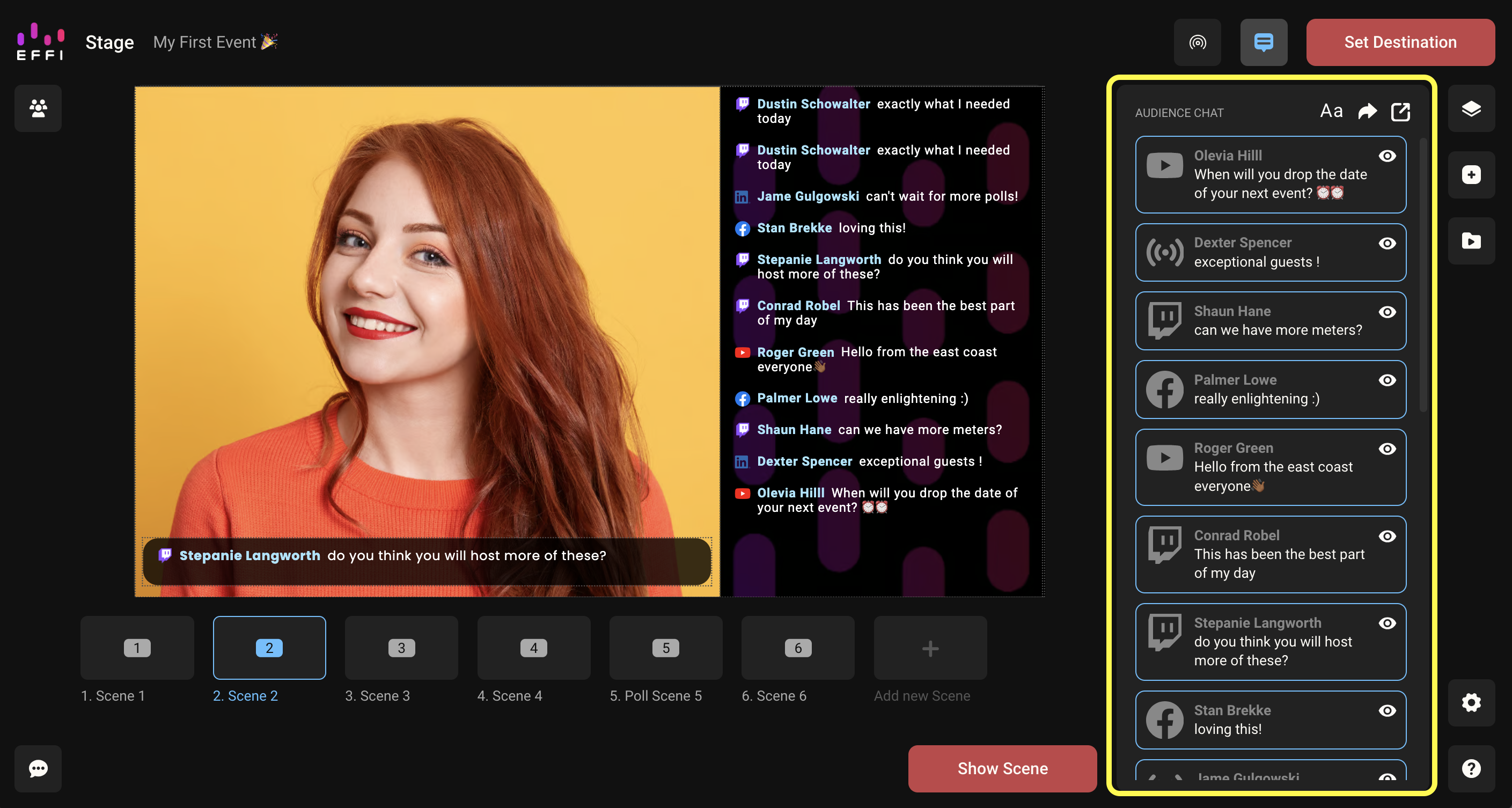
3. Hide a message
Find the message you want to remove, and click the eyeball icon to hide it.
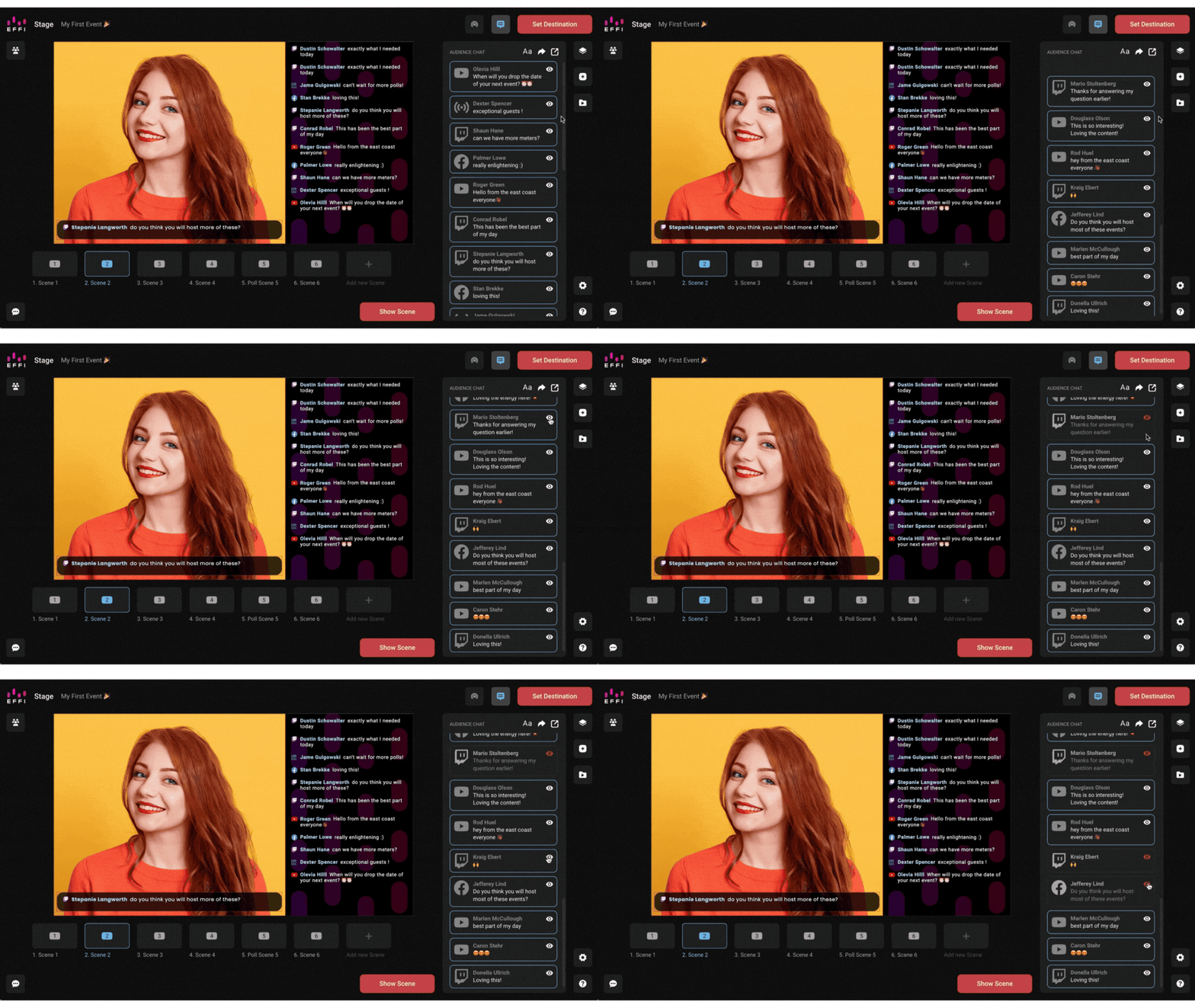
If you change your mind, just click the icon again to show it. It's that simple to remove a message.
While Chat was created with a "set it and forget it" usability, we still made sure to load it with tools and settings to make sure that no unwanted messages get shown to your audience.
Filtering Chat Messages
We know you want to make your audience feel seen by displaying their messages live in your broadcast — plus, who doesn't like seeing their comment on screen? But we also know there are probably some things you don't want displayed live for everyone to see. That's why Effi's chat elements feature an array of filtering options, so you can filter out everything you don't want and leave all the fun, awesome messages in.
Filtering Options
- Profane and harassing words: filters out a pre-selected list of words.
- Enter additional words to filter: add your own list of words, or add to the pre-selected list.
- Hide URLs: filters out all links from the chat.
- Hide users: add specific usernames you'd like to filter out of your chat.
How to Enable Filters on Chat
You can find all filtering options in the settings menu of your Chat element. Once you've added a Chat element to your scene, you'll see a menu on the right-hand side for Design and another for Settings. Choose Settings and select which of the filtering options above you'd like to enable for your stream.
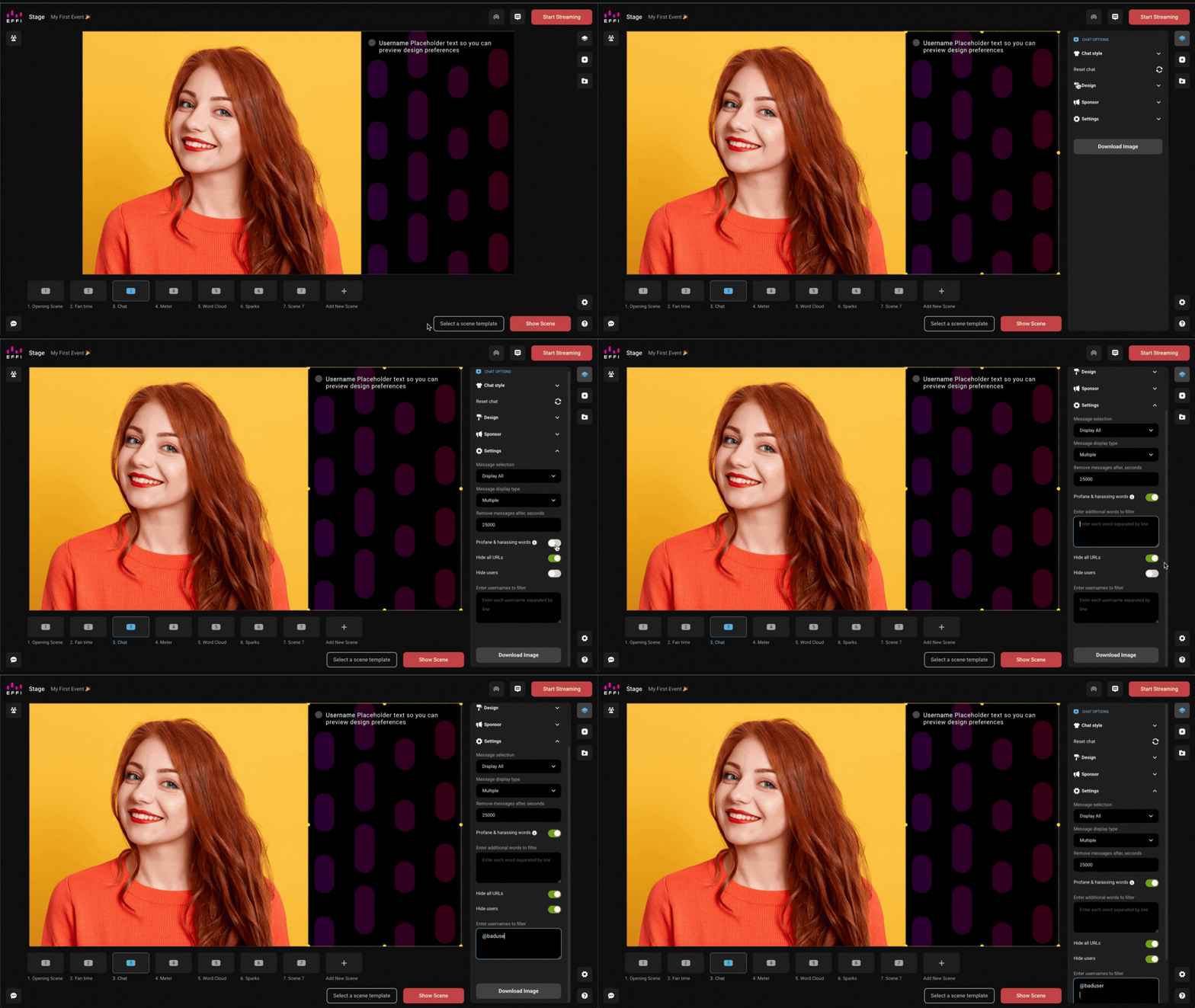
? Note: You'll be able to change these options at any time, and the filter settings you choose now will not carry over to other events.
How to Enable Filters on Chat Pro
You can find all filtering options in the Moderation Panel of your Chat Pro element. Once you've added Chat Pro to your scene, you'll see a menu on the right-hand side for Moderation and a link to your Moderation Panel, where you can moderate and curate your chat. Scroll down to find the filtering options above and choose which you'd like to use for your stream.
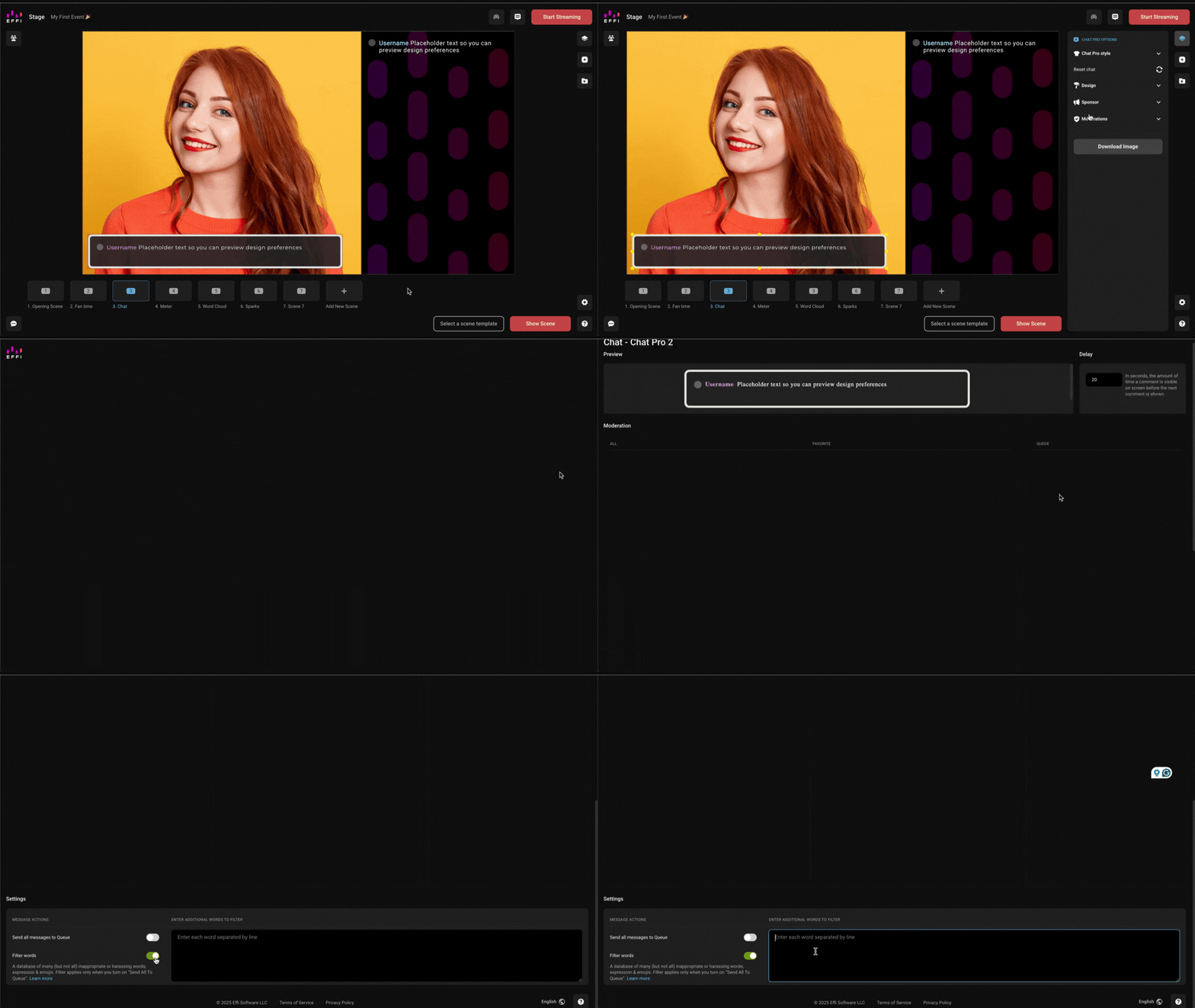
Filtering your chat is super simple and customizable with Effi. It's also worth noting that each platform you plan on streaming to — YouTube, Twitch, Facebook, etc. — has its own set of filtering options, so if you've already set up filtering on those platforms, those settings will carry over to your Effi event.
Was this article helpful?
That’s Great!
Thank you for your feedback
Sorry! We couldn't be helpful
Thank you for your feedback
Feedback sent
We appreciate your effort and will try to fix the article